Home
» WINDOWS
»
Convert eBook Files for Your Reader With Hamster Free eBook Converter
Convert eBook Files for Your Reader With Hamster Free eBook Converter
Hamster Free eBook Converter was a free Windows program designed to turn supported eBook and document files into formats suited to different e-readers. The program is now best understood as a legacy tool, not a current recommendation for every device. Its former official download page could not be reached during our November 2026 review, and we could not verify a maintained release or current Windows compatibility.
What Hamster Free eBook Converter did
The original application focused on batch conversion without requiring users to learn advanced encoding settings. It offered reader presets for brands such as Amazon Kindle, Sony Reader, Barnes & Noble Nook, Kobo, and several older devices. It also listed output formats including EPUB, PDF, TXT, FB2, PDB, LIT, HTMLZ, and LRF. Support varies by version and device.
Important: Converting a file format is not the same as making a book work on any device. You must still account for your reader's supported formats, copy or transfer method, digital rights restrictions, and how well the source document converts.
How to convert eBooks with Hamster: the original four-step workflow
These instructions describe the interface reported for the original Windows application. Menu names and results may differ in other builds. The visual examples show the general workflow, not screenshots of a newly tested Hamster release.
1. Prepare the files you want to convert
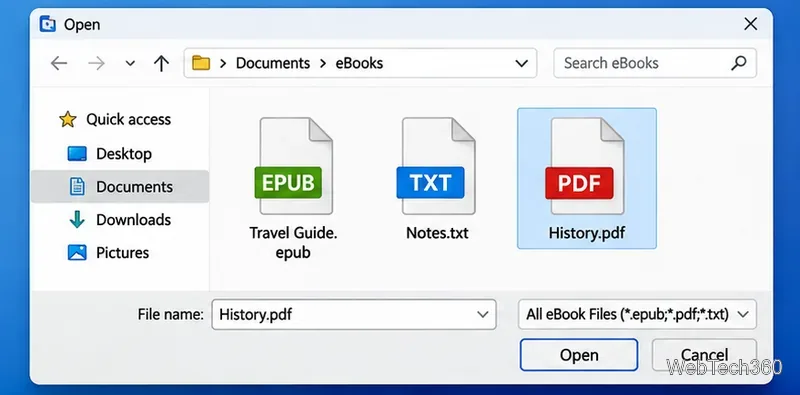
Make a backup of the originals. Choose DRM-free files that you have permission to convert. If the source is a scanned PDF, expect poorer text reflow than with an EPUB or a well-structured text document.
Start with books and documents that you are permitted to convert.
2. Add books to the conversion list
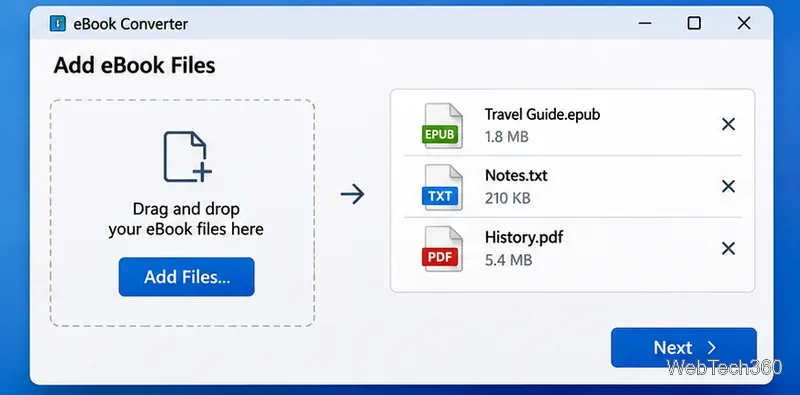
In the original program, you could add several documents at once or drag files into the window. You could edit a displayed book title, then select Next to move to output settings. Double-check that you have included only the titles you want to process.
The original Hamster workflow added several input files before choosing conversion settings.
3. Select a device preset or output format
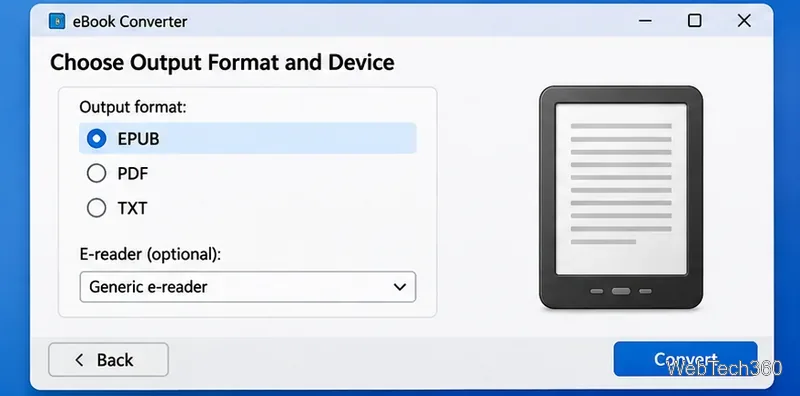
Select the intended e-reader brand and model if your build lists it, or choose an explicit file format. For ordinary reflowable books, EPUB is often the sensible starting point for EPUB-compatible apps and readers. Avoid obsolete formats unless an older reader specifically requires them.
Kindle needs particular attention: Amazon's Send to Kindle documentation lists EPUB among the files its sending service accepts, but that does not mean every Kindle can open a copied EPUB file directly over USB. Check the transfer method you plan to use.
Choose a file format that your particular reader or reading app supports.
4. Convert, save, and inspect the output
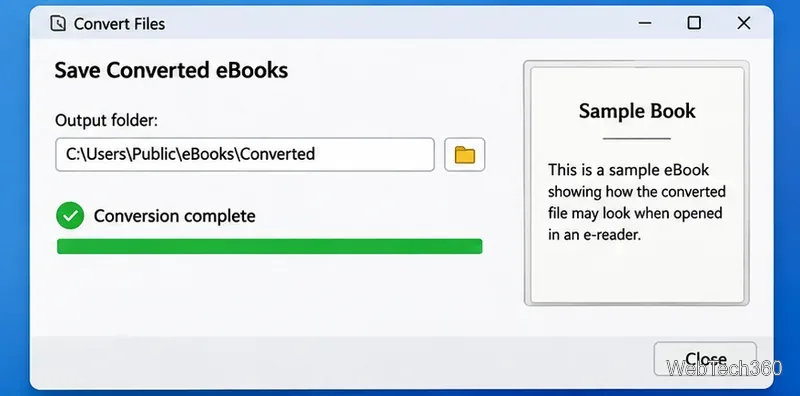
In the original workflow, selecting Convert prompted you for an output location and started processing. Save to a new folder so you do not overwrite the source copies. After conversion, open at least one book and inspect its table of contents, headings, pictures, page breaks, and special characters. Transfer the file using the method your device supports.
Keep the converted files in a folder you can find, then inspect the results on your reader.
Format choices and common problems
Situation
What to check
An EPUB will not open on a Kindle
Try Amazon's supported Send to Kindle workflow rather than assuming USB sideloading accepts EPUB directly.
Converted PDF text appears scrambled
PDF page layouts do not reliably turn into reflowable eBooks, especially when pages are scanned, multi-column, or table-heavy.
Cover, headings, or chapter links disappear
Preview the output and, when available, begin from a structured EPUB or DOCX source.
The book is copy-protected
A format converter generally cannot process DRM-protected content without appropriate authorization and support.
For a deeper explanation of why PDF conversion can fail, see the calibre conversion documentation. It explains why PDF layout and text extraction can be unreliable.
Is Hamster Free eBook Converter still safe to download?
We could not confirm a working official Hamster download or an actively maintained version as of November 2026. The original vendor address was https://ebook.hamstersoft.com/en/home, but it was unavailable during this review. That is not proof the software no longer exists; it is a reason not to recommend random third-party installer mirrors. Avoid installers that bundle unrelated software or lack a trustworthy publisher and clear provenance.
There is also a historical licensing concern. In 2011, calibre's developer said Hamster used calibre's GPLv3-licensed conversion code without making the complete corresponding source code available. A later update in the same developer discussion reported that HamsterSoft had taken its converter down while working on compliance. Those statements document a past dispute, not the legal status of an unverified current build.
A maintained alternative if Hamster is unavailable
If you need to convert books today, the actively documented, open-source calibre application supports eBook conversion and book management on Windows, macOS, and Linux. Download it from the official calibre download page, add a book, choose Convert books, select an output format, and check the result before sending it to your reader. Its manual covers device transfers.
Hamster's simple device-oriented approach remains worth understanding if you encounter an older Windows installation. For a fresh installation, however, prioritize a converter with a verifiable download source, documented format support, and ongoing updates.