Home
» WINDOWS
»
Create and Edit Windows File Associations With ExtMan
Create and Edit Windows File Associations With ExtMan
ExtMan is a small Windows file-extension manager that was designed to create file-type entries, edit their associated actions, change icons, and export registration backups. It offers more control over classic file-type settings than simply choosing an application in File Explorer. However, it is a legacy utility: its documented use centers on Windows XP, Vista, and 7, not modern Windows 11. Here is how its original workflow works, plus the safer way to change default apps on current PCs.
What can you manage with ExtMan?
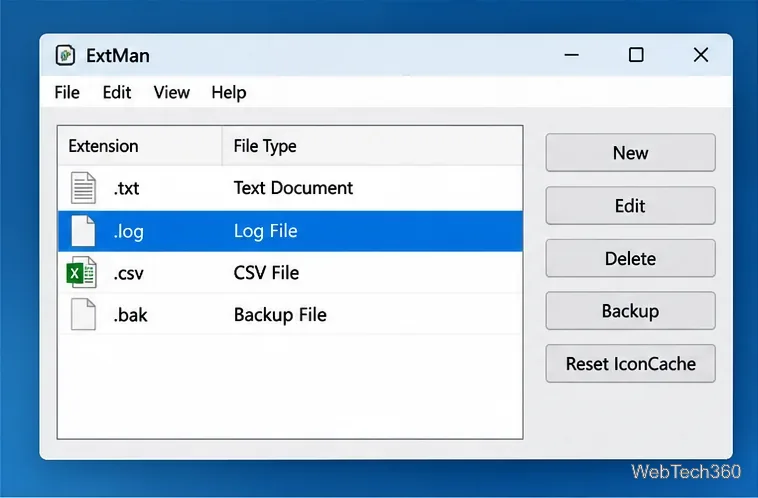
ExtMan displays registered extensions and the actions associated with them. Its compact interface brings several functions into one place:
Create a file extension: add a new registered type for files your software understands.
Edit an existing extension: adjust its description, icon, and available actions.
Manage actions: inspect or modify commands such as Open or Edit and select a default action where supported.
Back up entries: export selected registration information to a Windows Registry .reg file.
Refresh icons: use the icon-cache reset option if a changed file-type icon is not immediately displayed.
The application originally starts in German, with an option to switch its interface to English. Its main window lists extensions and includes controls for adding, editing, and deleting entries. It also offers a way to locate extensions associated with the same application.
The extension list brings file-type management commands together in one window.
Before making changes, save a backup
File associations are connected to Windows Registry entries. Changing the wrong extension or action can leave files opening in an unexpected program, or not opening at all. Use a nonessential custom type for practice rather than altering common types such as .exe, .lnk, or .bat.
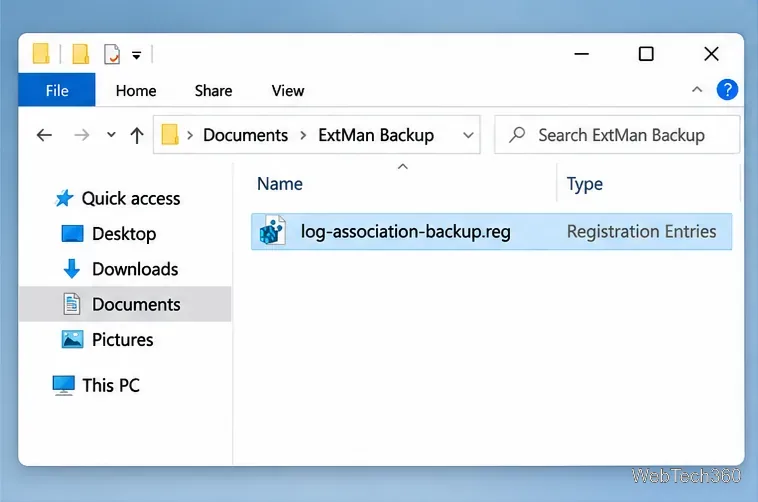
On a legacy system where ExtMan is already available, select the extension and use its Backup function to save a .reg file in a clearly labeled folder. Keep a record of the original icon and action settings too. A registry export is not a complete system backup, and importing it does not guarantee that Windows 11 will restore your preferred default app.
Keep the exported registration entry somewhere identifiable before changing its actions.
How to create or edit a file extension in ExtMan
Select an entry or create one. Find an existing extension in the list and choose Edit, or use New to register an additional file type. Enter the extension with its leading dot, such as .notesx.
Set the file description and icon. Give the type an understandable label and, when required, choose an icon. An icon affects appearance; it does not change the data inside a file.
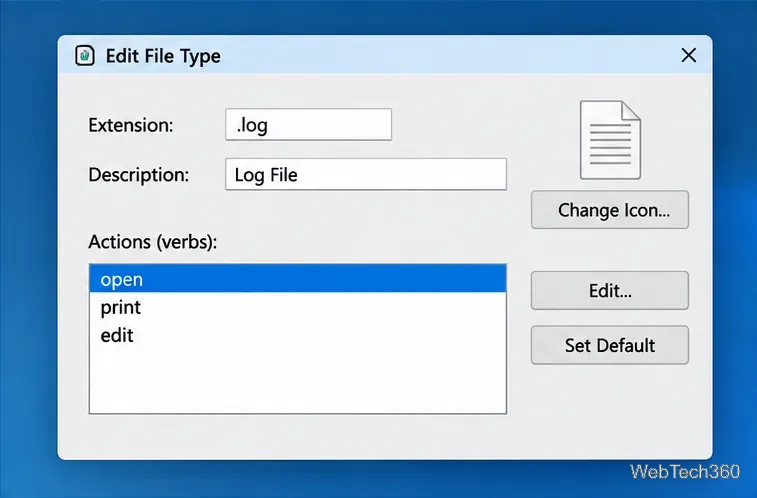
Review its actions. In the editing dialog, inspect existing actions such as Open, Edit, or Print. When creating an action, point it to a trusted installed program that actually supports the format. If the software lets you edit command parameters, make sure the application receives the selected filename correctly.
Save and verify. Apply the change, then test with a disposable sample file. If icons remain stale, try ExtMan's Reset IconCache option. Do not delete an original association just to force a different default program.
A file-type editing dialog illustrates the information to review before modifying an action.
Important: registering an extension does not invent a new file format. Renaming a .txt file to .notesx does not convert its contents; the application still needs to understand the underlying data. Microsoft explains this distinction in its file-extension documentation.
Changing the default app in Windows 11
For most people using Windows 11, Settings is the supported way to decide which program opens a file extension. You do not need ExtMan for this task.
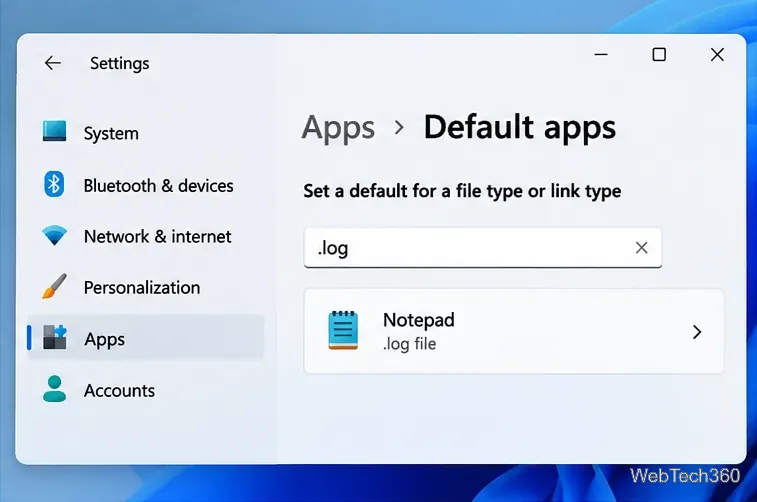
Open Settings > Apps > Default apps.
Search for the extension, including the leading period, such as .log or .txt.
Select the file type, choose a compatible installed application, and confirm the change if prompted.
Open a sample file to verify the selection. You can also search for an application in Default apps to review the types it supports.
Windows 11 provides a built-in way to select the application assigned to an extension.
These steps follow Microsoft’s current default-app instructions. On Windows 11, Windows protects user choices and does not support changing default apps through ordinary Registry writes. This means ExtMan may display or edit older registration details without being able to replace the current per-user default. Microsoft details the restriction in its Windows app defaults developer documentation.
Compatibility and common problems
Does ExtMan work on Windows 10 or 11?
ExtMan is historical software associated with Windows XP, Vista, and 7. Reliable, officially verified compatibility with current Windows 10 or Windows 11 builds is not established here. The original developer download page is no longer reliably accessible, so avoid treating an unknown third-party installer as an official update. Windows 10 also reached the end of standard support on October 14, 2025.
Why didn't my new association take effect?
First confirm that the chosen program can open the format. Next check Windows Default apps: a user-selected default may take precedence over the file-type registration. If only the icon looks wrong, refresh File Explorer or its icon cache rather than changing the executable again. For registered file types, Windows also uses application identifiers known as ProgIDs; changing an extension alone is not always enough to build a complete association. See Microsoft’s file-type registration reference.
Bottom line: ExtMan remains useful for understanding and editing classic Windows file-type registrations on older systems. For choosing which application opens a file on Windows 11, use Default apps in Settings; it is safer and aligns with Microsoft's supported behavior.