Home
» WINDOWS
»
GonVisor: View Comics, Images, PDFs, and Compressed Archives on Windows
GonVisor: View Comics, Images, PDFs, and Compressed Archives on Windows
GonVisor is a free Windows image and comic reader for opening picture folders, digital comics, image-based PDFs, and image collections stored in supported compressed archives. It is especially useful when you want to read CBR or CBZ comics without extracting every page first. It also provides two-page reading, zoom, bookmarks, image adjustments, and tools for organizing a comic collection.
According to the developer's official download page, the current listed release is GonVisor 2.93 (December 2025), offered as a standard Windows installer or a portable version.
Which image, comic, and archive formats does GonVisor open?
GonVisor reads common image formats such as JPG, PNG, TIFF, and WebP, as well as sequences of images contained in folders. Its comic-reading features support CBR and CBZ, plus CB7 and certain other archive-based comic formats. The developer also lists ZIP, RAR, and 7z archives as image sources.
These are image-viewing capabilities, not general-purpose archive management. A ZIP containing program installers, spreadsheets, or unrelated documents should be handled with an appropriate archive utility rather than GonVisor. An EPUB or Kindle e-book is not equivalent to a comic archive, either; GonVisor is primarily for image-based reading.
There are two compatibility details worth knowing:
PDF: GonVisor can display PDF pages, and the 2.92 update improved PDF integration. The developer also offers supporting PDF tools if PDF handling needs repair.
CBA/ACE: Older descriptions list these formats, but the developer removed the ACE decoding library from new installations in 2019 because of a security vulnerability. Do not assume a fresh installation will open CBA or ACE, and avoid adding an obsolete library just to enable them.
Some 7z/CB7 files may require the external 7-Zip tool, as explained on the developer's tools page. Individual formats such as HEIC/HEIF or AVIF can also depend on codecs installed in Windows.
Opening and reading a comic or image folder
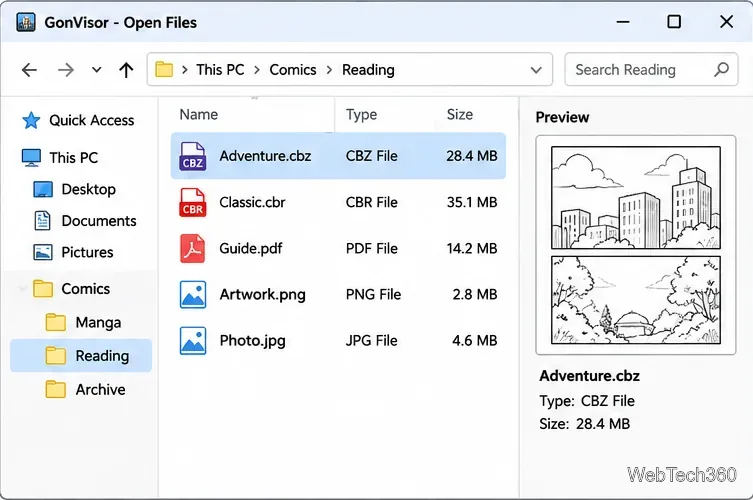
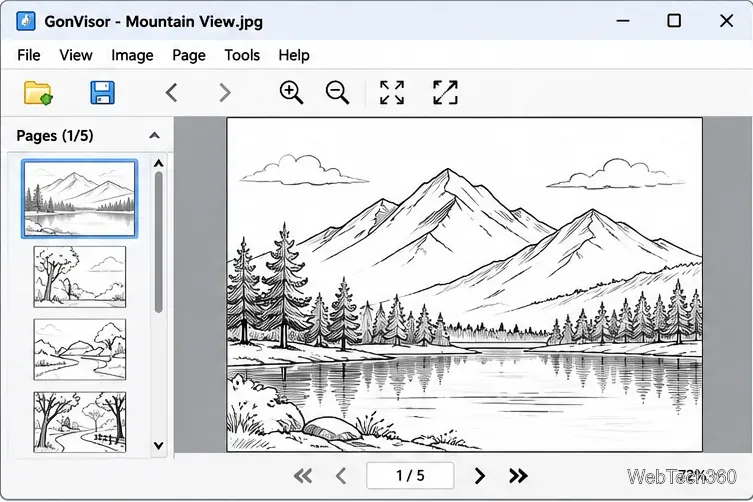
You can open a supported file using GonVisor's File menu or drag it from Windows File Explorer into the reader. To browse a series of separate pictures, choose the folder or image-list opening option instead of selecting every file individually. Once loaded, move between pages with the on-screen controls or your configured keyboard and mouse shortcuts.
The viewer can remember reading positions and offers bookmarks for returning to a particular page. Recent files help you resume a collection after closing the application. You can customize hotkeys and mouse actions rather than relying on one fixed control scheme.
Reading modes: two pages, manga, zoom, and image enhancements
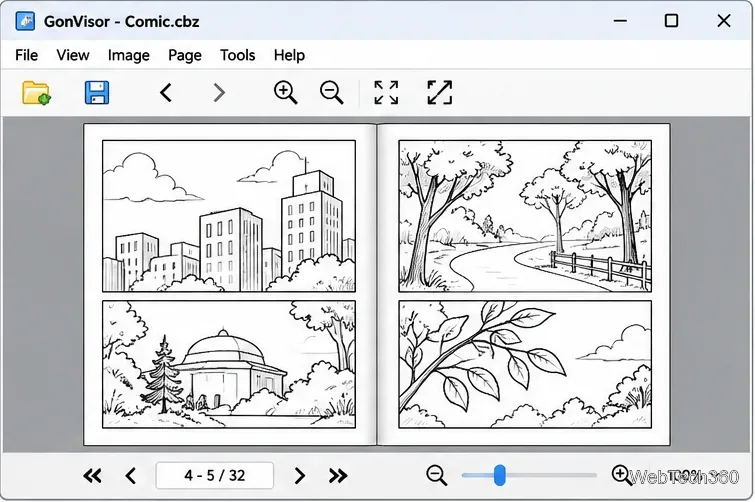
For magazines and comics designed around spreads, double-page mode places two images next to each other. Manga mode is available for right-to-left reading preferences, and a 2025 update added a dedicated Manga button to the control bar. GonVisor also offers full-screen viewing, magnification, rotation, automatic size fitting, and line-by-line movement for large scans.
Scanned comics sometimes have excessive white borders or uneven contrast. GonVisor includes margin reduction and image filters for adjustments such as contrast and normalization. Version 2.93 added preset low, medium, and high color corrections, along with more flexible mouse controls and a configurable double-page shadow. These tools change the viewing experience; they cannot restore detail missing from a severely damaged scan.
Organizing comics and building CBR or CBZ files
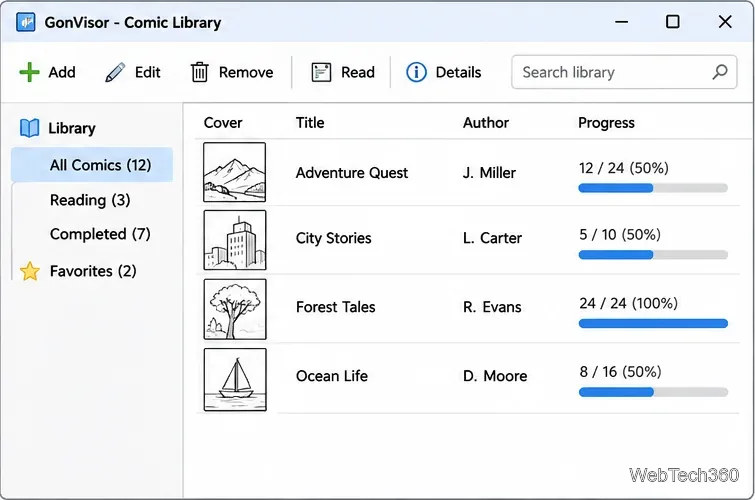
GonVisor is also a simple comic-library manager. Its management tools can search for comic files, display details, record which books are in progress or finished, and assign ratings. This makes it more useful than a basic image viewer when your collection spans many volumes.
It can also create CBR or CBZ collections from selected images. Arrange pages in the intended sequence, add descriptive details such as author, date, and comments, and use the available password-protection options when appropriate. You can extract images from supported comic archives or PDFs into a folder, and print loaded pages.
If you are preparing your own comic, name the source images in clear reading order before importing them—for example, page-001, page-002, and page-003. A consistent sequence makes it easier to check the result and avoids confusing page order.
Download options and practical limitations
Use the official GonVisor download page for either the Windows installer or the portable package. The portable edition is handy if you prefer not to run a traditional setup; extract its files before launching it. The developer also supplies an older Wine-oriented build for Linux, macOS, and other compatible environments, but that is not the same as a native application for those platforms.
GonVisor is available in several languages, including English, Spanish, French, German, Italian, and Portuguese. For installation, archive compatibility, or update questions, the official feature reference and release notes are more reliable than old download listings.
Use GonVisor when your files are images, image-based comics, or visual PDFs and you want flexible reading controls plus lightweight collection management. Use a dedicated e-book reader for EPUB-style reflowable books or a general archive manager for non-image ZIP, RAR, and 7z contents. Only open downloaded archives from sources you trust.