Home
» WINDOWS
»
How to Find Your Wi-Fi Password on Windows 11
How to Find Your Wi-Fi Password on Windows 11
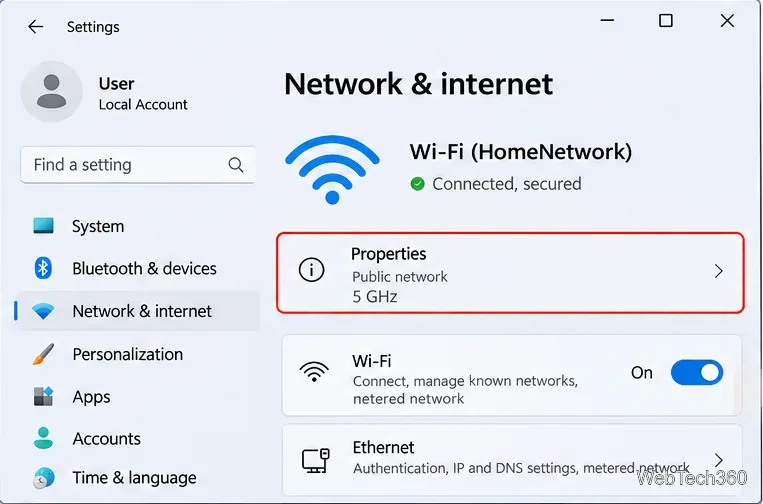
To find the Wi-Fi password on Windows 11, open Settings > Network & internet, select Properties for your connected Wi-Fi network, and choose Show next to Wi-Fi network password. If the network is not currently connected, you can usually find its password under Manage known networks, provided Windows still has its saved profile.
You do not need a third-party password recovery app. Windows includes ways to view credentials for networks you own or have permission to use. The exact Settings layout can differ with your Windows 11 version, so the alternative methods below are useful too.
Find the password for your current Wi-Fi network
Press Windows + I to open Settings.
Select Network & internet. Find the Wi-Fi connection marked as connected and open its Properties page. If necessary, go through Wi-Fi to reach the network details.
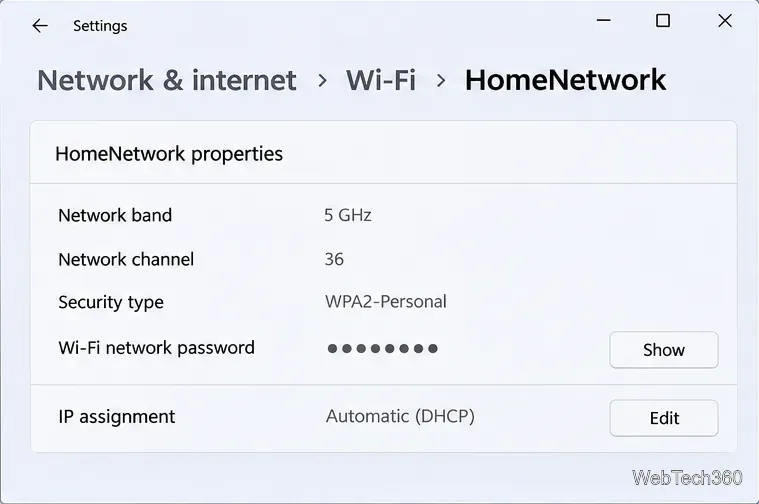
Scroll to Wi-Fi network password and select Show.
Read the password on the screen. On supported Windows 11 versions, you may also see a QR code another device can scan to join the network.
Open the connected Wi-Fi network’s Properties page from Settings.Select Show beside Wi-Fi network password to reveal the saved key.
This is Microsoft's current Settings-based method. The password is displayed only while you have access to the network profile on that PC. Keep the screen private if other people can see it.
Find a password for a previously connected Wi-Fi network
You do not have to reconnect to a network just to see its saved password. The key requirement is that Windows still remembers the network.
Open Settings and choose Network & internet > Wi-Fi.
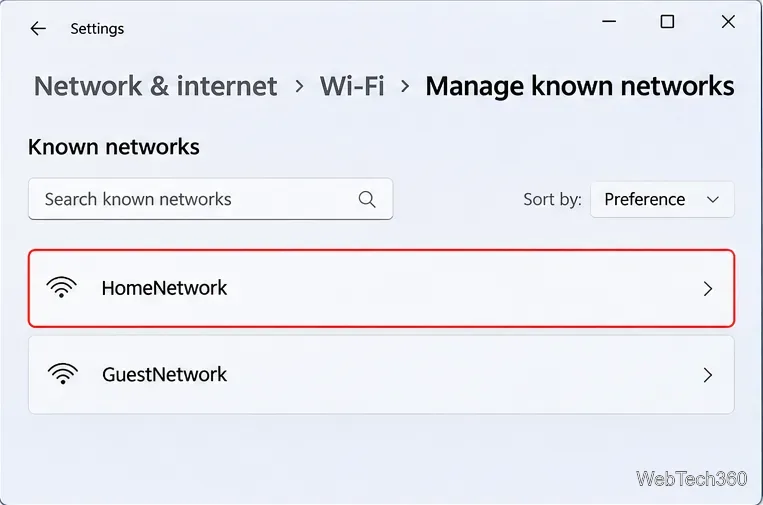
Select Manage known networks.
Choose the network name (SSID) you need from the list.
On its details page, select Show next to Wi-Fi network password, if that option is available.
Choose a previously saved Wi-Fi network to open its profile and locate the password setting.
The saved-network view is especially helpful when you're setting up a new phone, printer, or laptop. If you selected Forget in the past, that profile and its stored password may no longer be available on this PC.
Find a saved Wi-Fi password with Command Prompt
If you prefer commands, or the Show option is missing from your version of Settings, Windows includes the netsh tool. Use it only for networks you are authorized to access.
Open Start, type Command Prompt, and launch it. If Windows prevents you from seeing the stored key, try Run as administrator on a PC you own or manage.
List the Wi-Fi profiles stored on the PC:
netsh wlan show profiles
Look under User profiles for the exact network name. Then run:
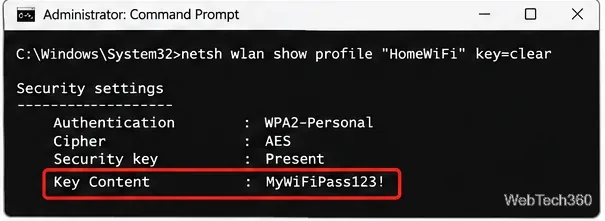
netsh wlan show profile name="HomeNetwork" key=clear
Replace HomeNetwork with the saved profile name. Keep the double quotation marks, especially if the name contains spaces.
In the command output, find Security settings and look for Key Content. When Windows is able to display a stored personal Wi-Fi key, its value appears on that line. This command does not uncover a key Windows never saved.
For a saved personal Wi-Fi profile, netsh may display the stored password beside Key Content.
Important: The command output can contain a password in plain text. Do not paste it into a public forum, share an unredacted screenshot, or save it in an unsecured document.
Use Control Panel if the Settings option is unavailable
Some Windows 11 installations still provide the classic wireless properties window. This route is useful for the network you're currently connected to:
Search Start for Control Panel and open it.
Go to Network and Internet > Network and Sharing Center.
Beside Connections, select the current Wi-Fi network name.
In Wi-Fi Status, select Wireless Properties.
Open the Security tab and check Show characters. Read the Network security key field.
Do not confuse the Wi-Fi password with your Microsoft account password, Windows PIN, or the password used to sign in to your router's administration page. These serve different purposes.
What if Windows 11 won't show the password?
The network is missing: Check Manage known networks. If the network was forgotten, Windows may no longer hold its password. Ask the network owner or check the router's settings if you administer it.
There is no Key Content line: The profile may not contain a readable shared key, or your account or organization may restrict access. Try an authorized administrator account; don't assume every network uses a recoverable password.
It's a work or school network: Enterprise Wi-Fi may use individual sign-ins, certificates, or managed settings rather than a single shareable password. Contact the IT administrator.
The password doesn't work on another device: Confirm the correct network name and capitalization. The router's Wi-Fi password may have changed since this PC saved its profile.