Home
» WINDOWS
»
How to Fix “docs.google.com Refused to Connect” in Google Docs
How to Fix “docs.google.com Refused to Connect” in Google Docs
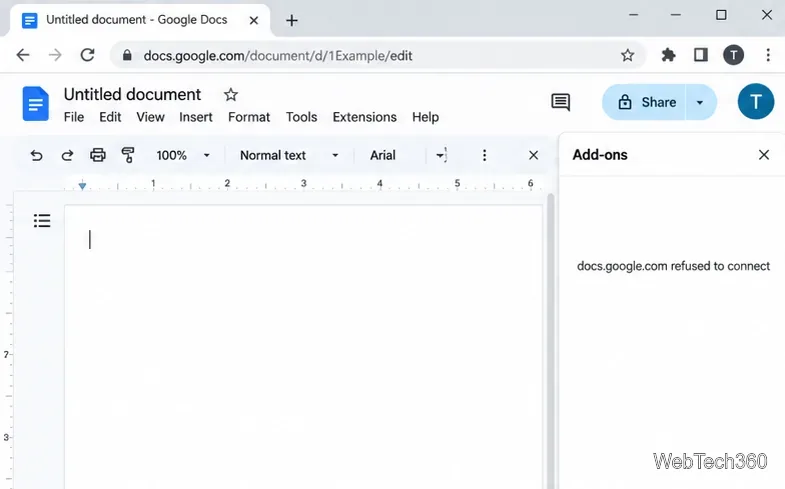
Seeing “docs.google.com refused to connect” when you open a Google Docs add-on? First, open Google Docs in its own browser tab. If your document opens normally but an add-on sidebar or authorization window fails, focus on the Google account, cookies, and add-on permissions. If even the main Docs page will not load, check the browser and network instead. The message alone does not identify a single cause.
1. Open the document directly and retry the add-on
Open a new browser tab and go to docs.google.com.
Open the affected document. If it loads, return to the add-on and refresh the document once.
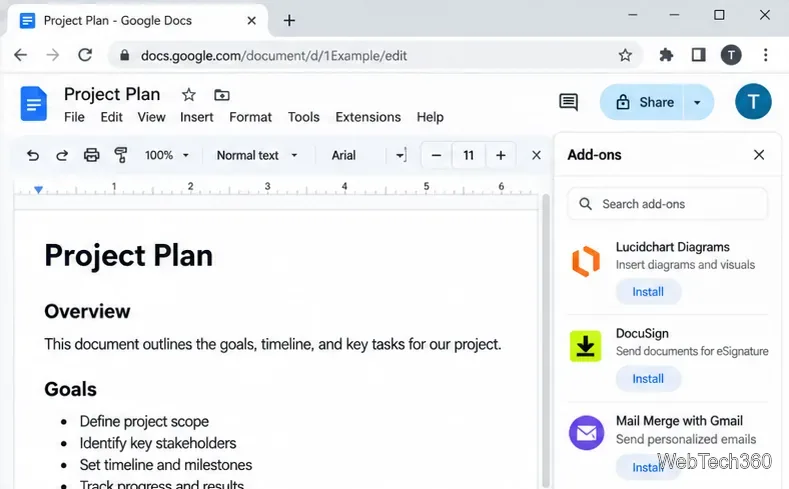
For an add-on that needs reinstalling, open Extensions > Add-ons > Get add-ons, find the app in Google Workspace Marketplace, and follow its installation and access prompts.
For an installed add-on, try Extensions > Add-ons > Manage add-ons to review it. Some Workspace add-ons also appear in the right sidebar.
Google documents these routes in its official add-on instructions. If Add-ons is missing while editing a Microsoft Office file, convert the file to Google Docs format before trying again. If the problem occurs only when a document is embedded inside another website, open the document directly instead; the surrounding website or the embedded page may restrict framing.
2. Make sure you are using the intended Google account
Account selection matters when personal and work accounts share one browser. Google notes that the default account can affect behavior across its services, so check the identity shown in Docs and in any add-on authorization window.
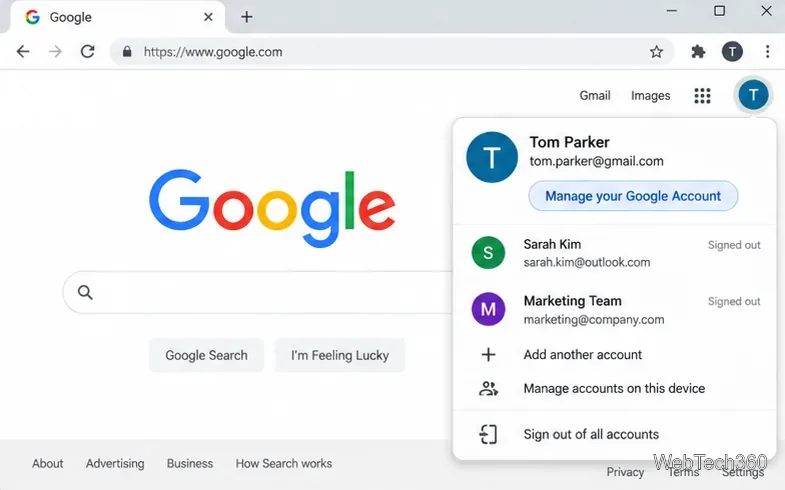
On a Google page, select your account picture in the upper-right corner.
Choose the account that owns or has access to the document and add-on.
If the wrong account keeps appearing, choose Sign out of all accounts, then sign in first with the account you want to use. Make sure you can complete two-step verification before signing out.
To avoid repeated sign-outs, create a separate Chrome profile for work or personal use: select Chrome’s profile icon > Add Chrome profile, then sign in to the relevant account. Chrome profiles keep cookies and other browser settings separate. See Google’s guides to using multiple accounts and managing Chrome profiles.
3. Check third-party cookies for the add-on
Some Google Docs add-ons rely on third-party cookies for embedded content or sign-in. Google explicitly warns that certain add-ons may not work without them. This does not mean you should allow every website to track you.
In Chrome, open Settings > Privacy and security > Third-party cookies.
When Docs shows a third-party-cookie control in the address bar, try the temporary site-specific allowance and reload the document.
Otherwise, review Sites allowed to use third-party cookies and add a narrowly scoped exception only when needed and permitted by your organization.
Retry the affected add-on, then remove any test exception you no longer need.
Follow the current Chrome cookie settings guide for the exact controls available on your device. Third-party cookies are blocked by default in Incognito, so a private window can actually make a cookie-dependent add-on fail.
4. Remove stale site data instead of clearing everything
Damaged or outdated site data can prevent a fresh sign-in. Start with the affected Google site rather than deleting every saved browser session.
Open Chrome Settings > Privacy and security > Third-party cookies > See all site data and permissions.
Search for docs.google.com and remove its stored site data.
Close and reopen the document, sign in again if requested, and retry the add-on.
If that does not help, use Chrome’s More > Delete browsing data to clear cached files and cookies more broadly. Deleting cookies signs you out of websites and can erase saved site preferences, so avoid an All time wipe unless it is necessary. Google explains the trade-offs in its cache and cookies guidance.
5. Test browser interference and account restrictions
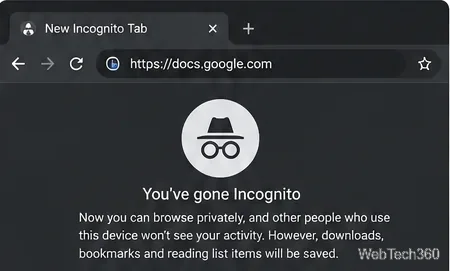
If the problem continues, open a Chrome Incognito window using Ctrl + Shift + N on Windows or Command + Shift + N on Mac, sign in, and test the document. This is a diagnostic check, not a guaranteed solution: extensions are generally disabled in the private session, but third-party cookies may be blocked.
If the error disappears outside your regular browser session, open More > Extensions > Manage extensions and disable likely interfering extensions one at a time, particularly privacy or security add-ons. Re-enable them after the test. Next, check More > Help > About Google Chrome and select Relaunch if an update is available. Google recommends both extension checks and browser troubleshooting in its Docs troubleshooting guide.
For a work or school account, look for a Marketplace message saying the app requires administrator privileges or has been blocked. In that case, ask your Google Workspace administrator whether the add-on is approved; browser changes cannot override an organization policy. Google lists these messages in its Marketplace installation help.
When the error still appears
Try another supported browser and, if appropriate, another network to determine whether the failure is limited to one setup. If Google Docs opens directly but fails only inside a particular website’s frame or add-on, contact that website or add-on provider with the exact error and where it appears. A page that refuses to be embedded cannot necessarily be fixed by clearing cookies or changing Chrome settings.