Home
» WINDOWS
»
How to Hide Specific Control Panel Items in Windows 10 and 11
How to Hide Specific Control Panel Items in Windows 10 and 11
To hide specific Control Panel items in Windows 10 or Windows 11, open the Local Group Policy Editor, go to User Configuration > Administrative Templates > Control Panel, enable Hide specified Control Panel items, and add each item’s canonical name to the list. This removes selected applets without hiding the entire Control Panel.
This method is intended for Windows Pro, Enterprise, and Education editions with Group Policy Editor available. It does not remove the feature, and it does not automatically hide the equivalent page in the modern Settings app.
Hide selected Control Panel applets with Group Policy
Use an account authorized to change local policy. If you manage a shared or work PC, check which users the policy will affect before applying it; the standard Local Computer Policy user settings are not a one-user-only switch.
1. Open Local Group Policy Editor
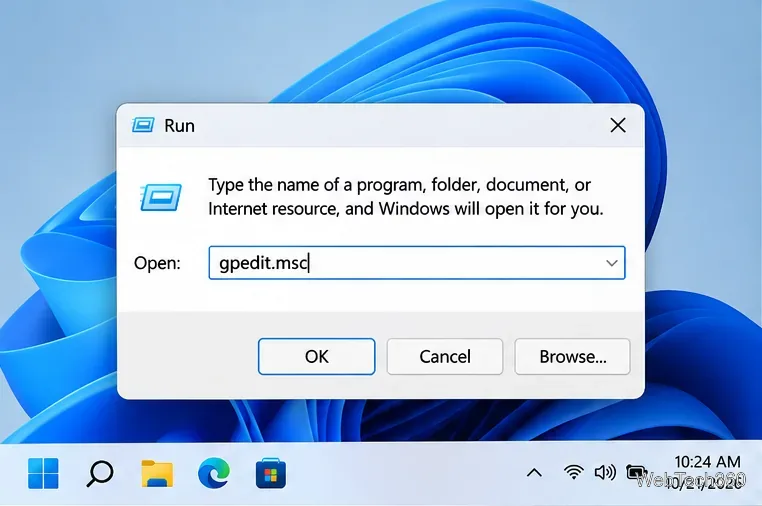
Press Windows + R, type gpedit.msc, and press Enter. You can also search Start for Edit group policy. If Windows cannot find gpedit.msc, check your Windows edition: the editor is not included with ordinary Home installations.
Open the Local Group Policy Editor by entering gpedit.msc in the Run dialog.
2. Find the Control Panel policy
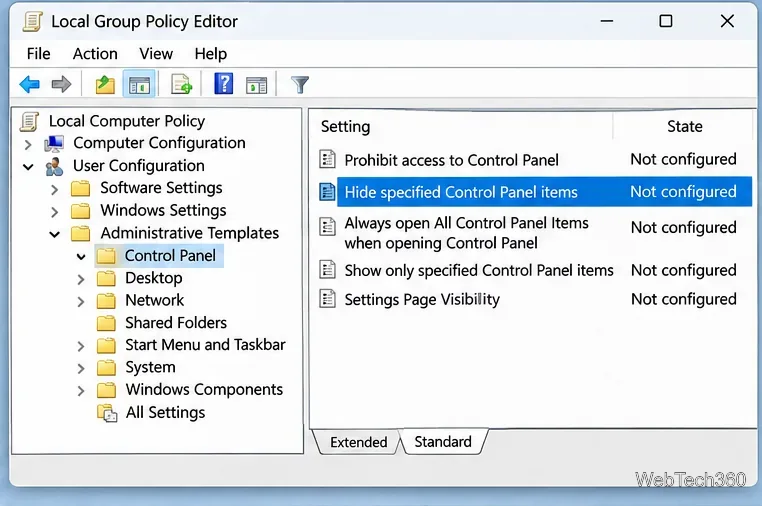
In the left pane, expand User Configuration > Administrative Templates > Control Panel. In the right pane, open Hide specified Control Panel items. Do not confuse this with Prohibit access to Control Panel and PC settings, which is a much broader restriction.
The policy is under User Configuration, not Computer Configuration.
3. Enable the policy
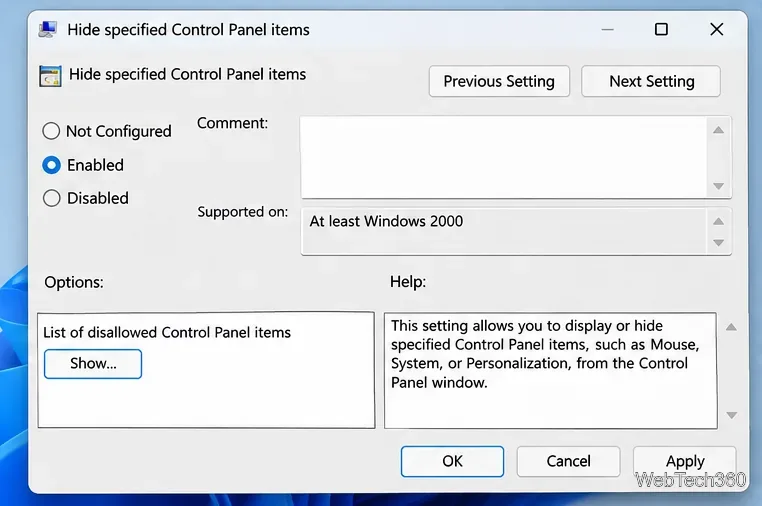
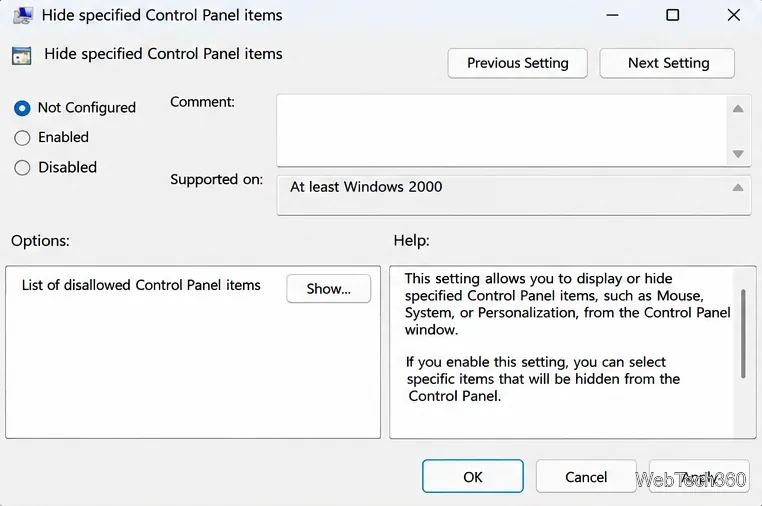
Select Enabled. In the Options area, click Show to open the list of items that Windows should hide.
Enable the policy, then open the list of disallowed Control Panel items.
4. Enter the canonical names
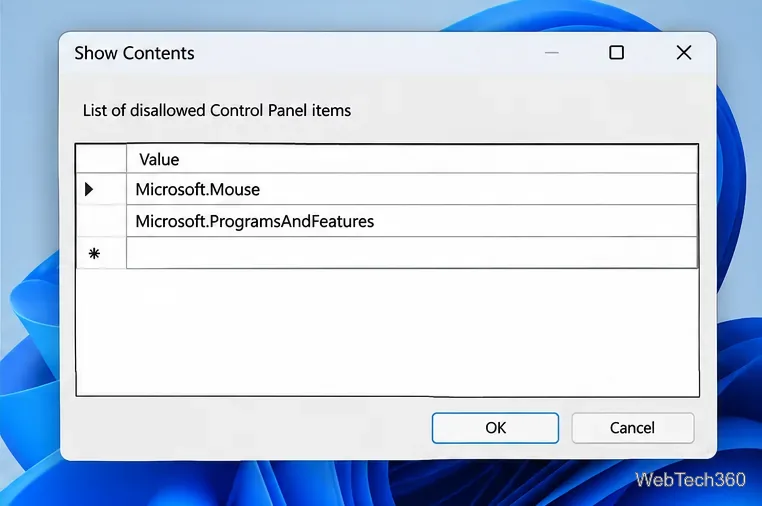
Type one canonical name per row in the Value column. These identifiers are not the friendly names shown under Control Panel. For example, use Microsoft.Mouse, not just “Mouse.”
Control Panel item
Canonical name
Mouse
Microsoft.Mouse
Programs and Features
Microsoft.ProgramsAndFeatures
Network and Sharing Center
Microsoft.NetworkAndSharingCenter
Sound
Microsoft.Sound
Availability varies by Windows release and hardware, and some older Control Panel entries now lead to Settings. Microsoft's canonical-name reference explains these identifiers and lists additional entries. For third-party applets, a matching canonical name may not exist.
Each restricted applet has its own row in the Show Contents dialog.
5. Apply the change and check Control Panel
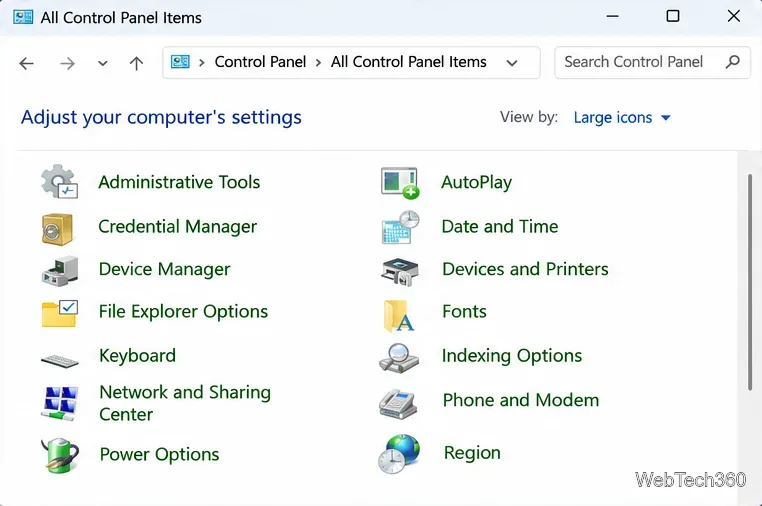
Click OK in the list, then Apply and OK in the policy window. Close and reopen Control Panel; choose View by: Large icons or Small icons to check whether the selected entries disappeared. If a change is not visible, sign out and back in or run gpupdate /force from Command Prompt, then check again. A restart can also refresh a stale session.
The policy also covers some paths that open Control Panel items through control.exe, but it is not a security boundary. Other management utilities, administrative tools, or Settings pages may still provide similar functionality. Use Windows permissions and appropriate device-management policies for actual access control.
Check the available applets in the All Control Panel Items view after policy refresh; the exact set varies by version.
Want to show only a few applets instead?
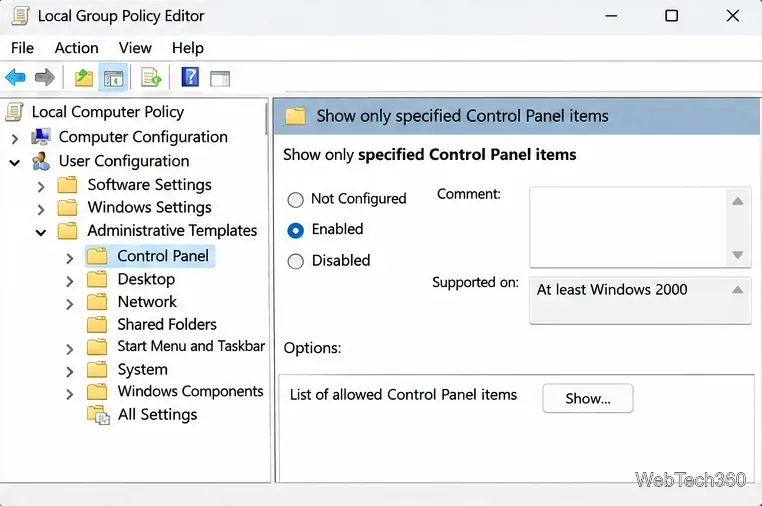
If you want to allow just a short list, use Show only specified Control Panel items in the same Group Policy location. Enable it, click Show, and enter the canonical names you want to keep visible. This is an allowlist rather than a blocklist. Avoid enabling both list policies: Microsoft's policy documentation notes that the hide list takes precedence when both are configured.
Use Show only specified Control Panel items when the list of permitted applets is shorter.
Restore hidden Control Panel items
Return to User Configuration > Administrative Templates > Control Panel > Hide specified Control Panel items. Remove individual names from the Show list to unhide only those entries. To stop the restriction entirely, select Not Configured and apply the change. Select Disabled if you want to keep the saved list but suspend the restriction. Refresh policy or sign in again if needed.
Choose Not Configured to stop enforcing the hide list.
Why are the same options still visible in Windows Settings?
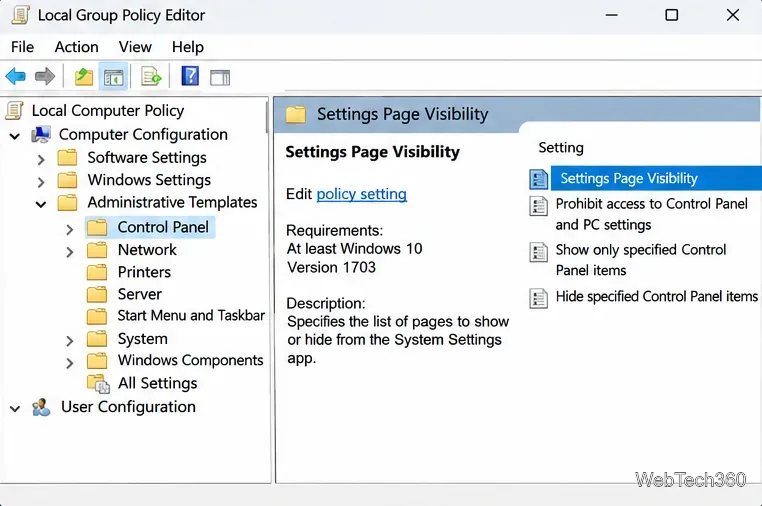
Control Panel and Settings are separate interfaces. Microsoft's documentation explicitly says that the Control Panel hide policy does not affect items displayed in PC Settings. To manage Settings pages, look instead for Settings Page Visibility under Computer Configuration > Administrative Templates > Control Panel. That policy accepts entries such as Hide:network-proxy or ShowOnly:network-ethernet, using Settings page identifiers rather than Control Panel canonical names.
Settings Page Visibility is a separate policy for the modern Settings app.
What if Group Policy Editor is missing?
Windows 10/11 Home does not normally include Local Group Policy Editor, so these steps are not directly available there. Avoid downloading unofficial “gpedit enabler” packages just to follow this procedure. If you only need to protect a shared computer, first use a standard user account and built-in permission controls; for managed devices, choose a supported Windows edition or organization policy. Hiding an applet is best treated as interface customization, not as a replacement for security permissions.