Home
» WINDOWS
»
How to Keep Num Lock Always On in Windows 10 and 11
How to Keep Num Lock Always On in Windows 10 and 11
To keep Num Lock always on in Windows 11 or Windows 10, you can run a short AutoHotkey v2 script that prevents the key from switching the numeric keypad off. Windows itself lets you turn Num Lock on and receive sound alerts when its state changes, but it does not provide a standard Settings switch labeled “Always On.” If you only need Num Lock enabled once, press the Num Lock key; use the method below if you regularly turn it off by mistake.
Check the Num Lock key first
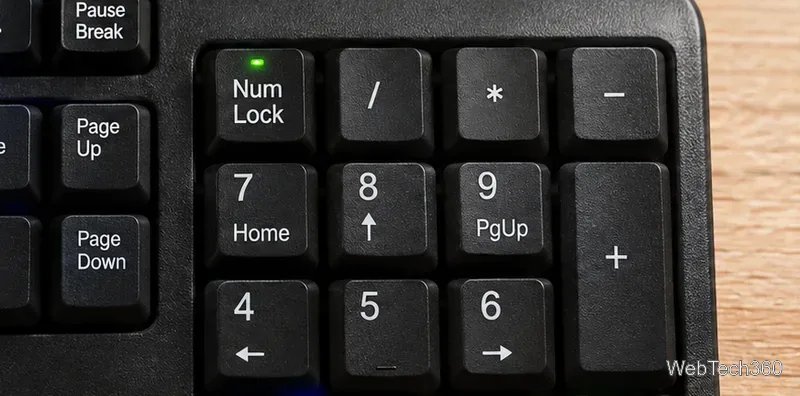
On a full-size keyboard, Num Lock is usually above the numeric keypad. Press it once, then type numbers into Notepad or another text box. Many keyboards have a small light that turns on when Num Lock is active. When Num Lock is off, keypad keys may act as arrows, Home, End, Page Up, or Page Down instead of entering digits.
The Num Lock light indicates that the numeric keypad is in number-entry mode on this keyboard.
On a compact laptop, the keypad may be absent or combined with letter keys. Look for a NumLk label or a manufacturer-specific Fn-key combination. If your keyboard has no numeric keypad, forcing Num Lock on will not add one.
How to keep Num Lock always on with AutoHotkey
AutoHotkey v2 is a Windows automation utility. Its SetNumLockState function supports AlwaysOn, which blocks normal attempts to turn Num Lock off while the script is running. The steps below apply to both Windows 11 and Windows 10.
Install AutoHotkey v2. Download it from the official AutoHotkey site and finish installation. This example uses v2 syntax, not the older v1 command format.
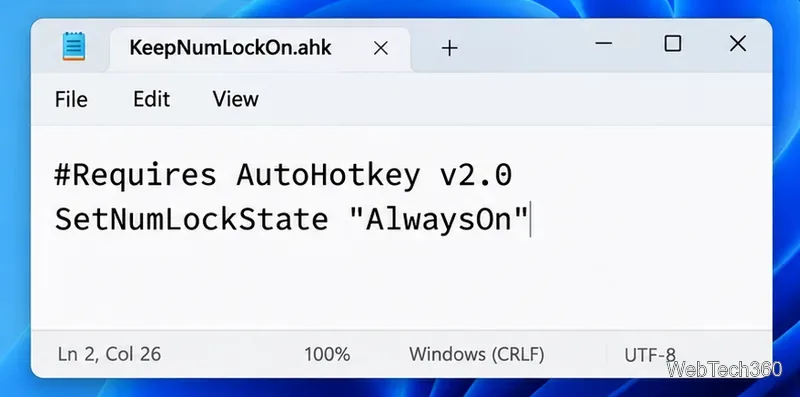
Create a script. In File Explorer, create a new text file, open it in Notepad, and insert the following lines:
Use the AutoHotkey v2 Num Lock command in the script below, and keep the script running.
Save it as KeepNumLockOn.ahk. In Notepad, choose File > Save As, set Save as type to All files, and enter the filename with the .ahk extension. This avoids accidentally saving KeepNumLockOn.ahk.txt.
Run and check it. Double-click the file. With the script active, press Num Lock and enter a few digits using the keypad; the key should stay in number-entry mode. The Persistent line ensures the script remains running. A script icon should appear in the notification area, possibly under the hidden-icons arrow.
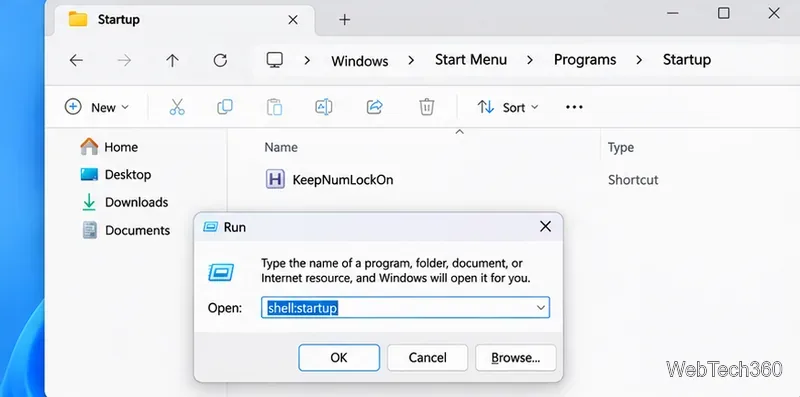
Start it automatically after sign-in. Press Windows + R, enter shell:startup, and press Enter. In the folder that opens, create or paste a shortcut to KeepNumLockOn.ahk, leaving the original script in a stable location. Sign out and back in to confirm the script launches.
A shortcut in the current user’s Startup folder launches the Num Lock script after sign-in.
Microsoft documents shell:startup as the Startup folder for the current Windows user. The script begins after you sign in, not at the lock screen or before Windows loads. See Microsoft’s startup-app instructions and the AutoHotkey function reference for more details.
How to stop keeping Num Lock locked on
Right-click the running AutoHotkey script icon in the notification area and choose Exit to stop the script. To prevent it from starting next time, delete only its shortcut from the Startup folder. You can then toggle Num Lock normally. Do not delete the program or modify the Registry just to remove this startup behavior.
Turn on an audible Num Lock indicator instead
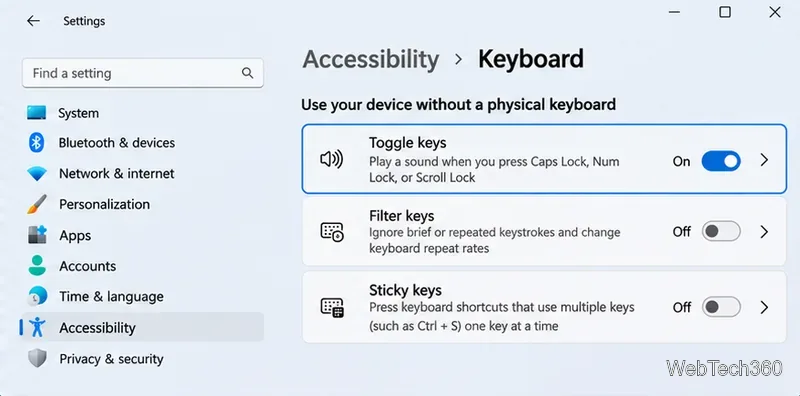
If you prefer being warned when Num Lock changes rather than locking it, use Toggle keys, a built-in Windows accessibility feature. It plays a sound when Num Lock, Caps Lock, or Scroll Lock is pressed.
Windows 11: Press Windows + U, select Keyboard under Accessibility, and turn on Toggle keys.
Windows 10: Open Settings > Ease of Access > Keyboard and enable Use Toggle Keys (the label may appear as Toggle Keys).
Toggle keys adds an audible alert; it does not stop Num Lock from being switched off.
This feature does not keep the keypad enabled; it only makes changes easier to notice. The option is described in Microsoft’s keyboard accessibility guide. Depending on your keyboard settings, holding Num Lock for five seconds can also open the Toggle Keys shortcut.
What if Num Lock still switches off or the keypad will not type?
It resets after a restart: Confirm the script is running and its shortcut is in shell:startup. An AutoHotkey startup script does not run until that user signs in.
It is off on the Windows sign-in screen: Check whether your PC’s BIOS/UEFI firmware offers a setting such as NumLock State or Boot Up NumLock. Availability and wording depend on your device manufacturer. This is separate from an after-sign-in script.
The keypad moves the pointer: Check Mouse keys under Accessibility > Mouse in Windows 11, or Ease of Access > Mouse in Windows 10. Mouse Keys deliberately uses the number pad to control the pointer; Microsoft explains this behavior.
Only some keys work: Check the keyboard’s Fn/NumLk combination, reconnect an external keyboard, and test in a text editor. A faulty keyboard or device-specific key mapping cannot be fixed merely by changing the Num Lock state.
Bottom line: Press Num Lock to enable numbers temporarily, turn on Toggle keys if you want sound alerts, or use an AutoHotkey v2 script with a Startup shortcut to keep Num Lock enabled throughout your signed-in Windows session.