Home
» WINDOWS
»
How to Restart Windows 11: 5 Easy Methods That Work
How to Restart Windows 11: 5 Easy Methods That Work
To restart Windows 11, open Start > Power > Restart. If the Start menu is unavailable, you can also use Windows+X, Alt+F4, Ctrl+Alt+Delete, or a command in Windows Terminal. All five methods reboot the same PC without resetting Windows or removing installed programs.
Before restarting, save open documents and close work you cannot afford to lose. A restart ends your current session, closes running apps, and starts Windows again. It is different from Sleep, which keeps the session available for a quick return. If Windows is installing updates, allow the restart process to finish instead of interrupting it.
1. Restart Windows 11 from the Start menu
This is the simplest choice when Windows is responding normally. Microsoft documents it as the standard way to reboot a Windows 11 PC.
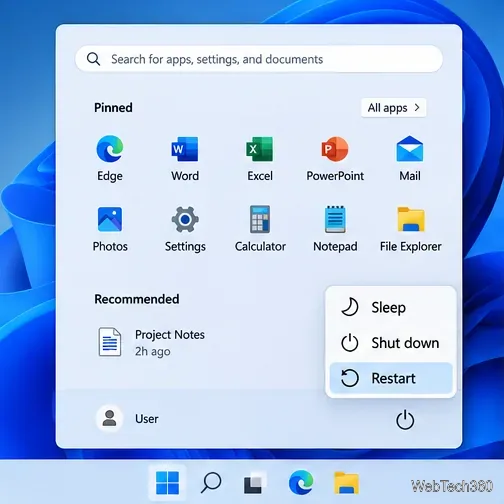
Click Start on the taskbar, or press the Windows key.
Select the Power icon near the lower-right corner of the Start menu.
Choose Restart.
Choose Restart from the power menu in Start.
Windows may prompt you to save changes or close apps first. Respond to those prompts rather than assuming every program has saved your work.
2. Use the Windows+X power-user menu
This route avoids opening the regular Start menu. It is useful if Start is slow or the taskbar's main menu is acting up.
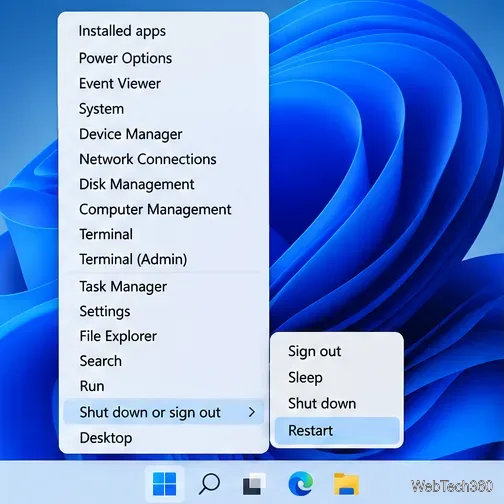
Press Windows+X, or right-click the Start button.
Point to or select Shut down or sign out.
Click Restart.
The power-user menu provides a separate path to Restart.
Do not choose Sign out by mistake: signing out closes your user session but does not reboot the computer. You can use the keyboard arrows to navigate this menu if your mouse is unavailable.
3. Restart with Alt+F4 from the desktop
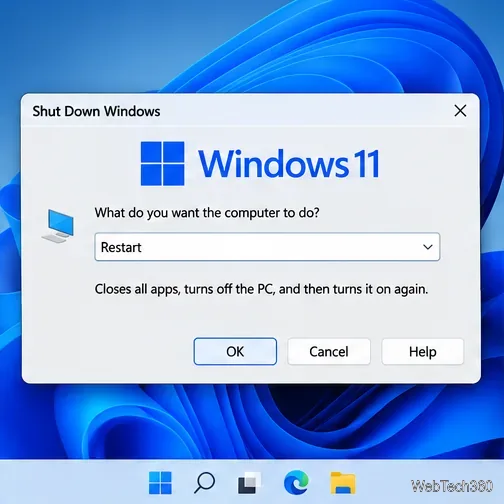
Alt+F4 is commonly used to close an app, but it opens the Shut Down Windows dialog when the desktop is active. Make sure you are on the desktop first.
Press Windows+D to show the desktop.
Click an empty area of the desktop if needed, then press Alt+F4.
In the drop-down list, choose Restart.
Click OK or press Enter.
Select Restart in the Shut Down Windows dialog.
Tip: If Alt+F4 closes an app instead, that app still had keyboard focus. Return to the desktop and try again. On some laptops, you might need to press Fn along with F4, depending on your keyboard settings.
4. Use Ctrl+Alt+Delete when an app is unresponsive
If a program freezes but Windows still responds to keyboard input, the Windows security screen may let you restart without interacting with the frozen app.
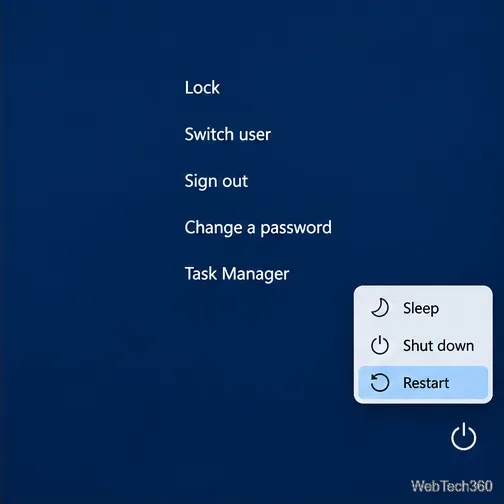
Press Ctrl+Alt+Delete together.
Look for the Power icon in the lower-right corner.
Select the icon and choose Restart.
The security screen offers a power menu even when a regular app stops responding.
This shortcut does not itself restart the PC, and it is not a guaranteed fix for a completely frozen system. If the security screen never appears, try another method only if Windows still accepts input.
5. Restart Windows 11 using Terminal or Command Prompt
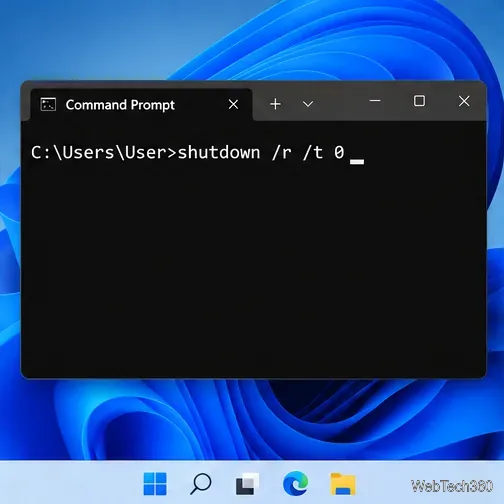
Windows includes a shutdown command that can restart the computer directly. It works in Windows Terminal, Command Prompt, or PowerShell and is useful for troubleshooting or remote instructions when the desktop interface is unreliable.
Open Terminal or Command Prompt from Windows Search. You can also choose Terminal from the Windows+X menu if available.
Type shutdown /r /t 0.
Press Enter.
Enter shutdown /r /t 0 to request a restart without a countdown.
In this command, /r requests a restart and /t 0 sets the delay to zero seconds. Unlike a timed shutdown, there is no countdown to cancel. Save your work before running it. Avoid adding /f unless you understand the risk of forcing open applications to close and losing unsaved changes.
What if Windows 11 will not restart?
If clicking Restart does nothing, first allow a moment for background apps to close, and check for a dialog requesting your attention. If one app is frozen, try Ctrl+Alt+Delete and open Task Manager to close only the unresponsive app before trying again. A keyboard shortcut cannot restart a PC that has stopped responding to every input.
As a last resort for a fully unresponsive computer, hold the physical power button until the machine turns off, then power it back on. This is a forced shutdown followed by a new start, not a normal software restart. It can lose unsaved work, so avoid it during updates, firmware changes, or disk activity if there is any safer option.
Which restart method should you use?
Use Start > Power > Restart for everyday restarts. Choose Windows+X when Start is inconvenient, Alt+F4 when working from the desktop, Ctrl+Alt+Delete when an app is stuck, or Terminal when you need a precise command. Whichever route you choose, save your work before the reboot.