Home
» WINDOWS
»
How to Stream Netflix on Discord (and Why You May See a Black Screen)
How to Stream Netflix on Discord (and Why You May See a Black Screen)
Can you stream Netflix on Discord? You can use Discord’s built-in screen sharing to show a browser window during a voice call, but that does not mean Netflix video will be visible to everyone. Netflix playback is protected, and viewers may see a black screen even when Discord is sharing the window correctly. Discord does not offer an official Netflix watch-party feature.
If you want to see where the controls are, the steps below explain Discord’s current desktop screen-sharing workflow. They also explain why screen sharing may not work for Netflix and how to watch together without rebroadcasting the movie.
Before you start
Use the Discord desktop app on Windows or macOS, or Discord in a supported browser, and open Netflix in a separate browser window. You will need a Discord account and permission to share your screen in the voice channel. You do not need to own the server or have administrator access. The channel’s Video permission controls whether members can stream.
These directions describe Discord’s screen-sharing controls, not a method of defeating Netflix’s playback protection. For the official instructions, see Discord’s Go Live and Screen Share guide.
How to share a Netflix browser window on Discord
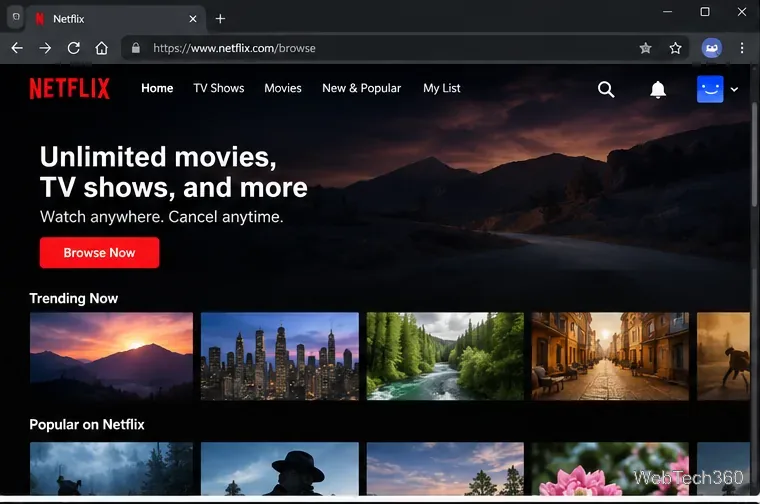
Open Netflix in a desktop browser. Sign in normally and open the title you want to watch. Keep Netflix in its own browser window so you can select that window rather than exposing your entire desktop.
Keep the Netflix browser window separate from other apps to avoid sharing private tabs or notifications.
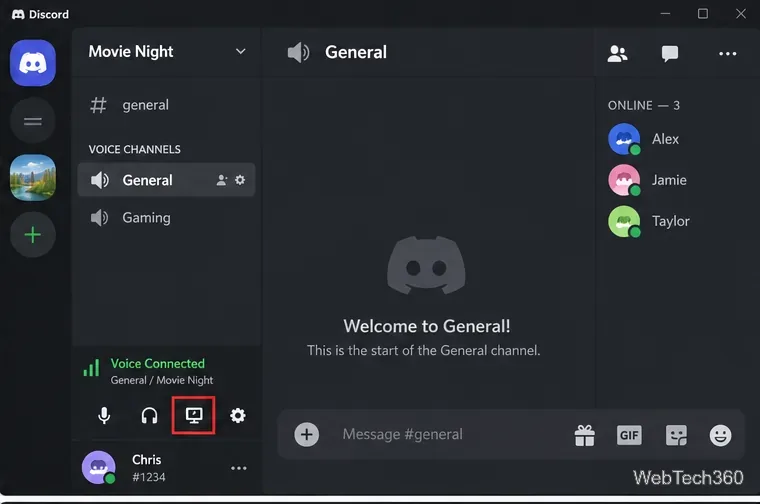
Join a Discord voice channel. Open your server and select a voice channel, such as General. A direct-message or group call also works; start the call before trying to share.
The screen-sharing control appears in the voice connection area after you join a call.
Choose Screen Share. Click the screen-sharing icon near the voice connection controls. Discord opens a dialog where you can choose an application window or an entire display. Share only the window you intend to show.
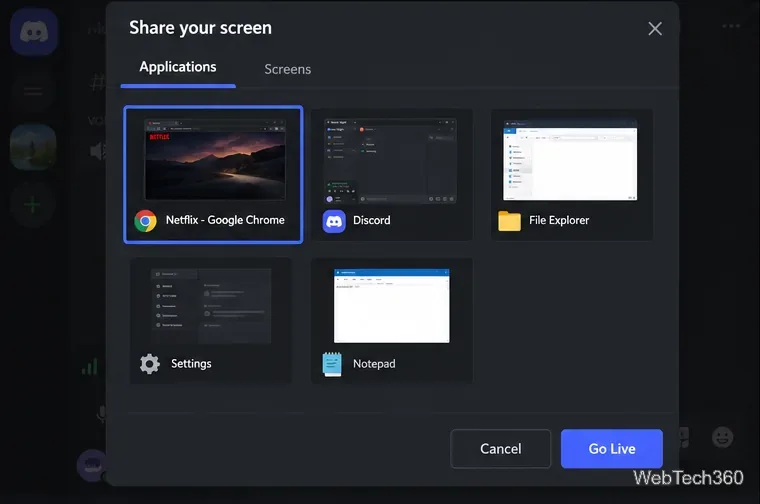
Select the browser window. Under the application choices, select the window containing Netflix. Confirm that the preview shows the correct window. Window and tab choices may differ between the desktop app and browser versions of Discord.
Choose the browser application window instead of sharing every window on your display.
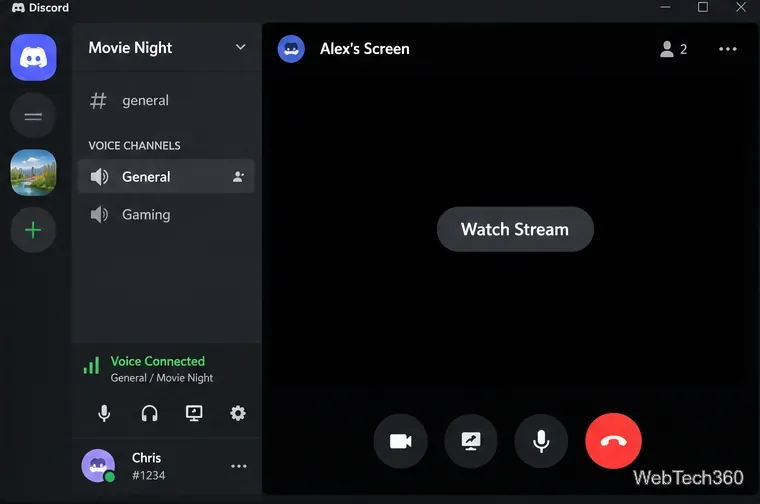
Select Go Live, then have friends join. Start the Discord screen share. Other members can enter the same voice channel and choose Watch Stream from your stream. A stream preview or a working connection is not proof that Netflix’s protected video is being transmitted.
Friends can join the Discord stream, but a dark preview may indicate that protected video is not available to share.
If you use a direct message instead of a server, start a voice or video call, select Share Your Screen, choose the application or screen, and then select Go Live. Discord documents this workflow in the same official screen-sharing guide.
Why Netflix may show a black screen on Discord
Netflix uses content-protection technology that can prevent movies and shows from appearing in screen captures or shared windows. Discord may successfully broadcast your browser interface or other apps while the Netflix video itself remains black. This is different from a Discord connection failure.
Older advice sometimes recommends disabling browser hardware acceleration or changing capture settings to force protected video to display. Those workarounds are not a reliable, supported Netflix-sharing method, and Netflix’s Terms of Use prohibit circumventing content protections and unauthorized redistribution or public performance. Avoid treating a Discord screen share as permission to rebroadcast a subscription movie.
Fix ordinary Discord screen-share problems
If a nonprotected application also fails to share, check Discord itself rather than assuming Netflix is the cause:
No Screen Share button: Make sure you joined a voice call and have the channel’s Video permission. Ask a moderator to check the channel permissions if necessary.
No sound: Check the stream’s mute and volume controls first. Discord supports application audio sharing on its Windows and macOS desktop clients, Chrome, and mobile; it does not support application-audio capture on Linux. On macOS, Discord recommends macOS 13 or newer for audio sharing.
Lag or choppy video: Close demanding background programs, check the connection, and lower the Discord stream’s resolution or frame rate when those controls are available.
Discord’s current support article lists screen sharing at up to 720p and 30 fps for all users, with higher settings available on qualifying Nitro plans. These are Discord output limits, not a promise that protected Netflix video can be captured.
A better way to watch Netflix with friends
For a remote movie night, use Discord for voice chat while each participant watches Netflix directly on their own supported device or browser, using their own authorized access. Pick the same title, agree on a starting timestamp, count down together, and pause or resume as a group. This avoids sending Netflix video through Discord and usually preserves each person’s playback quality.
Netflix’s account-sharing guidance says an account generally cannot be shared outside the Netflix Household; eligible plans in some countries allow paid extra members. Content availability can also vary by country, so check that everyone can play the same title before the call.
Bottom line: Discord can share the window that contains Netflix, but it cannot guarantee that friends will see the movie. If Netflix video is black, use synchronized individual playback and keep Discord open for conversation.