Home
» WINDOWS
»
Mipony: Detect Links and Batch Download Files From Hosting Services
Mipony: Detect Links and Batch Download Files From Hosting Services
Mipony is a Windows download manager that can detect multiple file-hosting links, add them to a download queue, and track the files together instead of making you open each link separately. In its current 4.0.0 interface, the main workflow uses Links for detection and Transfer for progress. It also offers cloud-file management, but you do not need to connect cloud accounts simply to try direct link downloads.
That makes it useful when someone shares several legitimate download links, including a collection of multipart archive files. The important limitation is that Mipony cannot guarantee every link will work or bypass a hosting provider's restrictions.
Download Mipony and find the right tools
Get the Windows installer from the official Mipony download page. After installation, open the application and look for Links, Transfer, Accounts, Capture, and Options on its main navigation bar. The developer identifies version 4.0.0 as the release introducing a broader multi-cloud workspace, so older tutorials showing separate Downloads and Downloaded tabs may no longer match your screen.
For a complete description of the current controls, see the official Mipony user manual. The steps below focus on detecting and batch downloading hosted files, not copying files between cloud accounts.
How to detect and batch download files with Mipony
1. Paste the links into the Links tab
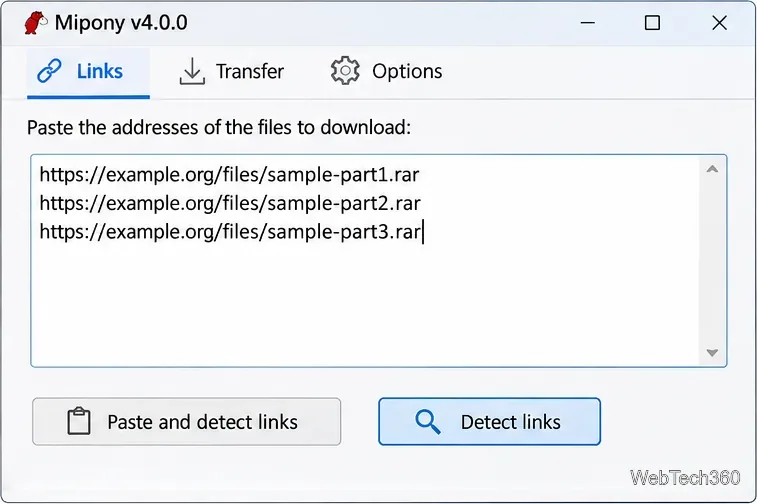
Copy the file URLs you are authorized to download, open Links, and paste them into the text area. You can paste several addresses at once, or paste surrounding text containing the addresses. Click Paste and detect links or Detect links to have Mipony inspect them.
Enter multiple file addresses together, then run link detection.
Alternatively, enable Capture on the main toolbar to check links copied to your clipboard. Turn it off when you no longer need clipboard monitoring. Capturing a link does not mean it has been approved or downloaded automatically.
2. Review the detected files and choose a destination
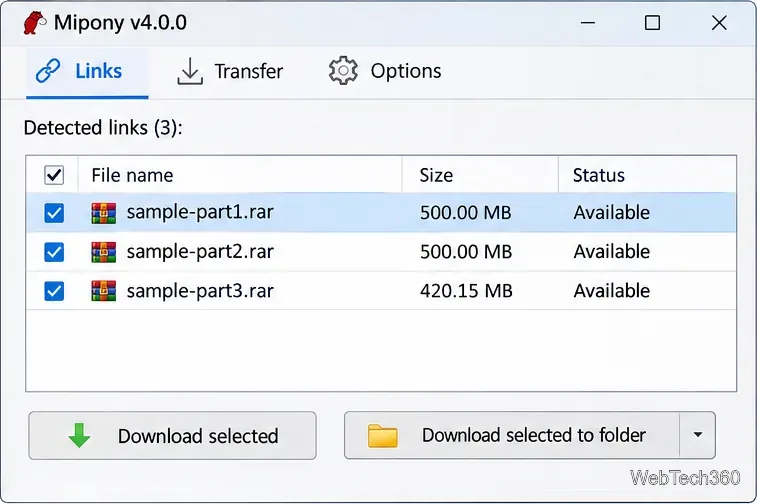
Mipony shows recognized links in a table where you can review file information and select the items you actually want. Check the file names carefully, especially for numbered archive parts; avoid downloading unrelated links from the same copied text. A missing file size or uncertain availability can mean the host has not supplied enough information yet.
Choose Download selected to use your configured destination, or Download selected to folder to choose a specific location. According to the current manual, a connected cloud account may also be used as a destination; for a straightforward local batch, choose a folder on your PC.
Review the selected files before adding them to the batch.
3. Follow the queue in Transfer
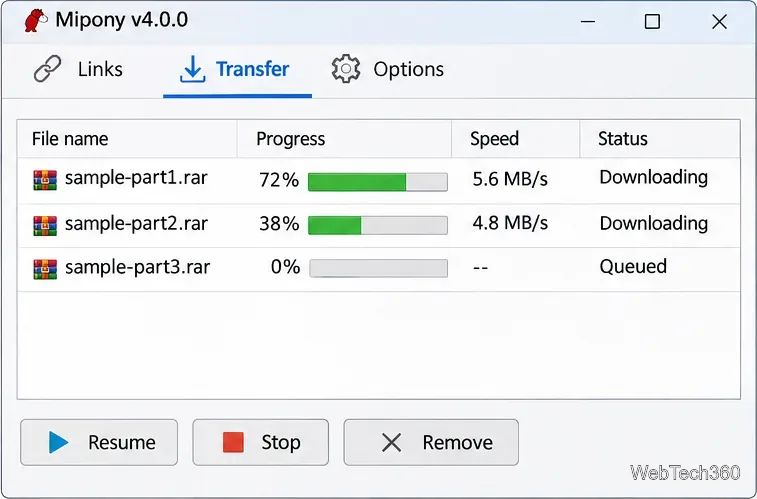
Open Transfer to check each file's status, progress, and speed. Files may wait in a queue, run concurrently, stop, or fail depending on your settings and the host's behavior. Where an action is available, Mipony lets you stop an operation, resume it, or run it again after a failure. Check the resulting files in your destination folder rather than assuming a progress indicator proves the contents are usable.
Transfer keeps the batch status and progress together in one view.
4. Adjust download limits and extraction options
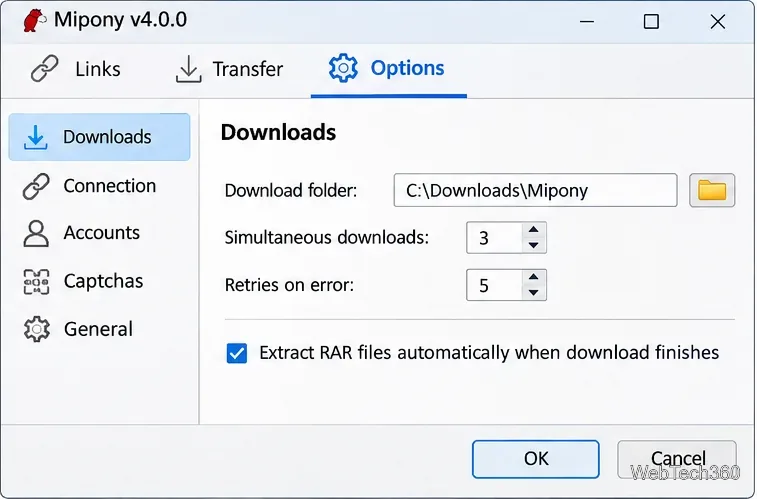
Open Options > Downloads to set a download folder, simultaneous downloads, downloads per site, file segments, retry counts, and any desired speed limit. A very high concurrency setting is not necessarily faster, particularly when a host enforces a connection limit. Start conservatively and adjust only if the service allows it.
That page also has an option to automatically extract RAR archives after downloading. Enable it only for archives from sources you trust and check that you have enough available disk space. Save the settings before starting the next batch.
The Downloads settings control the destination, retries, and extraction behavior.
What about split files and password-protected archives?
A set such as archive.part1.rar, archive.part2.rar, and archive.part3.rar is normally a multipart RAR archive. Keep all the parts together, then extract the first part with compatible archive software once every download has finished. If Mipony's RAR extraction setting is enabled, it may handle supported archives automatically. The old article described a separate HJSplit-based Join Files feature; do not assume that historical button is present in Mipony 4.0.0 or that all split-file formats can be merged the same way.
If an archive asks for a password, obtain it from the legitimate file provider. Mipony cannot recover an unknown archive password, and a hosting-site premium account is not the same thing as an archive password.
Why a batch download might not work
No links detected: Verify that the URL is correct and still shared publicly or with your account. Try manual detection, then review Capture and its filters.
Waiting time or CAPTCHA: Some hosts require interaction or impose free-user limits. Complete prompts in the application when offered; do not expect Mipony to remove the provider's restrictions.
Stopped or failed transfer: Check connectivity, disk space, account authorization, and the error or status in Transfer. Use Run again if offered.
Premium-host access: If you subscribe to a supported host, use Accounts > Add premium account. The available services and account requirements vary.
Archive will not open: Make sure every numbered part downloaded fully, is in the same folder, and belongs to the same archive.
Is Mipony worth using?
For someone dealing with a handful of file-hosting URLs, Mipony's strongest benefit remains the ability to gather links, review them, and manage the transfers as a group. Its newer cloud features may be useful if you also maintain files on several storage services, but they are optional for the basic workflow described here.
Use the official installer and keep the program updated. Download only files you have permission to access, and scan unfamiliar archives before opening their contents. For the newest supported hosts and controls, rely on the developer's current manual rather than screenshots from the original Windows XP-era release.