Home
» WINDOWS
»
PickMeApp: Transfer Windows Programs With Saved Settings
PickMeApp: Transfer Windows Programs With Saved Settings
PickMeApp helps move compatible installed Windows programs from one PC to another without hunting down every original installer. It captures an application into a reusable package, which you can install after upgrading your computer or reinstalling Windows. It can also capture customized settings, but that option is experimental, turned off by default, and not guaranteed to work for every program.
What PickMeApp transfers—and what it does not
Unlike dragging a program folder onto a USB drive, PickMeApp packages the application files and relevant Windows registry information needed for deployment. The standard capture produces a .tap file that PickMeApp can install later. Depending on the edition and capture settings, you can instead create a self-extracting .exe installer.
PickMeApp is an application migration utility, not a complete PC backup. Do not assume it will preserve all user documents, cloud sign-ins, application databases, hardware-dependent components, or software licenses. Keep separate backups of important files and export app-specific profiles where possible. Some programs require reactivation or fresh installation on the destination computer.
The developer maintains a searchable list of successfully transferred programs. A listed program is a useful compatibility signal, not a promise that your exact version and configuration will transfer flawlessly.
Before you start
Download the current version from the official PickMeApp page or compare editions on the official downloads page. PickMeApp Light focuses on capturing and transferring apps; Pro adds broader package management and batch features. The free Installer and Relocator products are not equivalent to the capture-focused editions. Check the current feature comparison and licensing before selecting a version.
Use two compatible Windows PCs, a storage drive or accessible network location, and enough free disk space for captured packages. Close important programs if possible, retain your product keys and license records, and back up personal files independently. The manufacturer documents Windows 11 support for PickMeApp Pro, although individual app compatibility still matters.
How to transfer installed programs with PickMeApp
1. Select the applications on the old computer
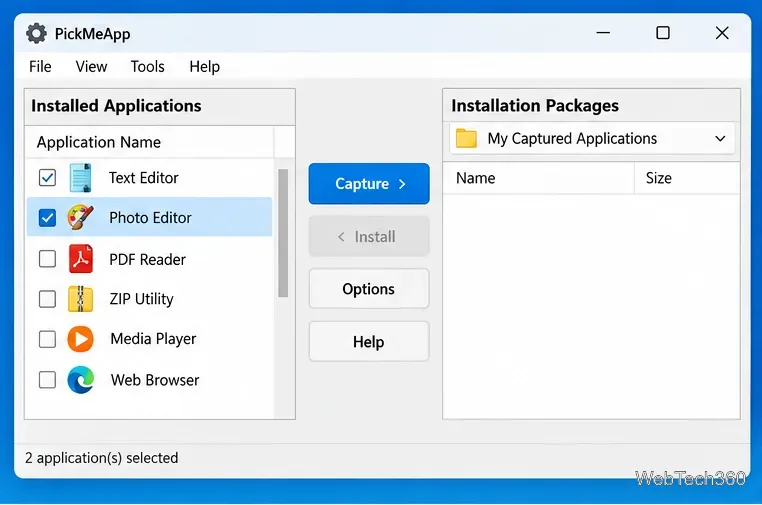
Start PickMeApp on the source PC. The Installed Applications panel shows detected programs. Find the app you need and open its entry. In editions that support batch capture, check several applications at once. On the packages side, choose My Captured Applications or another local profile for the output. If Capture is unavailable for a particular program, the app may not be supported for that action.
The Installed Applications area is where you choose programs to package for transfer.
2. Review settings and capture the programs
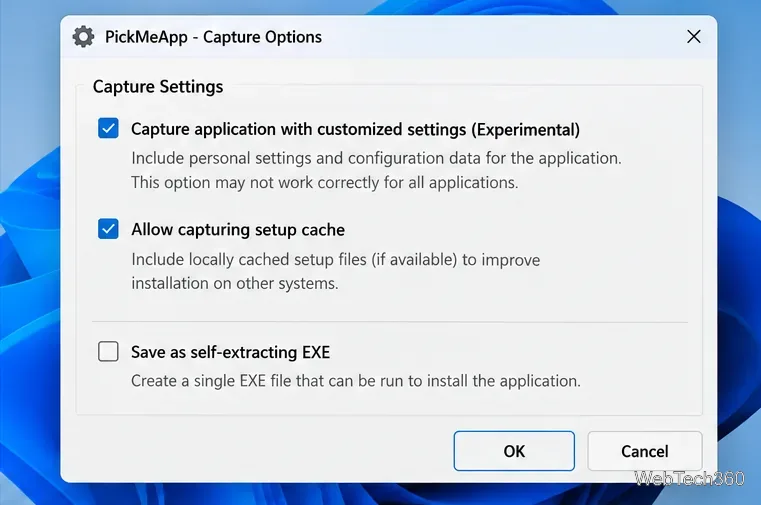
Open Settings and review the Capture options. If keeping personalized preferences is essential, enable Capture application with customized settings. PickMeApp identifies this as an experimental feature; verify the result later rather than assuming every preference will be restored.
Allow capturing setup cache is enabled by default and may improve deployment, but it can make the output much larger. Leave the self-extracting EXE option off if you want the standard .tap format. Return to the application list and click Capture. Watch the progress indicators and session log for completion or errors. The manufacturer’s capture instructions describe the current options in detail.
Review customized settings and cache options before capturing an application.
3. Find and copy the captured packages
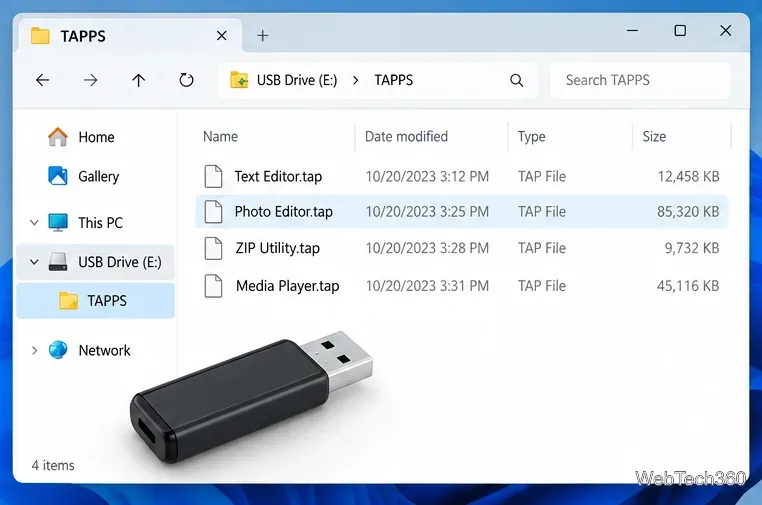
Open the destination folder of the selected PickMeApp profile. The default My Captured Applications profile uses a folder named TAPPS; its precise parent path can depend on the PickMeApp edition and installation mode. Use the profile’s Open Folder link instead of guessing the location. Verify that a separate .tap or .exe package exists for each completed capture.
Copy the packages to a USB drive, external SSD, or trusted shared folder, then move them to the new PC. Keep an additional backup copy until you have checked the restored programs.
Captured TAP files can be copied to external storage before moving to the next computer.
4. Import, install, and verify on the new PC
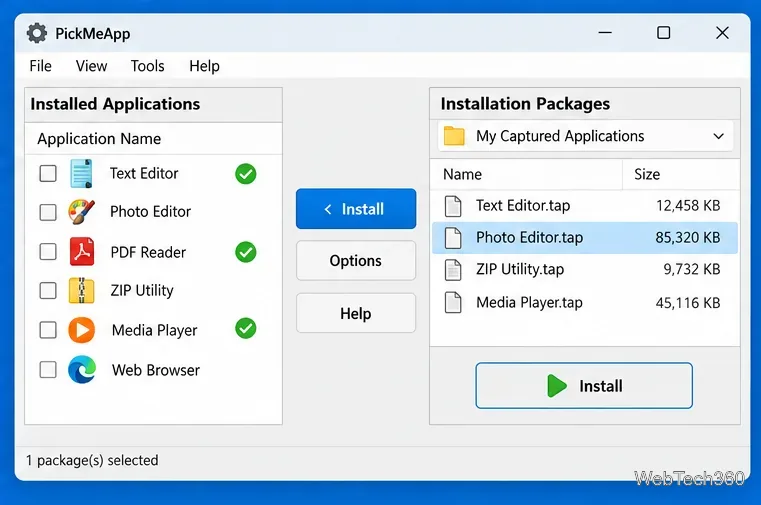
Install or run a compatible PickMeApp edition on the destination computer. Select a local package profile and use Import to add the transferred .tap files, or place them in the intended profile folder and reopen the application list. Choose a captured package in the Installation Software Packages panel and click Install. A self-extracting .exe package can be run directly instead, subject to its license and security requirements.
When installation finishes, launch the program and check your preferences, plug-ins, file associations, saved projects, and licensing status. The install log helps identify failures. See the official package profile and import guide for the supported import workflow.
After importing captured packages, select the program you want to install and verify the result.
Common problems and limitations
The program does not appear or Capture is disabled: Check whether PickMeApp supports that application and whether your edition includes the required feature. For a critical app, keep its official installer as a fallback.
The package is too large: Review the setup cache setting. Disabling it may reduce the package size, though it can also affect redeployment.
Settings are missing: Confirm that customized settings capture was enabled. Because it is experimental, restore important profiles separately using the app developer’s own export or sync feature.
The program installs but will not run: Check Windows compatibility, drivers, services, prerequisites, and activation. Do not assume licenses transfer between devices.
Old TAP files will not open: Check PickMeApp version compatibility; the manufacturer notes that some older packages may not work with newer releases.
Bottom line: PickMeApp can save substantial reinstallation work for supported Windows applications, especially when their original installers are hard to find. For valuable personal settings, treat the capture as one migration method—not your only backup—and test every important program before retiring the old PC.