Home
» WINDOWS
»
Restore Accidentally Closed Files, Programs, and Folders in Windows
Restore Accidentally Closed Files, Programs, and Folders in Windows
Accidentally closed a file, program, or folder in Windows? The quickest fix depends on what disappeared: reopen a folder from File Explorer, launch a closed app again, or use the program’s own recent-file or recovery menu. Windows does not have one universal “undo close” shortcut for every application.
These methods cover Windows 11 and, where noted, Windows 10. They also explain what to do when a document was closed without saving.
1. Reopen a folder you just closed
Press Windows + E to open File Explorer.
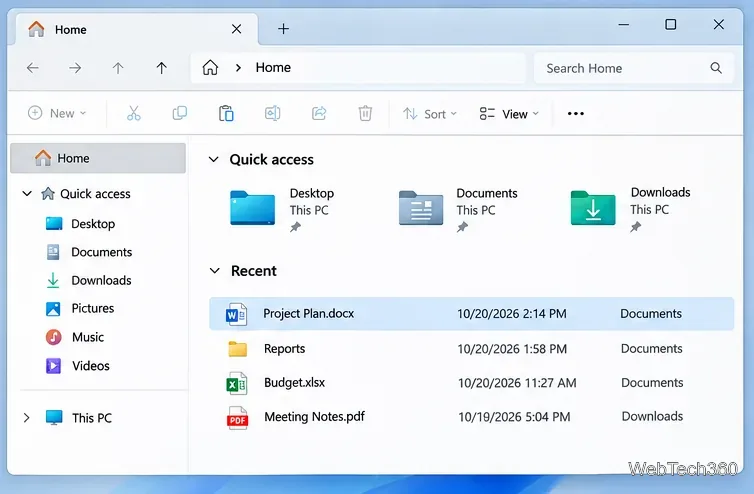
Select Home and look under Quick access for pinned or frequently used folders. If you know the folder name, search for it from File Explorer.
Select the folder to open it again. If you know its location, you can also type the path into the address bar.
The Home page can surface recent files as well, but the items displayed depend on your Windows version and personalization settings. Do not assume that every folder you closed will appear in a history list.
File Explorer Home helps you return to an existing folder or recently accessed document.
2. Restore File Explorer windows after you sign in
If you want Windows to bring back folder windows after signing out or restarting, enable the relevant File Explorer setting before your next session:
Open File Explorer.
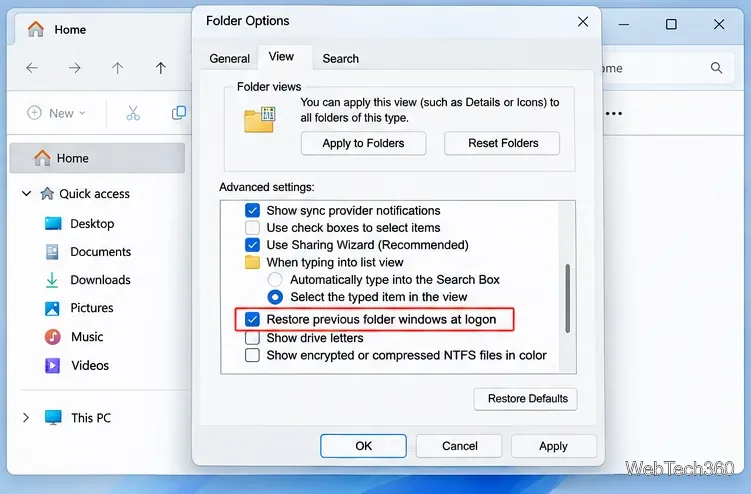
In Windows 11, choose See more (…) > Options. In Windows 10, open View > Options.
Choose the View tab, select Restore previous folder windows at logon, and click Apply and OK.
Microsoft documents restoration of previously open File Explorer tabs with this option on updated Windows 11 systems. It is for your next sign-in; it is not an undo command for a window you have already closed. See Microsoft’s Windows 11 File Explorer release notes.
Check this option to reopen eligible folder windows at your next sign-in.
3. Reopen an accidentally closed program
If an application was closed normally, press the Windows key, type its name, and select it to launch it again. You can also choose an app pinned to your taskbar or Start menu. Reopening the executable does not necessarily restore its last document, tabs, or unsaved changes.
For future restarts, Windows 11 offers an optional restartable-app setting:
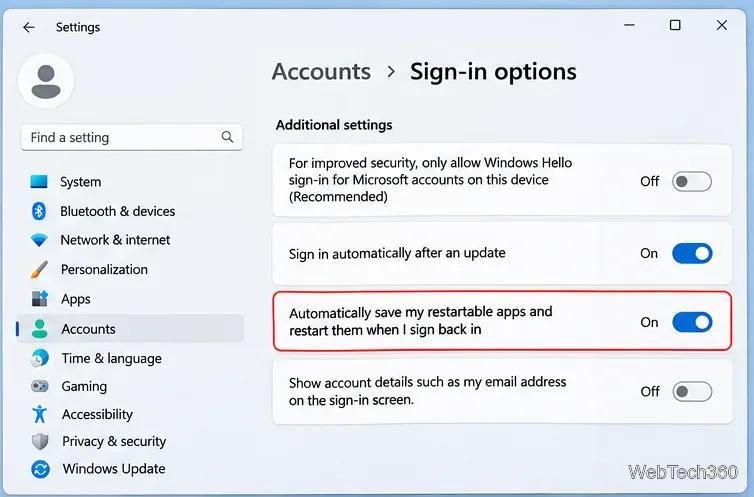
Open Settings > Accounts > Sign-in options.
Turn on Automatically save my restartable apps and restart them when I sign back in.
This only helps apps that support the Windows restart mechanism, and it is not designed to recover a program that you manually closed earlier. Microsoft documents the setting in its sign-in startup guidance.
The restartable-apps toggle applies to supported apps when you sign back in.
4. Recover a file closed without saving
A closed document and a deleted file are different problems. First, reopen the app and check its Recent or Open list. If you lost edits in Microsoft Word, try its built-in recovery feature:
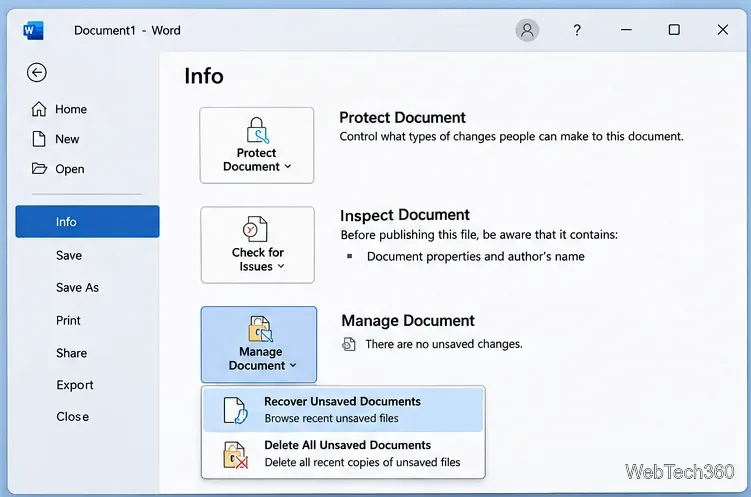
Open Word and select File > Info.
Open Manage Document > Recover Unsaved Documents.
If a recoverable copy appears, open it and immediately choose Save As.
If the document was previously saved, check File > Info for a recovered version. Availability depends on AutoRecover settings and whether a recovery copy exists. Microsoft provides details in its Word recovery instructions.
Look for Recover Unsaved Documents in Word before assuming your changes are gone.
Other fast ways to restore what you closed
Reopen a browser tab
In Microsoft Edge, press Ctrl + Shift + T to reopen the last closed tab. Repeat the shortcut for earlier tabs, or open History to locate a website. This is a browser shortcut, not a general File Explorer or Windows app shortcut. See the official Microsoft Edge shortcut list.
Restore a deleted or overwritten file
If the file itself is missing, check the Recycle Bin first. If you had File History backups enabled before the incident, find the containing folder in File Explorer, right-click it, and choose Restore previous versions. Preview a version and restore to a separate location when possible, so you do not overwrite a newer file. See Microsoft’s Windows recovery overview.
What about the old ReOpen utility?
The original version of this article covered ReOpen, a small tray utility that historically listed closed folders, files, and programs and offered a Shift + Page Up hotkey and an Open Selected command. Those details describe the older tool, not native Windows functionality. Its original documentation focused on Windows XP, Vista, and 7; current Windows 11 compatibility and the safety of available downloads have not been independently confirmed. Avoid installing an unverified copy from a third-party download mirror.
Bottom line: Use File Explorer to locate a folder, your app’s recovery features for unsaved work, and Edge’s Ctrl + Shift + T for browser tabs. Enable session-restoration settings in advance if you want supported windows to return after signing in.