Home
» WINDOWS
»
SSDownloader: Free Windows Security Software Downloader (Now Abandoned)
SSDownloader: Free Windows Security Software Downloader (Now Abandoned)
SSDownloader (Security Software Downloader) is a free Windows utility originally designed to download multiple security programs from one place. It grouped antivirus products, malware scanners, firewalls, and other tools in a checkbox-based interface. However, it is now a discontinued project: its official SourceForge listing says the project is abandoned and was last updated on January 11, 2015. Its download links should not be assumed to work or lead to current installers.
What did SSDownloader do?
Instead of opening several vendors’ websites, users could select programs from SSDownloader’s categorized list and download their installers in a batch. It was a download manager, not an antivirus program, so running SSDownloader alone did not protect a computer from malware.
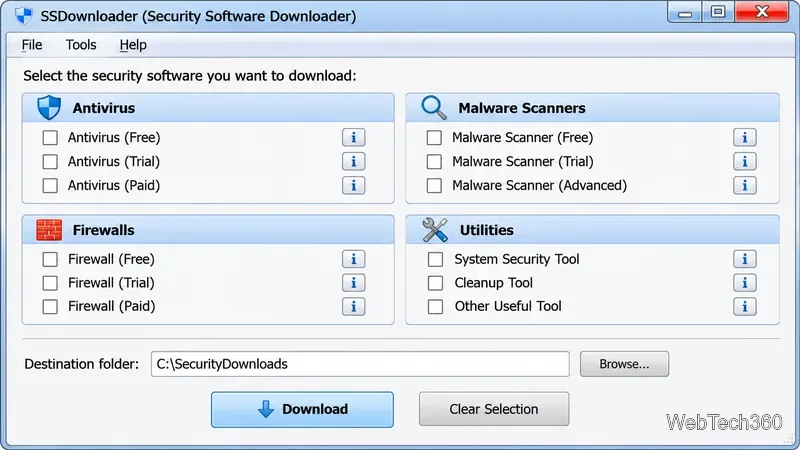
The original tool presented several types of security software:
Free antivirus: everyday antivirus installers.
Paid or trial security suites: commercial products and trial editions.
Malware scanners: tools intended to examine a PC for unwanted or malicious software.
Firewalls: programs designed to manage network connections.
Other utilities: additional security-related or maintenance tools.
The project also advertised automatic selection of a suitable 32-bit or 64-bit download based on the user's Windows system. That was a feature of its original design, not a guarantee of compatibility with current Windows releases.
An interface-style example of the security categories SSDownloader was designed to organize; this is not a verified screenshot.
How the SSDownloader download workflow worked
The historical workflow was straightforward. These steps describe the original application rather than a currently verified download procedure:
Open the utility. SSDownloader was presented as a small, portable Windows application.
Choose a category. Browse the antivirus, malware scanning, firewall, or miscellaneous tool selections.
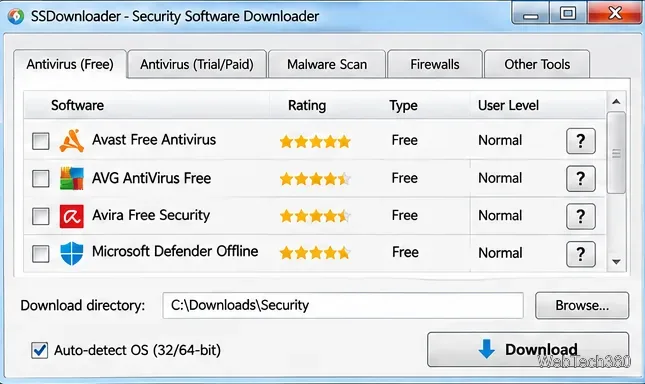
Check the programs you want. The selection boxes allowed several installers to be requested together.
Choose a destination and download. Select where the downloaded files should be saved, then use the Download control to begin the batch.
Downloading an installer did not mean that its security product was installed or configured. Users still needed to inspect the file, install it separately, and follow the software publisher's setup instructions. A successful batch download would also not establish that the files were safe or up to date.
An explanatory view of a batch-selection workflow, not a verified capture of SSDownloader.
What information could users see about each product?
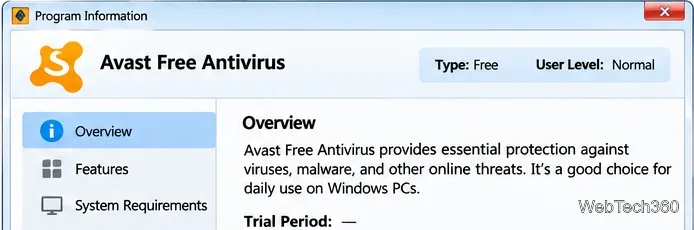
The earlier interface included question-mark information buttons beside software entries. The original article described product summaries, feature lists, ratings, prices, trial periods where applicable, and suggestions about whether a program was suited to less experienced or advanced users.
Those details were intended as quick comparisons. Today, prices, trial terms, product names, and compatibility requirements should be checked on the developer's official website. A rating or description embedded in an old downloader is not reliable evidence of a product's current quality.
The original tool offered product details; any illustrated ratings or descriptions should not be treated as current information.
Why SSDownloader is no longer a dependable download option
Its official SourceForge project page explicitly marks SSDownloader as Abandoned, records its last update as January 11, 2015, and warns that linked software may be outdated. That caveat outweighs the page's old promise to retrieve the newest installer automatically.
Security vendors frequently change product names, installer locations, supported operating systems, and how their downloads are distributed. An abandoned link catalog cannot be trusted to track those changes. The SourceForge listing identifies Windows as the operating system, but it does not verify successful operation on Windows 11. Avoid assuming an old Windows 7-era compatibility claim still applies.
Safer ways to get Windows security software
For most Windows 11 users, start with the security features already included in the operating system. Microsoft's Windows Security documentation describes built-in Microsoft Defender Antivirus and Windows Firewall. You do not need SSDownloader to access them.
Search for Windows Security in the Start menu.
Open Virus & threat protection to review protection status or run a quick scan.
Open Firewall & network protection to review the firewall for your network profiles.
If you need an additional product, go directly to its publisher's website and verify Windows compatibility before downloading.
Microsoft notes that installing a compatible third-party antivirus can change the operating mode of Microsoft Defender Antivirus. Rather than installing several full real-time antivirus suites at once, choose a supported primary security product and consult the vendors' compatibility guidance.
Also keep the operating system supported. Standard Windows 10 support ended on October 14, 2025; eligible devices may have access to Microsoft's Extended Security Updates program. Check Microsoft's Windows 10 end-of-support guidance rather than relying on antivirus software to compensate for an unsupported OS.
Where can you find SSDownloader?
The original SSDownloader listing on SourceForge remains useful for identifying the historical application and reading its maintenance notice. It is best treated as an archive, not a recommended way to assemble a new Windows security setup. For current protection, use Windows Security and verified downloads from active software publishers.