Home
» WINDOWS
»
View System, Software, and Hardware Details With Free PC Audit
View System, Software, and Hardware Details With Free PC Audit
Free PC Audit is a free, portable Windows utility that puts computer hardware details, installed software, and running processes in one place. If you want to verify the specifications of a new or used PC, check which app version is installed, or identify a component before searching for a driver, it provides a convenient inventory without requiring installation.
The developer, MIS Utilities, lists compatibility through Windows 11. Its current product screenshots show four views: Brief, System, Software, and Processes. This is an information viewer, not an automatic repair program or driver updater.
How to download and use Free PC Audit
1. Download the portable executable
Go to the official Free PC Audit page at MIS Utilities. Review the license agreement, select the required acknowledgment, and use the site's Free Download option. Avoid download buttons on unrelated pages or bundled installers that claim to be necessary.
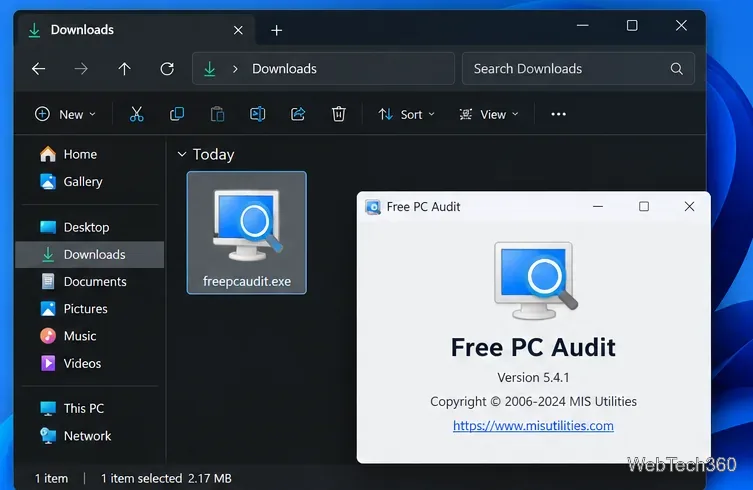
Save the downloaded freepcaudit.exe file somewhere you can find it, such as Downloads or a dedicated utilities folder. MIS Utilities confirms that Free PC Audit is portable; it can also be carried on removable storage. You do not need to run a traditional setup wizard.
A portable executable can be launched from Downloads without a separate installation process. The screen contents are examples.
2. Launch it and check the Brief view
Double-click the executable to open Free PC Audit. Allow the utility to collect information before assessing the results. If Windows shows a security prompt, verify the file's origin rather than bypassing a warning automatically.
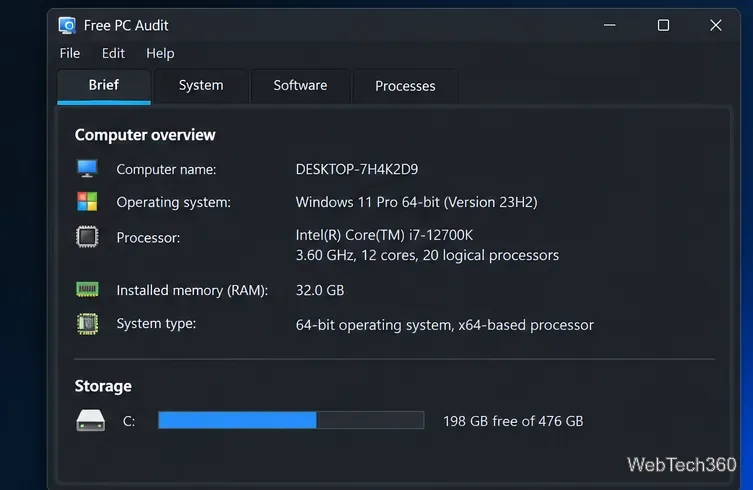
Start with Brief for a quick look at the computer name, Windows edition, CPU, installed memory, graphics information, and drive capacity, depending on what Windows reports. This is a useful first pass when comparing a machine with its advertised specifications.
The Brief tab groups the main computer specifications in one place; the displayed device values are examples.
3. Inspect specific hardware under System
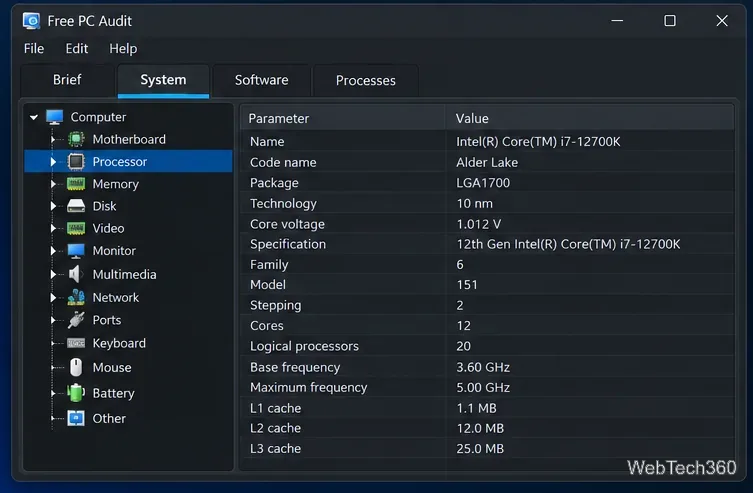
Open System and browse the component list. Select an entry to see its available properties. Typical categories include the motherboard, processor, memory, storage, display devices, BIOS, and network hardware. The amount of detail varies with the component and the information exposed by Windows.
For example, when checking an upgrade, record the exact motherboard or graphics adapter model before visiting that manufacturer's support page. A generic description such as “Intel graphics” or “8 GB RAM” is not always enough to choose a compatible driver or replacement part.
Use System to select a hardware component and inspect its reported attributes.
4. Review installed applications under Software
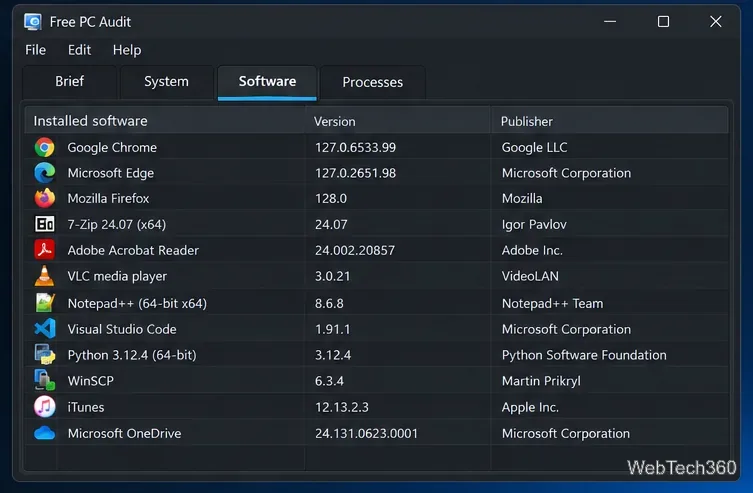
Choose Software to see a list of detected installed programs. The tool can report names, versions, and other available inventory fields; the developer also advertises product-key information. However, do not assume every application or license key will be detectable. Some software uses account-based or digital activation, and individual fields may be blank.
This view is useful for checking whether the expected program is present and for recording its version before troubleshooting compatibility issues. To update an application, use its own update feature or the publisher's official website rather than treating Free PC Audit as an updater.
The Software view helps compare installed programs and their reported version numbers; entries shown are examples.
5. See active programs under Processes
Select Processes to inspect the processes running when the inventory is taken. This can help identify unfamiliar executable names or provide context for a support request. A process name by itself does not prove an infection, and this tab is not a malware scanner or a substitute for live performance monitoring.
If you need to see which application is consuming CPU, memory, or disk resources in real time, press Ctrl + Shift + Esc to open Windows Task Manager. Microsoft's Windows performance guidance explains how to examine the Processes and Performance tabs.
What Free PC Audit can and cannot tell you
Useful for: identifying hardware models, checking reported system configuration, reviewing detected installed software, and seeing a snapshot of running processes.
Not designed for: automatically updating drivers, measuring component health under load, repairing Windows, or providing a complete security assessment.
Data caveat: reported details depend on the device, Windows, and software records. Verify critical specifications against your PC maker's documentation or the component manufacturer's support page.
Keep the results private when appropriate. An inventory can contain computer names, IP addresses, serial numbers, and possibly product keys. Redact sensitive values before sending screenshots or copied details to a public forum.
Use Windows built-in tools when you only need a quick check
For basic specifications in Windows 11, open Settings > System > About to view the processor, RAM, system type, and Windows version. For more extensive built-in details, press Windows + R, type msinfo32, and press Enter. Microsoft documents both device information in Settings and the System Information utility.
Free PC Audit is worth considering when you want hardware, software, and process inventory in one portable application. If you no longer need it, MIS Utilities says you can remove the portable program simply by deleting freepcaudit.exe; there is no installed application to uninstall. See the developer's installation and removal instructions.