Home
» WINDOWS
»
What Version of Windows Do I Have? Four Quick Ways to Check
What Version of Windows Do I Have? Four Quick Ways to Check
To find out what version of Windows you have, press Windows + R, type winver, and press Enter. The About Windows dialog identifies Windows 10 or Windows 11 and shows its version and OS build. For your edition (such as Home or Pro) and whether your PC is 64-bit, open Settings > System > About.
These checks take less than a minute and help when installing software, choosing drivers, troubleshooting updates, or asking for technical support. You do not need to install an app or change any system settings.
Method 1: Check your Windows version with winver
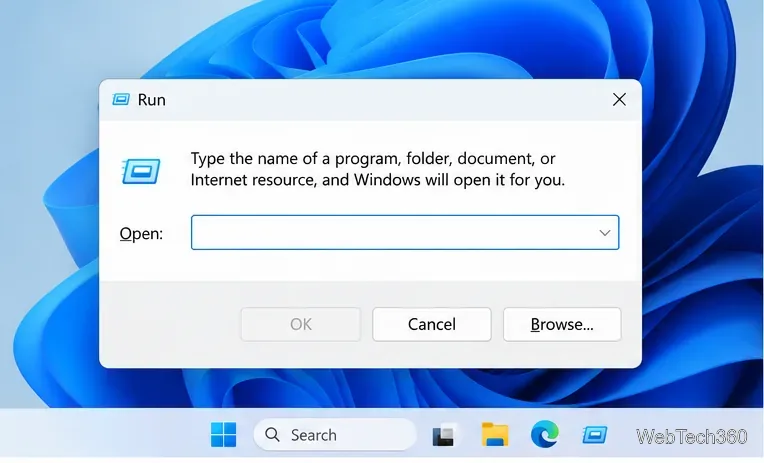
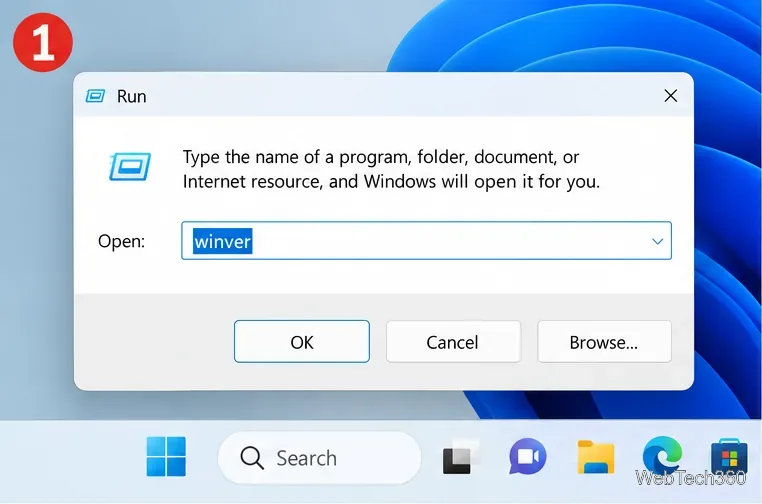
Press the Windows key + R to open the Run dialog.
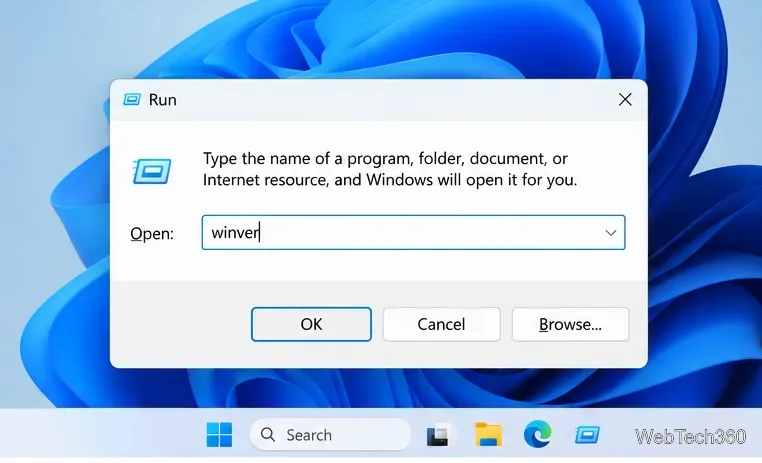
Enter winver and select OK or press Enter.
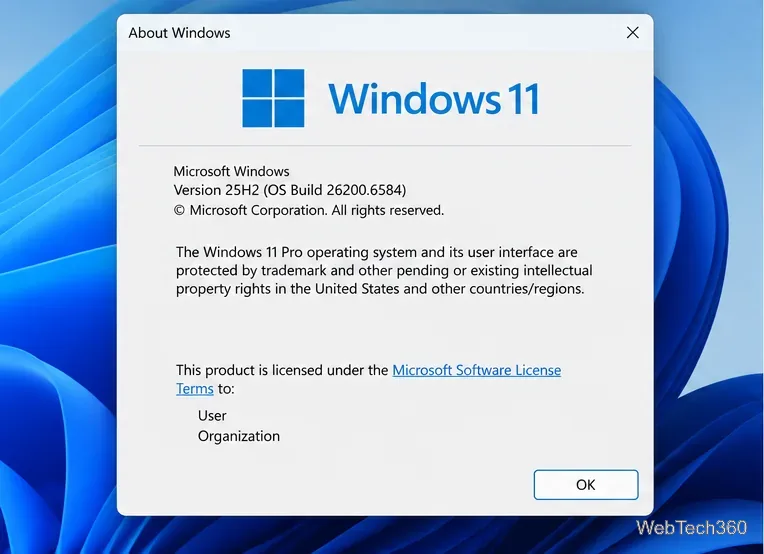
In About Windows, read the Windows name, version, and OS build. The window may also identify the edition, such as Windows 11 Pro.
Press Windows + R to open Run.Type winver, then press Enter or select OK.
For example, a dialog might identify Windows 11, version 25H2 and list a separate build number. Your numbers may be different; write down the values actually shown on your PC rather than copying an example. Microsoft documents this method in its official Windows version lookup guide.
About Windows displays the version and OS build together.
What if you see a different version?
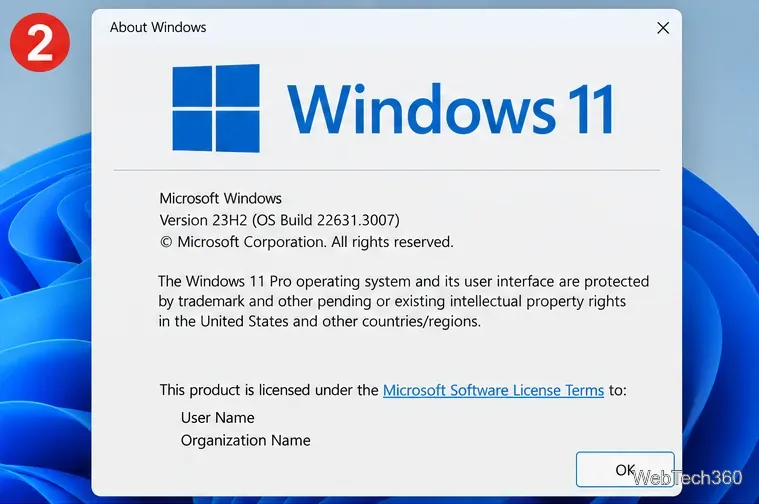
Different PCs may display releases such as 23H2, 24H2, 25H2, or another installed version. The format tells you which feature release is installed; it does not, by itself, prove that every security update is present. The build number is more specific and changes as updates are installed.
The version and build vary by installation; use the values on your own device.
Method 2: Find the edition, version, and system type in Settings
Right-click Start and select Settings, or press Windows + I.
Go to System > About.
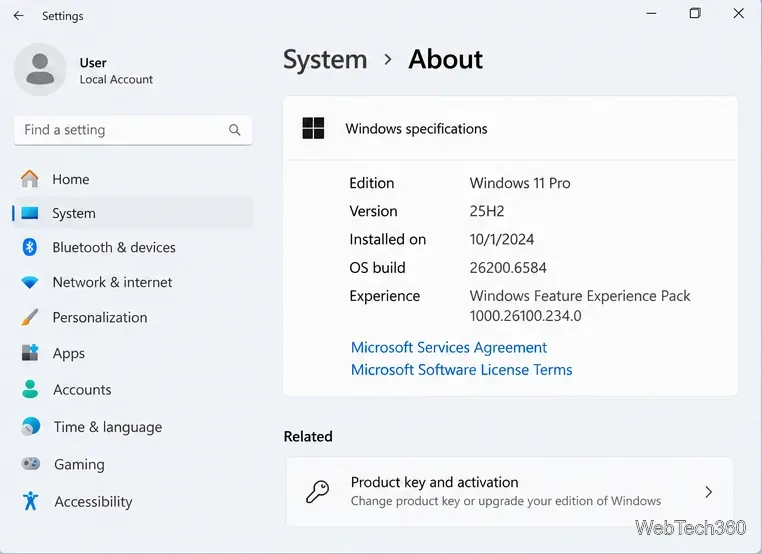
Under Windows specifications, find Edition, Version, and OS build. Under Device specifications, read System type to check whether the operating system is 64-bit.
These labels are available in Windows 11 and Windows 10. The page layout may vary slightly between releases. If a software installer asks whether you use Windows 11 Pro 64-bit, the Settings page gives you both parts of that answer. Microsoft's device information instructions confirm where to find them.
The Windows specifications area groups edition, version, and OS build.
Method 3: Use System Information for additional details
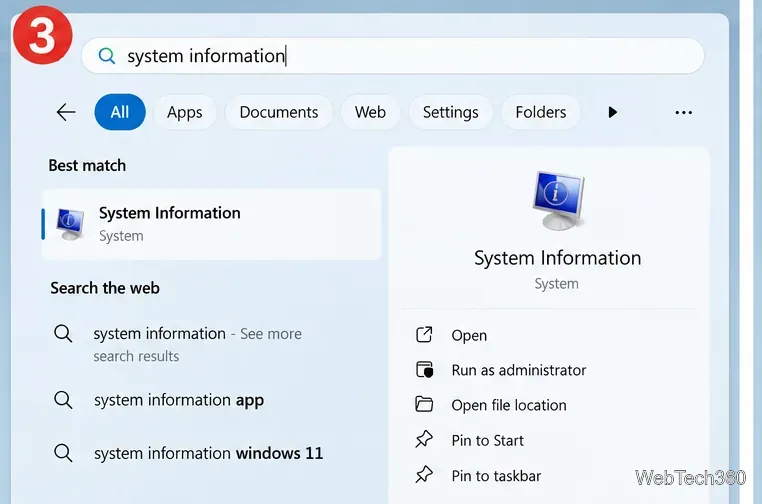
Open Start, search for System Information, and select the desktop app. Alternatively, press Windows + R, enter msinfo32, and press Enter.
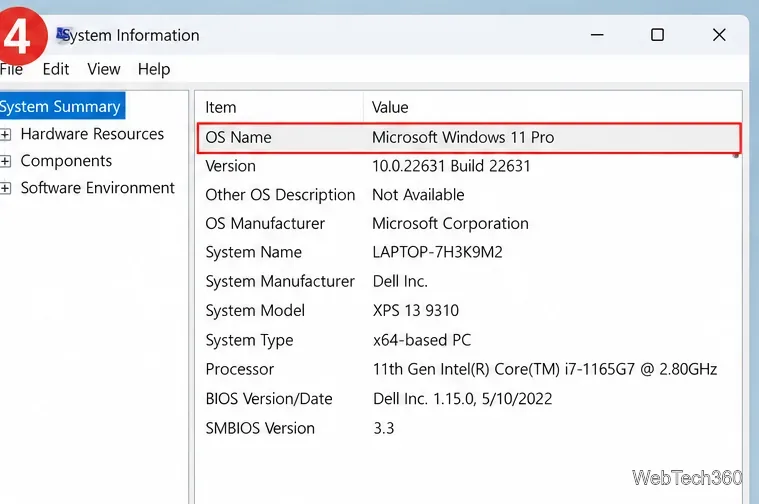
Choose System Summary if it is not already selected.
Look at OS Name and Version on the right. You can also find System Type and useful hardware details.
System Information is particularly helpful if support staff request your Windows identity together with your computer's model or processor. It contains much more information than you normally need for a quick version check.
Search for System Information to open the built-in utility.Read OS Name and Version in the System Summary.
Method 4: Check Windows from Command Prompt or PowerShell
If you prefer a command-line check, open Command Prompt or PowerShell and enter:
The output identifies the operating system name and version/build line. It may take a moment to collect system information. You can also run winver from either shell if you want the simpler graphical dialog. Microsoft's Windows client tools documentation lists these approaches.
The same winver command can also be launched from Command Prompt or PowerShell.
What do Windows edition, version, and OS build mean?
Field
What it tells you
Windows name
The main operating system, such as Windows 10 or Windows 11.
Edition
The product edition, such as Home, Pro, or Enterprise.
Version
The feature release identifier, for example 25H2.
OS build
A more precise build number useful for diagnosing update or compatibility issues.
System type
The operating system architecture, such as 64-bit.
32-bit or 64-bit? Check System type under Device specifications. Windows 11 is 64-bit only; Windows 10 installations could be 32-bit or 64-bit, as explained in Microsoft's 32-bit and 64-bit Windows FAQ.
What if you're still using Windows 10?
Windows 10's standard support ended on October 14, 2025. A Windows 10 PC can still run, but it no longer receives normal free security fixes through standard support. Eligible devices may have separate Extended Security Updates (ESU) options. If your device qualifies for Windows 11, check Settings > Update & Security > Windows Update on Windows 10 for the available upgrade. Do not bypass Windows 11's hardware requirements merely to make the installer run.
For current guidance, see Microsoft's Windows 10 end-of-support explanation. If your version or build seems old, check Windows Update before assuming that you have the latest security fixes.
Quick answer
Use Windows + R > winver for the fastest Windows version check. Use Settings > System > About when you also need the edition, build, or 64-bit system type. Use System Information when technical support asks for more detailed computer specifications.