How to Move Minecraft to Another Drive in Windows 10

Move Minecraft for Windows to another drive with the built-in Settings option, protect your worlds, and see what to do if Move is unavailable.
If your Windows 10 screen keeps dimming or brightening by itself, the cause is usually a power-saving or automatic-brightness feature rather than the display resolution. Start with Windows adaptive brightness, then check Battery saver and any Intel or AMD display power-saving controls. If the brightness change happens when the charger moves or disconnects, check the power connection and hardware as well.
The pattern usually points to the cause:
| What you notice | Most likely cause |
|---|---|
| Brightness changes as room lighting changes | Windows adaptive brightness and an ambient-light sensor |
| The screen dims when you unplug the charger or the battery gets low | Battery saver or a graphics power-saving feature |
| Brightness shifts when a dark or bright page, video, or app appears | Intel Display Power Saving Technology or AMD Vari-Bright on supported laptops |
| The problem began after a driver change or Windows update | Display-driver or OEM graphics software issue |
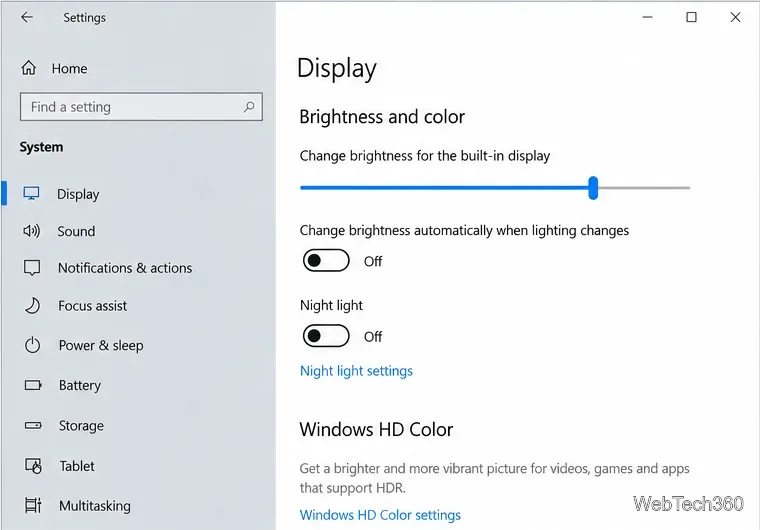
Some laptops have an ambient-light sensor that lets Windows 10 change the built-in display brightness automatically. Microsoft notes that this option only appears on supported hardware.
If the checkbox is missing, your PC may not expose an ambient-light sensor to Windows, so move to the next fix. Microsoft documents the setting on its display brightness support page.
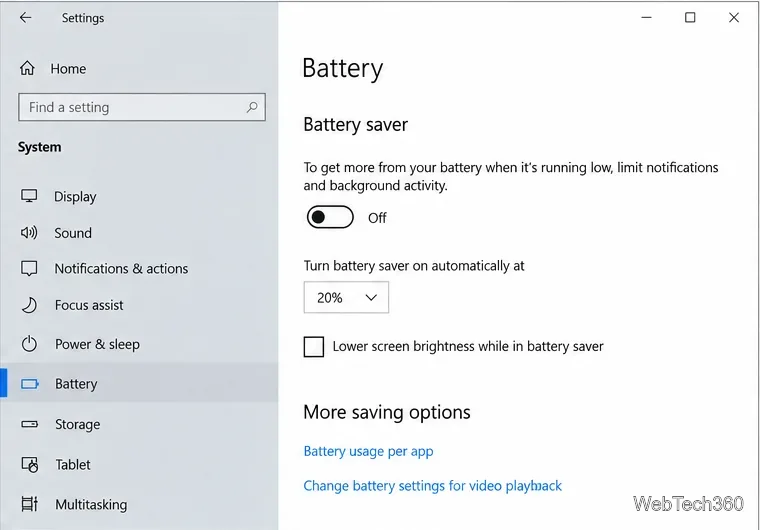
Windows 10 Battery saver can reduce display brightness to conserve power. This is especially likely if the screen becomes dim at a repeatable battery percentage or immediately after the laptop switches from AC power to battery.
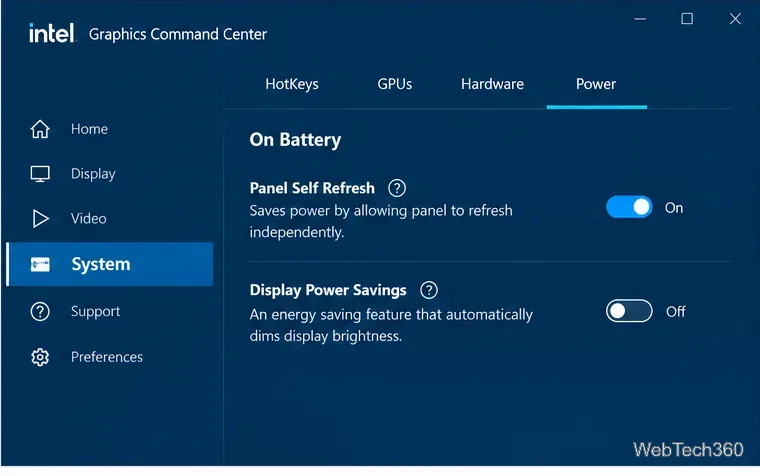
On some laptops, the graphics driver can change perceived brightness even when Windows adaptive brightness is off. This commonly happens on battery power or when the content on screen changes.
Intel documents Display Power Savings as a feature that can automatically dim a built-in laptop screen. In Intel Graphics Command Center, open System > Power, select the On Battery section, and turn Display Power Savings off. Intel's current troubleshooting steps are available in its automatic laptop brightness support article.
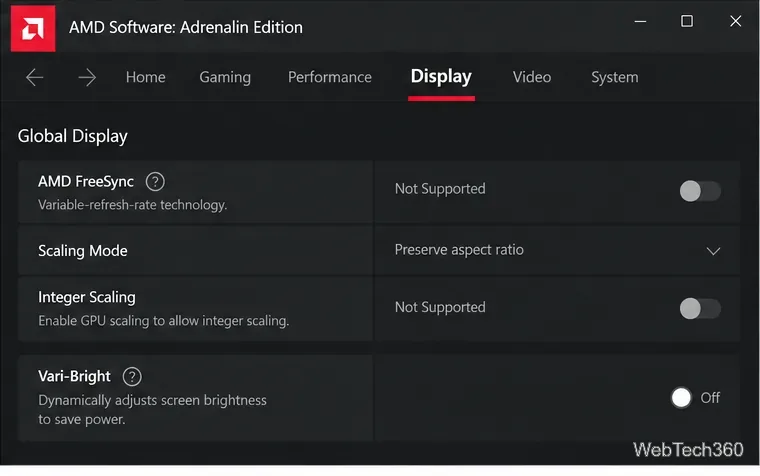
AMD laptops may offer Vari-Bright, a power-saving feature that adjusts display brightness. Open AMD Software: Adrenalin Edition, search for Display, open the display settings, and disable Vari-Bright to test whether the unwanted dimming stops. AMD describes the feature in its Windows display settings guide.
If the brightness controls are missing, unresponsive, or started behaving differently after an update, refresh the display driver. On Windows 10, go to Settings > Update & Security > Windows Update, check for updates, and open View optional updates if it appears. Install an available display or graphics driver and restart the PC.
Microsoft recommends Windows Update first, then the hardware manufacturer's driver if Windows Update does not offer a suitable one. See Microsoft's driver update guidance. For laptops, the PC manufacturer's driver can be preferable when it includes model-specific power or panel controls.
If the screen dims exactly when the charging indicator switches between plugged in and battery, reseat the power adapter and check the connector for looseness or damage. Try a known-good compatible charger if the manufacturer provides one. An intermittent power connection can repeatedly trigger battery-related brightness policies.
For an external monitor, use the monitor's own brightness controls; Microsoft notes that Windows may not show a brightness slider for external displays. If only the laptop's built-in panel flickers, pulses, or goes dark even before Windows loads, software settings are less likely to be the cause. A failing backlight, panel cable, ambient-light sensor, battery, or power circuitry should be inspected by the device manufacturer or a qualified repair technician.
Usually, no. A non-native resolution can make text look soft or stretched, but it is not a typical cause of the backlight repeatedly dimming. Use the display's recommended resolution for image quality, but troubleshoot automatic brightness and power-saving controls first.
Microsoft ended standard Windows 10 support on October 14, 2025. Windows 10 PCs still work, but free security fixes and normal technical support have ended. If the device is staying on Windows 10, review Microsoft's Windows 10 end-of-support options, including Extended Security Updates where applicable.
Move Minecraft for Windows to another drive with the built-in Settings option, protect your worlds, and see what to do if Move is unavailable.
Find out why Windows 10 hides SmartScreen’s Run anyway button, how to review the warning, and how to allow a bypass while keeping SmartScreen on.
Combine left and right channels so you can hear the full mix through one earbud. Follow the Windows 10 Settings path and learn how to restore stereo when you want it.
Learn how to build a custom grid for your display in Windows 10 with PowerToys FancyZones, adjust zones, choose each monitor, and snap apps into place.
Set Windows 10 to sign in automatically at startup with Microsoft Sysinternals Autologon, then learn how to disable it and understand the security tradeoffs.
Add the Ultimate Performance power plan in Windows 10 with an elevated command, select it in Power Options, and check compatibility and power-use limits.
Refresh missing or incorrect bookmark icons in Edge by reopening the saved page, clearing cached images, or rebuilding the favicon cache safely.
Turn the number row into virtual numpad keys on Windows 10 with AutoHotkey v2. Set up a Caps Lock toggle, test it in your app, and see what the script cannot remap.
Turn off a wired Ethernet adapter in Windows 10, confirm you selected the right device, restore it later, or use PowerShell.
Pair Bluetooth headphones with Windows 10, choose them as your audio output, and fix common discovery or sound problems.








