Add a Date and Time Stamp to Photos on Your Android Phone

Learn how to add a visible date and time to new or existing Android photos with your camera's watermark setting or Google Photos Markup.
These apps to install after rooting Android help manage root, protect app data, control network access, and automate tasks. Begin with the manager for your root method, add a backup tool, then choose utilities you need. Treat each superuser prompt as an administrator request.
Check your root method and Android version, and keep an independent copy of important files before changing modules or system settings. Download apps only from official project pages or listed stores. Grant root only when needed, and deny requests you cannot explain.
Rooting can affect compatibility. Google’s Play Integrity docs say a rooted or compromised device can return an empty integrity verdict; each app developer decides how to respond. Some banking, payment, streaming, or game features may be limited. Check the apps you rely on first. See Google’s Play Integrity guidance.
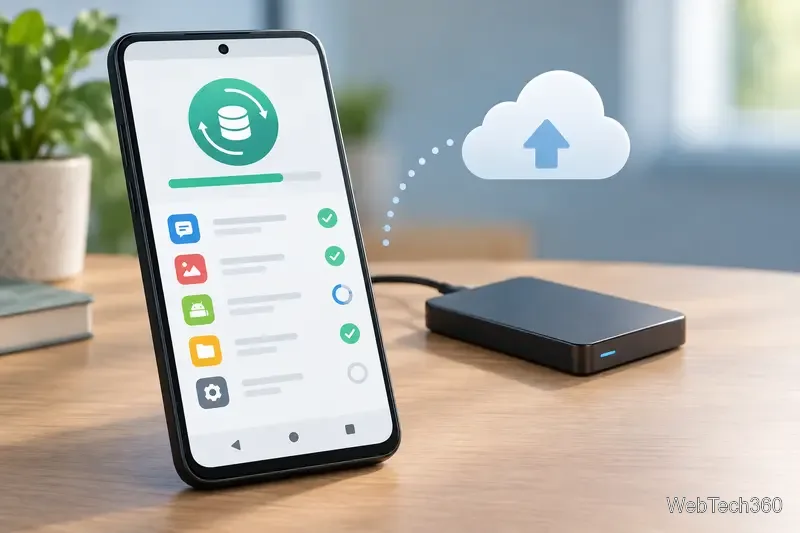
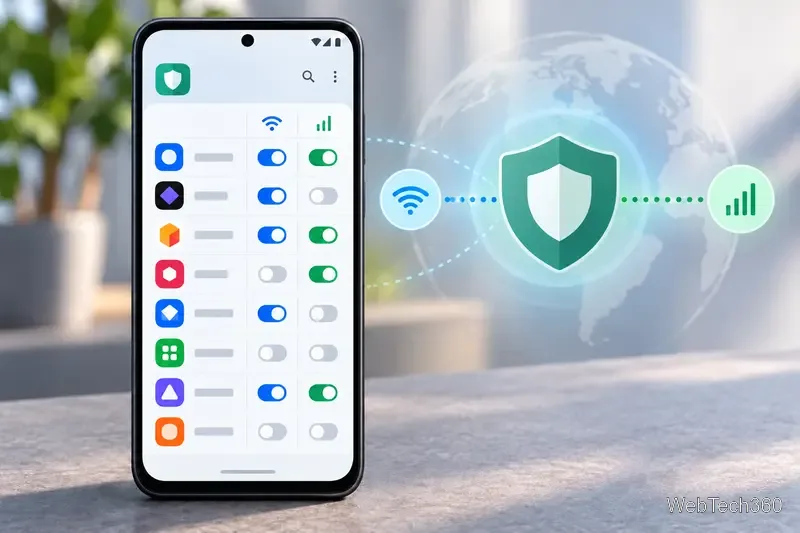
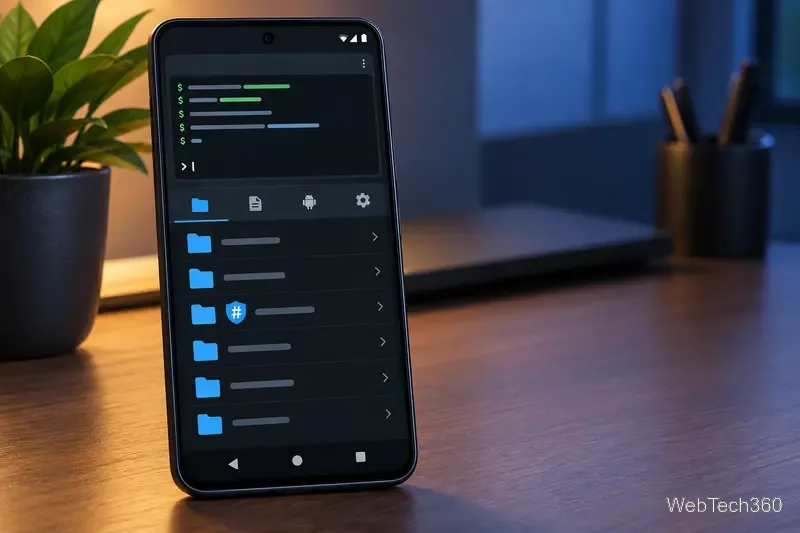
Start with your root manager, one backup app, and one network tool. Add other utilities for a specific need, and keep a recoverable backup before system-level changes.
Learn how to add a visible date and time to new or existing Android photos with your camera's watermark setting or Google Photos Markup.
Learn how to screenshot on Android with button shortcuts, scrolling captures, and Pixel, Samsung, and Motorola gestures, plus where to find and share images.
Learn how Framaroot rooted compatible older Android phones, what to check before installing its APK, and why it rarely works on newer devices.
See how the classic Search Now app used a floating search button for on-device and web searches, why its Play Store listing is gone, and what works today.
Learn how to turn Facebook profile picture login on or off, remove saved sign-ins on iPhone or Android, and find the current Saved login settings.
Learn how to identify plants, products, books, and other objects in photos with Google Lens on Android, iPhone, or a computer—and improve uncertain matches.
Remove your Pokémon GO avatar’s hat, gloves, and backpack using the Style menu. Follow the steps and fix missing no-item options without spending PokéCoins.
Understand what firmware and ROM mean on Android, how stock and custom ROMs differ, what flashing changes, and which risks to check before installing an image.
Learn what you need to install CyanogenMod 7.1 RC1 on the Motorola CLIQ XT, back up the MB501, flash the matching ZIPs, and avoid unverified files.
See what Android 2.3 Gingerbread keyboard language packs supported, how to verify a compatible ZIP, back up your phone, and avoid unsafe recovery flashes.








