Add a Date and Time Stamp to Photos on Your Android Phone

Learn how to add a visible date and time to new or existing Android photos with your camera's watermark setting or Google Photos Markup.
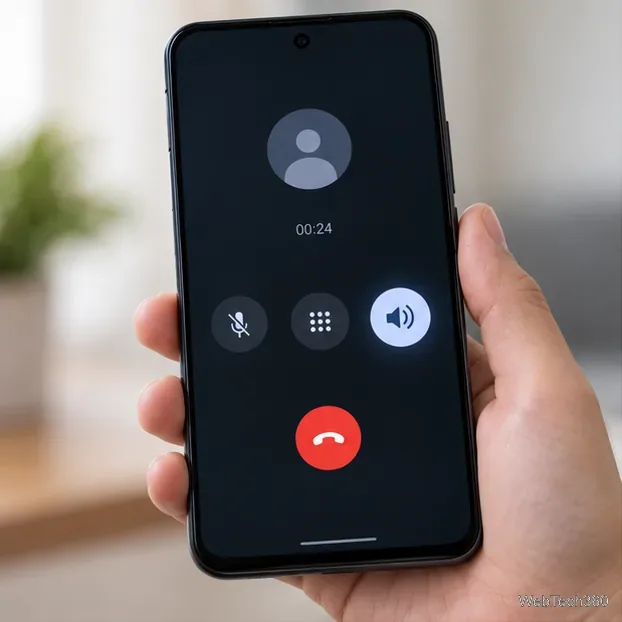
Android phones generally do not switch a call between the earpiece and speakerphone just because you move the phone toward or away from your face. The proximity sensor normally turns the display off near your ear to prevent accidental taps. To change where a regular call plays, use the in-call Speaker or audio-device control. Labels and layouts vary by phone and dialer.
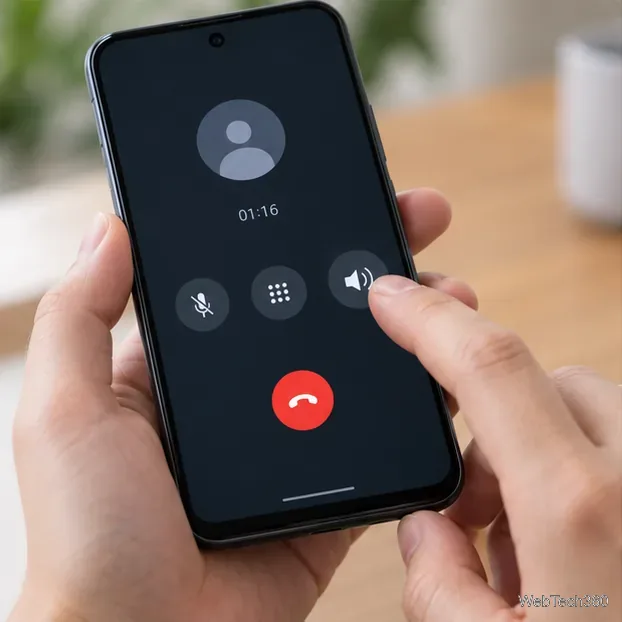
In Google’s Phone app, the active-call controls let you switch among the earpiece, speakerphone, and a connected Bluetooth headset. Other dialers may arrange these options differently.
Google’s Phone app instructions describe the Speaker button for changing routes. In Google Voice, tap Sound to switch between the earpiece and speakerphone or select a connected device.
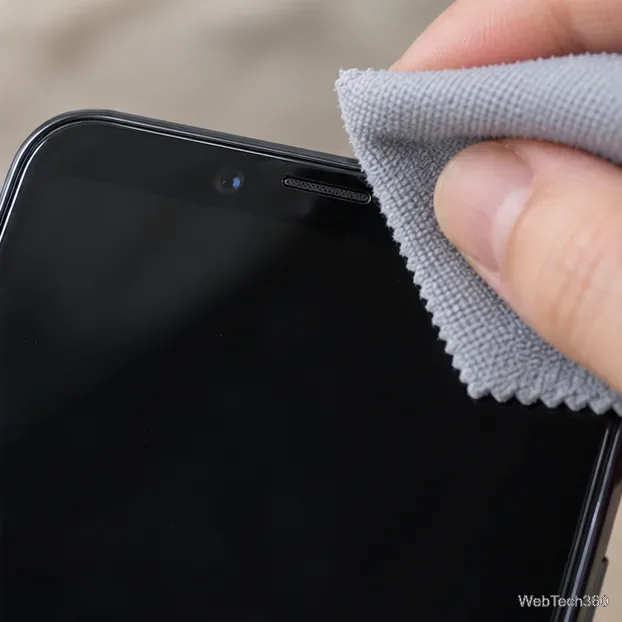
The sensor detects whether an object is close to the phone. Android’s developer documentation says handset makers commonly use it to recognize when a phone is held near a person’s face during a call. Google explains that on Pixel phones it keeps the display off near the face to help prevent accidental touches and save power. Moving the phone away should make the screen available again, though behavior can vary by model and calling app.
This screen behavior is separate from choosing where call audio plays. Covering the sensor is not a standard Android command to turn speakerphone on, and uncovering it is not a universal command to return to the earpiece. Some phone makers or calling apps may add their own options, but there is no consistent consumer setting for this across Android devices.
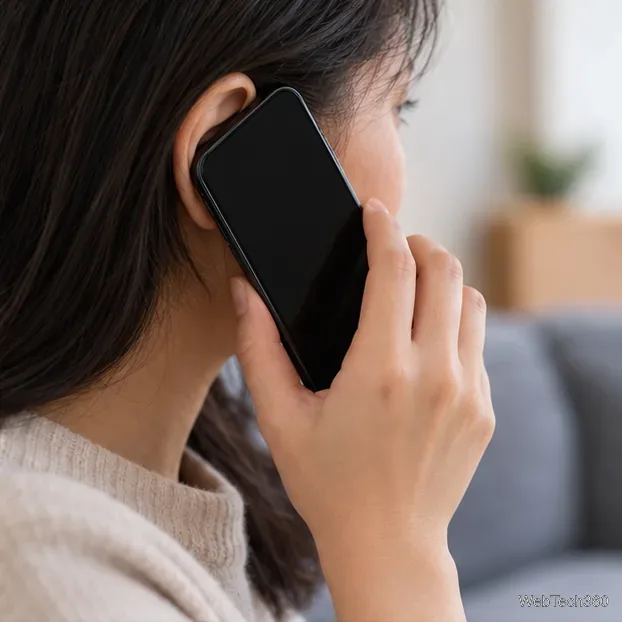
Move the phone away from your face so the screen can wake, then reopen the active-call screen. Tap the audio control and check the selected route. If a headset was recently connected, disconnect it or choose the handset or speaker route. Google Voice uses Sound for this control.
For a quick check, make a short call in a quiet place and switch routes in each direction. If the button does not change the audio, end the call, restart the phone, and install available Android system and Phone app updates before trying again.
The original SpeakerProximity concept used the proximity sensor to toggle call audio automatically and included options such as headset detection and speakerphone start. Its old download link pointed to Google Code. Google’s Google Code Archive preserves project files after the hosting service was turned down; it is not a maintained Android app listing.
I could not verify a currently supported SpeakerProximity release or compatibility with modern Android. Skip old APK links and unofficial mirrors. Use the in-call audio controls, or check whether your phone maker offers a current dialer setting for automatic routing.
Learn how to add a visible date and time to new or existing Android photos with your camera's watermark setting or Google Photos Markup.
Learn how to screenshot on Android with button shortcuts, scrolling captures, and Pixel, Samsung, and Motorola gestures, plus where to find and share images.
Learn how Framaroot rooted compatible older Android phones, what to check before installing its APK, and why it rarely works on newer devices.
See how the classic Search Now app used a floating search button for on-device and web searches, why its Play Store listing is gone, and what works today.
Learn how to turn Facebook profile picture login on or off, remove saved sign-ins on iPhone or Android, and find the current Saved login settings.
Learn how to identify plants, products, books, and other objects in photos with Google Lens on Android, iPhone, or a computer—and improve uncertain matches.
Remove your Pokémon GO avatar’s hat, gloves, and backpack using the Style menu. Follow the steps and fix missing no-item options without spending PokéCoins.
Understand what firmware and ROM mean on Android, how stock and custom ROMs differ, what flashing changes, and which risks to check before installing an image.
Learn what you need to install CyanogenMod 7.1 RC1 on the Motorola CLIQ XT, back up the MB501, flash the matching ZIPs, and avoid unverified files.
See what Android 2.3 Gingerbread keyboard language packs supported, how to verify a compatible ZIP, back up your phone, and avoid unsafe recovery flashes.








