Add a Date and Time Stamp to Photos on Your Android Phone

Learn how to add a visible date and time to new or existing Android photos with your camera's watermark setting or Google Photos Markup.
If your Android phone shows an erratic battery percentage or shuts down while charge remains, do not start by installing the old Battery Calibration app. That tool was made for rooted Android phones and cleared battery-use statistics; it could not restore a worn battery’s capacity. Today, the useful next step depends on the phone model. Google documents a meter-calibration procedure for Pixel 6 and later when a phone turns off unexpectedly, while other Android users should follow their manufacturer’s guidance.
Battery calibration is about helping a phone’s software report the battery level more accurately. It does not increase the amount of energy an aging battery can hold, fix a damaged cell, or automatically stop an app from using power. If a phone consistently lasts less time but the percentage falls smoothly, investigate battery use and battery health before trying to recalibrate anything.
The old app’s “battery stats” are usage records. Android Developers describes Batterystats as diagnostic data that helps identify power use by apps and system components. Clearing that history is different from following a manufacturer’s procedure to recalibrate a battery-level reading. Root access or deleting system files is not a current, general-purpose repair recommendation.
Consider a model-specific calibration only if the displayed level seems wrong—for example, the phone switches off even though the meter showed charge remaining. If the phone merely drains faster than usual, check Settings > Battery or your maker’s equivalent for apps and system features using the most power. A recent software update can also temporarily increase drain while a phone finishes background work; Google notes this can happen on Pixel phones.
The images below are representative screen examples. Android menus and appearance vary by manufacturer and software version.
Google’s Pixel support procedure covers Pixel 6 and later, including Pixel Fold, to calibrate the phone after it turns off suddenly. Use it for that specific symptom, not as a monthly battery-maintenance routine. If you have another Android model, don’t assume the Pixel procedure applies to it.
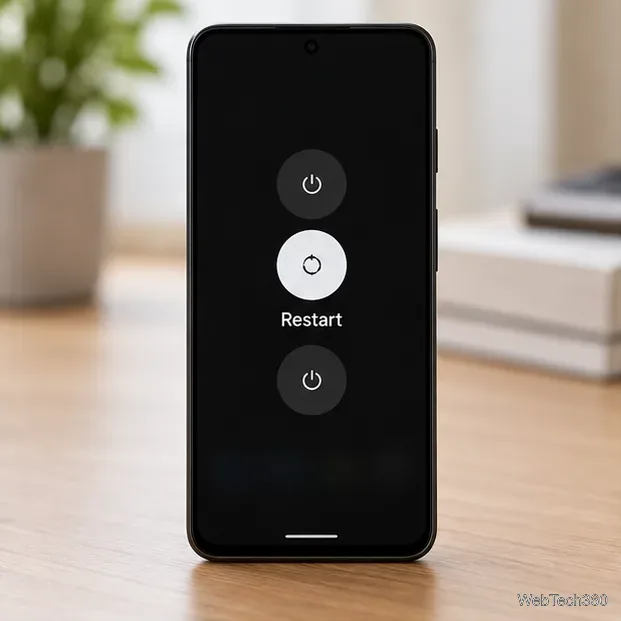
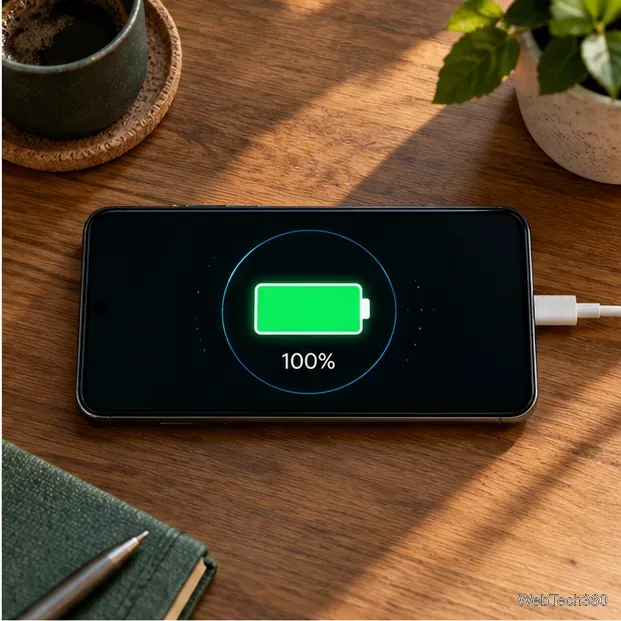
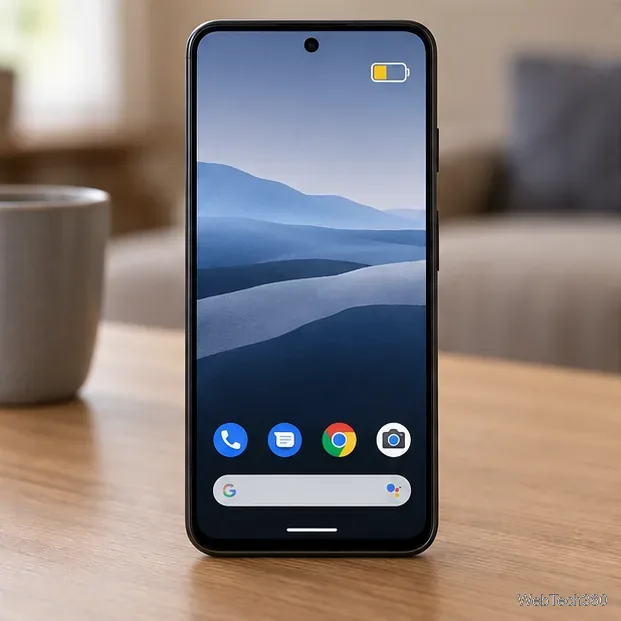
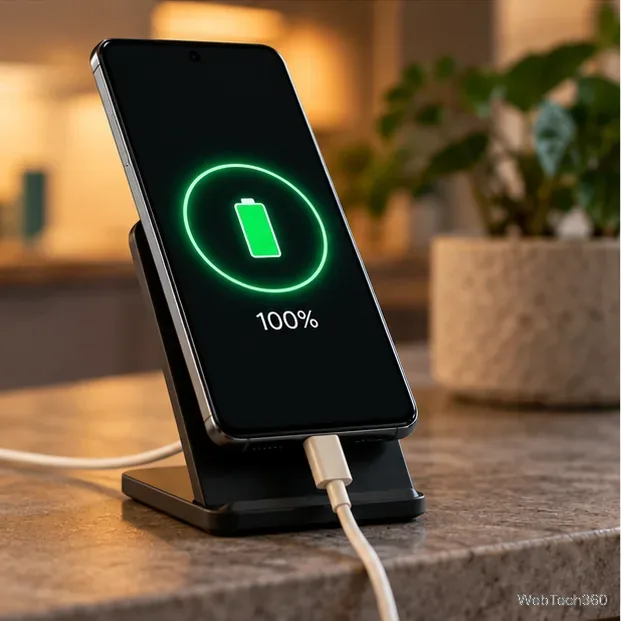
Google’s full instructions also cover battery-drain troubleshooting and diagnostics. On supported Pixel phones, open Settings > Battery > Battery Diagnostics to check for battery or charging problems. If the phone still shuts down unexpectedly after the procedure, contact Pixel support instead of repeatedly draining the battery.
Samsung Galaxy owners can use the Samsung Members battery diagnostic: open Samsung Members, tap Support, choose Phone diagnostics, then select Battery status. Availability and menu labels can vary by device. For other brands, use the built-in battery settings and the manufacturer’s support site; avoid root apps or APK mirrors that promise to “repair” battery capacity.
For ordinary battery drain, review battery usage, install available system and app updates, and restart the phone. If one app appears unusually high in the list, check its background-use settings. Avoid factory-resetting or changing ROMs just to reset a battery statistic; those actions can erase data without repairing the battery.
Battery cells lose capacity as they age, so a corrected percentage cannot make an old battery last like a new one. Google provides battery health and capacity information on supported Pixel models under Settings > Battery > Battery health. Samsung recommends a service check when a Galaxy phone frequently shuts down unexpectedly or its battery life drops noticeably. If the phone is swollen, unusually hot, or physically damaged, stop using it and arrange professional service.
In short, skip the obsolete Battery Calibration app. Use Google’s four-step procedure only for the Pixel models and shutdown symptom it covers. On every other phone, trust the maker’s diagnostics and service guidance; calibration can correct a reading, but it cannot reverse battery wear.
Learn how to add a visible date and time to new or existing Android photos with your camera's watermark setting or Google Photos Markup.
Learn how to screenshot on Android with button shortcuts, scrolling captures, and Pixel, Samsung, and Motorola gestures, plus where to find and share images.
Learn how Framaroot rooted compatible older Android phones, what to check before installing its APK, and why it rarely works on newer devices.
See how the classic Search Now app used a floating search button for on-device and web searches, why its Play Store listing is gone, and what works today.
Learn how to turn Facebook profile picture login on or off, remove saved sign-ins on iPhone or Android, and find the current Saved login settings.
Learn how to identify plants, products, books, and other objects in photos with Google Lens on Android, iPhone, or a computer—and improve uncertain matches.
Remove your Pokémon GO avatar’s hat, gloves, and backpack using the Style menu. Follow the steps and fix missing no-item options without spending PokéCoins.
Understand what firmware and ROM mean on Android, how stock and custom ROMs differ, what flashing changes, and which risks to check before installing an image.
Learn what you need to install CyanogenMod 7.1 RC1 on the Motorola CLIQ XT, back up the MB501, flash the matching ZIPs, and avoid unverified files.
See what Android 2.3 Gingerbread keyboard language packs supported, how to verify a compatible ZIP, back up your phone, and avoid unsafe recovery flashes.








