Add a Date and Time Stamp to Photos on Your Android Phone

Learn how to add a visible date and time to new or existing Android photos with your camera's watermark setting or Google Photos Markup.
To check whether an Android device supports 64-bit apps, look at its Supported ABIs list in a device-information app. If the list includes arm64-v8a or x86_64, Android reports 64-bit app support. If it lists only armeabi-v7a or x86, the installed system reports 32-bit app support. This is more reliable than guessing from the phone's age, memory, Android version, or kernel string.
There are two related questions: whether the processor hardware can run 64-bit instructions, and whether the installed Android system supports 64-bit apps. Those answers can differ. Android defines supported ABIs—the application binary interfaces—as the instruction-set options the system can run, and its platform may expose more than one ABI. If you need an app-compatibility answer, check the ABI list. If you need to know what the chip itself can do, verify the processor model separately.
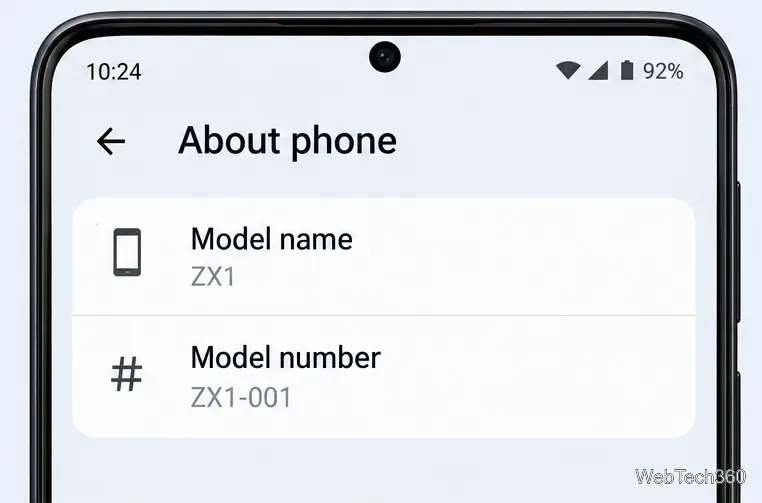
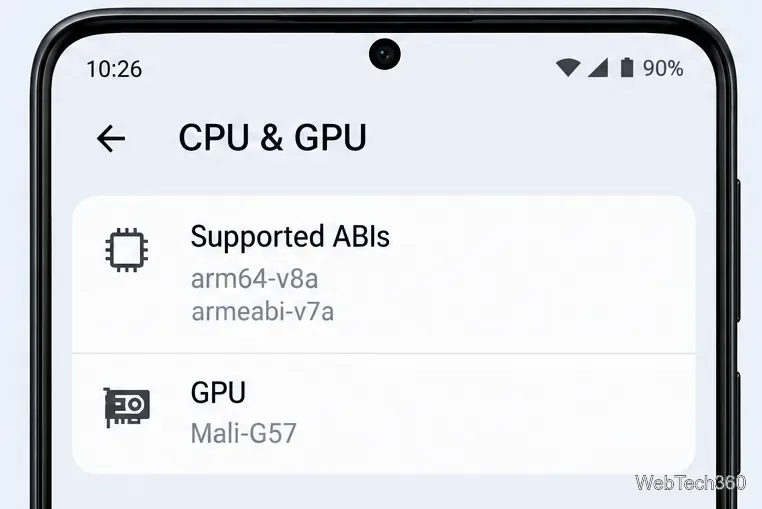
arm64-v8a as 64-bit ARM and armeabi-v7a as 32-bit ARM; x86_64 and x86 are their 64-bit and 32-bit x86 counterparts.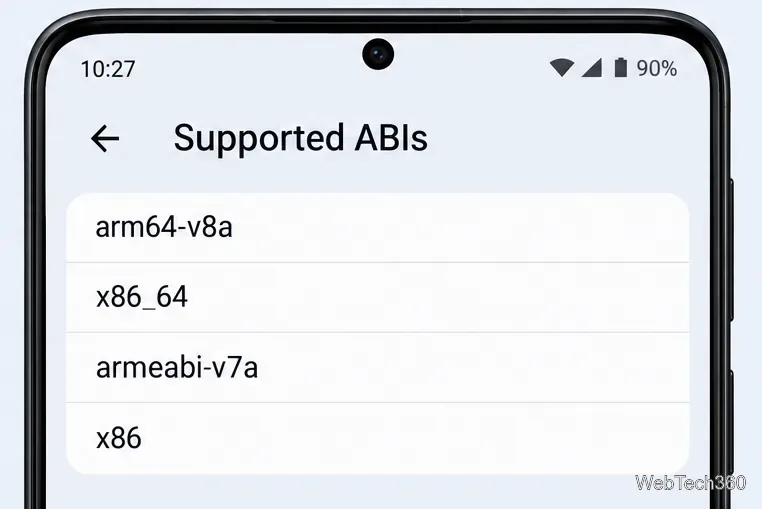
| ABI shown | Architecture | What it means |
|---|---|---|
arm64-v8a | 64-bit ARM | 64-bit ARM apps are supported |
armeabi-v7a | 32-bit ARM | 32-bit ARM apps are supported |
x86_64 | 64-bit x86 | 64-bit x86 apps are supported |
x86 | 32-bit x86 | 32-bit x86 apps are supported |
A list that contains both arm64-v8a and armeabi-v7a supports 64-bit and 32-bit ARM apps. A list with only armeabi-v7a means Android is reporting 32-bit ARM app support, even if the underlying processor may be capable of 64-bit operation. Check the exact ABI required by an app if you are troubleshooting a specific installation; a 64-bit ARM ABI does not mean an x86 app will run.
Ask for the exact model number and chipset, then compare them with the manufacturer's product specifications. Search the chip model on its manufacturer's site if the phone listing does not state the processor's architecture. Do not use RAM capacity as a shortcut: having more than 4 GB of memory does not prove that Android exposes a 64-bit ABI. If the device is sold in several configurations, verify the processor for the precise model code you will receive.
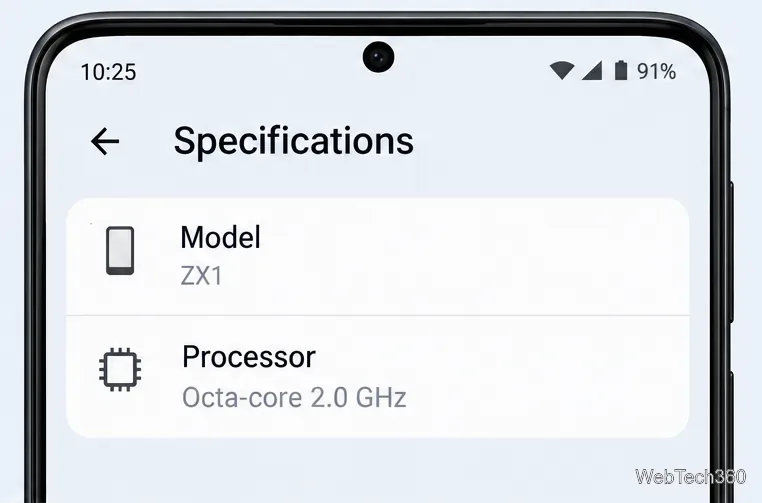
If the manufacturer page names the SoC but does not say whether the phone supports 64-bit apps, an information utility can help once you have the device. CPUID's CPU-Z for Android reports the SoC name and architecture, which helps identify the hardware. For app compatibility, still check the Android ABI list rather than relying only on the chip's architecture.
You cannot change the processor's hardware capability with a setting or app. A device with a 64-bit-capable processor may still run a system image that supports only 32-bit apps. Changing that software setup requires a compatible 64-bit system build for the exact device; it is not a routine toggle, and the manufacturer may not provide one. For a dependable 64-bit app environment, choose a model whose supported ABI list includes arm64-v8a or x86_64, or use only a system image officially supported for that model.
For reference, Android documents the SUPPORTED_ABIS field as the ordered list of ABIs supported by a device. The Android ABI guide explains which architecture names are 32-bit and 64-bit.
Learn how to add a visible date and time to new or existing Android photos with your camera's watermark setting or Google Photos Markup.
Learn how to screenshot on Android with button shortcuts, scrolling captures, and Pixel, Samsung, and Motorola gestures, plus where to find and share images.
Learn how Framaroot rooted compatible older Android phones, what to check before installing its APK, and why it rarely works on newer devices.
See how the classic Search Now app used a floating search button for on-device and web searches, why its Play Store listing is gone, and what works today.
Learn how to turn Facebook profile picture login on or off, remove saved sign-ins on iPhone or Android, and find the current Saved login settings.
Learn how to identify plants, products, books, and other objects in photos with Google Lens on Android, iPhone, or a computer—and improve uncertain matches.
Remove your Pokémon GO avatar’s hat, gloves, and backpack using the Style menu. Follow the steps and fix missing no-item options without spending PokéCoins.
Understand what firmware and ROM mean on Android, how stock and custom ROMs differ, what flashing changes, and which risks to check before installing an image.
Learn what you need to install CyanogenMod 7.1 RC1 on the Motorola CLIQ XT, back up the MB501, flash the matching ZIPs, and avoid unverified files.
See what Android 2.3 Gingerbread keyboard language packs supported, how to verify a compatible ZIP, back up your phone, and avoid unsafe recovery flashes.








