How to Delete Your Cash App Account on Android, iPhone, or PC

You can close a Cash App account from the mobile app or by contacting Cash App Support. A computer is useful for reviewing account information and saving statements, but the current official guidance directs customers to sign in and visit Cash App Support to deactivate or close an account. Before you start, move any available balance, save records you may need for taxes or disputes, and understand that closing an account is not the same as erasing every record Cash App is legally allowed to retain.

Before you close your Cash App account

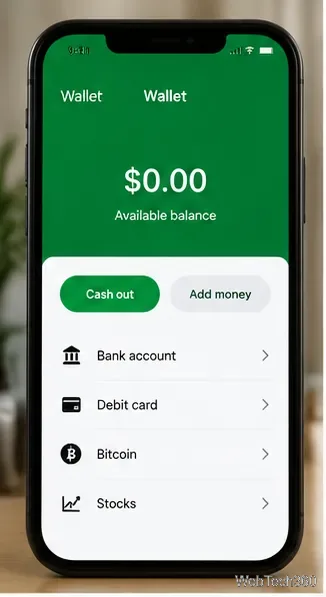
  • Move your available balance. Open the Money or banking area and use Cash Out to transfer available funds to a linked bank account. Resolve pending payments or other issues first. Cash App may restrict or hold funds in some circumstances, such as an investigation.
  • Save statements and tax documents. Download or save the monthly statements, receipts, and tax records you may need later. Once your account is closed, you may lose access to your $Cashtag, transaction history, and Cash App Taxes information.
  • Review linked products. If you use Cash App for stocks, Bitcoin, a Cash App Card, direct deposit, or Cash App Mobile, check the relevant balances, positions, subscriptions, and transfer requirements before closing. For example, if you need to keep a Cash App Mobile number, arrange to transfer it to another carrier first.
  • Keep access to your sign-in details. Make sure you can access the email address and phone number associated with your account in case Support needs to verify you.
Cash App balance screen with Cash Out and linked financial services
The balance screen shows the Cash Out control and linked financial features to review before account closure.

Save your account statements

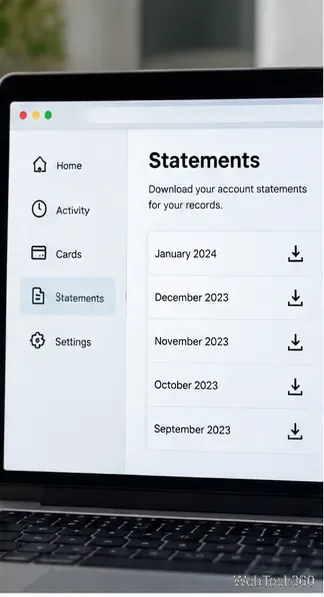
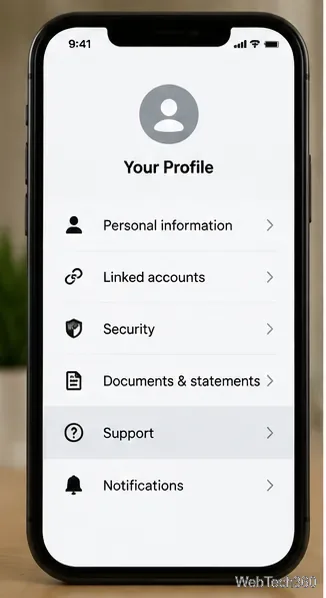
In the Cash App mobile app, tap your profile icon, choose Documents & statements, and open Account statements. On a computer, sign in at Cash App, choose Documents from the left menu, and open Account statements. Select the year and month you need, then open the statement and save a copy. Cash App says monthly statements are generally available during the last five business days of each month.

Cash App account statements listed in a desktop browser
Save account statements from the web account before closing Cash App.

Statements are transaction records, not necessarily a complete copy of all personal information Cash App holds. If you want a broader copy of your data or want to make a personal-information deletion request, use the privacy and support options separately.

How to delete a Cash App account on iPhone (iOS)

  1. Open Cash App and sign in to the account you want to close.
  2. Transfer any available balance using Cash Out, and save statements and tax records you may need.
  3. Tap your profile icon, then open Support.
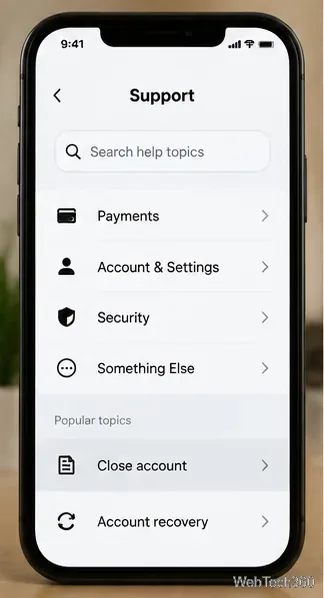
  4. Look under Account & Settings for the account-closure option. Depending on the version and account, you may need to select a related help topic or contact Support directly.
  5. Read the information shown by Cash App. If the app offers a close-account action, follow the prompts and confirm only when you are sure.
  6. If you cannot find the option, sign in and visit the official Cash App Support page and ask for help closing your account.
Cash App profile menu showing documents and statements and support
On a phone, open the profile menu to find support and account documents.
Cash App support menu with account settings and close account option
The support area is the starting point for account-closure help; labels may vary by app version.

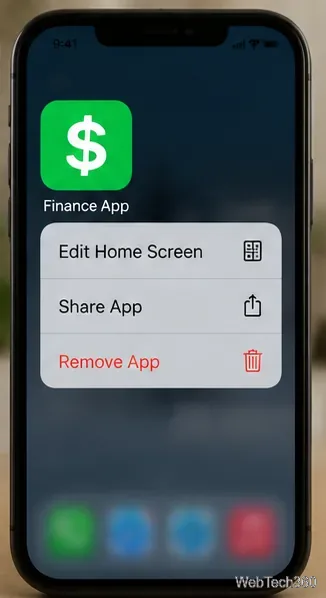
Do not treat uninstalling the app as account closure. Wait until you have completed the closure request and received any confirmation or next steps from Cash App. Then remove the app from your iPhone by touching and holding its icon, choosing Remove App, and confirming removal. This only removes the app from the device; it does not close an account on its own.

Phone home-screen context menu showing Remove App
Remove the mobile app only after you have completed the account-closure process.

How to delete a Cash App account on Android

The account-closure process is similar on Android, although menu names and layout can change between app versions.

  1. Open Cash App and sign in.
  2. Cash out available funds and save account statements, receipts, and any tax documents you may need.
  3. Tap your profile icon and select Support.
  4. Open Account & Settings and look for the close-account guidance. Follow the instructions displayed for your account, or contact Support if no closure option appears.
  5. Read the closure terms and confirm only after reviewing the consequences.
  6. After the closure request is complete, uninstall Cash App through Android’s app settings or by pressing and holding the app icon and choosing the available uninstall option.
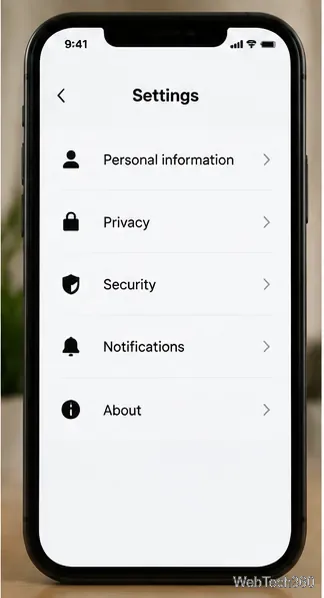
Cash App settings screen showing personal information, privacy, and security
Review privacy settings and account information before starting the closure request.

App labels can change, so if your screen does not match these steps, use the official Support page rather than following an unfamiliar third-party page or sharing your PIN, password, or full card number with anyone claiming to help.

Can you delete your Cash App account from a PC?

You can use a PC to sign in, save statements, review account details, and contact Support. However, Cash App’s official privacy notice says you can deactivate or close an account by logging in and visiting its support site; it does not promise that every account can be closed through a self-service delete button on the desktop website.

  1. Open cash.app/account in a browser and sign in.
  2. Open Documents and save the statements you need.
  3. Go to Cash App Support while signed in.
  4. Choose the account or closure help topic available to you, then follow the instructions or contact the support team to request closure.
  5. Keep any confirmation message or case details until you know the request has been completed.
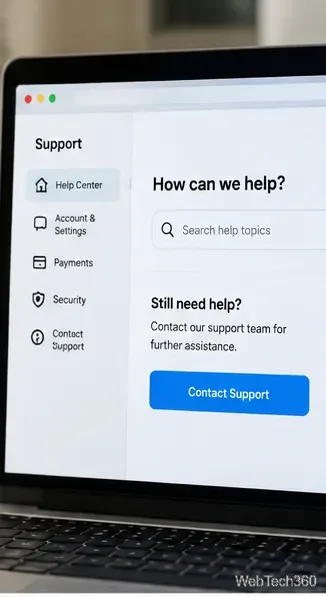
Cash App support page with account settings and contact support
If the closure option is unavailable, use Cash App’s official support channel for help.

Does closing Cash App delete your personal data?

Not necessarily. Closing your account ends your access to Cash App services and information, but it should not be treated as a guarantee that every piece of personal or transaction data has been erased. Cash App’s privacy notice explains that information may be retained for purposes such as legal compliance, fraud prevention, disputes, investigations, collecting fees, and enforcing agreements. Data-deletion rights and exceptions also depend on applicable law and where you live.

If your goal is specifically to request deletion of personal information, make that request through Cash App’s privacy or support process separately from closing the account. Save any documents you need first, and read the response carefully so you understand what information can or cannot be deleted.

What to do if you cannot close the account

  • Update the app and sign in to the correct account.
  • Check for pending transfers, unresolved payments, or balances that may need attention.
  • Use the official Support route at cash.app/support if the closure option is missing or an error appears.
  • Never share your sign-in code, PIN, password, or full debit-card number with someone who contacts you unexpectedly.

Official sources

Leave a Comment

Add a Date and Time Stamp to Photos on Your Android Phone

Add a Date and Time Stamp to Photos on Your Android Phone

Learn how to add a visible date and time to new or existing Android photos with your camera's watermark setting or Google Photos Markup.

How to Screenshot on Android Devices: Buttons and Gestures

How to Screenshot on Android Devices: Buttons and Gestures

Learn how to screenshot on Android with button shortcuts, scrolling captures, and Pixel, Samsung, and Motorola gestures, plus where to find and share images.

How to Root Older Android Devices With Framaroot in a Few Taps

How to Root Older Android Devices With Framaroot in a Few Taps

Learn how Framaroot rooted compatible older Android phones, what to check before installing its APK, and why it rarely works on newer devices.

Search Now for Android: Search Your Phone or the Web From Anywhere

Search Now for Android: Search Your Phone or the Web From Anywhere

See how the classic Search Now app used a floating search button for on-device and web searches, why its Play Store listing is gone, and what works today.

How to Enable or Disable Facebook Profile Picture Login

How to Enable or Disable Facebook Profile Picture Login

Learn how to turn Facebook profile picture login on or off, remove saved sign-ins on iPhone or Android, and find the current Saved login settings.

How to Use Google Lens to Identify Objects in Photos

How to Use Google Lens to Identify Objects in Photos

Learn how to identify plants, products, books, and other objects in photos with Google Lens on Android, iPhone, or a computer—and improve uncertain matches.

How to Remove a Hat, Gloves, and Backpack From Your Pokémon GO Avatar

How to Remove a Hat, Gloves, and Backpack From Your Pokémon GO Avatar

Remove your Pokémon GO avatar’s hat, gloves, and backpack using the Style menu. Follow the steps and fix missing no-item options without spending PokéCoins.

Firmware, Stock ROMs, Custom ROMs, and Flashing Explained

Firmware, Stock ROMs, Custom ROMs, and Flashing Explained

Understand what firmware and ROM mean on Android, how stock and custom ROMs differ, what flashing changes, and which risks to check before installing an image.

How to Install CyanogenMod 7.1 RC1 on the Motorola CLIQ XT

How to Install CyanogenMod 7.1 RC1 on the Motorola CLIQ XT

Learn what you need to install CyanogenMod 7.1 RC1 on the Motorola CLIQ XT, back up the MB501, flash the matching ZIPs, and avoid unverified files.

Install Android 2.3 Gingerbread Keyboard Language Packs Safely

Install Android 2.3 Gingerbread Keyboard Language Packs Safely

See what Android 2.3 Gingerbread keyboard language packs supported, how to verify a compatible ZIP, back up your phone, and avoid unsafe recovery flashes.