How to Enable the Android Power Button Bug Report Shortcut
Enable Android’s power-menu bug report shortcut, capture a diagnostic report on your phone, and share it safely without relying on a desktop computer.
To enable the Android power button bug report shortcut on a compatible phone, first turn on Developer options, then enable Bug report shortcut. On current Google Pixel instructions, Google also tells you to enable USB debugging. Once the shortcut is active, reproduce the problem, open the phone’s power menu, and tap Bug report. If your manufacturer does not expose the power-menu shortcut, you can still create a report from Developer options.
This feature is not limited to Android 10. The Android Open Source Project says Android 4.2 and later support taking a bug report from Developer options, although the exact menu names and power-button behavior vary by device. Google’s general Android bug report documentation also documents the on-device method.
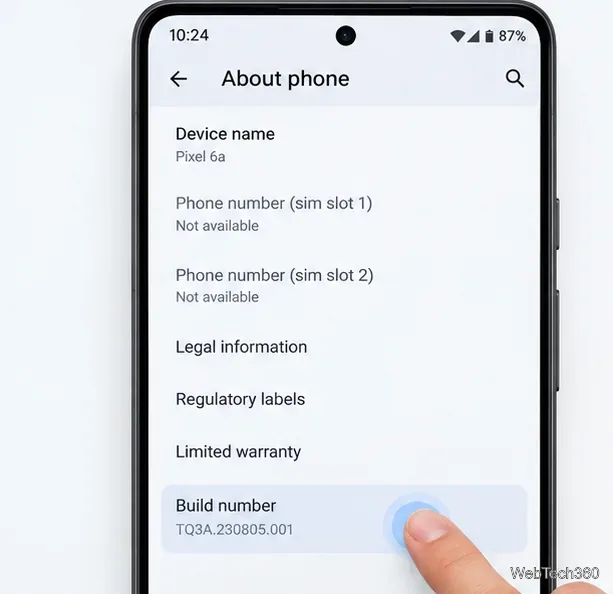
Developer options are hidden by default on modern Android phones. On a Google Pixel, open Settings > About phone, scroll to Build number, and tap it seven times. Enter your screen lock PIN or password if requested. You should then see a message confirming that developer mode is enabled.
Other manufacturers put Build number in slightly different places. For example, Samsung commonly places it under Settings > About phone > Software information. Android’s official Developer options guide lists several manufacturer-specific paths.
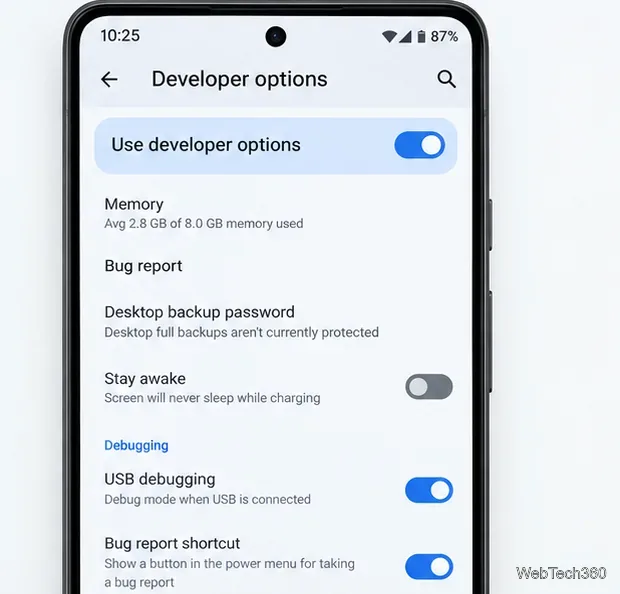
Open Settings > System > Developer options on a Pixel, or search Settings for “Developer options” if your phone uses a different layout. Make sure Developer options are enabled.
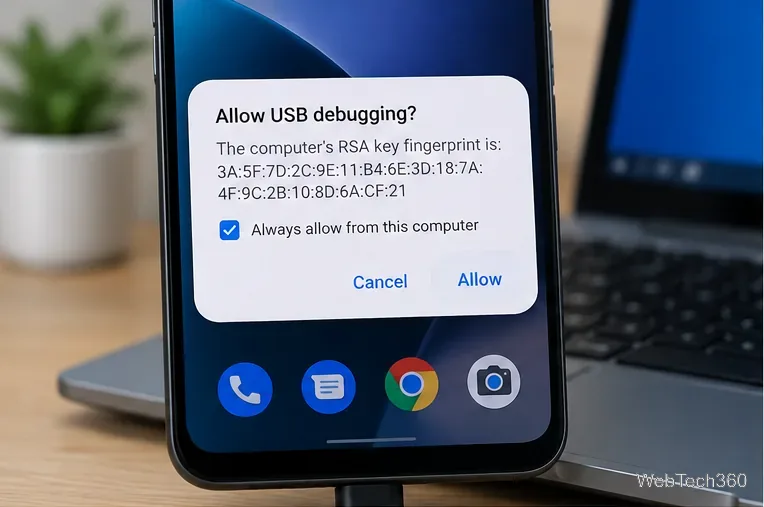
For Pixel phones, Google’s current bug report instructions say to turn on USB debugging, accept the warning, and then turn on Bug report shortcut. USB debugging is mainly what lets ADB tools communicate with a computer; the normal Take bug report command in Developer options can still generate a report directly on the phone.
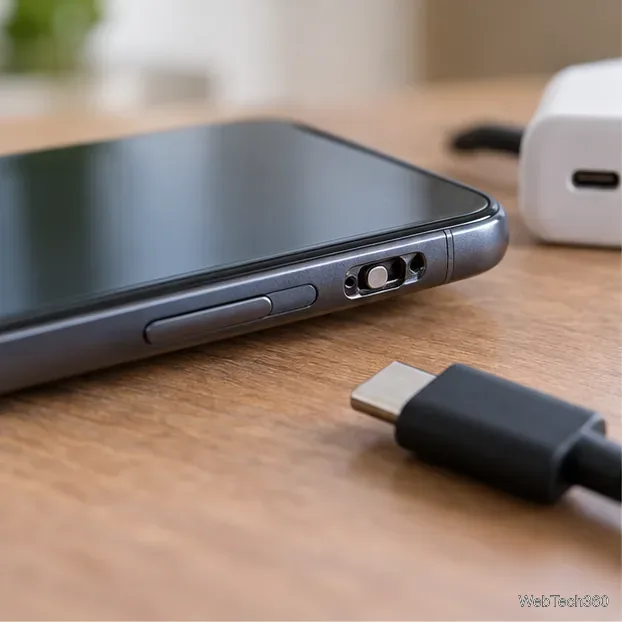
Reproduce the issue you want to diagnose before capturing the report so the relevant activity is present in the logs. Then open the power menu. On current Pixel guidance, press and hold Power + Volume Up together. Some phones still use a long press of the power button, while others assign that gesture to a digital assistant.
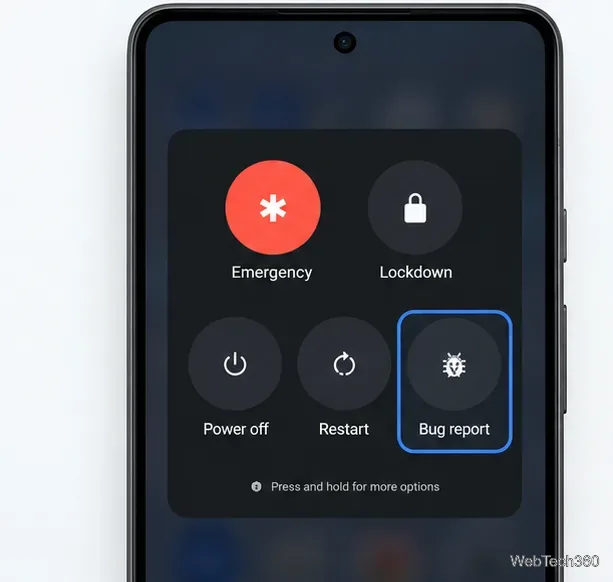
If there is no Bug report button, go back to Developer options and tap Take bug report or Bug report. Android’s official documentation treats this Developer options command as the standard on-device method, so the missing power shortcut does not prevent you from collecting a report.
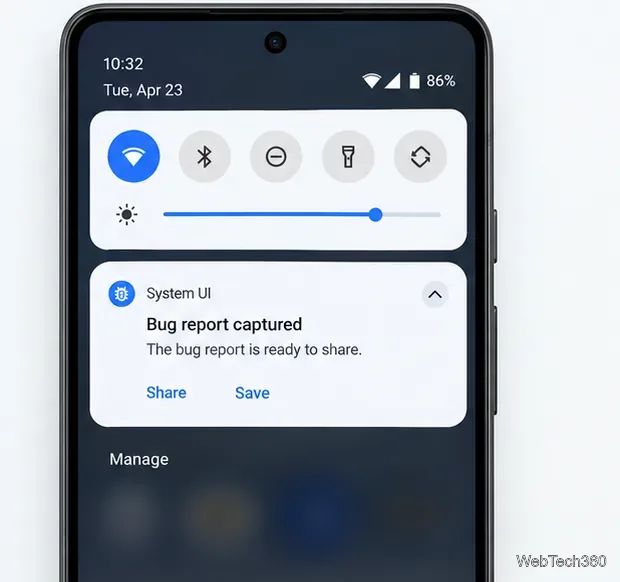
Android shows a notification while the bug report is being prepared. On Pixel phones, Google says the phone vibrates when the report is ready, which can take up to about two minutes. Tap the completed bug-report notification, then use the share sheet to save it to a trusted location or send it to the developer or support technician who requested it.
A bug report is much more than a single app log. According to the Android Open Source Project guide to reading bug reports, reports can include logcat output, dumpsys service information, dumpstate diagnostics, process and memory details, event logs, and other system data. Current Android reports are commonly packaged as a ZIP whose main text file is named with the device build and capture date.
Because this diagnostic package can contain device details, app activity, timestamps, network-related information, and other potentially sensitive data, share it only with people or organizations you trust. Do not post a full bug report publicly unless you have reviewed and sanitized it.
No. The old claim that this feature starts with Android 10 is outdated. AOSP documents on-device bug-report support from Android 4.2 onward. You also do not need a desktop computer to use Take bug report. A computer becomes necessary only if you choose the ADB method, such as adb bugreport, or need deeper command-line debugging.
If your phone’s menus differ from the steps above, use Settings search for Developer options, Bug report, or Build number. Android manufacturers are allowed to rearrange or rename settings, and some builds may omit the power-menu shortcut even though the standard Developer options bug-report command is present.
Enable Android’s power-menu bug report shortcut, capture a diagnostic report on your phone, and share it safely without relying on a desktop computer.
Fix the ADB device unauthorized error by reauthorizing USB debugging, restarting the ADB server, and checking Platform-Tools, cables, and drivers.
If your Android power button is broken, try charging, a volume-key USB boot, or Fastboot. Learn what works when the phone is fully off and why ADB often won’t.
Is BlueStacks safe and legal? Learn what the official installer, privacy policy, antivirus behavior, game rules, and system requirements mean for you.
Learn three practical ways to hide your IP address on Android: a VPN, Tor Browser, or a trusted Wi-Fi proxy, with current setup steps and limits.
Join a FaceTime call on Android through Chrome or Edge. Get the link, set browser permissions, wait for the host, and fix common connection issues.
Galaxy S27 Ultra is unannounced, but Samsung and Microsoft already show the path: Phone Link, File Explorer, Quick Share, app streaming, and smarter handoff.
Samsung has not announced Galaxy S27 Ultra pricing. Here’s what the S22–S26 Ultra price history suggests, what is still unknown, and how to budget.
Samsung has not announced Galaxy S27 Ultra gaming specs. Here is what it would need to beat 2027 rivals, based on the confirmed S26 Ultra baseline.
Which Galaxy S27 Ultra rumors deserve attention? We rank battery, camera, chipset, display, charging, S Pen, and AI claims against Samsung’s confirmed 2026 hardware.