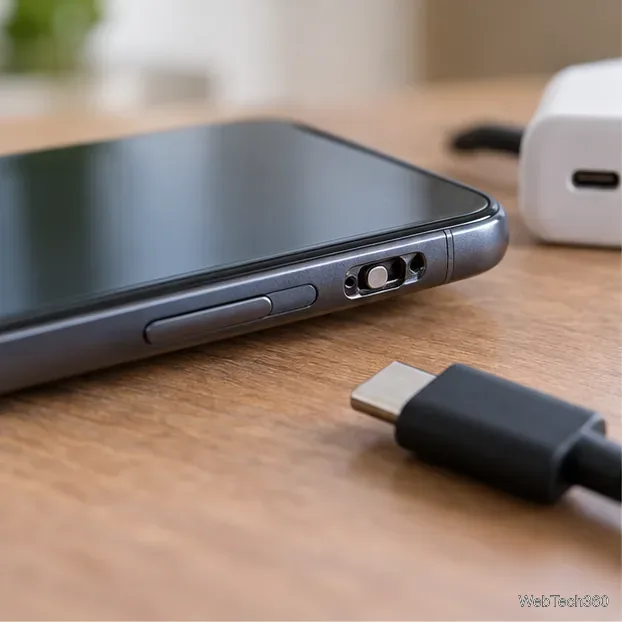
How to Enable the Android Power Button Bug Report Shortcut
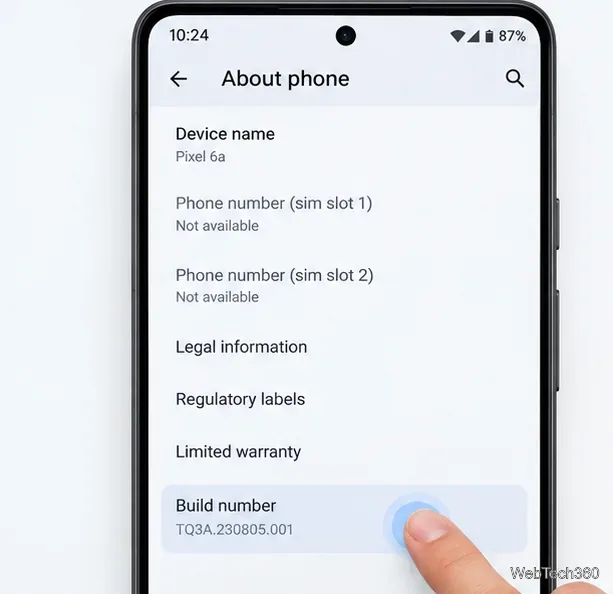
Enable Android’s power-menu bug report shortcut, capture a diagnostic report on your phone, and share it safely without relying on a desktop computer.
If adb devices lists your Android phone as unauthorized, the computer can see the device but has not been approved to use ADB with it. The fastest fix is to unlock the phone, reconnect it, and accept the Allow USB debugging? RSA prompt. If that prompt never appears, revoke existing USB debugging authorizations, restart ADB on the computer, and reconnect.
This is an ADB authorization problem, not a sign that your phone must be rooted or that its bootloader must be unlocked. Google documents the RSA confirmation prompt as a security protection on Android 4.2.2 and later. See the official Android Debug Bridge documentation.
Run this command from a terminal or Command Prompt where ADB is available:
adb devicesA working USB connection should show a device serial followed by device. If the same serial is followed by unauthorized, Android has not accepted the ADB host key for that computer yet.
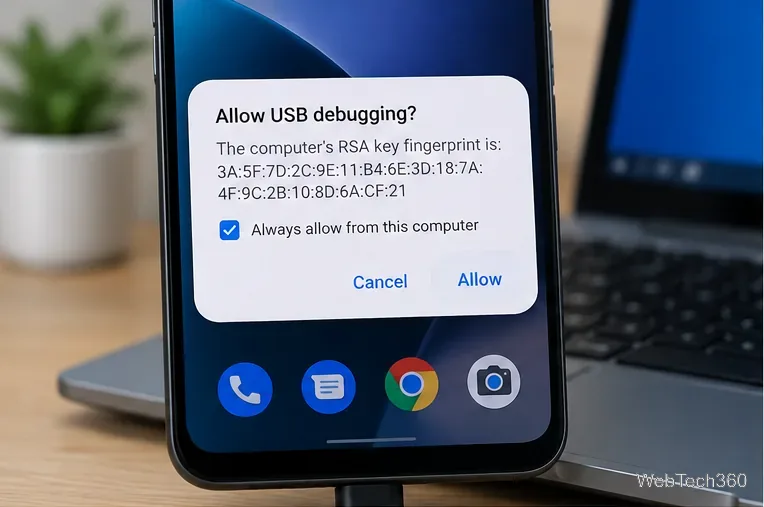
Keep the phone unlocked while it is connected. If Android shows Allow USB debugging?, verify that you recognize the computer and tap Allow. On a computer you personally control, you can also select Always allow from this computer so Android remembers that host key.
If there is no prompt, continue with the reset steps below.
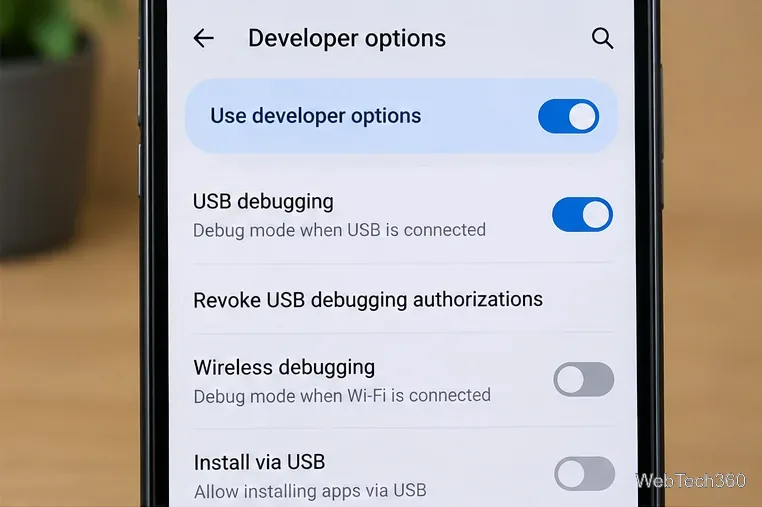
Open Settings > Developer options. On many current Android devices, Developer options is under Settings > System, although manufacturers can place or name it differently. Google notes that Android 4.2 and later hides Developer options until you enable it.
The official Developer options guide explains where USB debugging is located on different Android versions.
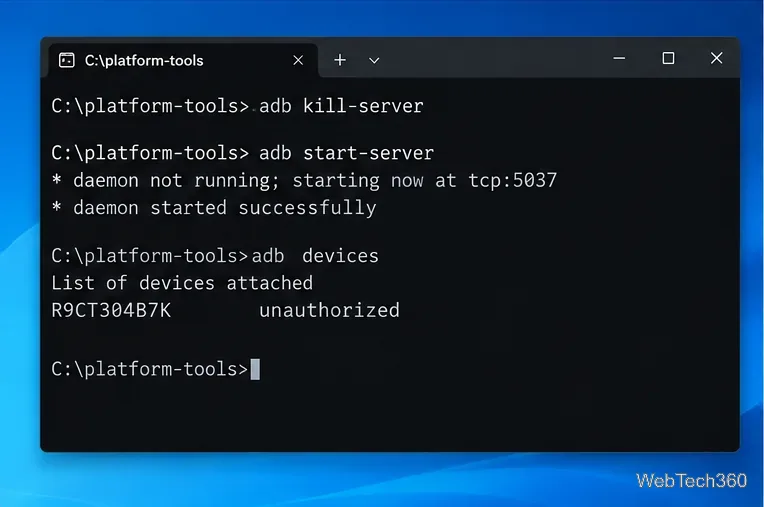
Disconnect the phone, then run these commands one at a time:
adb kill-server
adb start-server
Google recommends restarting the ADB server when the connection becomes unresponsive. You can also run adb devices after adb kill-server; any subsequent ADB command can start the server again.
Reconnect the phone directly to the computer, preferably without a hub. Keep the screen unlocked and watch for the RSA authorization dialog. Tap Allow when it appears.
You do not normally need to switch between “File transfer” and “Photo transfer” just to authorize ADB. USB debugging is the important setting. However, if the computer does not detect the phone at all, try another known-good data cable or USB port. Google’s hardware-device troubleshooting guide also recommends testing another cable when a device is not detected.
Run:
adb devices -lThe status should now be device, for example:
List of devices attached
R9CT304B7K    device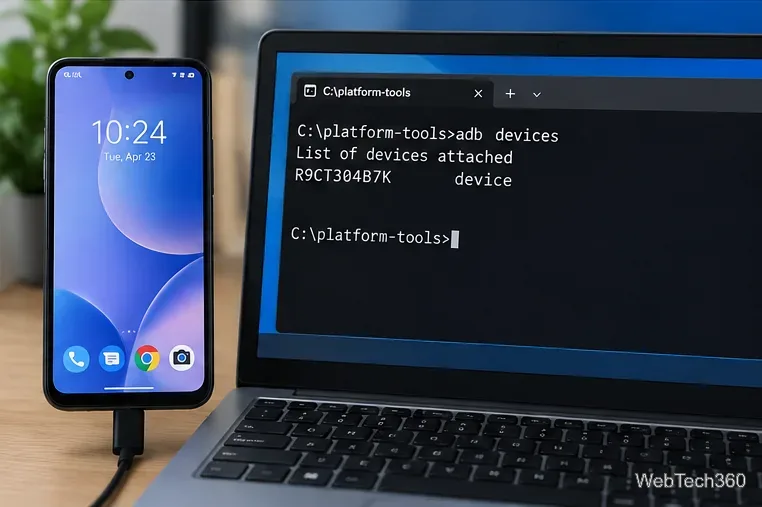
Work through these checks before changing anything more invasive:
adb devices shows no serial number at all, troubleshoot the cable, USB port, driver, or Linux device permissions first. That is different from an unauthorized status.ADB uses a host key to identify the computer. Android asks you to approve that key before allowing debugging commands. Revoking USB debugging authorizations clears previously trusted computers on the device, so the next connection can establish a fresh authorization. That is why the reset is more reliable than changing the phone’s ordinary USB file-transfer mode.
Enable Android’s power-menu bug report shortcut, capture a diagnostic report on your phone, and share it safely without relying on a desktop computer.
Fix the ADB device unauthorized error by reauthorizing USB debugging, restarting the ADB server, and checking Platform-Tools, cables, and drivers.
If your Android power button is broken, try charging, a volume-key USB boot, or Fastboot. Learn what works when the phone is fully off and why ADB often won’t.
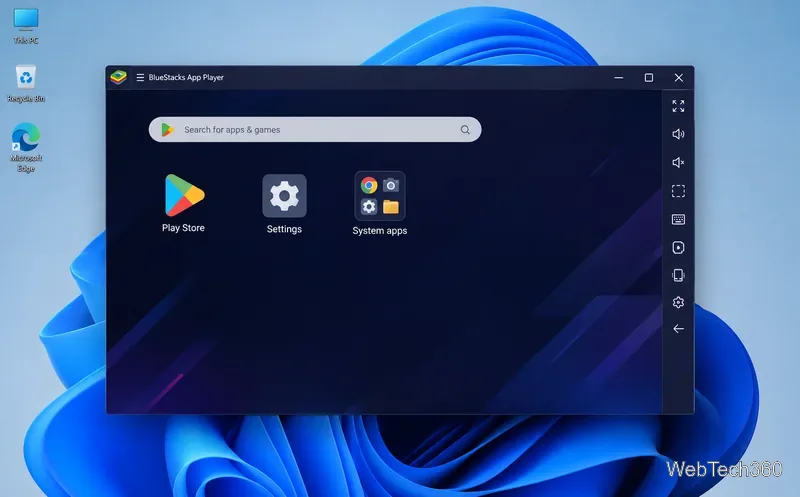
Is BlueStacks safe and legal? Learn what the official installer, privacy policy, antivirus behavior, game rules, and system requirements mean for you.
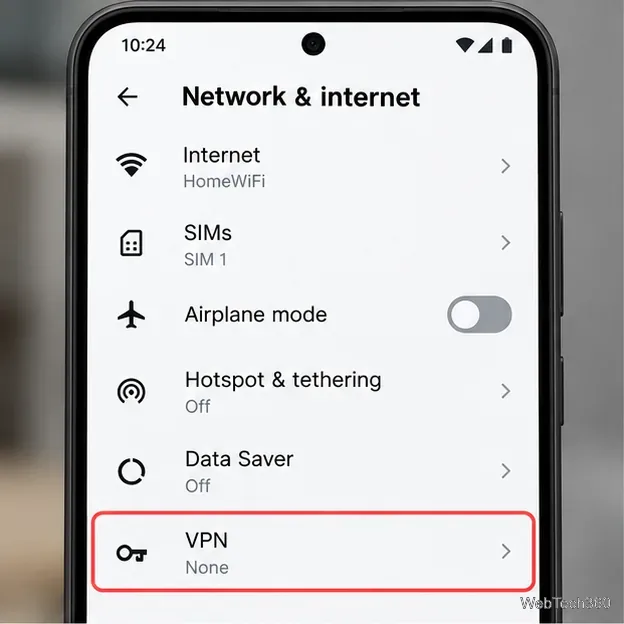
Learn three practical ways to hide your IP address on Android: a VPN, Tor Browser, or a trusted Wi-Fi proxy, with current setup steps and limits.
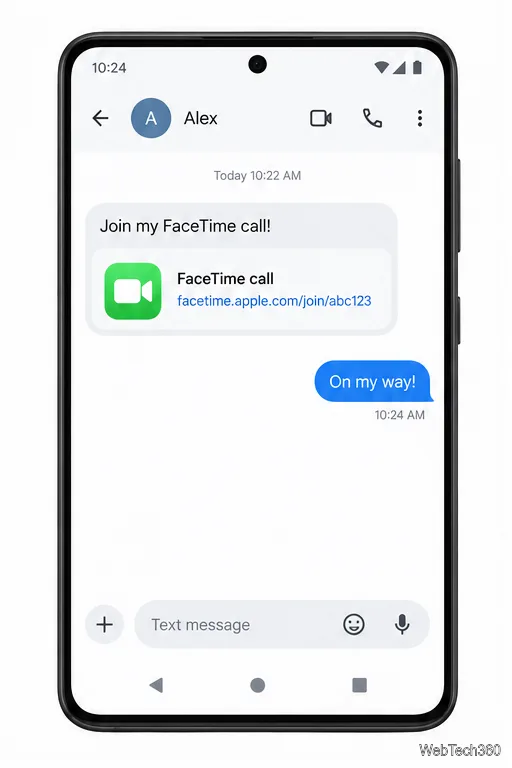
Join a FaceTime call on Android through Chrome or Edge. Get the link, set browser permissions, wait for the host, and fix common connection issues.
Galaxy S27 Ultra is unannounced, but Samsung and Microsoft already show the path: Phone Link, File Explorer, Quick Share, app streaming, and smarter handoff.
Samsung has not announced Galaxy S27 Ultra pricing. Here’s what the S22–S26 Ultra price history suggests, what is still unknown, and how to budget.
Samsung has not announced Galaxy S27 Ultra gaming specs. Here is what it would need to beat 2027 rivals, based on the confirmed S26 Ultra baseline.
Which Galaxy S27 Ultra rumors deserve attention? We rank battery, camera, chipset, display, charging, S Pen, and AI claims against Samsung’s confirmed 2026 hardware.