Add a Date and Time Stamp to Photos on Your Android Phone

Learn how to add a visible date and time to new or existing Android photos with your camera's watermark setting or Google Photos Markup.
Some Android 4.4 KitKat apps can run on Jelly Bean, but no package works on any Jelly Bean device. Compatibility depends on the app’s minimum Android version, processor, and service dependencies. Android 4.1–4.3 are API levels 16–18; KitKat is API 19. A setting cannot make an API 19 app run on an older system.
The old links point to third-party hosts and a 2013 Nexus 5 dump whose authenticity can no longer be verified, so they are not repeated. Use a compatible version from the app’s official Play Store listing or the developer’s own website. If neither offers a verified Jelly Bean build, do not substitute an APK mirror.
The Nexus 5 dump included Google Experience Launcher, Hangouts, Email, Calendar, Camera, Gallery, Maps, Street View, Quickoffice, Keep, Clock, Keyboard, Play Books, and Play Games. These are historical package names, not a current download bundle. Products and services have changed since then; an old app may install while its sign-in, sync, or online features no longer work.
Built-in apps such as launchers, cameras, and keyboards may require firmware libraries, special permissions, or matching system signatures. A normal APK does not grant those privileges, so replacing a working system app can destabilize the phone.
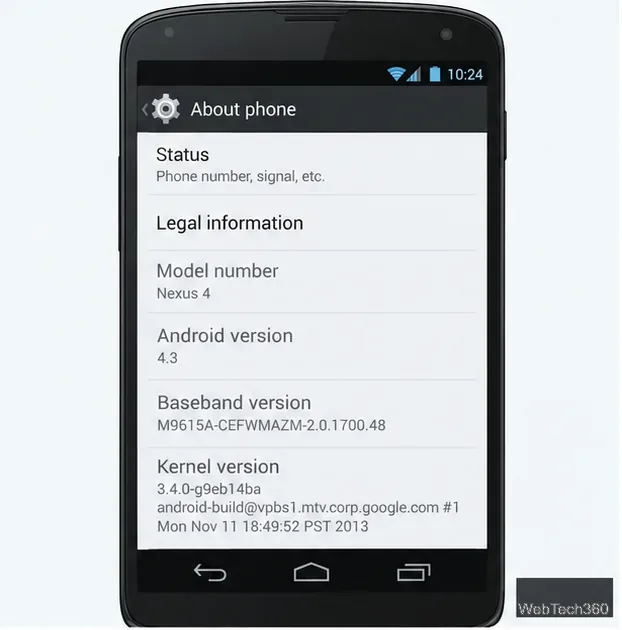
Find the version under Settings > About phone or About tablet; wording varies by manufacturer. Check the app’s minimum version in its official listing or release notes. Android blocks installation when an app’s minimum SDK is higher than the phone supports. See the Android SDK documentation.
| Android version | API level | What it means for installation |
|---|---|---|
| 4.1 Jelly Bean | 16 | Can run apps that support API 16 or lower |
| 4.2 Jelly Bean | 17 | Can run apps that support API 17 or lower |
| 4.3 Jelly Bean | 18 | Can run apps that support API 18 or lower |
| 4.4 KitKat | 19 | Apps requiring API 19 need KitKat or newer |
An APK may also target a different processor or depend on a service that is missing or too old. Google stopped updating Play services for API 16–18 after version 21.30.99, scheduled for August 2021. Features can fail even after installation; see Google’s Jelly Bean support notice.
Open Settings > About phone (or About tablet) and note the Android version and model. Jelly Bean spans three API levels, so the version number matters.
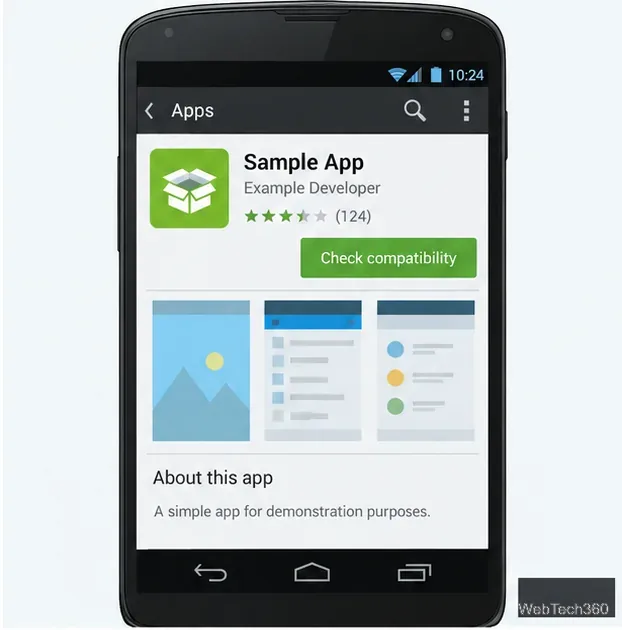
If the Play Store opens, install the app there when it offers a compatible version. Otherwise, use an APK only if the publisher provides that legacy build and identifies it for your Android release. A familiar icon or filename proves nothing about its origin. Android verifies APK signatures, but a signature alone does not make an unknown download trustworthy; see the Android app security overview.
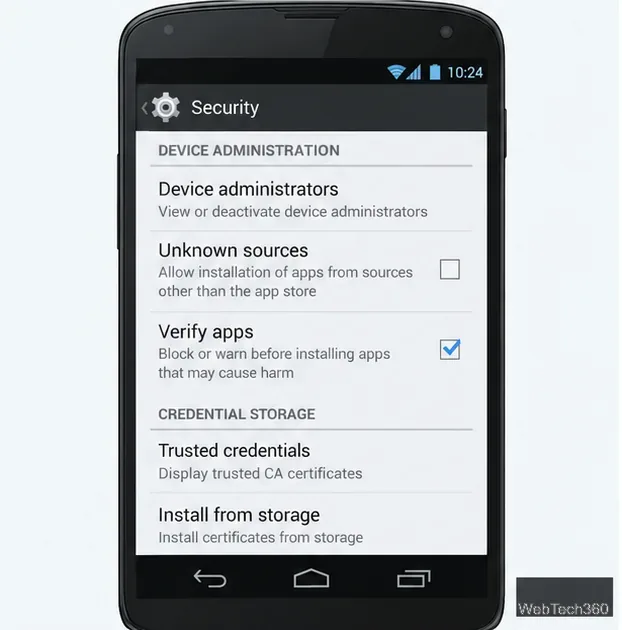
On Android 7.1.1 and earlier, including Jelly Bean, open Settings > Security and temporarily enable Unknown sources to allow an APK from outside the store. Leave it off at other times. Google documents the setting in its alternative distribution guide.
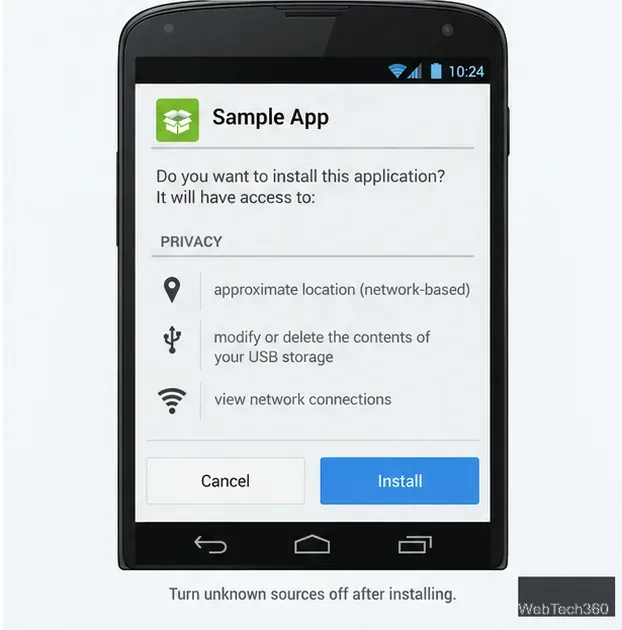
Open the APK from Downloads or a file manager. Review the app name and requested permissions, and cancel if they look unexpected. If they match the publisher’s description, tap Install. Then return to Settings > Security and turn Unknown sources off.
An older Google launcher, camera, or keyboard may need missing firmware components. Keep the original system apps and use an alternative that still supports the device. For the KitKat look, a wallpaper or compatible launcher is safer than flashing system files.
Treat the old Nexus 5 APK list as historical reference material. Check the API level, use a publisher-verified build, and stop when compatibility or origin is unclear. A successful install does not guarantee that an app’s online features still work.
Learn how to add a visible date and time to new or existing Android photos with your camera's watermark setting or Google Photos Markup.
Learn how to screenshot on Android with button shortcuts, scrolling captures, and Pixel, Samsung, and Motorola gestures, plus where to find and share images.
Learn how Framaroot rooted compatible older Android phones, what to check before installing its APK, and why it rarely works on newer devices.
See how the classic Search Now app used a floating search button for on-device and web searches, why its Play Store listing is gone, and what works today.
Learn how to turn Facebook profile picture login on or off, remove saved sign-ins on iPhone or Android, and find the current Saved login settings.
Learn how to identify plants, products, books, and other objects in photos with Google Lens on Android, iPhone, or a computer—and improve uncertain matches.
Remove your Pokémon GO avatar’s hat, gloves, and backpack using the Style menu. Follow the steps and fix missing no-item options without spending PokéCoins.
Understand what firmware and ROM mean on Android, how stock and custom ROMs differ, what flashing changes, and which risks to check before installing an image.
Learn what you need to install CyanogenMod 7.1 RC1 on the Motorola CLIQ XT, back up the MB501, flash the matching ZIPs, and avoid unverified files.
See what Android 2.3 Gingerbread keyboard language packs supported, how to verify a compatible ZIP, back up your phone, and avoid unsafe recovery flashes.








