Add a Date and Time Stamp to Photos on Your Android Phone

Learn how to add a visible date and time to new or existing Android photos with your camera's watermark setting or Google Photos Markup.
The TouchWiz 3.0 QVGA Fixed launcher is an unofficial Android port from 2010, not a Samsung app for every phone. The original XDA thread describes a small-screen layout, but that does not guarantee support for every device, Android version, or ROM. Use it only on a device listed by the thread and only with the original developer’s APK. Root is not needed for a regular launcher APK; ROM-specific system packages require separate device instructions. QVGA describes a 240 × 320 display class, not universal compatibility.
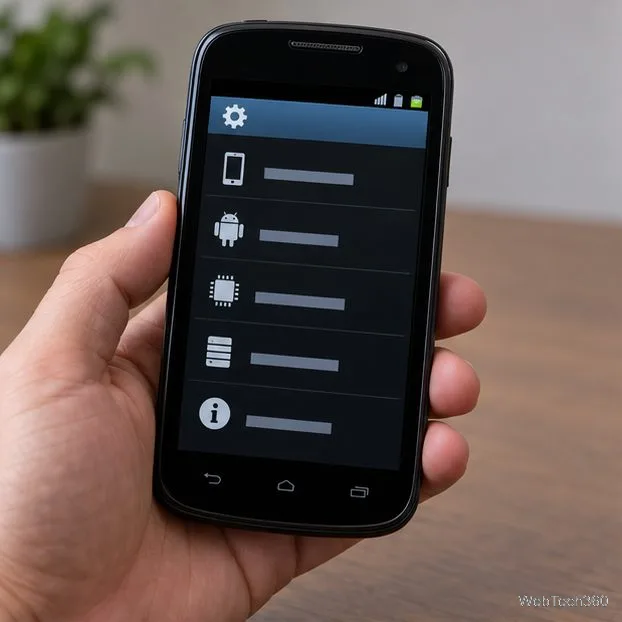
Compare the model, Android version, screen size, and ROM with the compatibility notes in the original XDA thread. A QVGA fix may help the layout fit a small display, but it cannot add missing Android components. If the thread does not list a compatible build, stop.
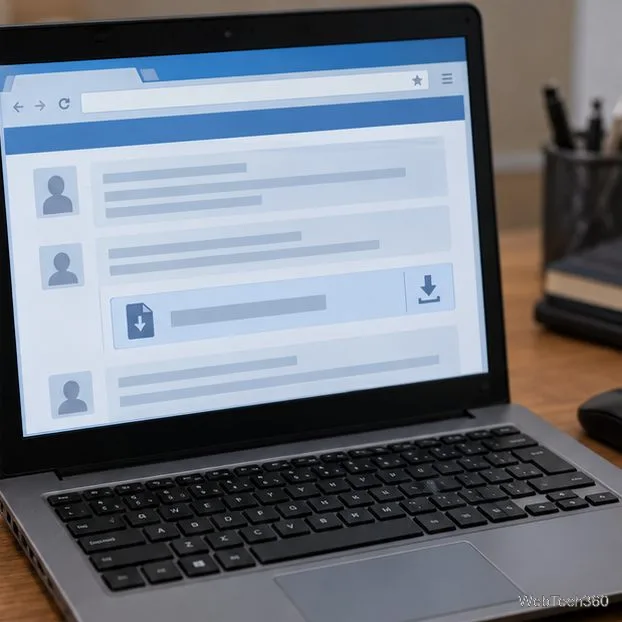
Read the first post and any maintainer updates. Download only a file attached or linked by the original developer. If the attachment is gone, the author is unclear, or the link leads to an unrelated mirror, do not substitute an APK from a random download site.
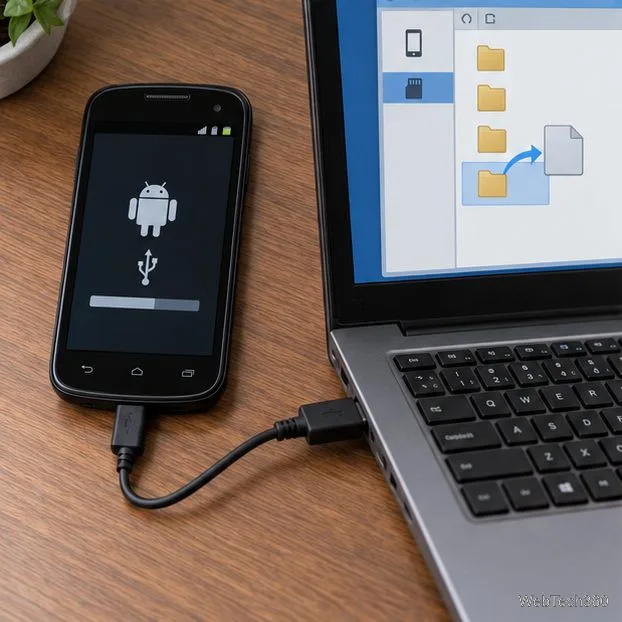
Connect the phone to your computer and copy the APK to its SD card or Downloads folder. Older phones may offer USB storage mode; newer ones use file transfer. Disconnect the storage cleanly before unplugging the cable.
Android 8.0 and later usually grant this permission to the app opening the file, such as your browser or file manager. Look for Install unknown apps in that app’s settings; older versions may call it Unknown sources. Menu names vary. Allow only the source you chose and keep Play Protect enabled. If Android shows a developer-verification warning, follow Google’s current instructions; don’t disable security protections to force an install.
Use the built-in file manager, browse to the folder, and tap the APK. Choose the package installer if asked. If the file will not open, it may be incomplete or incompatible; don’t keep trying unrelated copies.
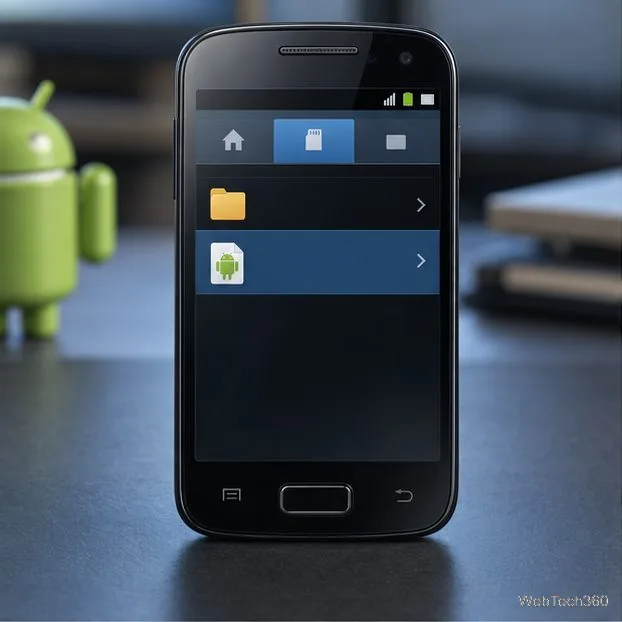
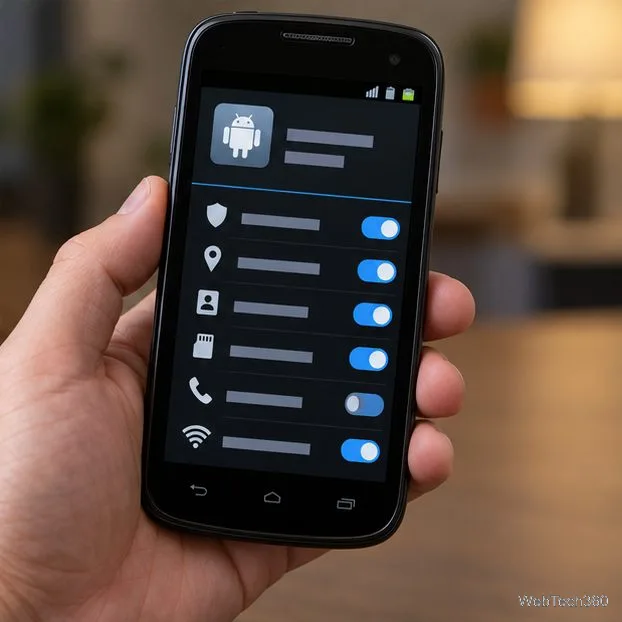
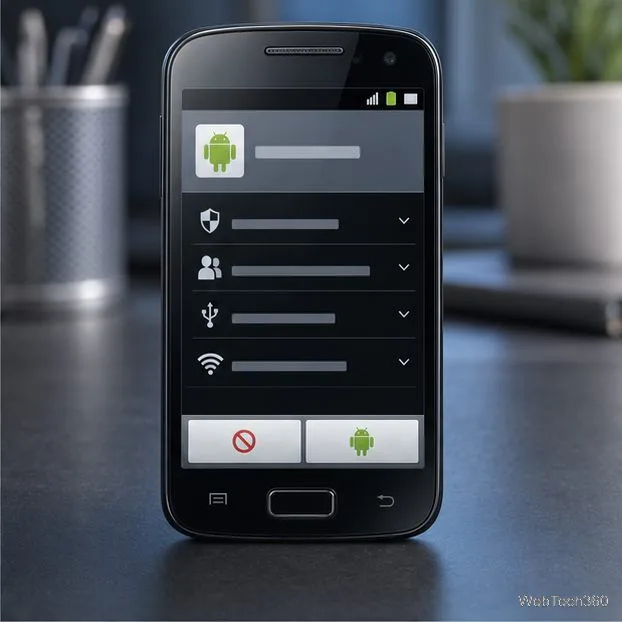
Check the package details and any permissions shown, then tap Install only if they match what you expect. Cancel if the app name or source is unexpected. “App not installed” or a parsing error can mean the file is damaged, signed differently from an existing copy, or incompatible. Don’t flash system files to work around the message.
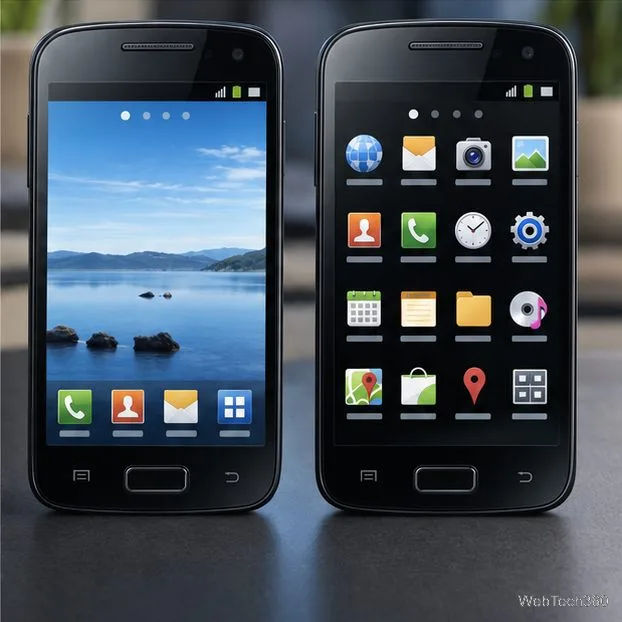
After installation, press Home. If a chooser appears, select TouchWiz and choose Just once first. Test the app drawer, labels, and navigation on the small display. If no chooser appears, look in Settings under Apps or Default apps for the Home app setting; the menu differs by version.
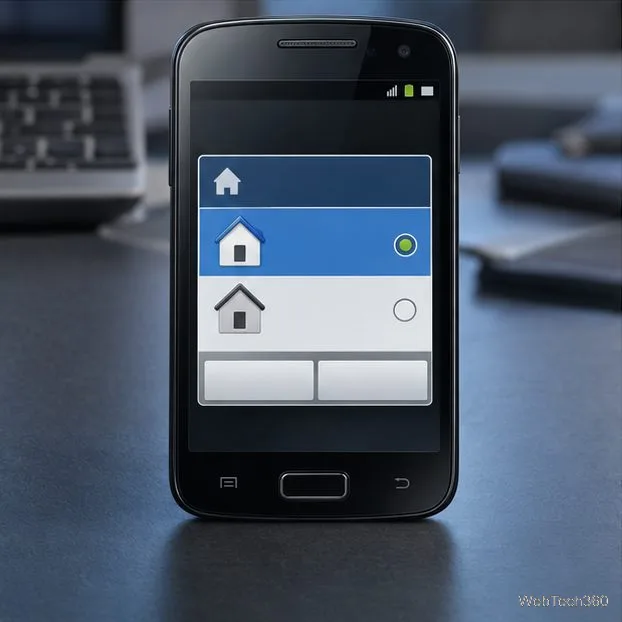
If TouchWiz is stable, return to the Home app setting and make it the default. To switch back, select the stock launcher there, or clear TouchWiz’s default in its app details. If installed as a regular app, uninstall it from Settings > Apps. Do not remove a system launcher or delete ROM files. You can revoke the file manager’s install permission afterward.
For more on sideloading risk and Play Protect, read Google’s Android app-install guidance and its Play Protect safety overview. This launcher is archival software; safety and compatibility depend on the exact APK and device.
Learn how to add a visible date and time to new or existing Android photos with your camera's watermark setting or Google Photos Markup.
Learn how to screenshot on Android with button shortcuts, scrolling captures, and Pixel, Samsung, and Motorola gestures, plus where to find and share images.
Learn how Framaroot rooted compatible older Android phones, what to check before installing its APK, and why it rarely works on newer devices.
See how the classic Search Now app used a floating search button for on-device and web searches, why its Play Store listing is gone, and what works today.
Learn how to turn Facebook profile picture login on or off, remove saved sign-ins on iPhone or Android, and find the current Saved login settings.
Learn how to identify plants, products, books, and other objects in photos with Google Lens on Android, iPhone, or a computer—and improve uncertain matches.
Remove your Pokémon GO avatar’s hat, gloves, and backpack using the Style menu. Follow the steps and fix missing no-item options without spending PokéCoins.
Understand what firmware and ROM mean on Android, how stock and custom ROMs differ, what flashing changes, and which risks to check before installing an image.
Learn what you need to install CyanogenMod 7.1 RC1 on the Motorola CLIQ XT, back up the MB501, flash the matching ZIPs, and avoid unverified files.
See what Android 2.3 Gingerbread keyboard language packs supported, how to verify a compatible ZIP, back up your phone, and avoid unsafe recovery flashes.








