Add a Date and Time Stamp to Photos on Your Android Phone

Learn how to add a visible date and time to new or existing Android photos with your camera's watermark setting or Google Photos Markup.
Early community builds ran Android 2.2 Froyo on the HTC HD2 from a microSD card through HaRET, leaving Windows Mobile in internal storage. This is an SD-card boot, not an official HTC update or a permanent ROM installation.
The FroyoStone Sense build in the old guide is marked discontinued in its original XDA developer thread. Its old download archive cannot be verified here, so this guide offers no replacement link. Continue only with a traceable build explicitly made for your HD2; do not run executables from an arbitrary mirror.
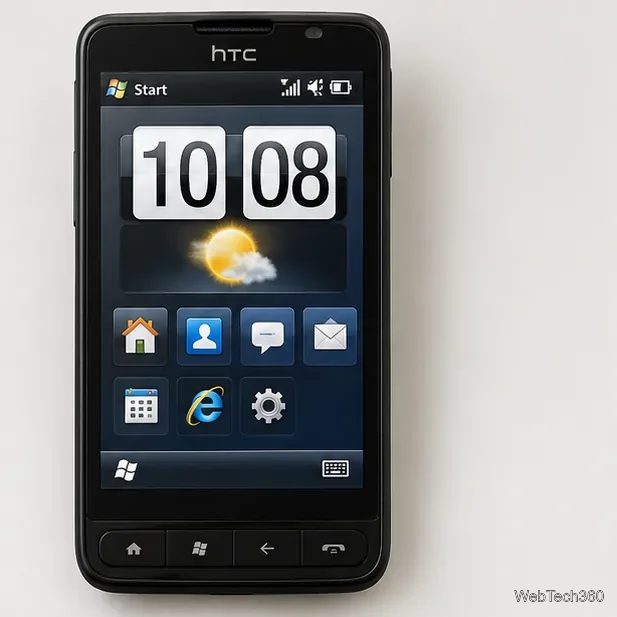
Confirm that the handset is an HTC HD2 (also called Leo) and still boots Windows Mobile. Match the build notes to your exact device variant. You will need a microSD card and either a computer card reader or the phone’s USB cable. The HTC HD2 user manual describes accessing an installed card through USB Disk Drive mode.
Back up the card and important phone data, charge the handset, and preserve the card’s original files. Android 2.2 is long obsolete: treat it as a preservation project, not a secure everyday phone, and keep personal accounts and sensitive data off it. These steps cover only the card-based method, not NAND flashing, HardSPL, or MAGLDR.
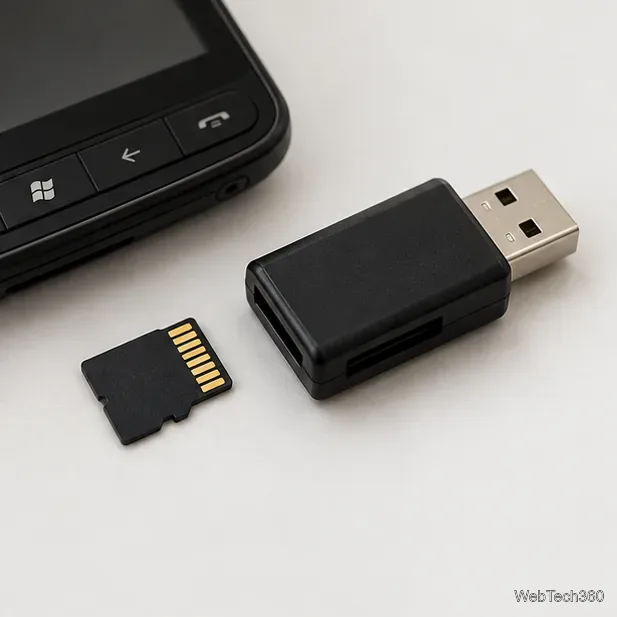
Android folder plus CLRCAD.exe and HaRET.exe; paths can vary. Never mix files from separate ROM packages.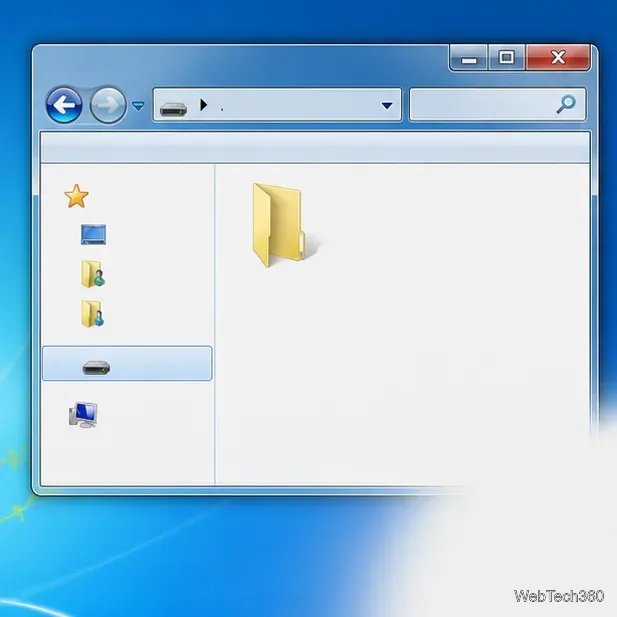
Android folder. Confirm the required files and names match the build notes before launching anything.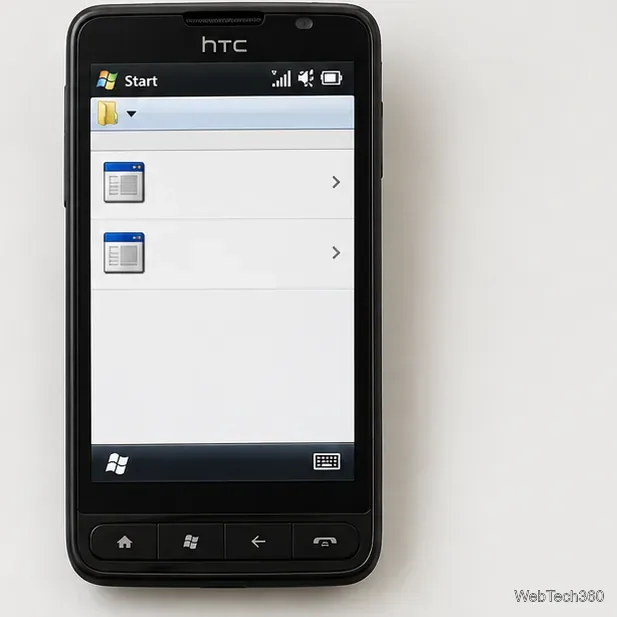
CLRCAD.exe once. The classic community sequence starts this utility first. It may show no window; wait briefly rather than tapping repeatedly. If the file is missing or the package says to use another order, stop and recheck the notes.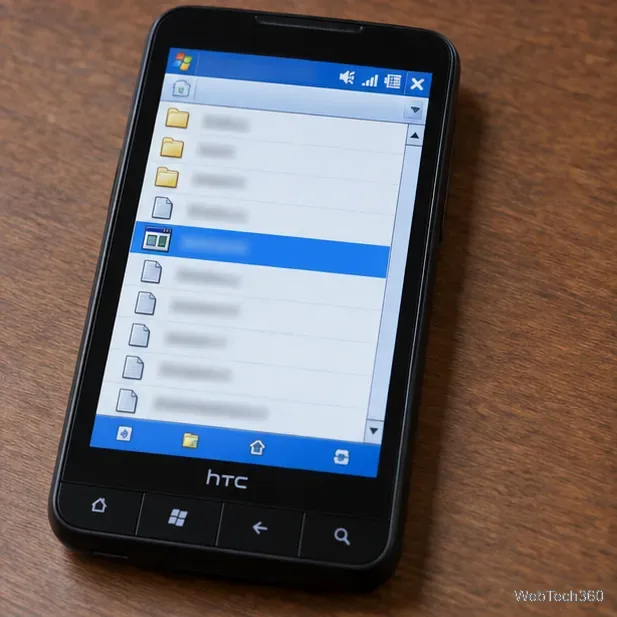
HaRET.exe and wait. The display may go dark, show a boot logo, or show progress activity. Keep the card inserted and let the first start finish. Startup times varied, so use the release’s instructions instead of assuming a fixed wait.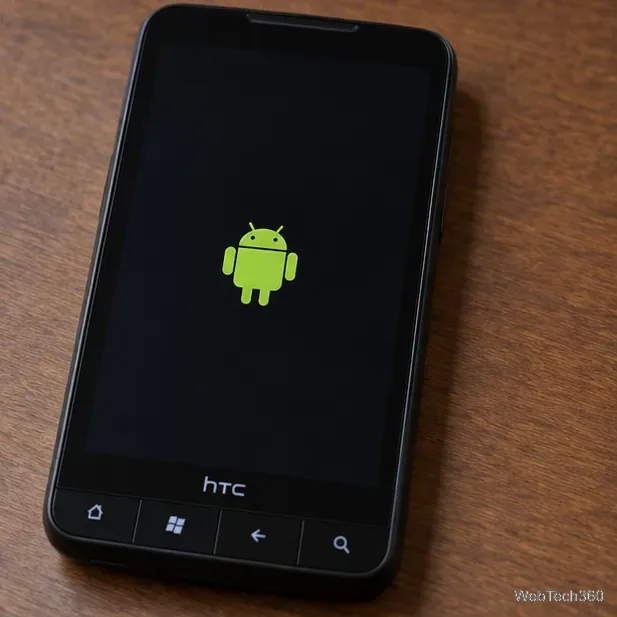
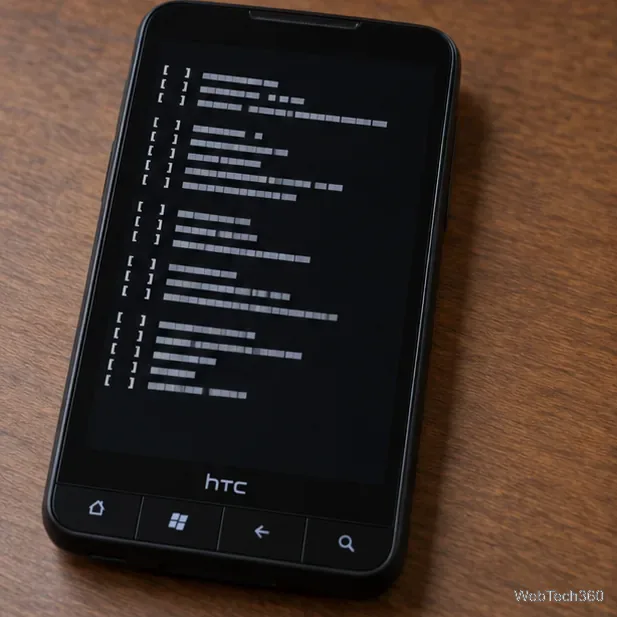
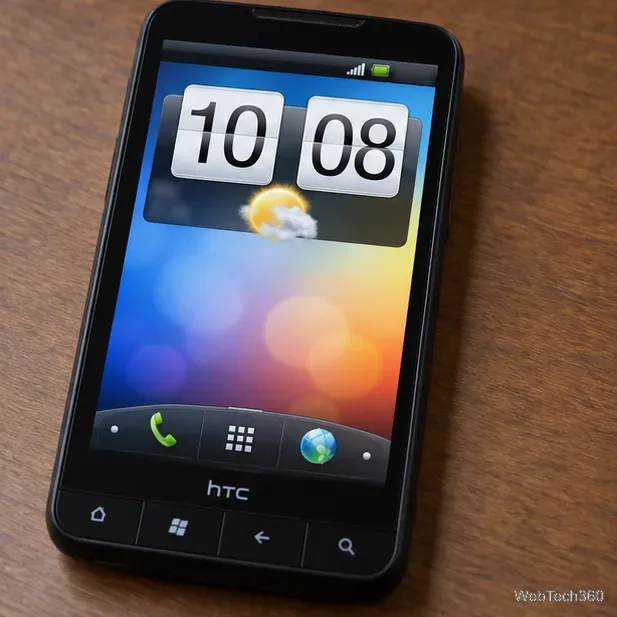
If Android reaches its home screen, it has booted from the card; Windows Mobile remains the resident system. A normal reset returns to Windows Mobile, and launching HaRET starts Android again. Feature support for radio, camera, Wi-Fi, sound, and apps differed by build, and current services may not work with software this old.
The Android Open Source Project’s compatibility page identifies Android 2.2 as Froyo, API level 8. The developer thread documents the historical build; neither source validates the safety or availability of old third-party archives.
Learn how to add a visible date and time to new or existing Android photos with your camera's watermark setting or Google Photos Markup.
Learn how to screenshot on Android with button shortcuts, scrolling captures, and Pixel, Samsung, and Motorola gestures, plus where to find and share images.
Learn how Framaroot rooted compatible older Android phones, what to check before installing its APK, and why it rarely works on newer devices.
See how the classic Search Now app used a floating search button for on-device and web searches, why its Play Store listing is gone, and what works today.
Learn how to turn Facebook profile picture login on or off, remove saved sign-ins on iPhone or Android, and find the current Saved login settings.
Learn how to identify plants, products, books, and other objects in photos with Google Lens on Android, iPhone, or a computer—and improve uncertain matches.
Remove your Pokémon GO avatar’s hat, gloves, and backpack using the Style menu. Follow the steps and fix missing no-item options without spending PokéCoins.
Understand what firmware and ROM mean on Android, how stock and custom ROMs differ, what flashing changes, and which risks to check before installing an image.
Learn what you need to install CyanogenMod 7.1 RC1 on the Motorola CLIQ XT, back up the MB501, flash the matching ZIPs, and avoid unverified files.
See what Android 2.3 Gingerbread keyboard language packs supported, how to verify a compatible ZIP, back up your phone, and avoid unsafe recovery flashes.








