How to Scan Documents With an Android Phone: 2 Easy Methods

You can scan a paper document with an Android phone using Google Drive or Files by Google. Both apps detect page edges, let you review the result, and save a digital copy. Choose Drive to store the scan in your Google account as a PDF or JPG; choose Files by Google to save a searchable PDF on your device.

Set the page on a flat surface in even light, then hold the camera directly above it. App labels and button placement can vary slightly by Android version, device, or app update.

Choose the right scanning method

AppBest forWhere the scan goes
Google DriveSaving a scan to Drive, choosing PDF or JPG, or selecting a Drive folderYour Google Drive
Files by GoogleMaking a searchable PDF you can find on the phoneThe Scanned folder in Downloads

Method 1: Scan with Google Drive

Use Google Drive when you want the file in your cloud storage or need to choose between PDF and JPG. Install or update the Drive app if you do not see its scan control.

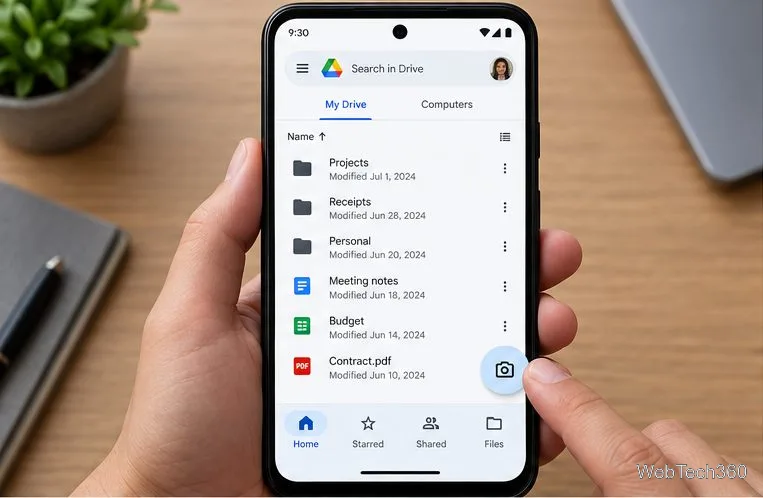
  1. Open the scanner. Open Google Drive and tap the camera icon at the bottom right. If your version shows a different layout, tap + and choose Scan. Allow camera access if Android asks for permission.
    Google Drive home screen with the camera scan shortcut at the bottom right
    Illustration of the Drive camera shortcut used to start a scan.
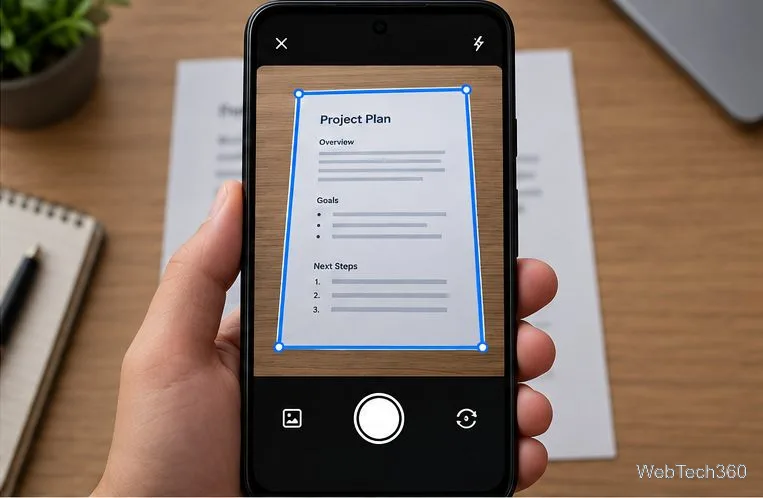
  2. Frame and capture the page. Place the document on a contrasting, flat surface and hold the phone above it. Keep all four corners inside the viewfinder. Drive outlines the page in blue; take the picture when the text looks sharp, or use automatic capture if it is available.
    Google Drive scanner framing a printed page with a blue outline before capture
    Keep the page inside the blue outline before capturing it.
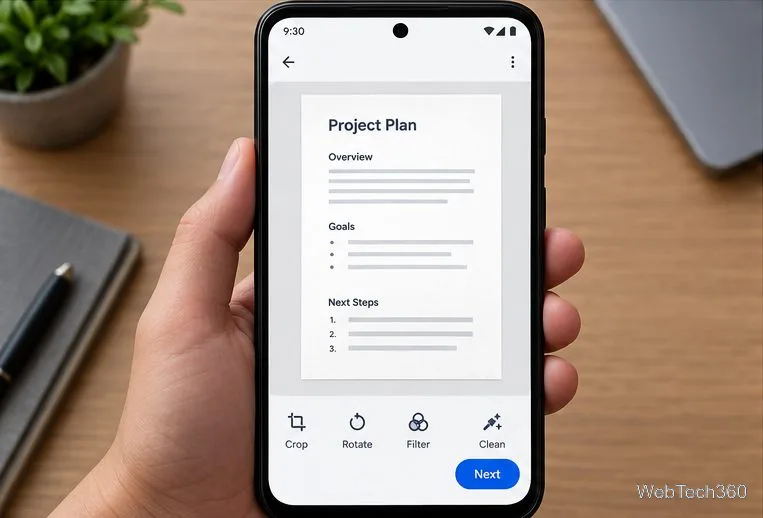
  3. Review and adjust. Check that no words or page edges were cut off. Use Crop and rotate to correct the borders, Filter to adjust the scan’s appearance, or Clean to remove small marks. Add another page for a multipage document, or retake or delete a page that is blurry.
    Google Drive scan preview with crop, rotate, filter, and clean controls
    Review the page and use the editing controls before saving.
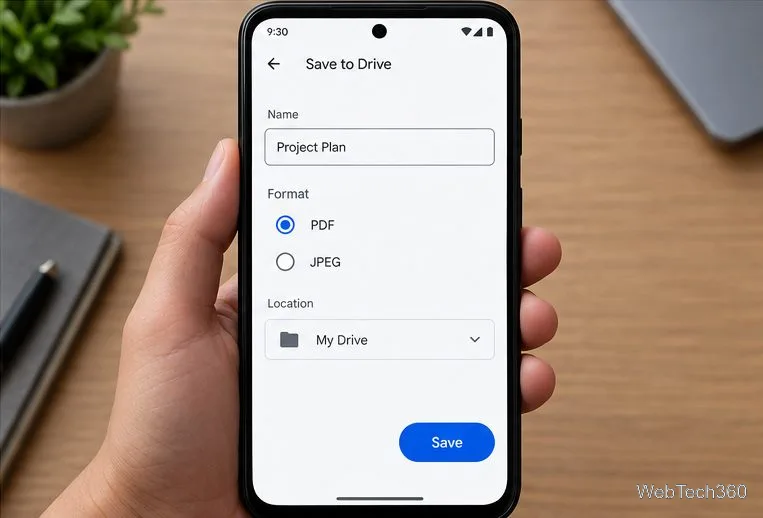
  4. Save the file. Tap Done, enter a filename, select PDF or JPG, and choose a Drive folder with Location if needed. Tap Save. A PDF is the practical choice for several pages and can be searched for text; JPG is useful when you only need an image of a single page.
    Google Drive save screen with a filename, PDF or JPEG options, folder location, and Save button
    Choose a file name, format, and Drive location before saving.

For exact controls, see Google’s instructions for scanning with Drive on Android.

Method 2: Scan with Files by Google

Files by Google is a good choice when you want a PDF stored on the phone instead of choosing a cloud destination. Make sure you open Files by Google; other file manager apps may have different menus.

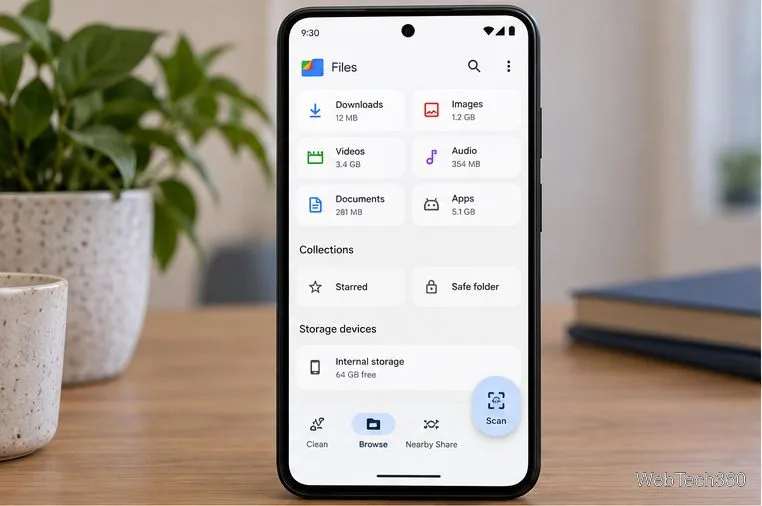
  1. Open Scan. Launch Files by Google and tap Scan at the bottom right. If the app is not installed, get Files by Google from Google Play. Allow camera access when prompted.
    Files by Google home screen with the Scan control at the bottom right
    Tap Scan from the Files by Google home screen.
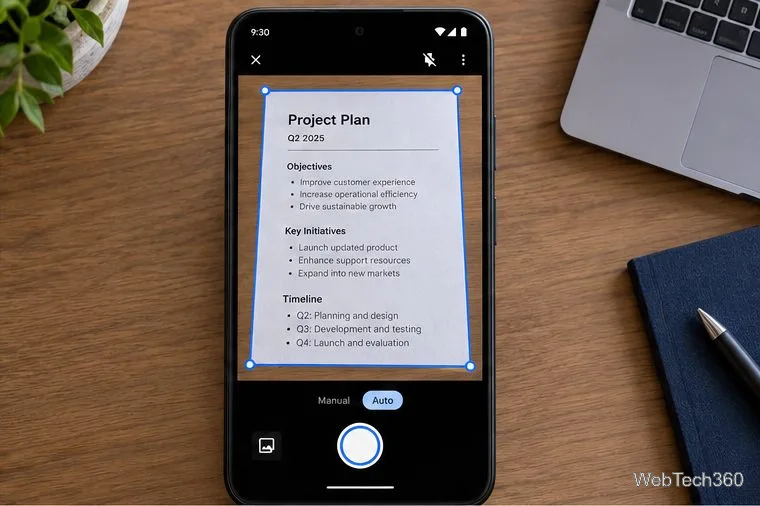
  2. Position the document. Lay the page flat and point the camera at it. When the blue outline follows the page edges, use Auto capture or Manual mode to take the picture. Move the phone or improve the lighting if the outline misses a corner.
    Files by Google scanner outlining a printed page in blue with Auto capture selected
    Check the page outline and capture mode before taking the scan.
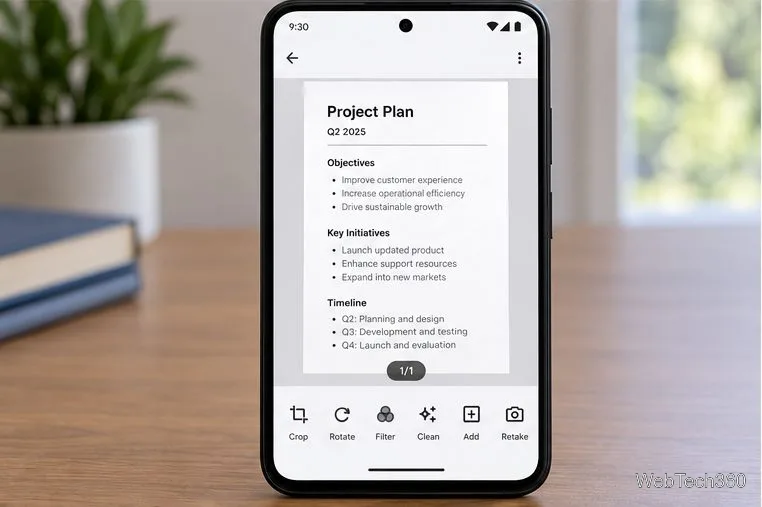
  3. Check the preview. Adjust the crop or rotation, apply a filter, or use Clean to remove unwanted objects. Tap Add to scan additional pages into the same document. Retake or delete pages that are hard to read, then tap Done when the scan is complete.
    Files by Google scan preview with crop, rotate, filter, clean, add, and retake controls
    Correct the page and add more scans before finishing.
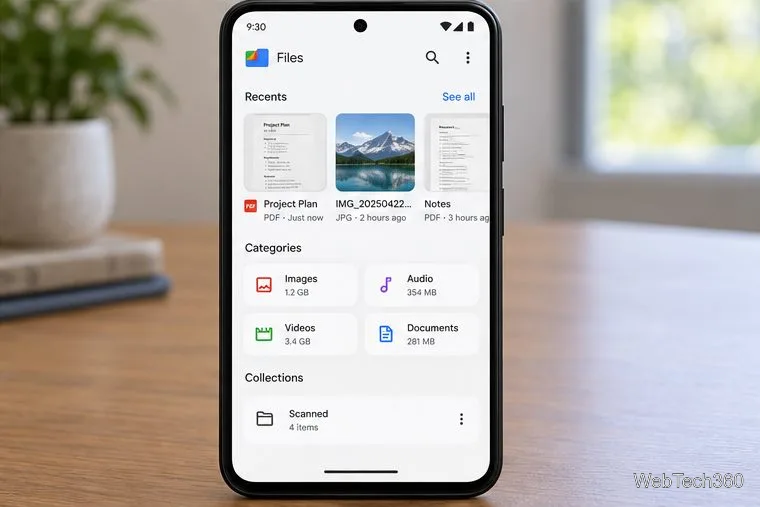
  4. Find the PDF. Files by Google saves scans as PDFs automatically. Open Recents on the app’s home screen, or go to Documents and then Scanned. The scanned files are kept in a Scanned folder under Downloads.
    Files by Google Recents screen showing a new scanned PDF and the Scanned folder
    The finished PDF appears in Recents and the Scanned folder.

Google’s Files by Google scan guide lists the current controls and save location.

Get a clearer scan

  • Use bright, even lighting and avoid glare or a shadow from your hand.
  • Keep the phone parallel to the page so the edges are easier to detect.
  • Check every page before saving, especially small print, signatures, and corners.
  • If Scan is missing, update the app and check Android Settings for camera permission. If text matters, open the saved PDF and confirm the words are legible and searchable before discarding the paper original.

What happened to Microsoft Lens?

Older scanning guides may recommend Microsoft Lens, but it is no longer a current option for new scans. Microsoft retired Lens from Android and iOS beginning January 9, 2026; support ended February 9, and the app stopped creating new scans on March 9, 2026. Microsoft recommends OneDrive as an alternative. Its Android app has a built-in scanner that saves scans as PDFs. See Microsoft’s Lens retirement notice or OneDrive scanning guide for Android.

Quick answers

Can I scan multiple pages into one file?

Yes. In Drive or Files by Google, add each page during the same scan session and save the finished document as a PDF.

Which app saves scans to the phone?

Files by Google saves a PDF in the phone’s Downloads area. Google Drive saves the scan in Drive, where you can choose a folder and PDF or JPG format.

Leave a Comment

Add a Date and Time Stamp to Photos on Your Android Phone

Add a Date and Time Stamp to Photos on Your Android Phone

Learn how to add a visible date and time to new or existing Android photos with your camera's watermark setting or Google Photos Markup.

How to Screenshot on Android Devices: Buttons and Gestures

How to Screenshot on Android Devices: Buttons and Gestures

Learn how to screenshot on Android with button shortcuts, scrolling captures, and Pixel, Samsung, and Motorola gestures, plus where to find and share images.

How to Root Older Android Devices With Framaroot in a Few Taps

How to Root Older Android Devices With Framaroot in a Few Taps

Learn how Framaroot rooted compatible older Android phones, what to check before installing its APK, and why it rarely works on newer devices.

Search Now for Android: Search Your Phone or the Web From Anywhere

Search Now for Android: Search Your Phone or the Web From Anywhere

See how the classic Search Now app used a floating search button for on-device and web searches, why its Play Store listing is gone, and what works today.

How to Enable or Disable Facebook Profile Picture Login

How to Enable or Disable Facebook Profile Picture Login

Learn how to turn Facebook profile picture login on or off, remove saved sign-ins on iPhone or Android, and find the current Saved login settings.

How to Use Google Lens to Identify Objects in Photos

How to Use Google Lens to Identify Objects in Photos

Learn how to identify plants, products, books, and other objects in photos with Google Lens on Android, iPhone, or a computer—and improve uncertain matches.

How to Remove a Hat, Gloves, and Backpack From Your Pokémon GO Avatar

How to Remove a Hat, Gloves, and Backpack From Your Pokémon GO Avatar

Remove your Pokémon GO avatar’s hat, gloves, and backpack using the Style menu. Follow the steps and fix missing no-item options without spending PokéCoins.

Firmware, Stock ROMs, Custom ROMs, and Flashing Explained

Firmware, Stock ROMs, Custom ROMs, and Flashing Explained

Understand what firmware and ROM mean on Android, how stock and custom ROMs differ, what flashing changes, and which risks to check before installing an image.

How to Install CyanogenMod 7.1 RC1 on the Motorola CLIQ XT

How to Install CyanogenMod 7.1 RC1 on the Motorola CLIQ XT

Learn what you need to install CyanogenMod 7.1 RC1 on the Motorola CLIQ XT, back up the MB501, flash the matching ZIPs, and avoid unverified files.

Install Android 2.3 Gingerbread Keyboard Language Packs Safely

Install Android 2.3 Gingerbread Keyboard Language Packs Safely

See what Android 2.3 Gingerbread keyboard language packs supported, how to verify a compatible ZIP, back up your phone, and avoid unsafe recovery flashes.