Add a Date and Time Stamp to Photos on Your Android Phone

Learn how to add a visible date and time to new or existing Android photos with your camera's watermark setting or Google Photos Markup.
Sideloading means installing an Android app from outside Google Play, usually by opening an Android Package Kit (APK) file. It can be useful when a developer distributes an app directly or a legitimate app is unavailable in your store. It also carries real risks: an APK can contain malware, request excessive permissions, or be modified by someone other than its developer. The safest approach is to verify the source, leave Android’s protections enabled, and grant installation permission only to the app you need.
Google Play is not the only place Android apps can be distributed. Developers may publish APKs on their official websites, organizations may distribute internal apps, and some independent app stores host software with the developer’s permission. Android requires you to explicitly allow an installation source before it can install an app from outside a trusted store. See Android’s official guide to alternative app distribution.
Sideloading is not the same as flashing custom firmware or rooting a phone. Those are separate, more invasive procedures. For a typical sideload, you download an APK, approve the installer source if prompted, and confirm installation in Android’s package installer.
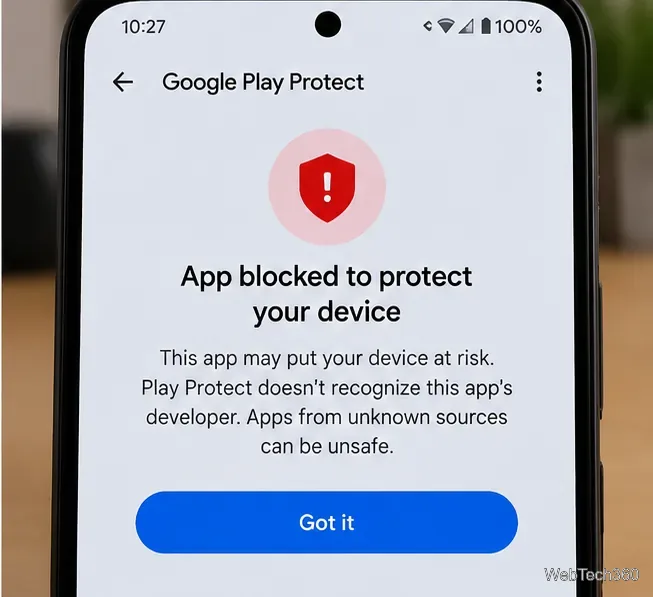
Google explains that Play Protect checks apps at installation time and can warn about or block potentially harmful software. Read Google’s Play Protect warning guidance before deciding what to do with a warning.
Open the developer’s verified website in your phone’s browser and download the APK. Make sure the page is for the exact app and Android version you need. If the developer provides only an app bundle or split APK files, follow its own installation instructions rather than installing a random file from another site.
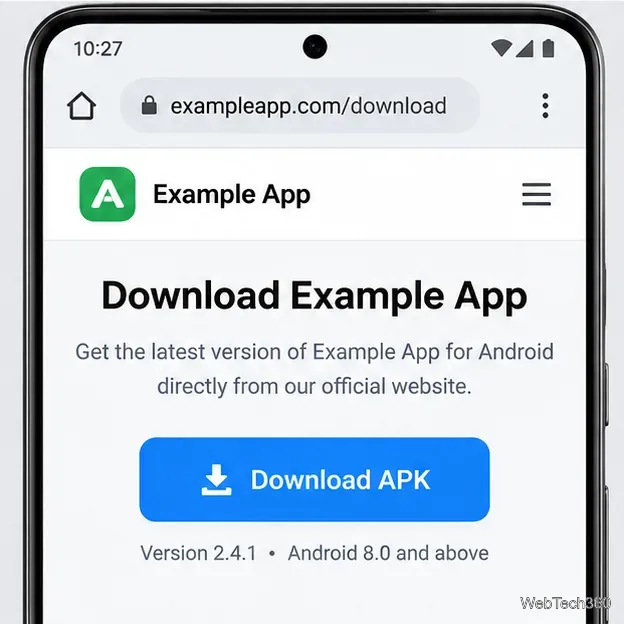
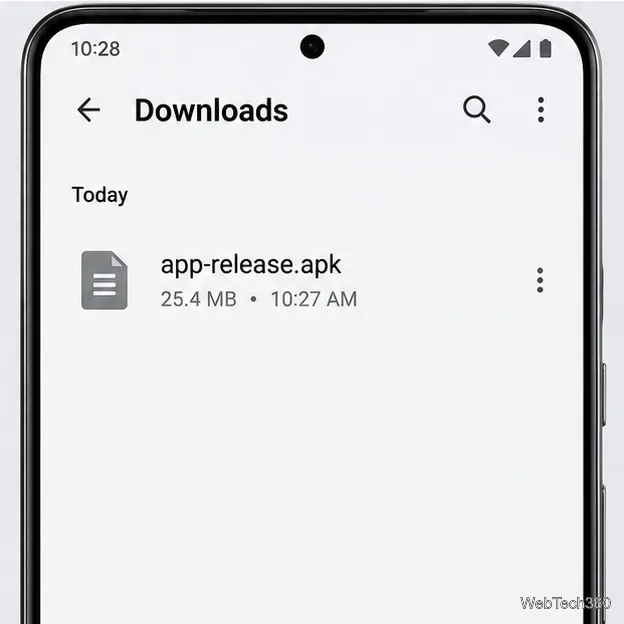
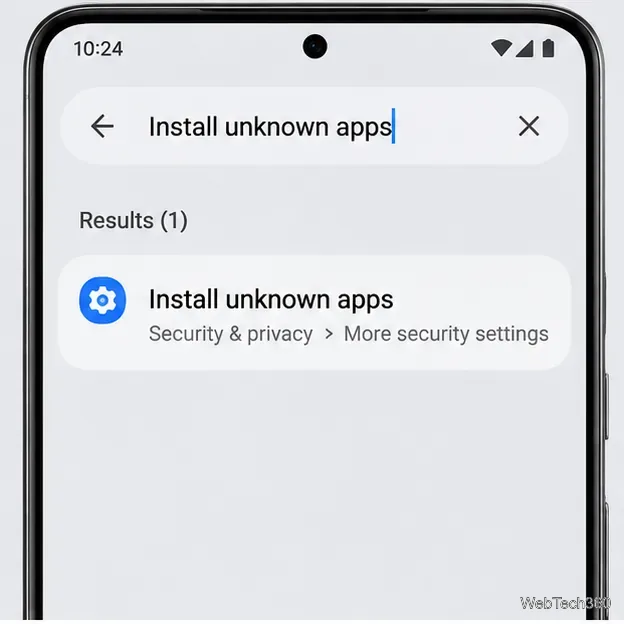
On Android 8.0 and later, there usually is no single global “Unknown sources” switch. Permission is granted to the app that starts the installation, such as Chrome or a file manager. Open Settings and search for Install unknown apps. Select the browser or file manager you are using, then enable Allow from this source only if you trust it. Menu names vary by device manufacturer and Android version.
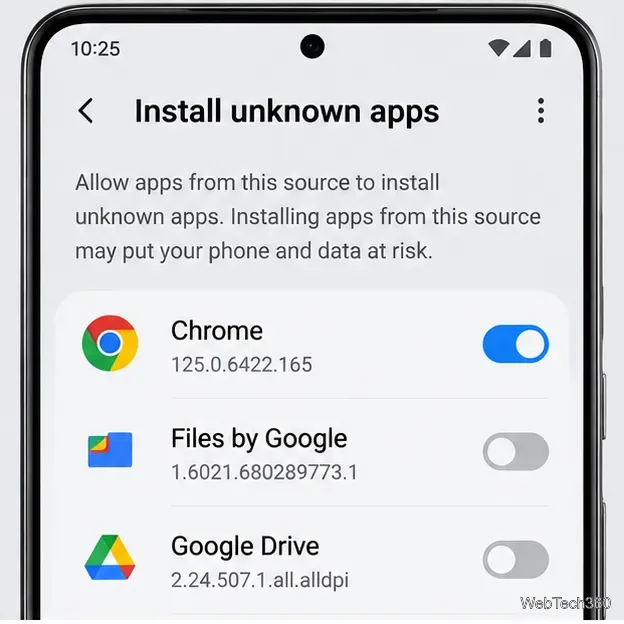
On older Android versions, the setting may instead be called Unknown sources under Security. Turn it off again after the installation if your device uses that older global setting. On newer versions, revoke permission for the browser or file manager once you are done.
Return to your Downloads notification or open the device’s Files app and tap the downloaded .apk file. If Android asks you to permit installation from that source, use the Settings link in the prompt and approve it only for the source you trust. Return to the installer and check the app name before tapping Install.
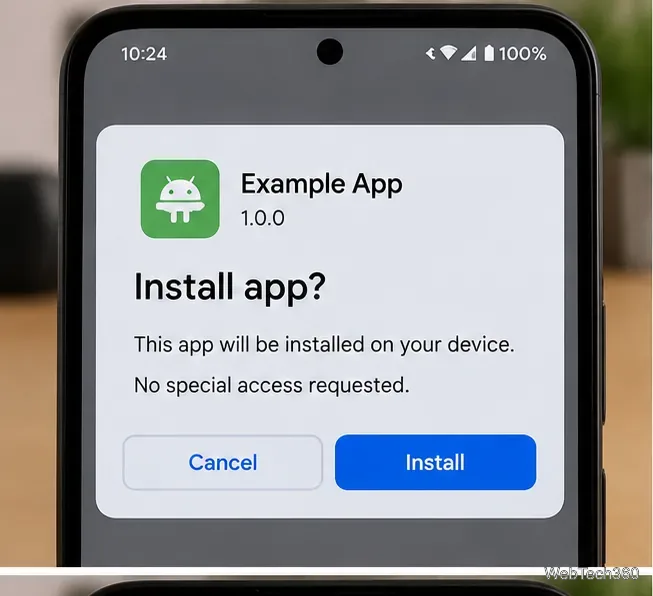
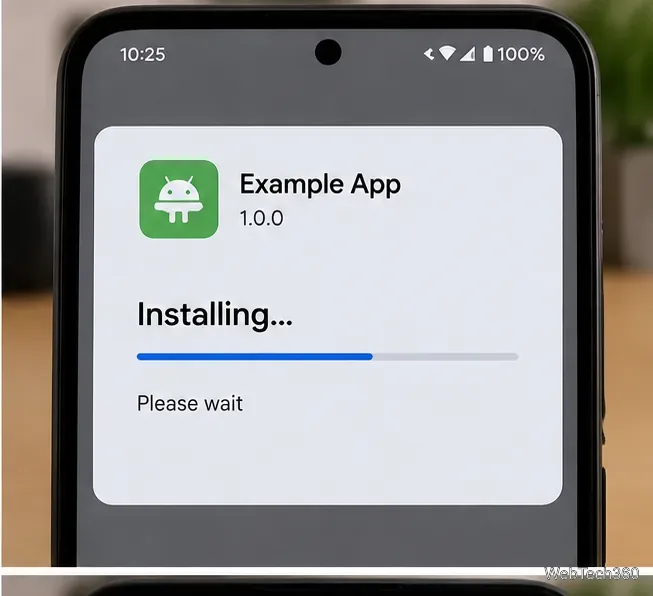
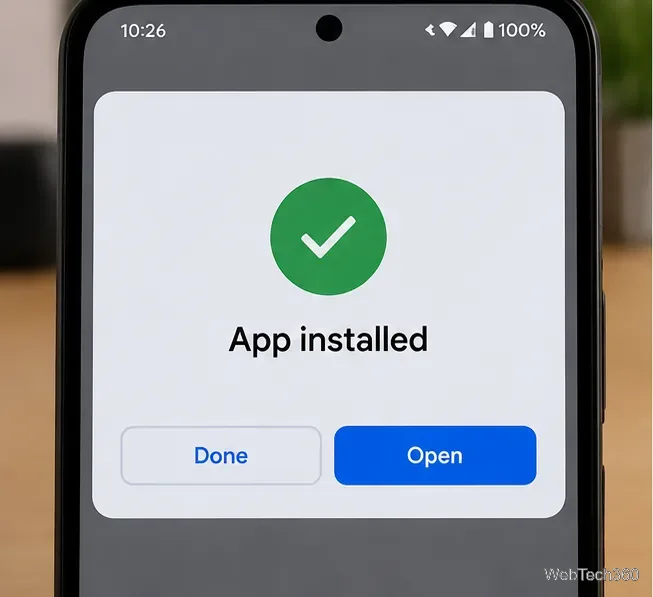
When Android reports that the app is installed, tap Open if you intended to install it. If Play Protect recommends scanning the app, allow the scan. If it identifies the app as harmful or blocks it, the safest choice is to stop, delete the APK, and obtain a verified copy from the developer. Do not disable Play Protect just to force an unknown app to install.
No. A VPN can encrypt network traffic between your device and the VPN provider, which may help protect traffic on untrusted Wi-Fi and reduce what the local network can observe. It does not scan an APK, verify its developer, remove malware, or stop a malicious app from accessing data you grant it. A VPN is not a substitute for checking the download source and permissions.
Open the app and review its permissions in Android Settings. Deny access that is not needed for its core function, and remove the app if it behaves unexpectedly, displays intrusive ads, or asks you to install additional software. Revoke Install unknown apps permission for the browser or file manager you used. Keep an eye out for updates from the same verified developer.
Bottom line: Sideloading is a normal Android capability, but it shifts more responsibility to you. Install only when there is a clear reason, use a verifiable source, review permissions, and treat security warnings seriously. If you cannot confirm who published an APK or why it needs the access it requests, do not install it.
Learn how to add a visible date and time to new or existing Android photos with your camera's watermark setting or Google Photos Markup.
Learn how to screenshot on Android with button shortcuts, scrolling captures, and Pixel, Samsung, and Motorola gestures, plus where to find and share images.
Learn how Framaroot rooted compatible older Android phones, what to check before installing its APK, and why it rarely works on newer devices.
See how the classic Search Now app used a floating search button for on-device and web searches, why its Play Store listing is gone, and what works today.
Learn how to turn Facebook profile picture login on or off, remove saved sign-ins on iPhone or Android, and find the current Saved login settings.
Learn how to identify plants, products, books, and other objects in photos with Google Lens on Android, iPhone, or a computer—and improve uncertain matches.
Remove your Pokémon GO avatar’s hat, gloves, and backpack using the Style menu. Follow the steps and fix missing no-item options without spending PokéCoins.
Understand what firmware and ROM mean on Android, how stock and custom ROMs differ, what flashing changes, and which risks to check before installing an image.
Learn what you need to install CyanogenMod 7.1 RC1 on the Motorola CLIQ XT, back up the MB501, flash the matching ZIPs, and avoid unverified files.
See what Android 2.3 Gingerbread keyboard language packs supported, how to verify a compatible ZIP, back up your phone, and avoid unsafe recovery flashes.








