Add a Date and Time Stamp to Photos on Your Android Phone

Learn how to add a visible date and time to new or existing Android photos with your camera's watermark setting or Google Photos Markup.
If your Android phone is still on, a broken power button does not make it unusable. Keep the battery charged, use a supported gesture or fingerprint sensor to wake the screen, and set up Android’s Accessibility Menu to lock it without the physical key. These workarounds vary by phone and cannot guarantee that you can turn a fully powered-off device back on, so back up your data and arrange a repair.
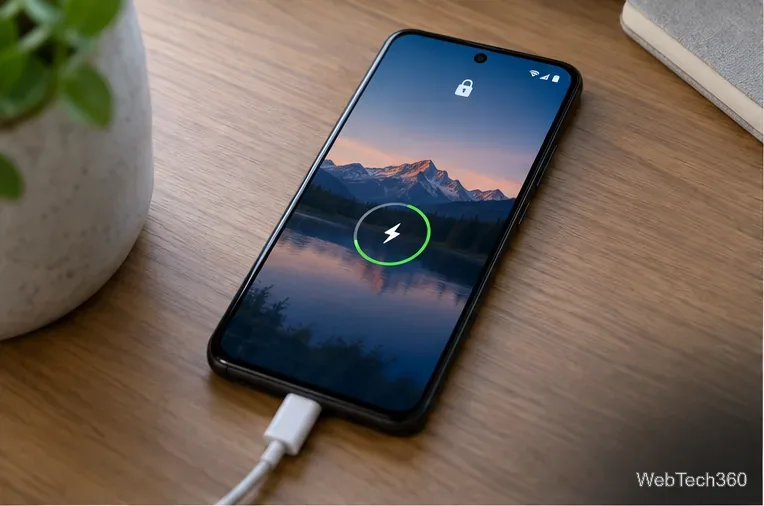
Connect the phone to a reliable charger or power bank before the battery gets low. If it shuts down, some models may display a charging screen, but charging does not reliably start every Android phone; the normal startup method is manufacturer-specific and may still require a working button. Avoid deliberately powering off or restarting the device until you have checked your model’s instructions.
Back up important information while you can still unlock the phone. Open Settings and search for Backup or Google backup; menu names and what gets backed up vary by phone. Confirm that photos, contacts, and files you care about are synced or copied somewhere you can access. You may need your PIN, pattern, or password after a restart even if you normally unlock with a fingerprint.
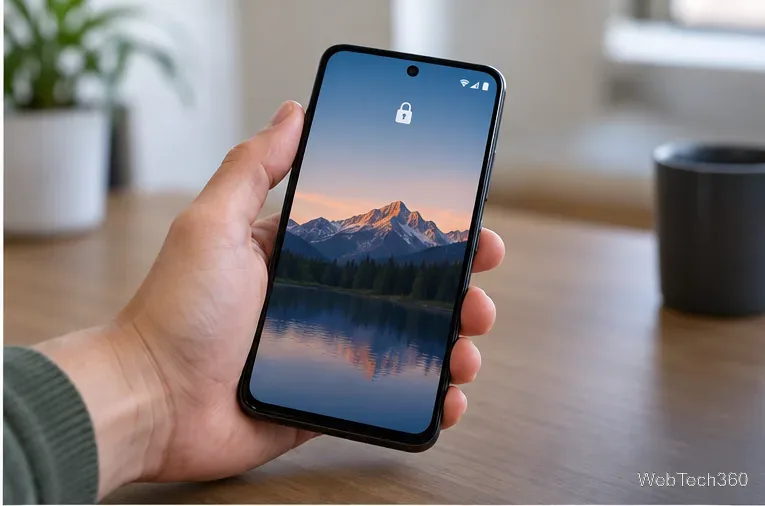
Android does not have one universal screen-wake gesture. In Settings, use the search box to look for terms such as Lift to wake, Tap to check phone, or Double tap to turn on screen. The available option and its location depend on the manufacturer and Android version. On many Samsung Galaxy phones, for example, Lift to wake is under Settings > Advanced features > Motions and gestures; Samsung notes that gestures vary by model. See Samsung’s Lift to wake instructions.
Test the setting while the phone is unlocked: let the display turn off, then lift or double-tap it. If your phone has an under-display or rear fingerprint sensor, try touching that sensor too. Some sensors wake and unlock the phone; others only unlock after the display is already awake. A fingerprint reader built into the broken side key will not solve the wake problem. Face unlock may also require you to wake the display first.
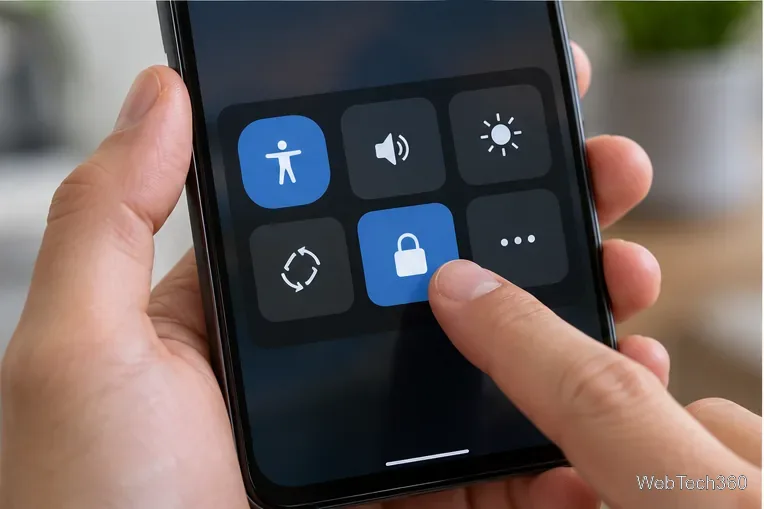
Google’s Accessibility Menu includes a Lock screen control, along with options such as screenshots, volume, brightness, Quick Settings, and notifications. To enable it, open Settings > Accessibility > Accessibility Menu, then turn on its shortcut. You can open the menu with the floating accessibility button or an available gesture shortcut. The exact shortcut and menu labels can differ; Google says some steps apply only to Android 12 and later. Follow Google’s Accessibility Menu setup guide.
Once the shortcut is visible, tap it and choose Lock screen whenever you want to turn off and secure the display. This solves the locking side of the problem; it does not wake the screen after it goes dark. Pair it with a wake gesture that you have tested. If you cannot find the menu, search Settings for “Accessibility Menu” or check your manufacturer’s accessibility guide.
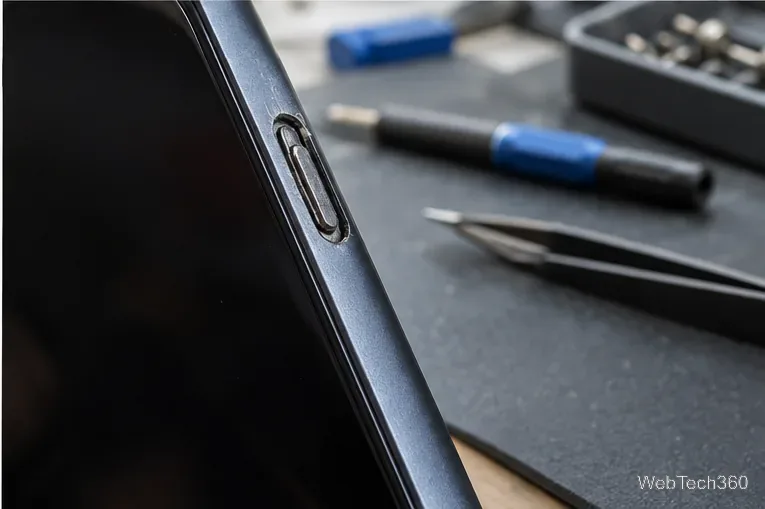
Remove the phone case in case it is pressing against or blocking the key. If the button is stuck, do not pry it with a pin, spray liquid into the opening, or force repeated presses; a repair shop can inspect the button without risking further damage. Save a recent backup before sending the phone for service, because repair procedures can require a reset.
Be cautious with old advice to edit Android system key-layout files with ADB or install an app that remaps the power key. Those methods are not consistent across modern Android devices, may require elevated access or special permissions, and can leave you without reliable volume or lock controls. A volume button by itself is not a universal replacement for turning the display on or powering the phone up.
If the phone is already off, frozen, or unable to wake, stop guessing at button combinations: the correct recovery steps differ by manufacturer and model. Check the manufacturer’s support page or an authorized repair provider. Google’s Pixel fingerprint guide also explains that some phones require the power button to wake before fingerprint unlock, and that a backup screen-lock method is still needed after a restart.
Learn how to add a visible date and time to new or existing Android photos with your camera's watermark setting or Google Photos Markup.
Learn how to screenshot on Android with button shortcuts, scrolling captures, and Pixel, Samsung, and Motorola gestures, plus where to find and share images.
Learn how Framaroot rooted compatible older Android phones, what to check before installing its APK, and why it rarely works on newer devices.
See how the classic Search Now app used a floating search button for on-device and web searches, why its Play Store listing is gone, and what works today.
Learn how to turn Facebook profile picture login on or off, remove saved sign-ins on iPhone or Android, and find the current Saved login settings.
Learn how to identify plants, products, books, and other objects in photos with Google Lens on Android, iPhone, or a computer—and improve uncertain matches.
Remove your Pokémon GO avatar’s hat, gloves, and backpack using the Style menu. Follow the steps and fix missing no-item options without spending PokéCoins.
Understand what firmware and ROM mean on Android, how stock and custom ROMs differ, what flashing changes, and which risks to check before installing an image.
Learn what you need to install CyanogenMod 7.1 RC1 on the Motorola CLIQ XT, back up the MB501, flash the matching ZIPs, and avoid unverified files.
See what Android 2.3 Gingerbread keyboard language packs supported, how to verify a compatible ZIP, back up your phone, and avoid unsafe recovery flashes.








