Add a Date and Time Stamp to Photos on Your Android Phone

Learn how to add a visible date and time to new or existing Android photos with your camera's watermark setting or Google Photos Markup.
You can try running the classic PC versions of StarCraft: Brood War and Caesar III on Android, but the original Winulator instructions are historical. They depend on an old beta app and custom profile files from legacy download links. Winlator is a separate Android compatibility app for Windows programs. It is a possible current route, not a promise that either game will run.
The old guide asked users to copy a PC game folder to an SD card, scan it in Winulator, and add a game-specific profile. Those profiles and menus belong to Winulator; they are not verified for Winlator. Avoid old APK mirrors and profile files from unverified hosts. The current Winlator project website links to its GitHub releases. Its documentation describes running Windows software with Wine and Box86/Box64, but does not certify these two games.
Both are PC releases. Neither Blizzard nor GOG promises Android compatibility through Winlator. A tablet and Bluetooth mouse are more comfortable than a phone for strategy games; leave storage for the complete game folder as well as the compatibility app.
The images are generic workflow illustrations, not screenshots of Winlator or game footage.
Download the installer from Blizzard or a store where you own Caesar III. The Android app does not include either game. Keep the installer or your installed PC files on the computer until you are ready to transfer them; do not use “preconfigured” game bundles from unknown sites.
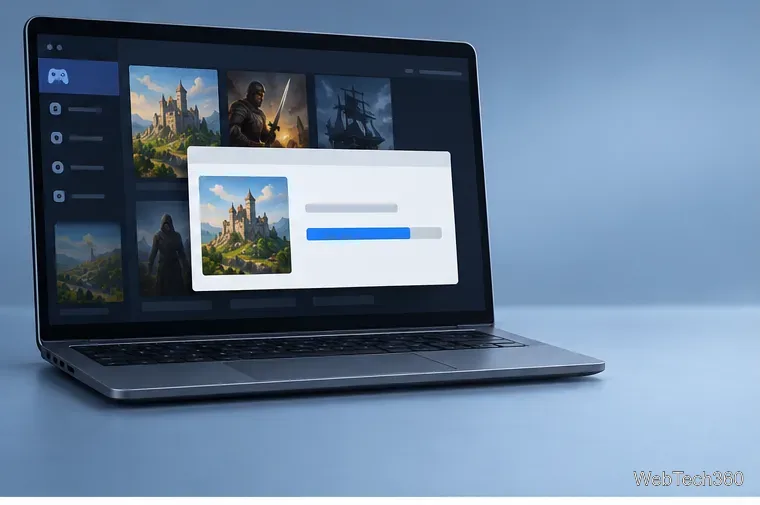
Open the official Winlator site and follow its link to the GitHub release page. Check the latest notes and device guidance before installing. Winlator is not a renamed version of Winulator.
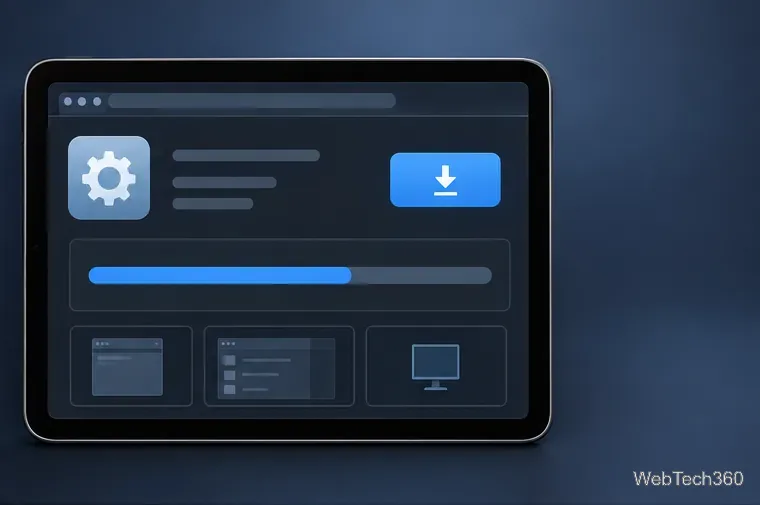
Install the APK you downloaded from the project release page, open Winlator, and wait for setup to finish. If Android asks permission to install apps from your browser or file manager, allow it only for the trusted source you used, then turn that permission off again. Create a fresh environment with the options in your installed version; labels can change between releases.
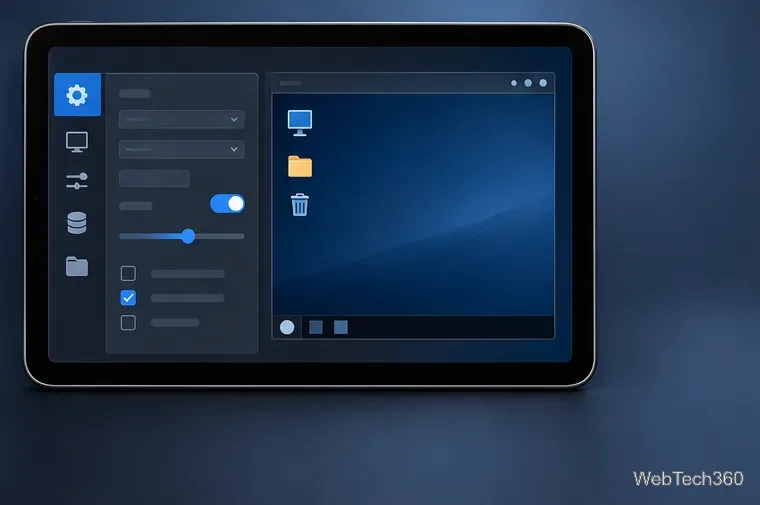
If the game is already installed on your PC, copy its whole folder to Android over USB or another transfer method. A folder such as Download/PCGames/ is easy to locate. Keep the program, data, audio, and support files together. You can try running a legitimate installer inside Winlator instead, but it may not work.
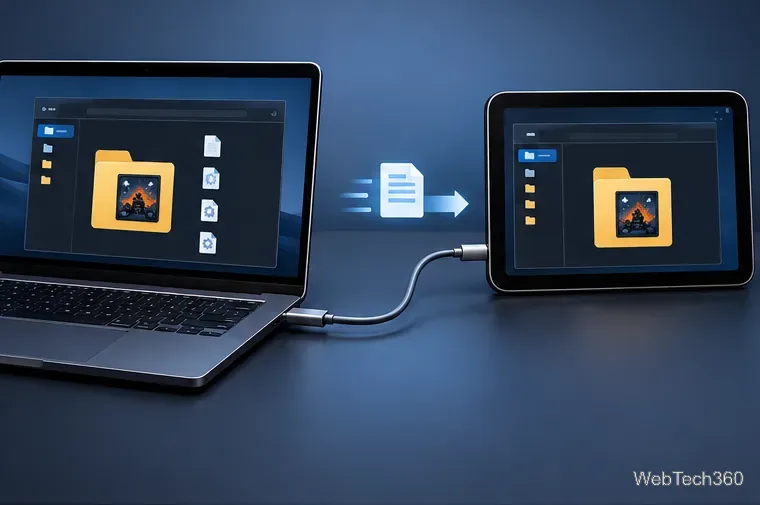
In Android’s file manager, confirm the game folder contains its main program and supporting folders. Compare the folder size with the PC copy if the transfer may have stopped early. Do not add old .winulator-profile files; they are not a verified Winlator configuration. Back up saved games before experimenting.
Use Winlator’s current file browser or shortcut options to locate the game’s main executable. Test one title at a time, starting with single-player. If it does not appear, browse the folder you copied rather than selecting a setup file. A complete transfer still may fail because of graphics, audio, or operating-system assumptions.
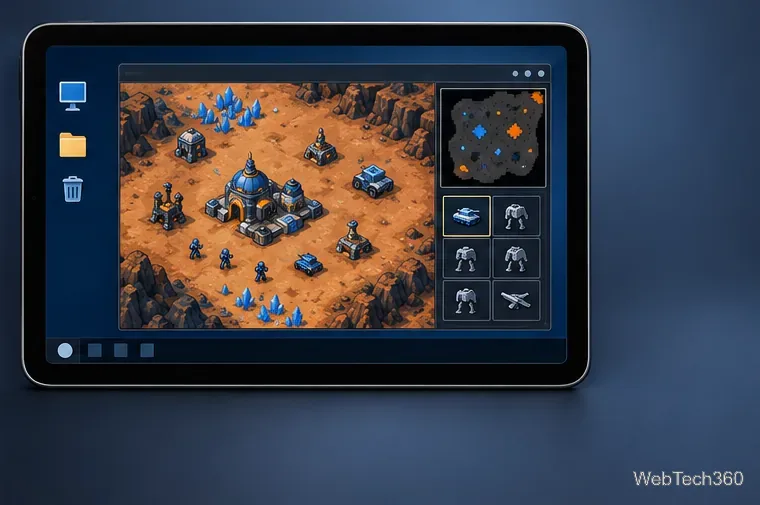
Use landscape orientation and start at a moderate display size. A mouse makes selecting units and issuing commands in StarCraft: Brood War much easier. Caesar III also needs precise pointer input for placing buildings and using small controls. Winlator’s input options depend on the build, so use the controls available in your version rather than the old Winulator widget instructions.
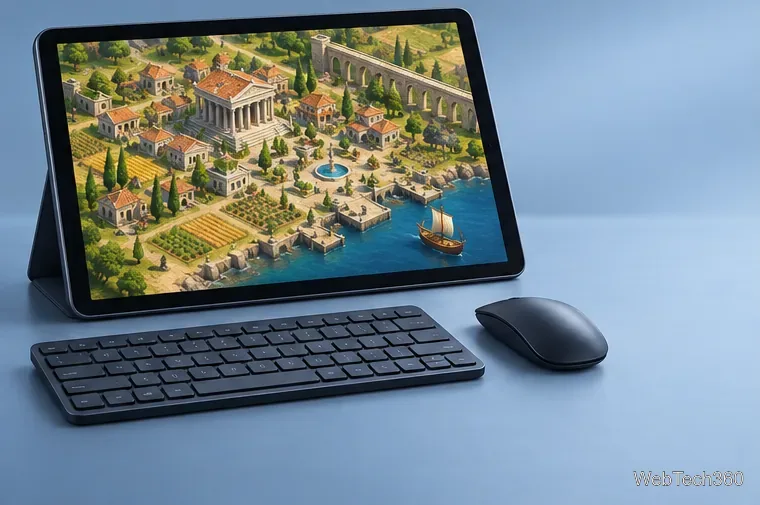
If a game will not open, verify the copied folder and executable, restart the environment, then consult the current Winlator release notes. Change one display or graphics option at a time. Note whether it fails before a window appears, shows a black screen, or opens without sound. These games may not work on your specific device, and no verified Winulator profile fixes that automatically.
The old Winulator workflow explains the basic idea, but its app links and profiles should not be treated as a current install guide. Winlator offers a different compatibility layer, and neither project guarantees these games will run. Use official game sources and the current project release page, and expect device-specific results.
Learn how to add a visible date and time to new or existing Android photos with your camera's watermark setting or Google Photos Markup.
Learn how to screenshot on Android with button shortcuts, scrolling captures, and Pixel, Samsung, and Motorola gestures, plus where to find and share images.
Learn how Framaroot rooted compatible older Android phones, what to check before installing its APK, and why it rarely works on newer devices.
See how the classic Search Now app used a floating search button for on-device and web searches, why its Play Store listing is gone, and what works today.
Learn how to turn Facebook profile picture login on or off, remove saved sign-ins on iPhone or Android, and find the current Saved login settings.
Learn how to identify plants, products, books, and other objects in photos with Google Lens on Android, iPhone, or a computer—and improve uncertain matches.
Remove your Pokémon GO avatar’s hat, gloves, and backpack using the Style menu. Follow the steps and fix missing no-item options without spending PokéCoins.
Understand what firmware and ROM mean on Android, how stock and custom ROMs differ, what flashing changes, and which risks to check before installing an image.
Learn what you need to install CyanogenMod 7.1 RC1 on the Motorola CLIQ XT, back up the MB501, flash the matching ZIPs, and avoid unverified files.
See what Android 2.3 Gingerbread keyboard language packs supported, how to verify a compatible ZIP, back up your phone, and avoid unsafe recovery flashes.








