Add a Date and Time Stamp to Photos on Your Android Phone

Learn how to add a visible date and time to new or existing Android photos with your camera's watermark setting or Google Photos Markup.
If Wi-Fi, Bluetooth, or cellular service keeps failing on an Android phone, a network settings reset can clear the affected saved connection settings and let you set them up again. On many current Pixel and Samsung Galaxy phones, Wi-Fi/Bluetooth and mobile network resets are separate choices, so select only the category tied to the problem.
A network reset is not a factory reset: it does not erase your photos, apps, or personal files. The exact settings affected depend on the phone maker, Android version, and the reset option shown on your screen.
Read the confirmation screen before you proceed. On current Pixel and Galaxy guidance, resetting Wi-Fi and Bluetooth removes saved Wi-Fi connections and Bluetooth pairings. You will need to enter Wi-Fi passwords again and reconnect headphones, watches, cars, or other accessories.
A mobile network reset restores cellular network settings. Depending on the phone and carrier, you may need to review mobile data, preferred network, or access point settings afterward. If your carrier’s APN settings do not return automatically, ask the carrier for the correct values instead of guessing.
These resets do not add data to your plan, fix a carrier outage, or improve signal where coverage is weak. On Pixel, deleting an eSIM is a separate action from resetting mobile network settings; do not choose an “Erase eSIM” option unless you intend to remove that plan and know how to reactivate it.
Google’s Android connection troubleshooting guide covers restart, Airplane mode, and basic Wi-Fi checks.
On Pixel phones, Google currently places the network reset options under Settings > System > Reset options. Other Android makers may use different menu names. If you cannot find the route, open Settings and search for reset; review the results carefully and avoid options such as “Erase all data” or “Factory reset.”
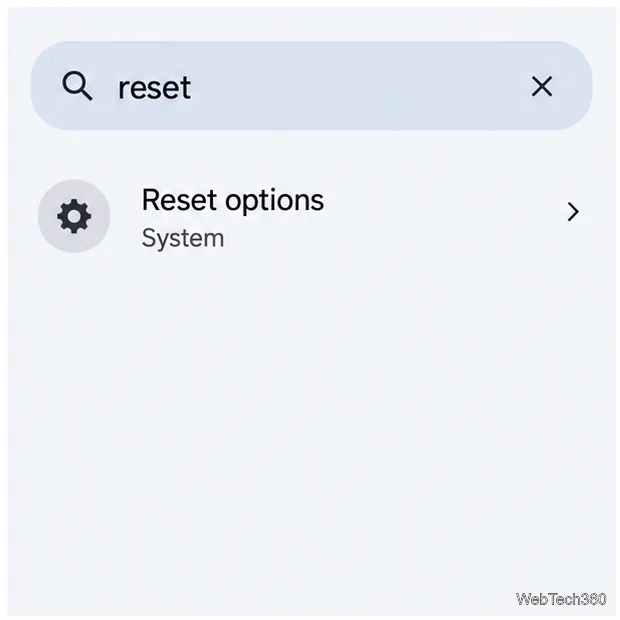
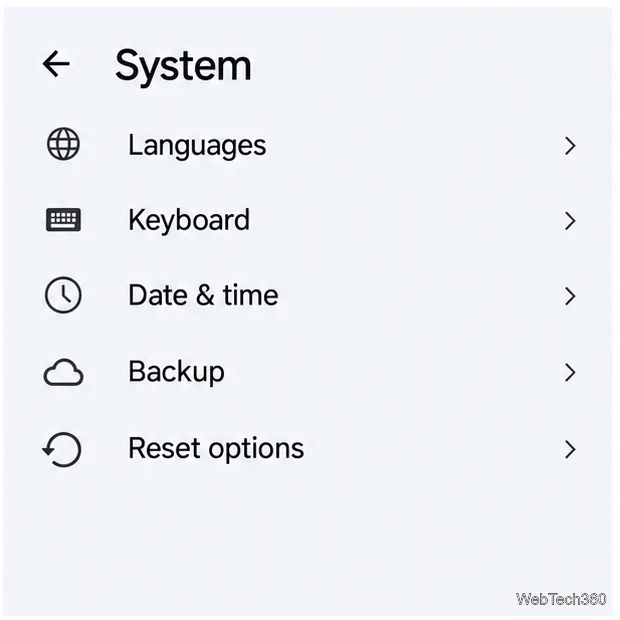
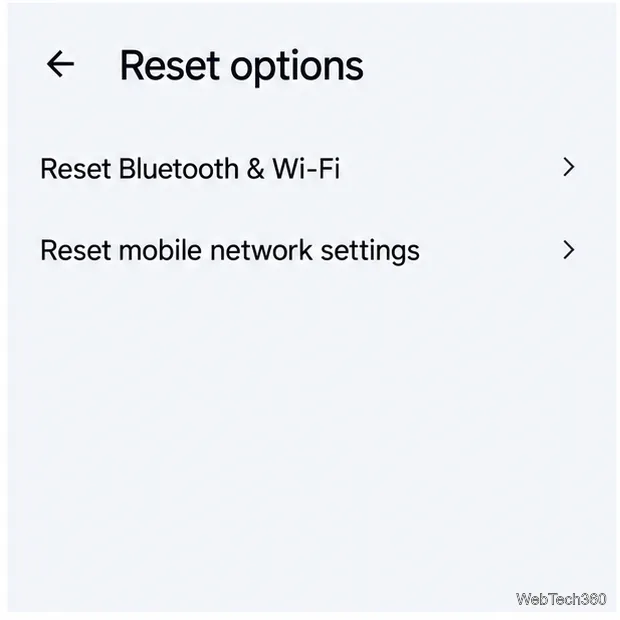
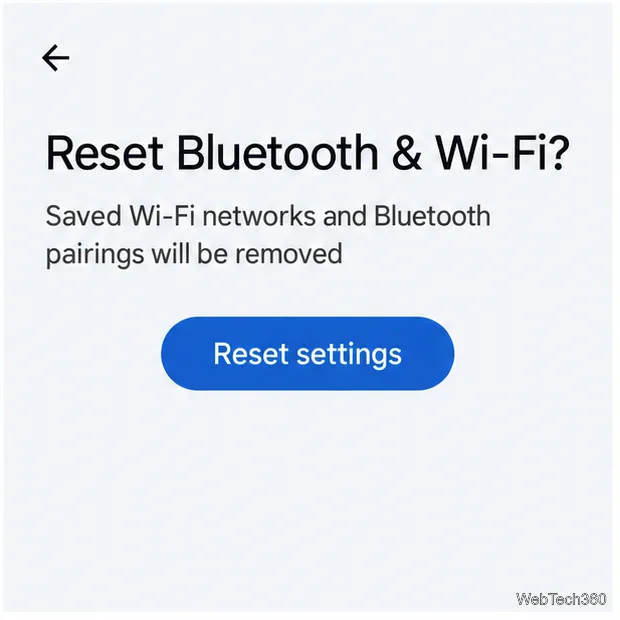
Google’s Pixel Wi-Fi instructions and Pixel mobile connectivity guide document these separate reset paths. If your device offers one combined “Reset network settings” option instead, check its on-screen list of effects before confirming.
Many recent Galaxy phones also separate mobile settings from Wi-Fi and Bluetooth. The labels can differ by model or software version, so choose the option that matches your issue.
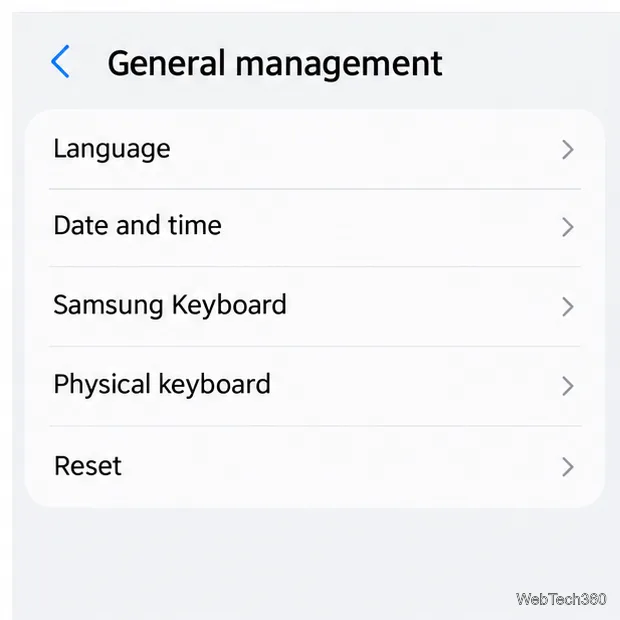
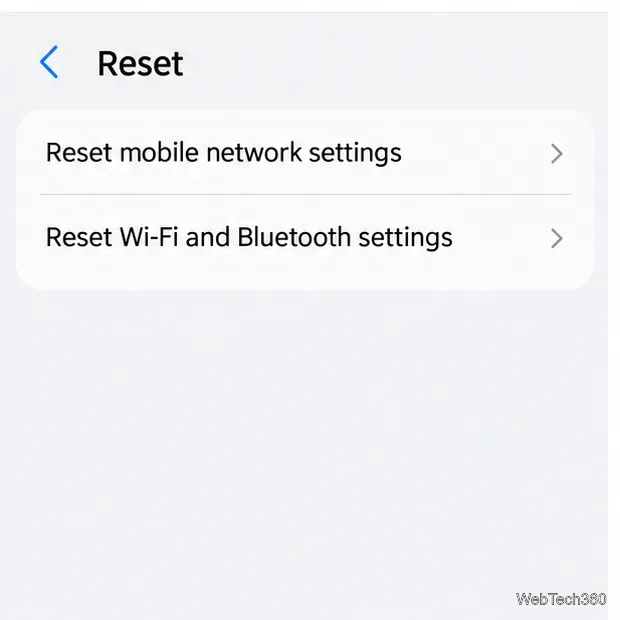
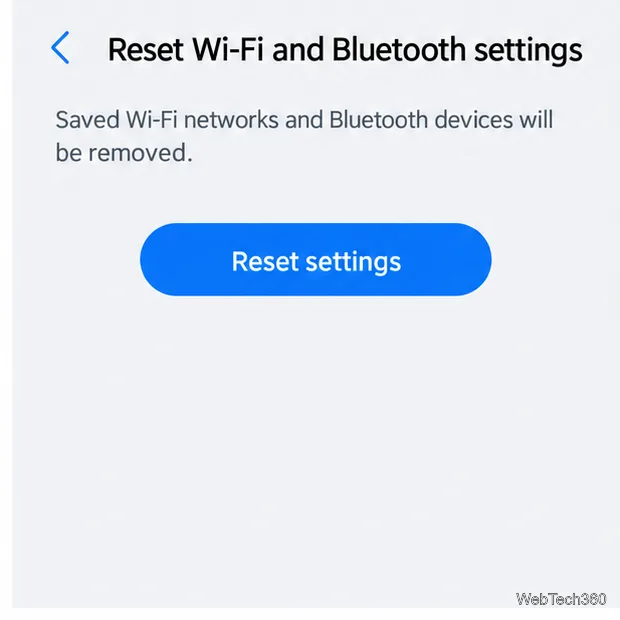
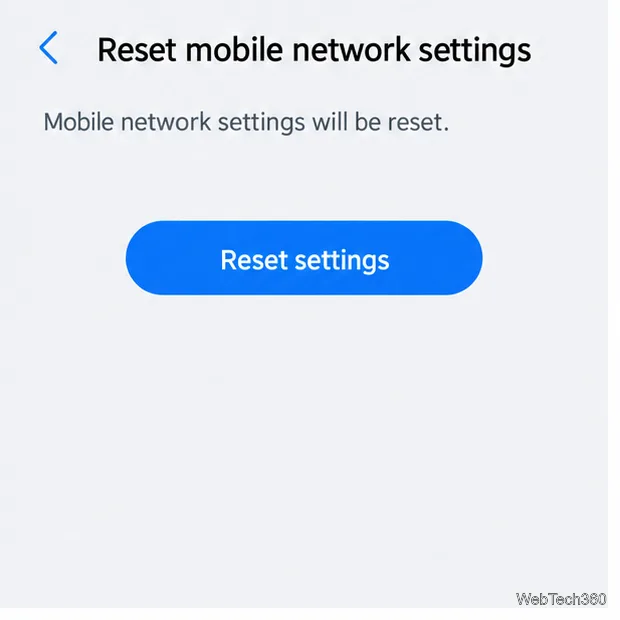
Samsung says these network resets do not erase apps or personal data. Its Galaxy reset instructions show the current menu options. Some older devices may still show a single Reset network settings entry.
After a Wi-Fi/Bluetooth reset, connect to your Wi-Fi network and pair each accessory again. Test the connection near the router, then check whether another device can use that network. If only one Wi-Fi network fails, restart its router or contact its owner or internet provider.
After a mobile network reset, turn Wi-Fi off and check for cellular signal, mobile data, and a test call. If service still fails, check for a carrier outage, account or plan restriction, SIM issue, or weak coverage. Contact your carrier if the phone asks for APN details or cannot register on the network. A reset cannot restore a data allowance after you have reached your plan’s limit.
No. A network reset targets connection settings. It is different from a factory reset, which erases personal data. Confirm that the menu title says network, Wi-Fi/Bluetooth, or mobile network before proceeding.
Not right away. First forget and rejoin the affected Wi-Fi network, toggle Wi-Fi, and restart the phone and router. Use the broader reset if the narrower steps fail or several network connections are malfunctioning.
Learn how to add a visible date and time to new or existing Android photos with your camera's watermark setting or Google Photos Markup.
Learn how to screenshot on Android with button shortcuts, scrolling captures, and Pixel, Samsung, and Motorola gestures, plus where to find and share images.
Learn how Framaroot rooted compatible older Android phones, what to check before installing its APK, and why it rarely works on newer devices.
See how the classic Search Now app used a floating search button for on-device and web searches, why its Play Store listing is gone, and what works today.
Learn how to turn Facebook profile picture login on or off, remove saved sign-ins on iPhone or Android, and find the current Saved login settings.
Learn how to identify plants, products, books, and other objects in photos with Google Lens on Android, iPhone, or a computer—and improve uncertain matches.
Remove your Pokémon GO avatar’s hat, gloves, and backpack using the Style menu. Follow the steps and fix missing no-item options without spending PokéCoins.
Understand what firmware and ROM mean on Android, how stock and custom ROMs differ, what flashing changes, and which risks to check before installing an image.
Learn what you need to install CyanogenMod 7.1 RC1 on the Motorola CLIQ XT, back up the MB501, flash the matching ZIPs, and avoid unverified files.
See what Android 2.3 Gingerbread keyboard language packs supported, how to verify a compatible ZIP, back up your phone, and avoid unsafe recovery flashes.








