Add a Date and Time Stamp to Photos on Your Android Phone

Learn how to add a visible date and time to new or existing Android photos with your camera's watermark setting or Google Photos Markup.
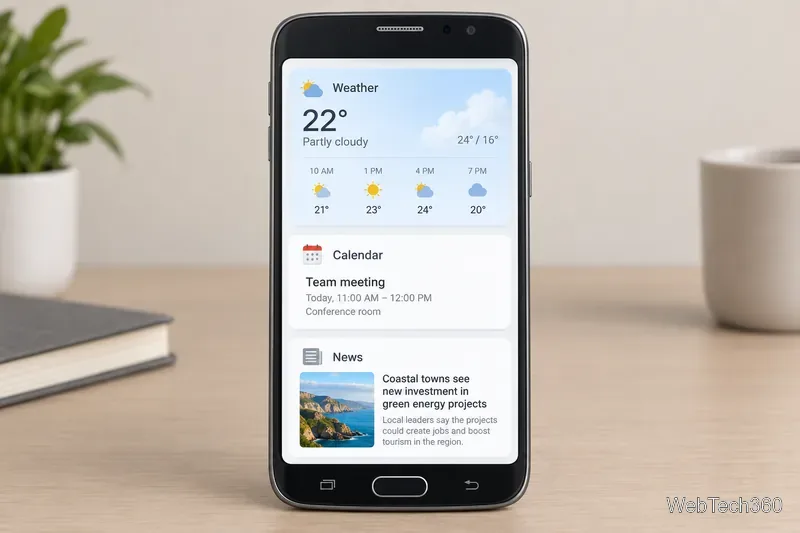
Bixby Home was a swipeable dashboard on some Samsung Galaxy phones. It displayed cards with updates from supported apps—such as weather, calendar items, and news—beside the Home screen. It was a visual feed, not the same feature as Bixby Voice.
Think of Bixby Home as a legacy Galaxy feature: Samsung documents it for compatible devices, but the feed and controls vary by model, software version, and region. Newer phones may not have a screen with that name.
The panel let you glance at brief updates without opening each app. Depending on the device and supported services, cards could show a forecast, upcoming events or reminders, news, and app shortcuts. Samsung describes cards as summaries of recent or relevant app information; the available selection varied by phone.
| Feature | Purpose | Typical access |
|---|---|---|
| Bixby Home | Shows app updates in visual cards. | Swipe right from Home on a compatible device. |
| Bixby Voice | Responds to spoken requests, such as creating a reminder. | Use a supported Bixby or Side button, app, or voice-wake setting. |
Samsung's setup guide describes Bixby as a digital assistant and notes that newer devices use a configurable Side button. The available buttons and features vary by model and software. Turning off the Home feed does not, by itself, disable every Bixby service; the dashboard is not a voice-assistant privacy switch.
It is not a universal feature. Samsung still lists steps for compatible devices, but its content-feed experience has changed over time. In a 2021 announcement, Samsung said Samsung Free would be preloaded on Galaxy devices from that year, and that users of Bixby Home or Samsung Daily could choose Samsung Free through the Galaxy Store. That change helps explain why the swipeable feed differs between Galaxy generations.
Check your exact model and software before following old steps. Samsung notes that screens and settings can vary. If your Home screen has no Bixby Home page or switch, the feature may not be available on that setup.
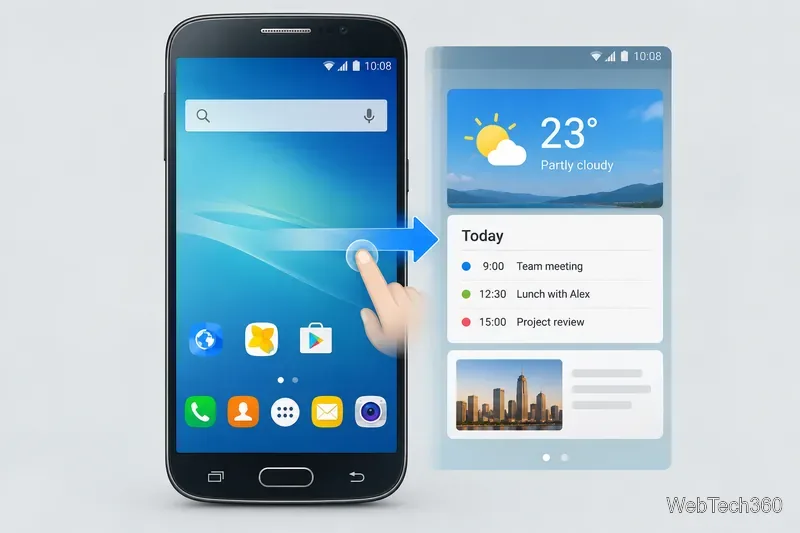
If the swipe opens another service or does nothing, the phone may use a different feed or software experience. Consult support for your model rather than applying instructions from another Galaxy generation.
On a phone with the original Bixby Home switch:
The switch may be absent on newer software or another launcher. It controls the Home screen feed, not Bixby Voice or your Samsung account.
Open Bixby Home, tap the three-dot menu in the upper-right corner, and choose Cards. Select a supported app or service, then turn its switch on. A card appears only when that app is supported and has information to show; labels may differ slightly by software version.
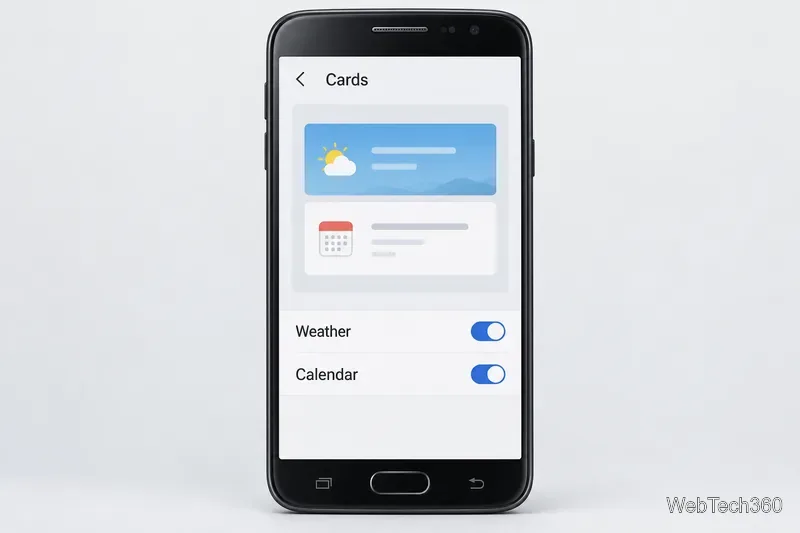
On supported versions, a card's own menu can let you pin it near the top, hide it for now, or prevent it from appearing again. These options are not available for every card or software version.
Check Home screen settings to see which feed is selected, then confirm whether your model supports Bixby Home. If Samsung Free or another Samsung feed is officially offered for your phone, use Samsung's support instructions or the Galaxy Store instead of installing an old APK from an unknown site. For current assistant setup, Samsung's Bixby guide covers the separate Bixby app and button options.
In short, Bixby Home was Samsung's card-based app dashboard; Bixby Voice handled spoken commands. On a compatible older phone, you may still be able to open the panel, toggle it, and choose cards. On newer devices, the feed may be absent or use a different name.
For model-specific details, see Samsung's Bixby Home and card support guide, Samsung's Bixby setup instructions, and Samsung Newsroom's Samsung Free announcement.
Learn how to add a visible date and time to new or existing Android photos with your camera's watermark setting or Google Photos Markup.
Learn how to screenshot on Android with button shortcuts, scrolling captures, and Pixel, Samsung, and Motorola gestures, plus where to find and share images.
Learn how Framaroot rooted compatible older Android phones, what to check before installing its APK, and why it rarely works on newer devices.
See how the classic Search Now app used a floating search button for on-device and web searches, why its Play Store listing is gone, and what works today.
Learn how to turn Facebook profile picture login on or off, remove saved sign-ins on iPhone or Android, and find the current Saved login settings.
Learn how to identify plants, products, books, and other objects in photos with Google Lens on Android, iPhone, or a computer—and improve uncertain matches.
Remove your Pokémon GO avatar’s hat, gloves, and backpack using the Style menu. Follow the steps and fix missing no-item options without spending PokéCoins.
Understand what firmware and ROM mean on Android, how stock and custom ROMs differ, what flashing changes, and which risks to check before installing an image.
Learn what you need to install CyanogenMod 7.1 RC1 on the Motorola CLIQ XT, back up the MB501, flash the matching ZIPs, and avoid unverified files.
See what Android 2.3 Gingerbread keyboard language packs supported, how to verify a compatible ZIP, back up your phone, and avoid unsafe recovery flashes.








