Add a Date and Time Stamp to Photos on Your Android Phone

Learn how to add a visible date and time to new or existing Android photos with your camera's watermark setting or Google Photos Markup.
Remote for Windows Phone 7 was a local Wi-Fi companion for a Windows PC. With the matching Remote Server program running on the computer, the phone could browse and open files, switch among running windows, maximize or close them, save files or folders to Favorites, and trigger user-defined hotkeys. It was not a full remote desktop: the original description did not include remote mouse or keyboard control. This is a historical explanation, not a current installation guide. Microsoft lists Windows Phone 7.8 support as ended on October 15, 2014, and I could not verify an active official download or supported publisher for this app and its PC server.
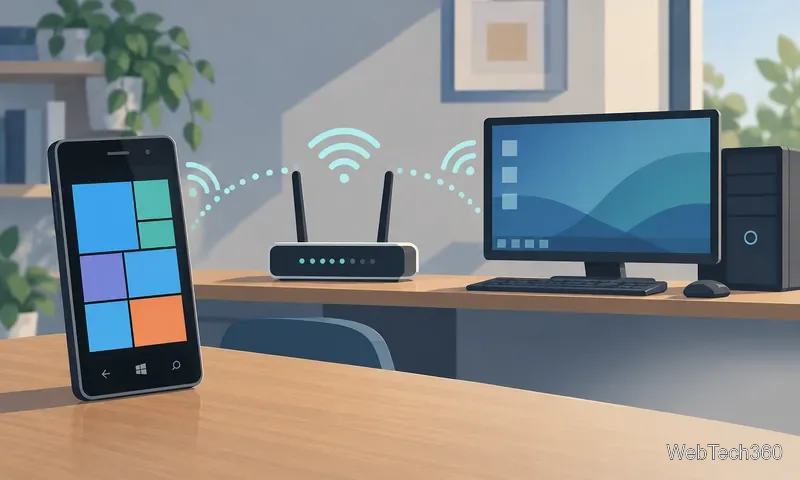
The app worked as a lightweight control panel for selected PC tasks. It was useful for reaching the computer from across a room, such as opening a family-photo folder or changing which program window was active. Its features were narrower than the word “remote control” may imply:
| Capability | What the historical description supports |
|---|---|
| Window controls | Switch between open windows, maximize them, or close them. |
| File browsing | Browse files stored on the PC and open a file from the phone. |
| Favorites | Add PC files or folders for quicker access from the Favorites tab. |
| Hotkeys | Define shortcuts on the phone and send them to the computer with a tap. |
| Mouse, keyboard, or live desktop view | Not described as available; do not treat the app as full desktop control or screen mirroring. |
That distinction matters. Opening a file or selecting a window is not the same as seeing the PC desktop and freely pointing, clicking, or typing. The old article specifically noted the absence of mouse and keyboard control, so those features should not be inferred from the product name.
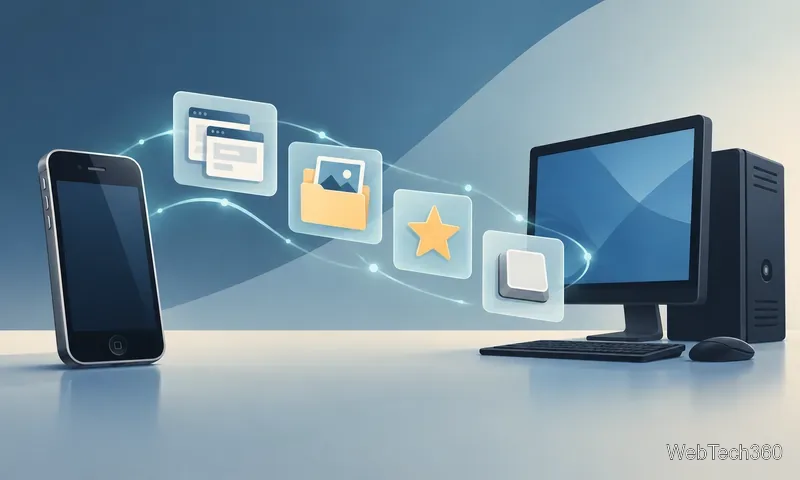
The historical setup used two components: the Remote app on the phone and Remote Server on the PC. The server displayed an IP address and a key. The phone used those values to register the computer. The basic flow described for the original app was:
The address in this flow is the PC's local network address. A home router can assign a different address later, which may make a saved connection stop working; check the address shown by the PC-side program before assuming the phone's key is wrong. The original post suggested a static address, but address reservation and network settings depend on the router. Because the app is unsupported, this troubleshooting note should not be read as a recommendation to install it on a modern computer.
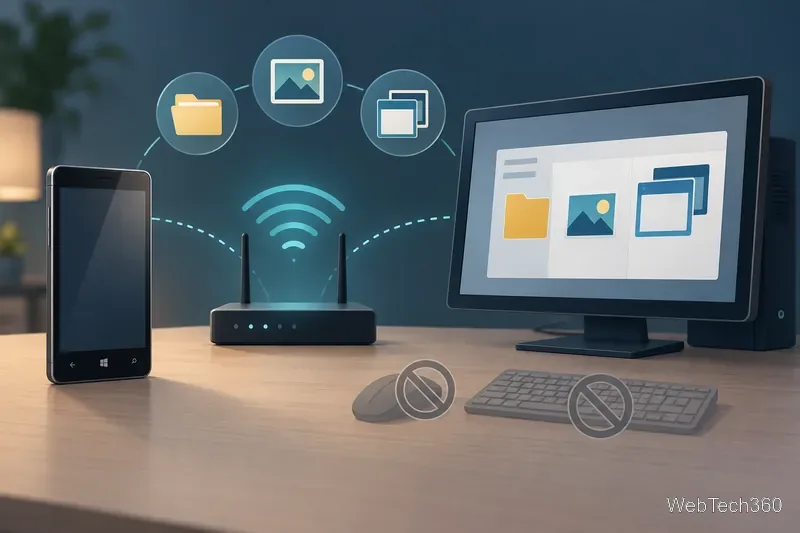
For most readers, no. Microsoft marks Windows Phone 7.8 as out of support, with the end date listed as October 15, 2014. Its lifecycle guidance also explains that downloadable applications are supported by their publishers, so the operating-system end date does not prove that this third-party app still has a maintainer. I could not confirm a current publisher page, supported PC-server download, or working official store listing. The old Zune-era Marketplace redirect should not be assumed to be a valid installer today.
If you already have the original software and are researching it for archival or hobby use, keep any test limited to a private network you trust, use a non-sensitive PC, and stop the server when you are finished. Do not download replacement packages from an unknown mirror or expose the old service through router port forwarding. Microsoft warns that opening a PC to the public internet through port forwarding is not recommended for current Remote Desktop; this legacy app has no verified current security guidance to justify exposing it.
For current remote access, choose a maintained product that supports both your present-day phone and Windows version, and follow that vendor's security requirements. Microsoft's current Remote Desktop guidance, for example, limits host support to specified Windows editions, recommends trusted networks and strong unique passwords, and describes remote access as a different capability from this old phone companion. That modern guidance cannot restore Windows Phone 7 app availability or add mouse and keyboard control to Remote.
Learn how to add a visible date and time to new or existing Android photos with your camera's watermark setting or Google Photos Markup.
Learn how to screenshot on Android with button shortcuts, scrolling captures, and Pixel, Samsung, and Motorola gestures, plus where to find and share images.
Learn how Framaroot rooted compatible older Android phones, what to check before installing its APK, and why it rarely works on newer devices.
See how the classic Search Now app used a floating search button for on-device and web searches, why its Play Store listing is gone, and what works today.
Learn how to turn Facebook profile picture login on or off, remove saved sign-ins on iPhone or Android, and find the current Saved login settings.
Learn how to identify plants, products, books, and other objects in photos with Google Lens on Android, iPhone, or a computer—and improve uncertain matches.
Remove your Pokémon GO avatar’s hat, gloves, and backpack using the Style menu. Follow the steps and fix missing no-item options without spending PokéCoins.
Understand what firmware and ROM mean on Android, how stock and custom ROMs differ, what flashing changes, and which risks to check before installing an image.
Learn what you need to install CyanogenMod 7.1 RC1 on the Motorola CLIQ XT, back up the MB501, flash the matching ZIPs, and avoid unverified files.
See what Android 2.3 Gingerbread keyboard language packs supported, how to verify a compatible ZIP, back up your phone, and avoid unsafe recovery flashes.








