How to Watch Emby on ChromeOS in Chrome
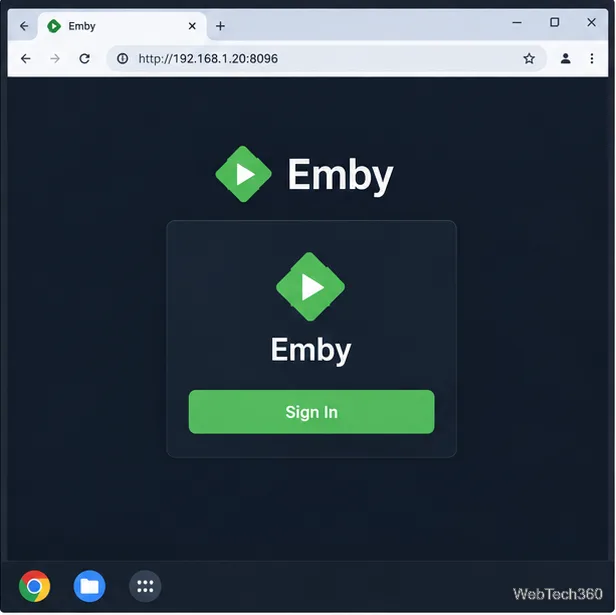
Open the Emby Web App on your Chromebook, sign in to your server, and play movies, shows, music, and photos without installing Linux.
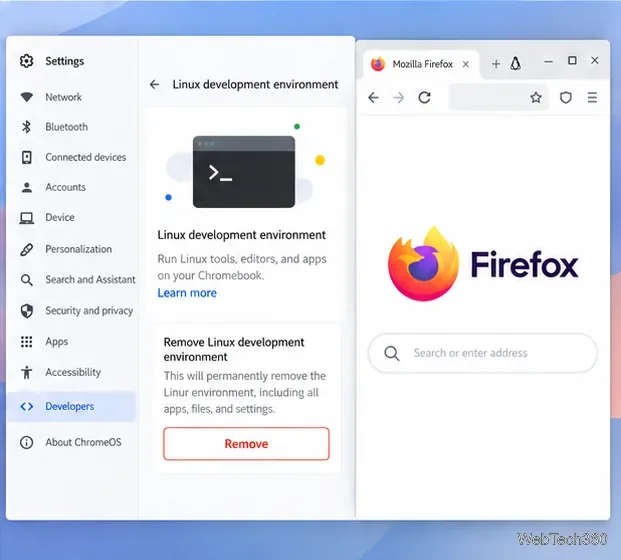
Yes. To use a desktop browser besides Chrome on a Chromebook, enable Linux and install a Linux build such as Firefox. The browser runs as a separate app in a Debian container; it does not replace ChromeOS’s built-in Chrome. Compatibility depends on Linux support, your Chromebook’s processor, and any work or school restrictions.
ChromeOS sets up the Debian environment for you. For Firefox, the current route is Mozilla’s signed package repository; the old GNOME Software and Flatpak steps are unnecessary.
Open chrome://version in Chrome to check your ChromeOS version. Mozilla’s ChromeOS-specific guide currently lists an x86-based Chromebook running ChromeOS 80 or later for its Firefox method. Linux may also be disabled on a managed device. After setup, cat /etc/os-release shows the Debian release, and dpkg --print-architecture shows the container’s architecture.
Other browsers may support ARM64 as well as Intel/AMD, but check each vendor’s requirements before choosing a package.
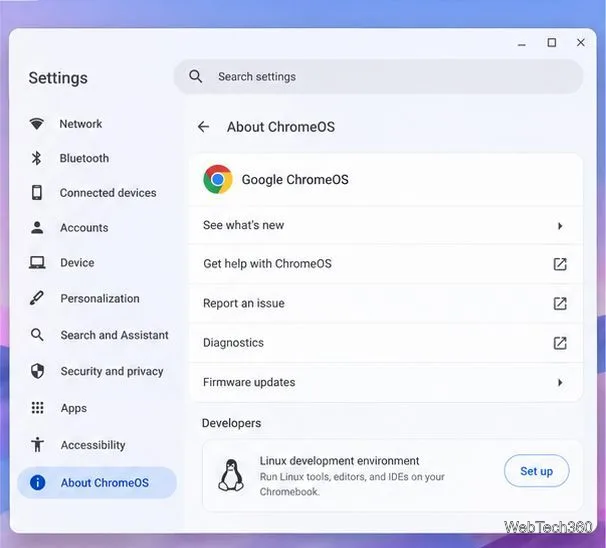
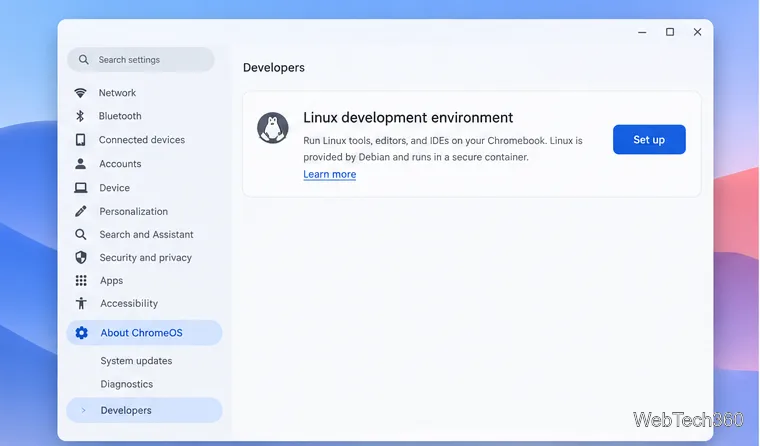
Setup can take 10 minutes or more. ChromeOS then opens Terminal with a Debian environment.
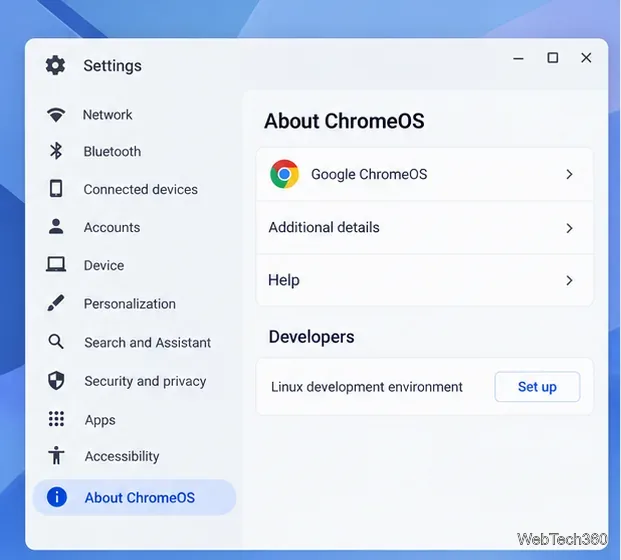
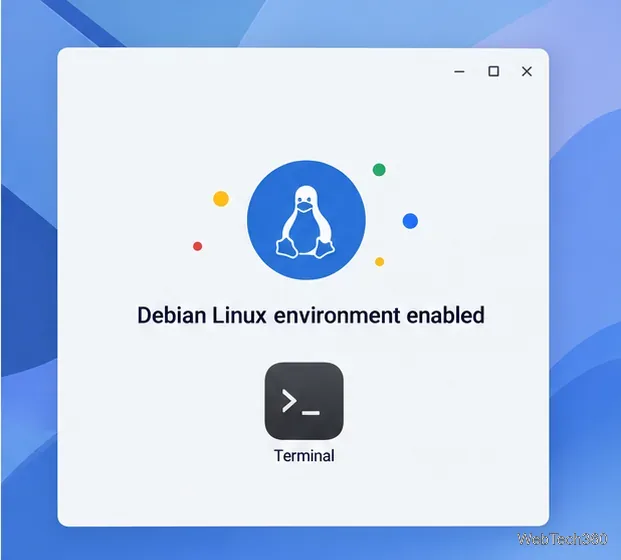
If Set up is missing, consult Google’s Linux setup guidance and check with your administrator if the Chromebook is managed.
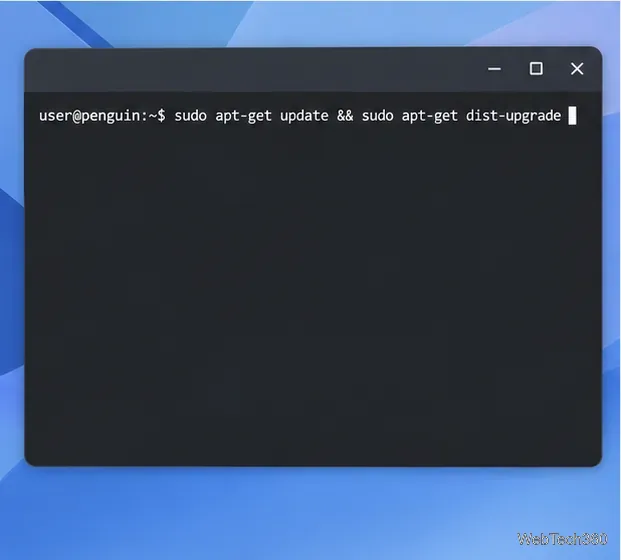
In Terminal, run Google’s recommended package update command:
sudo apt-get update && sudo apt-get dist-upgradePress Enter, enter your Linux password if prompted, and confirm package changes. Restart the Chromebook if the update asks you to.
Check the Debian release with cat /etc/os-release. Then follow Mozilla’s ChromeOS installation guide to add its signed APT repository. The repository setup differs for Debian 12 and older versus Debian 13 and newer; use the matching instructions. After it is configured, run:
sudo apt-get update
sudo apt-get install firefox
Keep Terminal open until the install finishes. The older advice to find Firefox in GNOME Software is not a reliable path on a fresh Chromebook Linux container.
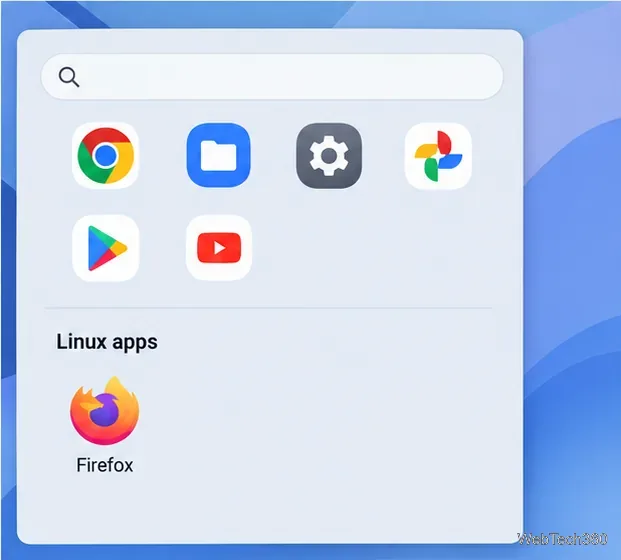
Open Firefox from the launcher. It has its own profile, cookies, bookmarks, and saved passwords, separate from Chrome. Sign in to Firefox Sync if you want to bring Firefox data from another device.
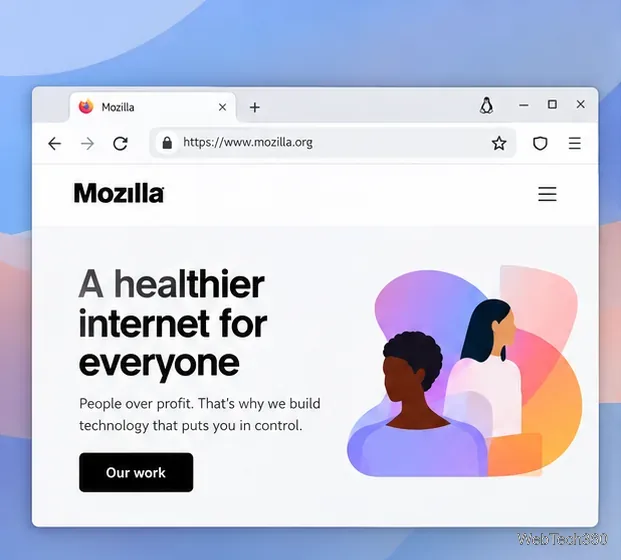
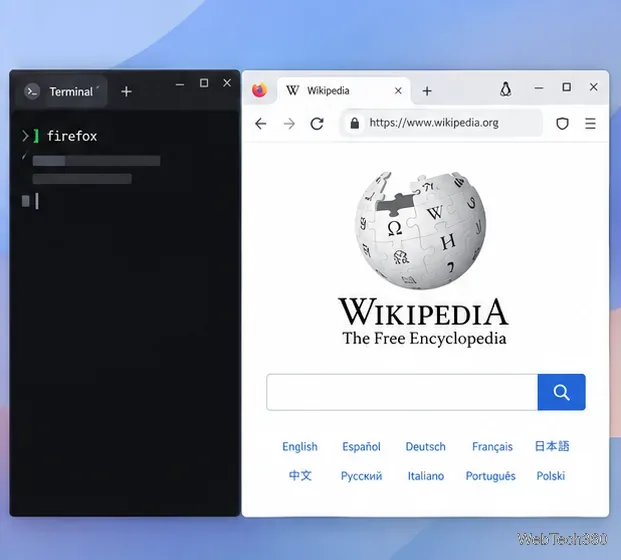
If the launcher icon is missing, try firefox in Terminal. If the command fails, recheck the Debian version and follow Mozilla’s package steps again.
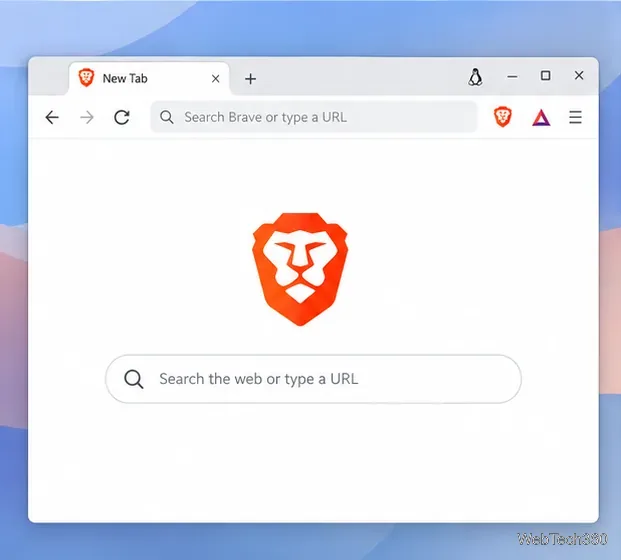
Brave, Microsoft Edge, and Opera publish Linux desktop versions. Use their official Linux instructions and a package that matches your container:
curl -fsS https://dl.brave.com/install.sh | sh. Brave lists Debian 10 or newer and 64-bit Intel/AMD or ARM64 requirements in its system requirements..deb on its Edge download page..deb package and explains updates.Use packages from the browser maker, not third-party download sites. If a downloaded package is in ChromeOS Downloads, share that folder with Linux in the Files app, then follow the vendor’s Debian installation steps.
Google says Linux apps share one sandbox, and files shared with Linux are available to all Linux apps. Share only folders the apps need. Google also lists cameras and hardware acceleration—including GPU and video decoding—as unsupported in Linux. A browser may therefore be a poor choice for camera calls, graphics-heavy pages, or smooth video playback. Microphone access can be enabled separately in Linux settings.
dpkg --print-architecture and your Debian release.sudo apt remove firefox, or the vendor’s uninstall instructions.Keep Chrome for features that depend on ChromeOS integration, and use a Linux browser when its package and capabilities fit your device.
Open the Emby Web App on your Chromebook, sign in to your server, and play movies, shows, music, and photos without installing Linux.
Install Syncthing on a Chromebook, share a ChromeOS folder with Linux, connect another device, and keep the web interface private.
Enable Linux on your Chromebook, install Tor Browser with the Tor Project’s Flatpak launcher, connect to Tor, and understand what the setup protects.
Install Bitwarden on a Chromebook, save your first login, autofill websites, and learn when the optional Linux desktop app makes sense.
Install Firefox, Brave, Edge, or Opera on a Chromebook with Linux. Learn how to enable the Debian environment, choose a compatible package, and understand the limits.
Read EPUBs and PDFs in Google Play Books on your Chromebook, or install Foliate through Linux for a local reader that supports more formats.
Install VLC on a Chromebook from Google Play, play local files and network media, or set up the Linux desktop version when you need it.
Install Krita on a Chromebook with ChromeOS Linux and Flatpak, then launch the app, open shared artwork, and troubleshoot common setup limits.
Use Teams on a Chromebook through Chrome, sign in with a work or school account, install the optional web app, and resolve camera or microphone issues.
Set up ChromeOS Linux, choose the right VS Code Debian package for your Chromebook, and install the desktop editor with APT.