How to Watch Emby on ChromeOS in Chrome
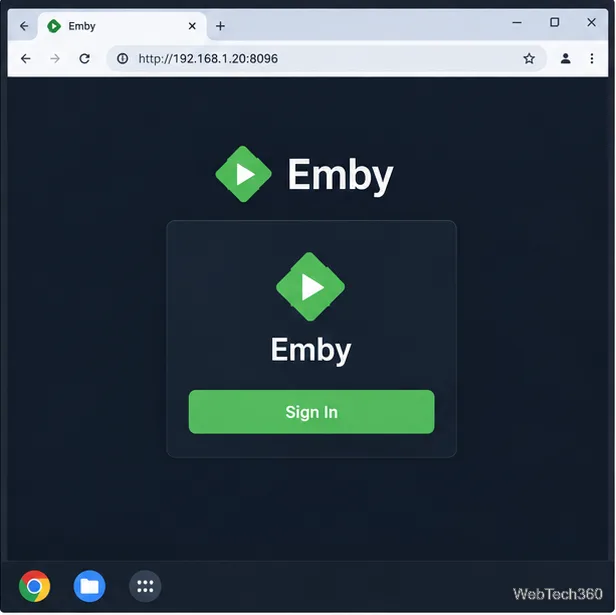
Open the Emby Web App on your Chromebook, sign in to your server, and play movies, shows, music, and photos without installing Linux.
You can use Tor Browser on a Chromebook by enabling ChromeOS’s Linux development environment, installing Flatpak and the Tor Browser Launcher, then connecting from the browser. This installs the Linux desktop version in the Chromebook’s Linux container; Tor Browser is not a native ChromeOS app.
Check that your Chromebook supports Linux. Google notes that a work- or school-managed device may block the feature. The Linux environment uses a Debian container, and its setup can take 10 minutes or more. Linux applications share a ChromeOS sandbox, so files you share with Linux are available to every Linux app in that environment. Keep sensitive files out of shared folders unless an app needs them. See Google’s Chromebook Linux setup instructions for supported devices and current settings.
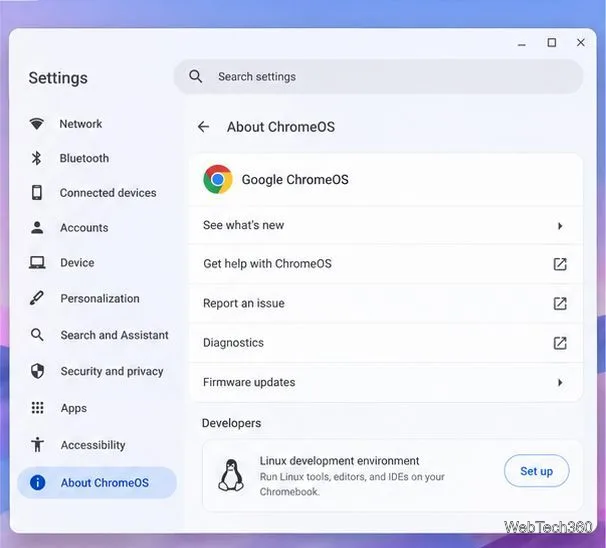
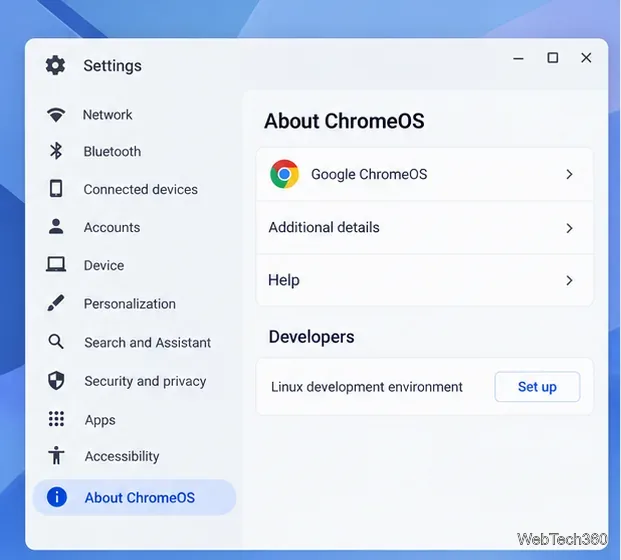
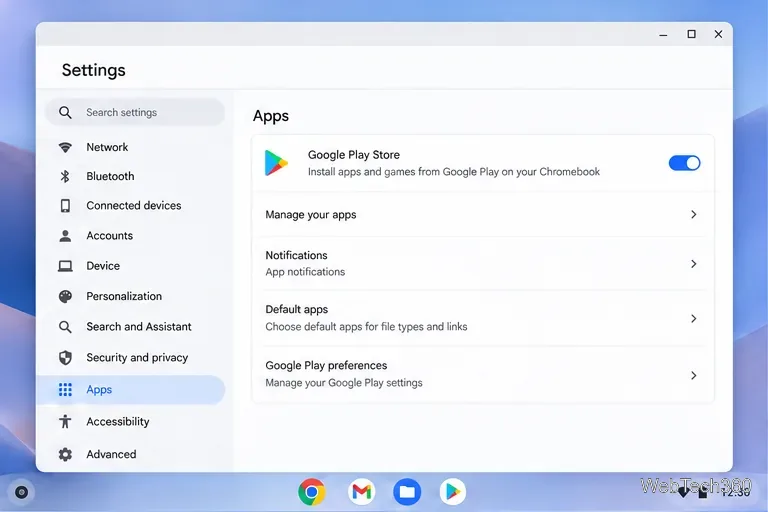
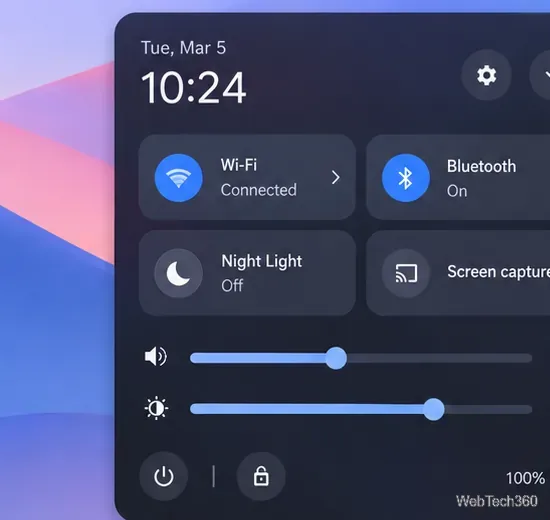
The interface images below are representative; labels and layout can vary by ChromeOS release. The commands are the important part. Run them in the Linux Terminal’s Penguin tab, one at a time, and wait for each command to finish.
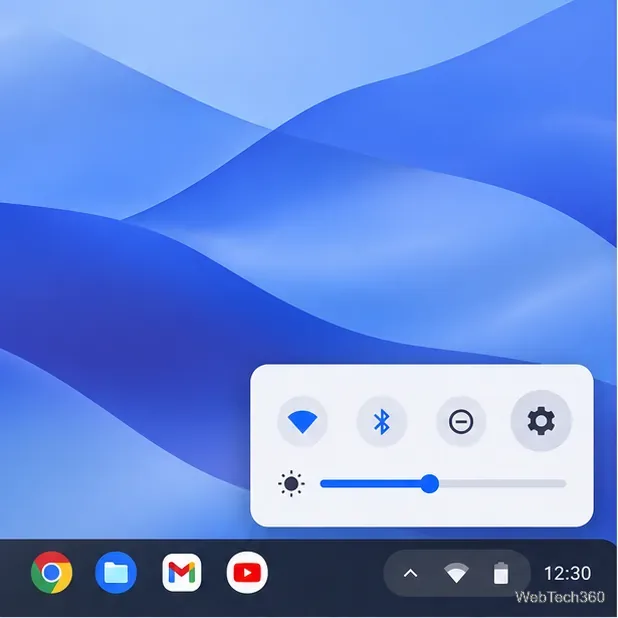
Select the time in the lower-right corner, open Settings, then go to About ChromeOS > Developers. Next to Linux development environment, select Set up and follow the prompts. When setup completes, ChromeOS opens Terminal. If you do not see the setup option, your device may not support Linux or an administrator may have disabled it.
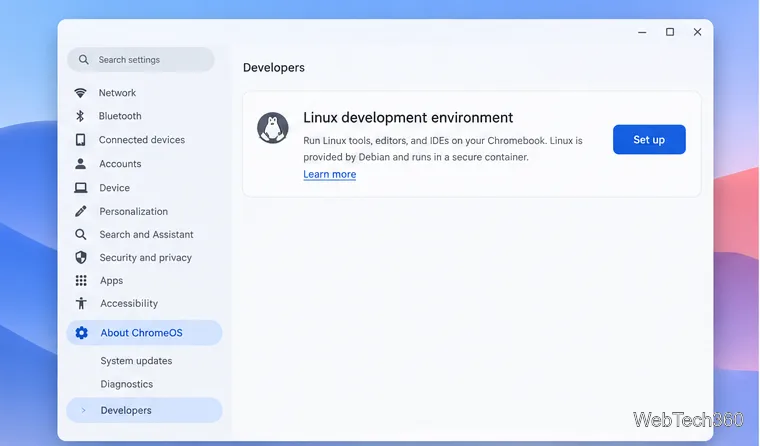
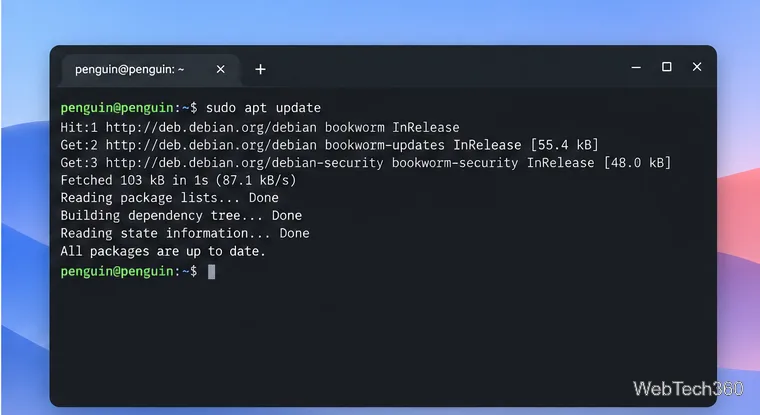
In Terminal, select Penguin if asked, then run:
sudo apt updateThis checks the configured Debian repositories for current package information. Enter your Linux password if prompted; Linux may not show characters while you type it.
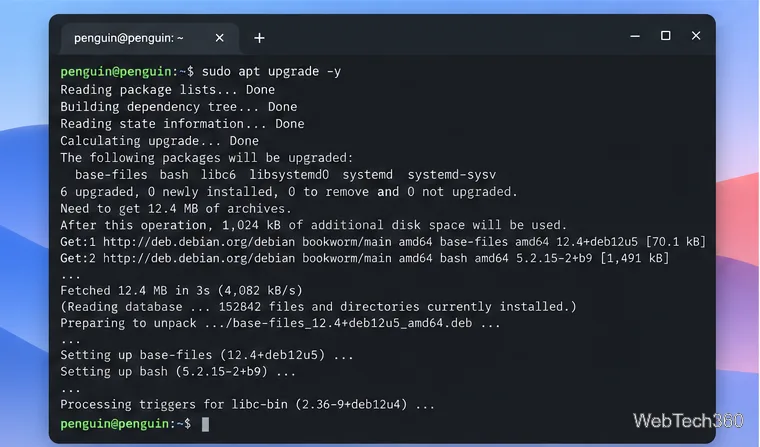
Run:
sudo apt upgrade -yThis updates installed packages in the container. The -y option accepts APT’s confirmation prompt automatically. If you want to review the proposed changes first, use sudo apt upgrade without -y.
Flatpak provides the package format used for the launcher. Install it with:
sudo apt install flatpakConfirm the installation if APT asks, and wait for the prompt to return.
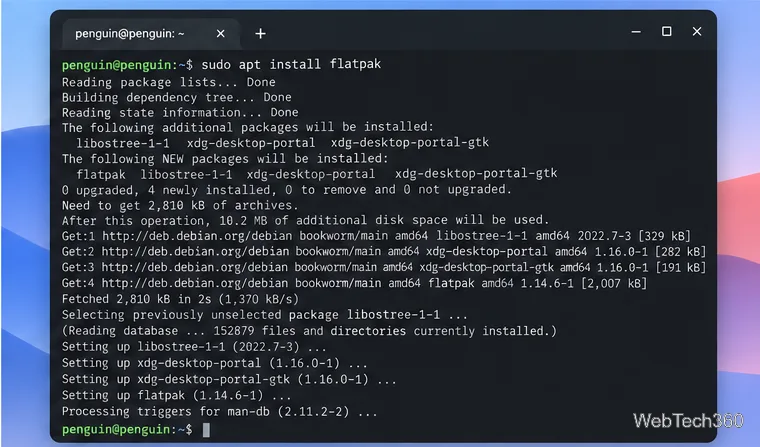
Flathub hosts the launcher package. Add its repository using the current ChromeOS setup command:
flatpak --user remote-add --if-not-exists flathub https://dl.flathub.org/repo/flathub.flatpakrepoThe --user option keeps this remote in your Linux account. If a command reports that Flathub already exists, you can continue. This matches Flathub’s ChromeOS setup guide.
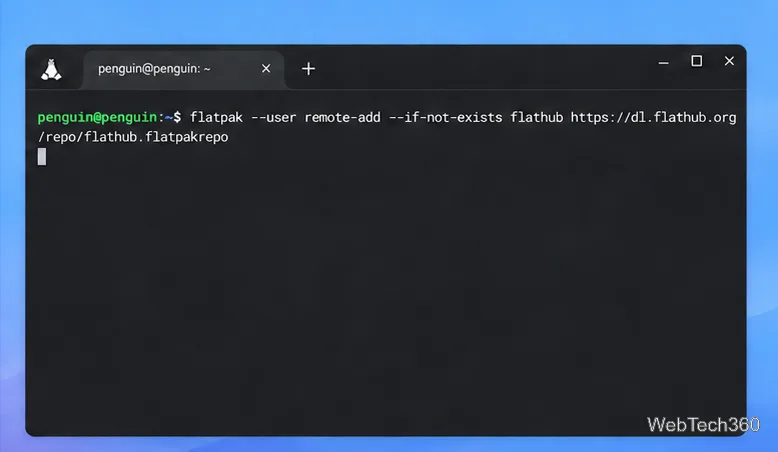
Install the app ID currently documented by the Tor Project:
flatpak install --user flathub org.torproject.torbrowser-launcherReview the runtime and app details, then confirm when Flatpak asks. Older guides may show a different launcher ID; use the Tor Project’s maintained launcher instructions if you need to check the current command.
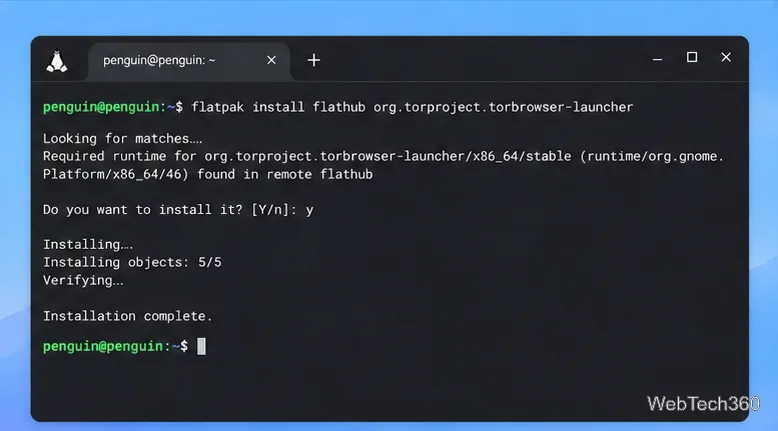
Open the Chromebook Launcher and look under Linux apps for Tor Browser Launcher. If it is not listed, run this in Terminal:
flatpak run org.torproject.torbrowser-launcherIn the launcher window, select Install Tor Browser and let the download finish. The launcher obtains the current browser bundle and verifies its signature before installing it.
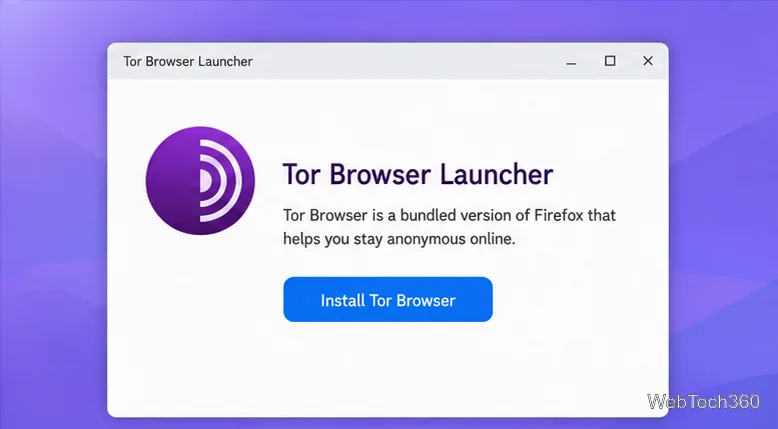
Open Tor Browser from the Linux apps menu. On first launch, select Connect to Tor and wait for the connection to complete. If your network blocks Tor or the connection does not start, choose Configure Connection and follow the Tor Project’s official bridge instructions.
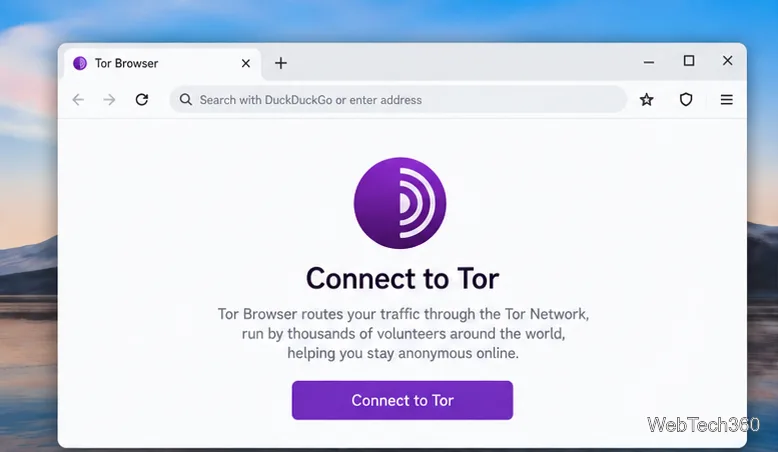
Tor Browser sends its own browsing traffic through the Tor network. It does not route Chrome, Android apps, or all Chromebook traffic through Tor, so do not treat this setup as a device-wide VPN. The Tor Project also notes that signing in to an account can identify you to that service even when you use Tor. For stronger privacy, keep your browsing in Tor Browser, avoid adding extensions, and do not use it for torrents. Read the project’s Tor Browser safety recommendations before relying on it for sensitive activity.
If installation or startup fails, first confirm the Linux container has internet access, reopen Terminal, and rerun sudo apt update. Check that Flathub was added for the same Linux user and that you used org.torproject.torbrowser-launcher. For a connection issue, use the browser’s connection settings and Tor’s bridge guide rather than installing an unrelated browser or extension.
Open the Emby Web App on your Chromebook, sign in to your server, and play movies, shows, music, and photos without installing Linux.
Install Syncthing on a Chromebook, share a ChromeOS folder with Linux, connect another device, and keep the web interface private.
Enable Linux on your Chromebook, install Tor Browser with the Tor Project’s Flatpak launcher, connect to Tor, and understand what the setup protects.
Install Bitwarden on a Chromebook, save your first login, autofill websites, and learn when the optional Linux desktop app makes sense.
Install Firefox, Brave, Edge, or Opera on a Chromebook with Linux. Learn how to enable the Debian environment, choose a compatible package, and understand the limits.
Read EPUBs and PDFs in Google Play Books on your Chromebook, or install Foliate through Linux for a local reader that supports more formats.
Install VLC on a Chromebook from Google Play, play local files and network media, or set up the Linux desktop version when you need it.
Install Krita on a Chromebook with ChromeOS Linux and Flatpak, then launch the app, open shared artwork, and troubleshoot common setup limits.
Use Teams on a Chromebook through Chrome, sign in with a work or school account, install the optional web app, and resolve camera or microphone issues.
Set up ChromeOS Linux, choose the right VS Code Debian package for your Chromebook, and install the desktop editor with APT.