How to Watch Emby on ChromeOS in Chrome
Open the Emby Web App on your Chromebook, sign in to your server, and play movies, shows, music, and photos without installing Linux.
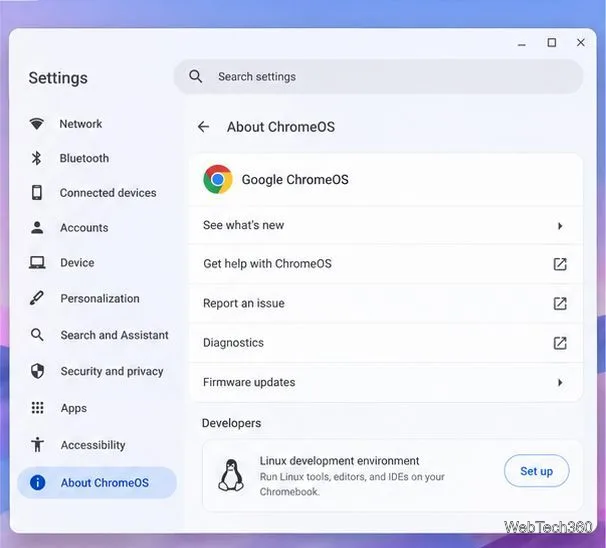
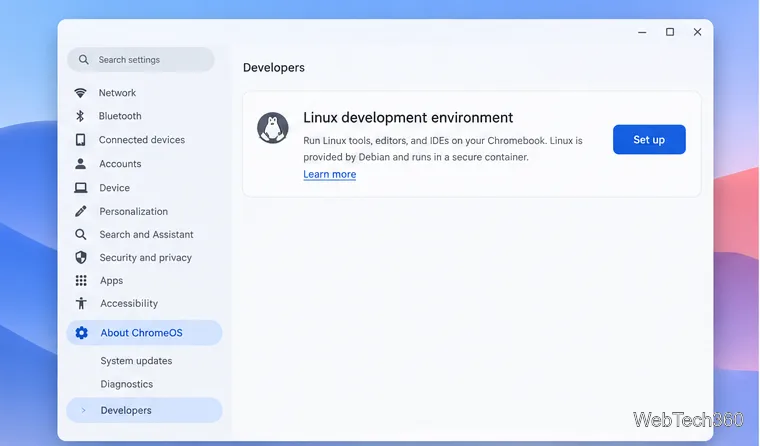
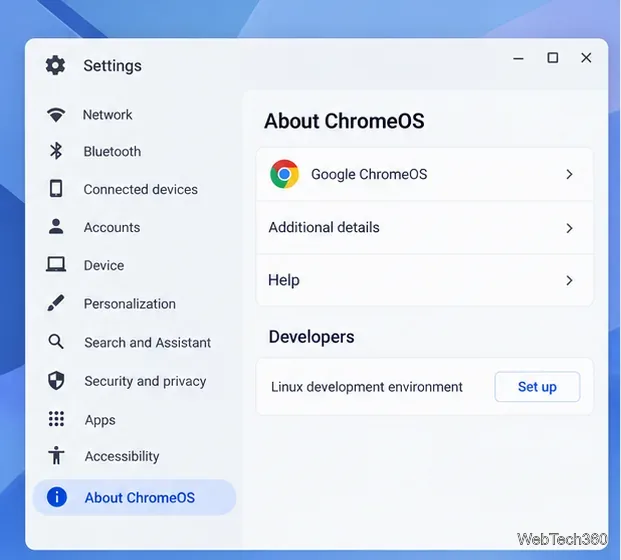
You can install the desktop version of Visual Studio Code on a Chromebook by enabling ChromeOS’s Linux development environment, downloading the official Debian package, and installing it with APT. The steps below use the supported .deb package, which is simpler to maintain than an old, manually downloaded build. Interface illustrations are examples; labels and layout can vary slightly by ChromeOS version.
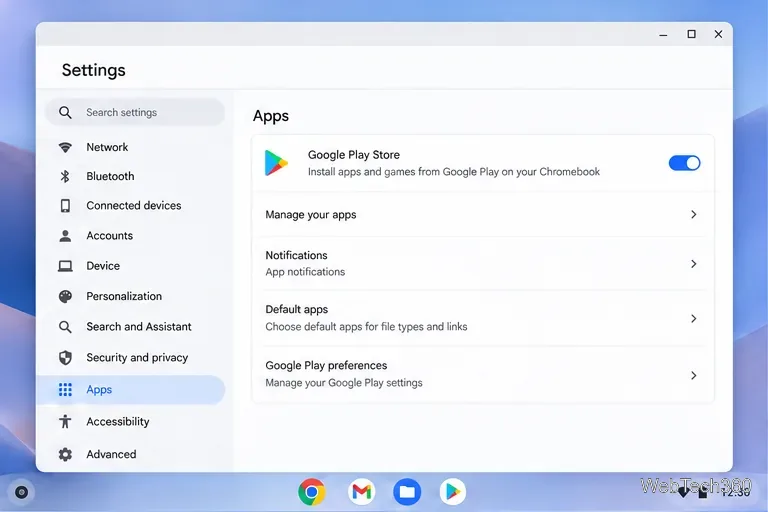
Check that your Chromebook supports Linux development environment. On a school or work device, an administrator may disable it. You also need enough free storage for the Linux container, VS Code, and your project files. Linux apps run in ChromeOS’s Linux environment, separate from the rest of the Chromebook; files outside the shared Linux area may need to be shared explicitly.
Use the current VS Code download page and the Chromebook instructions from Visual Studio Code and Chromebook Help. Avoid old direct download URLs because package versions change.
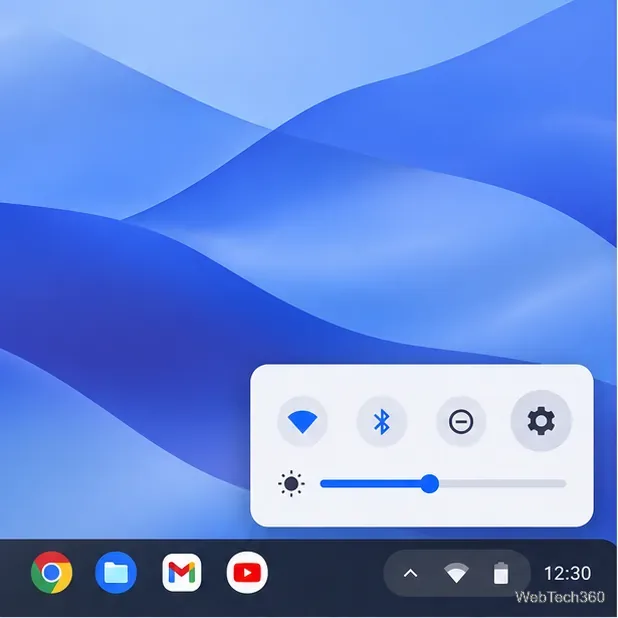
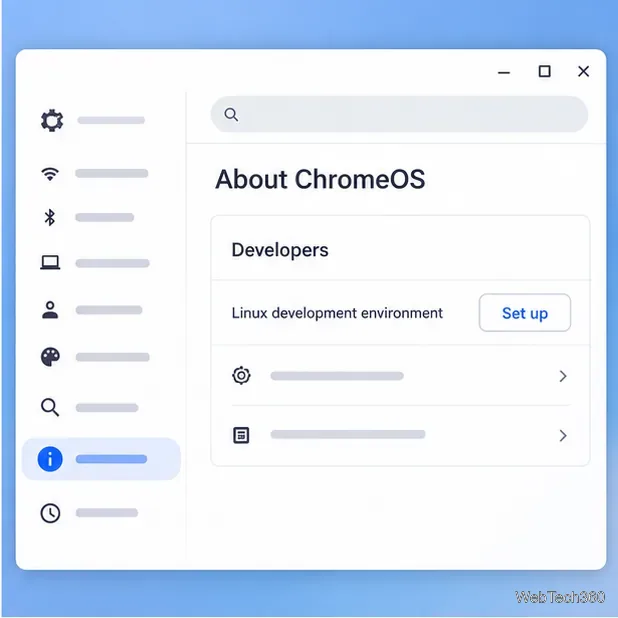
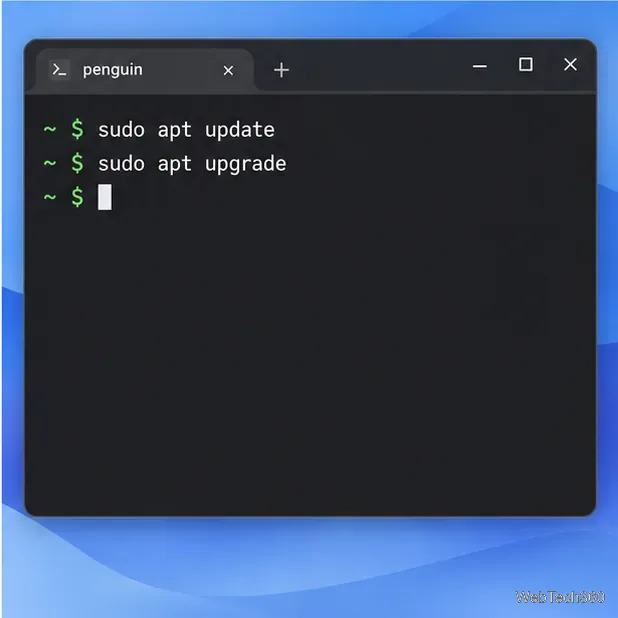
penguin shell if a container selector appears. Run these commands one at a time and confirm any prompt:sudo apt updatesudo apt upgradeapt update refreshes the package list; apt upgrade installs available updates. Keeping the container current helps avoid dependency errors during the VS Code install.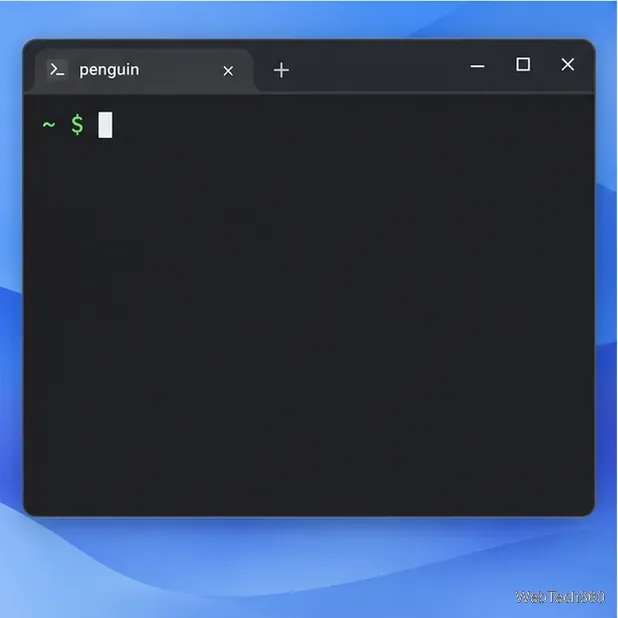
dpkg --print-architecture| Terminal result | Download choice |
|---|---|
amd64 | x64 |
arm64 | ARM64 |
armhf | ARM32 |
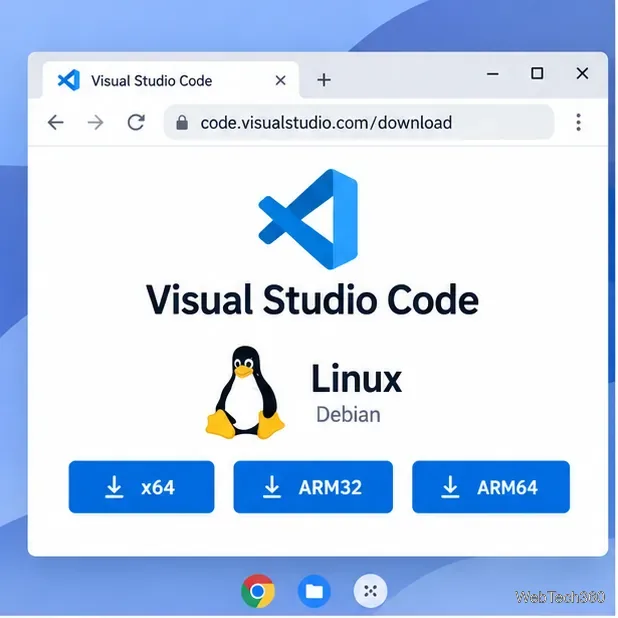
Open the VS Code download page, choose the Linux .deb package for that architecture, and download it. Chromebook models use different processors, so do not assume every device needs the x64 build.
code.deb, then copy or drag it into Linux files. That folder is available to the Debian container, so the Terminal can install the file by name.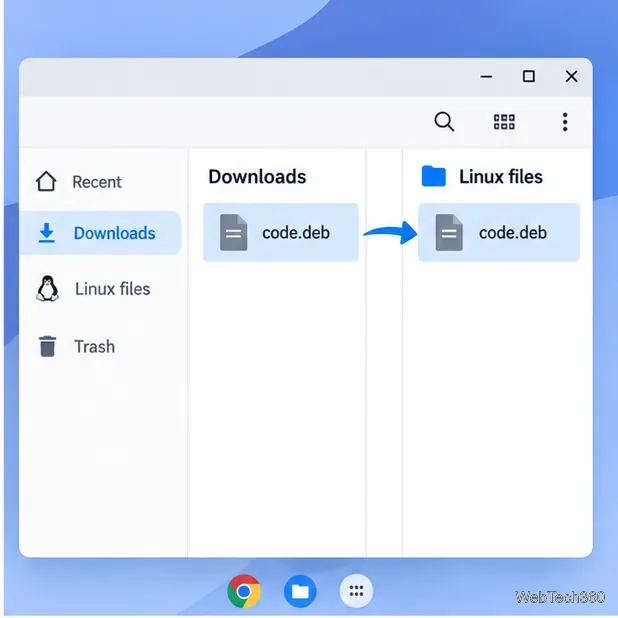
sudo apt install ./code.deb./ tells APT to install the local file. If the installer asks whether to add Microsoft’s package repository and signing key, accept if you want VS Code to receive updates through the system package manager. Microsoft documents this Debian installation method in its Linux setup guide.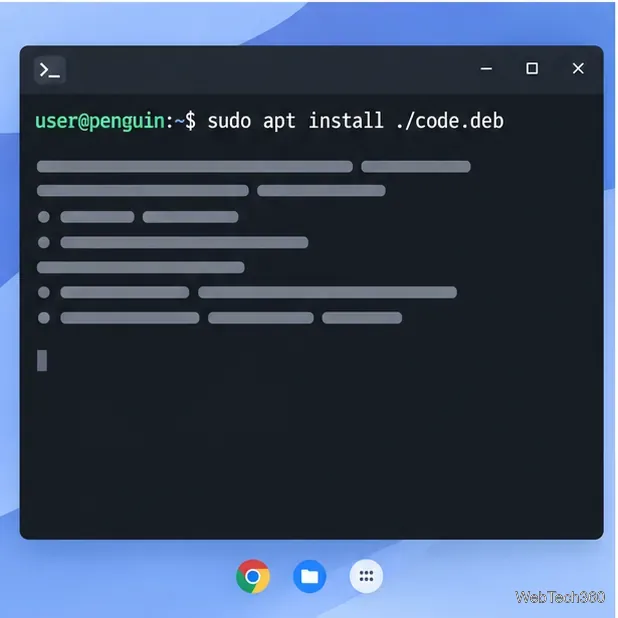
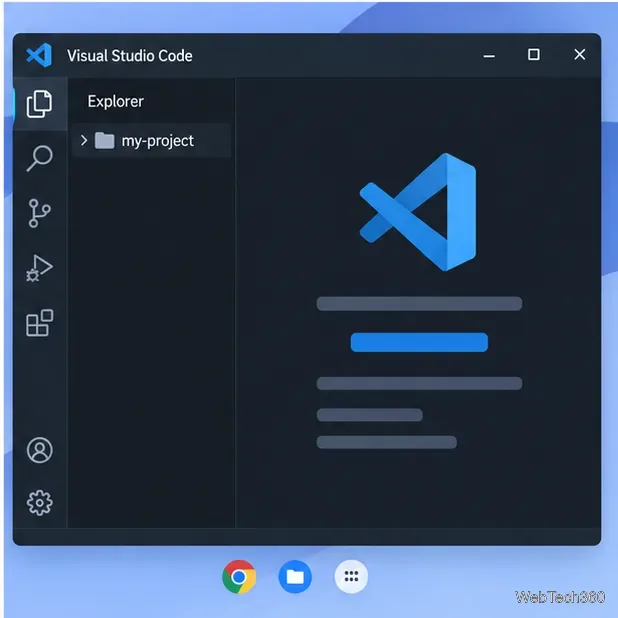
code.deb is in the Linux files folder and that the command includes ./. If you kept the original filename, use that exact name in the command instead.dpkg --print-architecture, download the corresponding build, and run sudo apt update before installing again. VS Code’s system requirements are listed in the official requirements documentation.If your Chromebook cannot run Linux apps, you can use VS Code for the Web for browser-based editing. It is a separate option and does not install the Linux desktop application.
Open the Emby Web App on your Chromebook, sign in to your server, and play movies, shows, music, and photos without installing Linux.
Install Syncthing on a Chromebook, share a ChromeOS folder with Linux, connect another device, and keep the web interface private.
Enable Linux on your Chromebook, install Tor Browser with the Tor Project’s Flatpak launcher, connect to Tor, and understand what the setup protects.
Install Bitwarden on a Chromebook, save your first login, autofill websites, and learn when the optional Linux desktop app makes sense.
Install Firefox, Brave, Edge, or Opera on a Chromebook with Linux. Learn how to enable the Debian environment, choose a compatible package, and understand the limits.
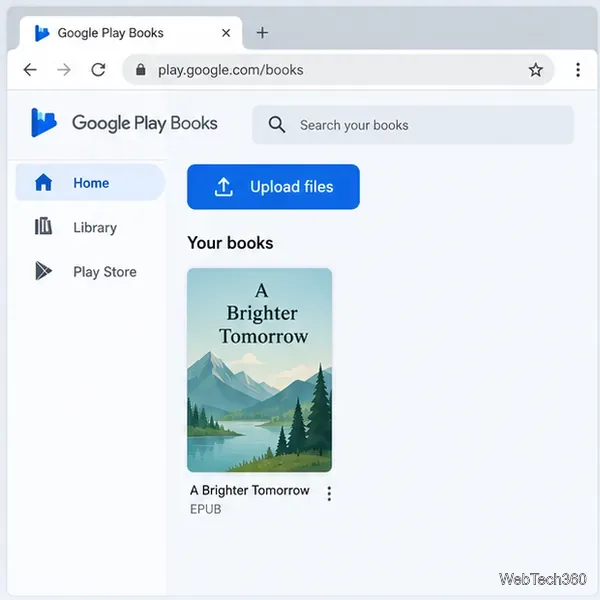
Read EPUBs and PDFs in Google Play Books on your Chromebook, or install Foliate through Linux for a local reader that supports more formats.
Install VLC on a Chromebook from Google Play, play local files and network media, or set up the Linux desktop version when you need it.
Install Krita on a Chromebook with ChromeOS Linux and Flatpak, then launch the app, open shared artwork, and troubleshoot common setup limits.
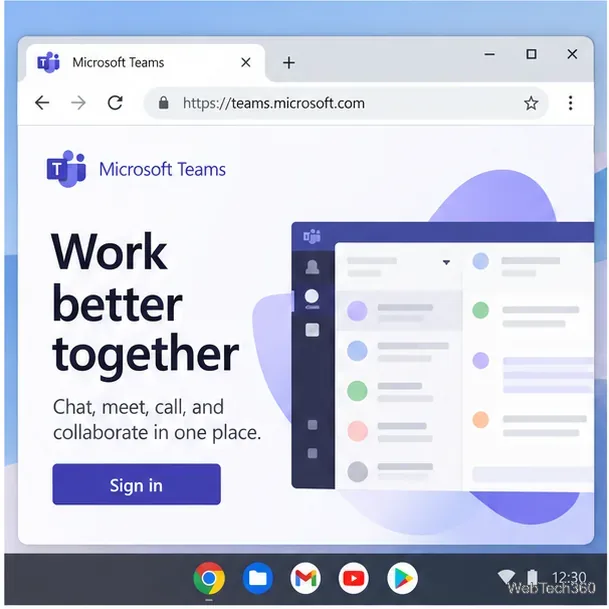
Use Teams on a Chromebook through Chrome, sign in with a work or school account, install the optional web app, and resolve camera or microphone issues.
Set up ChromeOS Linux, choose the right VS Code Debian package for your Chromebook, and install the desktop editor with APT.