How to Watch Emby on ChromeOS in Chrome
Open the Emby Web App on your Chromebook, sign in to your server, and play movies, shows, music, and photos without installing Linux.
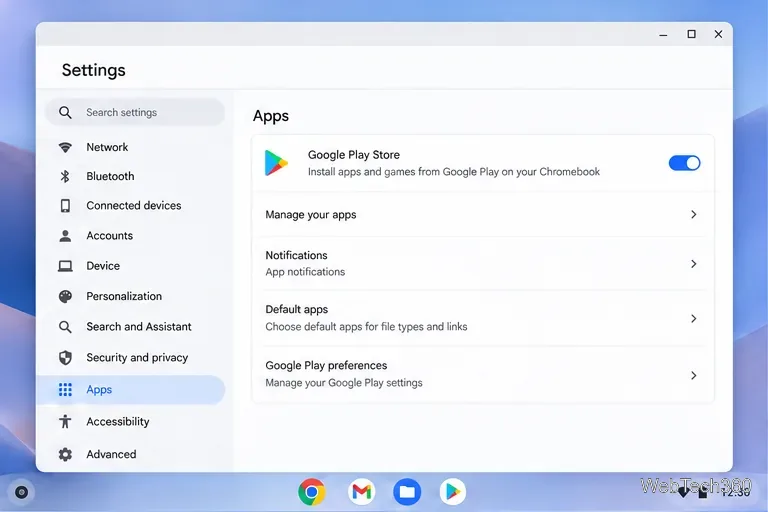
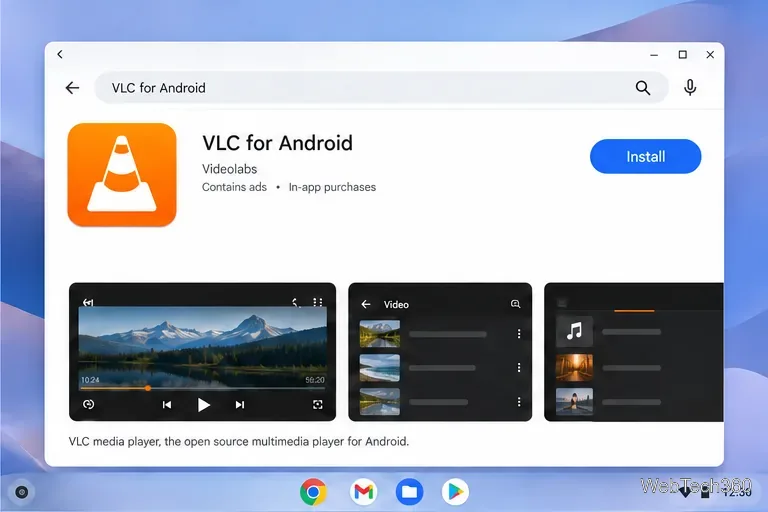
Yes. The easiest way to install VLC on a Chromebook is through Google Play. VideoLAN provides a Chrome OS version built for Chromebooks, so most readers do not need to set up Linux. If your Chromebook does not offer the Play Store, the optional Linux desktop method below is another route, provided Linux development environment is supported and enabled.
Google Play is available on some, but not all, Chromebooks. Work or school administrators can also restrict app installs. Update ChromeOS first, then check whether your device has Play Store access.
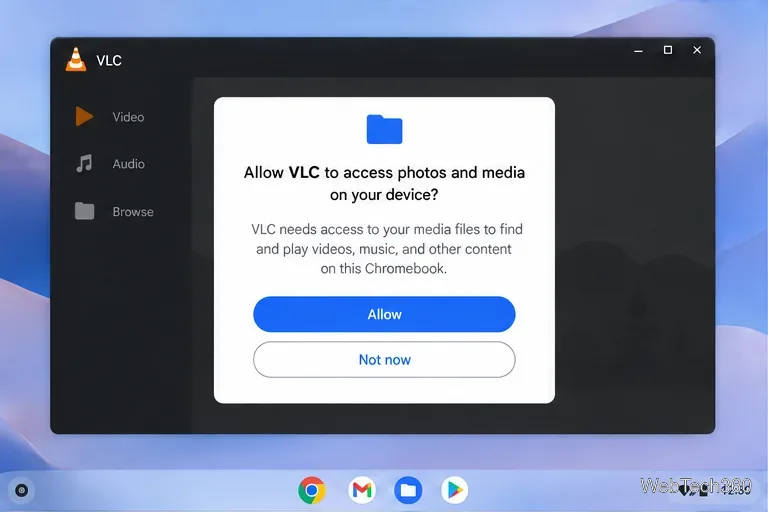
On first launch, complete VLC’s brief setup and allow the app to access audio and video files if you want it to scan your library. The wording of the permission prompt can vary with Android and ChromeOS versions. If you deny access, you can grant it later in the app permissions settings; without media access, VLC cannot scan and play your local library.
For a local file, save or download it to a folder such as Downloads. Open VLC and select a title from its Video or Audio library. If the file is not listed, select Browse and navigate to the folder that contains it. VLC’s Android documentation describes Browse as the place to search device storage and network files; the layout can differ slightly on a Chromebook.
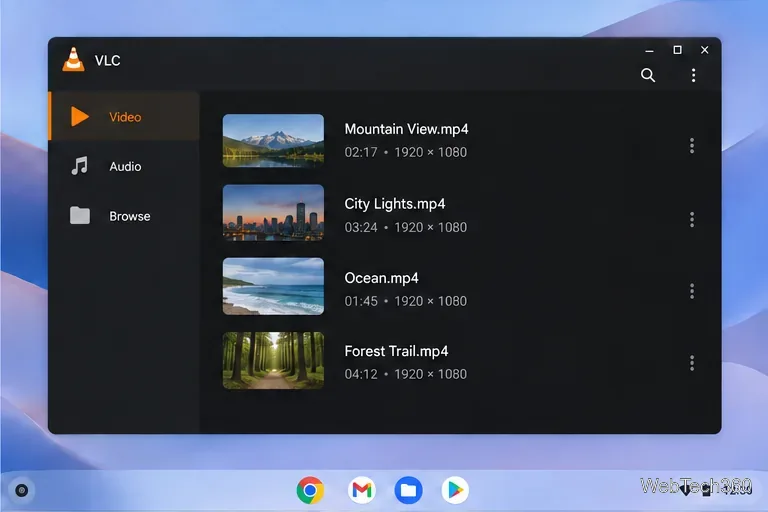
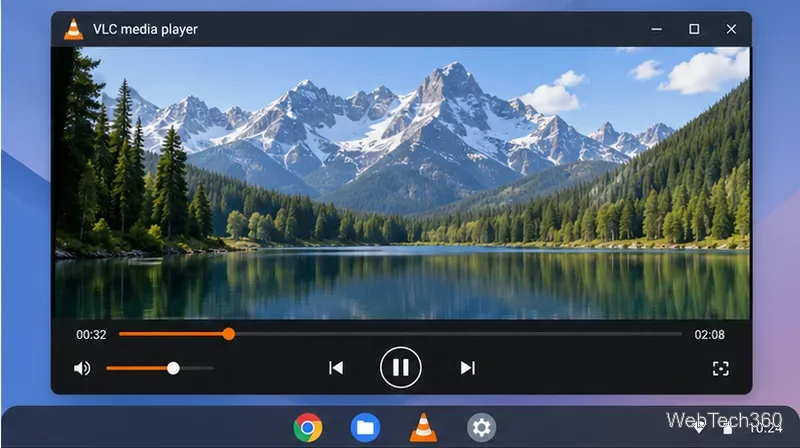
Tap or click a video to start playback. The player provides play or pause, seeking, volume, and full-screen controls. For audio, VLC keeps playback controls in its player view, so you can pause or move through a track without returning to the file list.
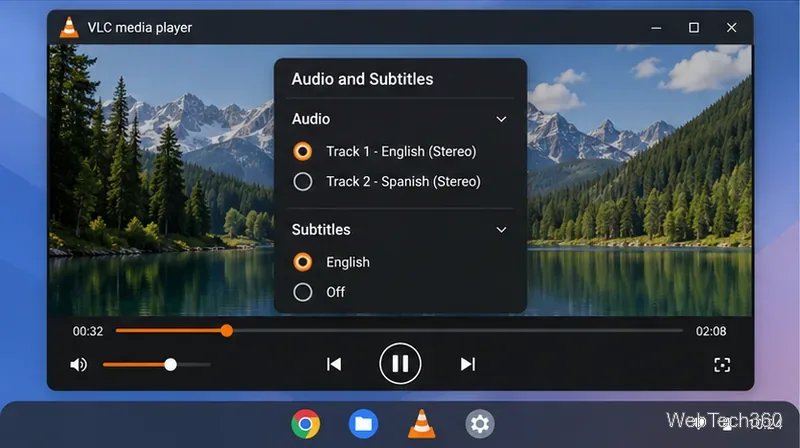
To select another audio track or subtitles, open the player’s audio and subtitle controls during playback. Choose an available track, turn subtitles off, or select a subtitle track when the file provides one. VLC can only show tracks embedded in the media or subtitle files that it can access.
If your video is stored on a home server or network drive, connect the Chromebook to the same network, open VLC’s Browse area, and look under Local Network. VLC can detect visible network storage automatically. If a share does not appear, use the add control to enter its details; for an SMB share, provide the server name or IP address and sign-in credentials if required. VideoLAN’s local-network instructions cover manual SMB setup. VLC also supports network streams, though available stream-entry controls can vary by app build.
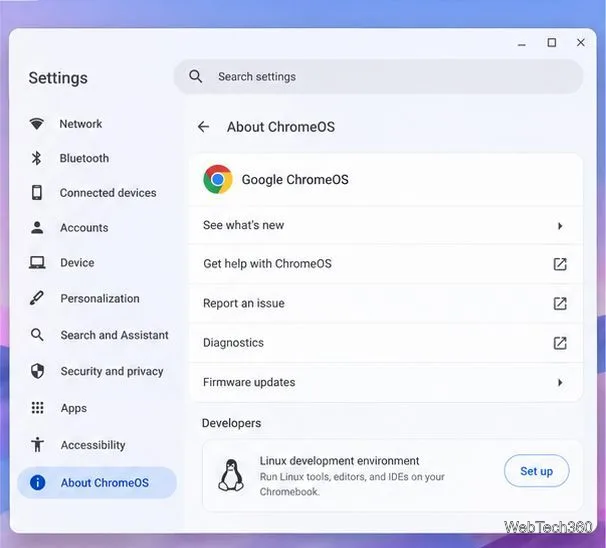
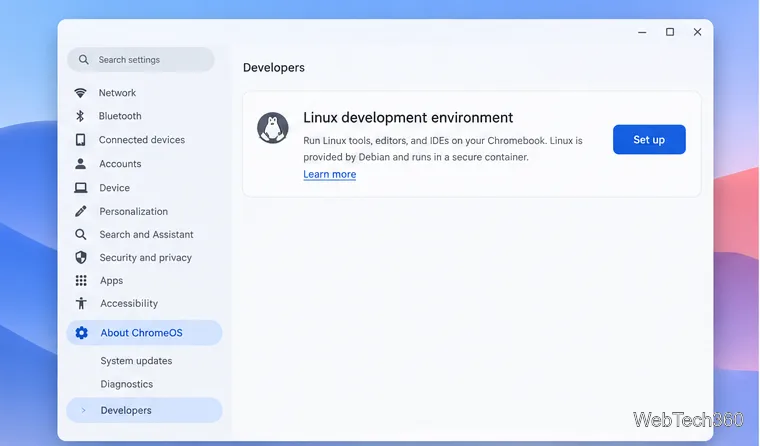
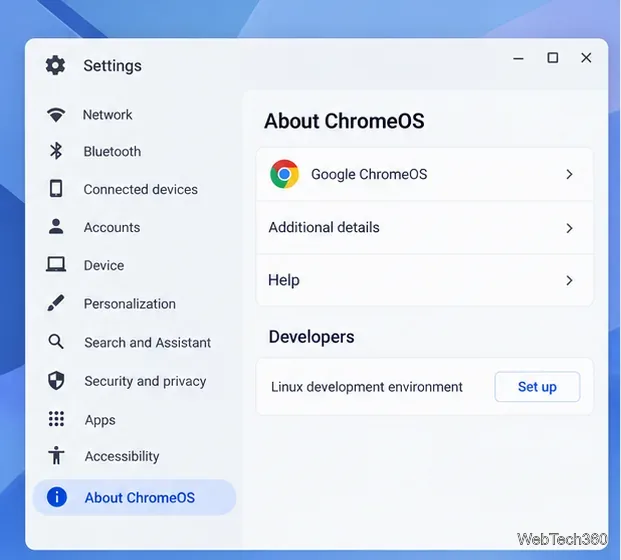
Use this route if you specifically want the desktop Linux interface or Play Store is unavailable. Linux is off by default, and some school or work Chromebooks block it. Google’s current setup path is Settings > About ChromeOS > Developers > Linux development environment > Set up. Follow the on-screen prompts; setup may take several minutes and opens a Terminal window with a Debian environment.
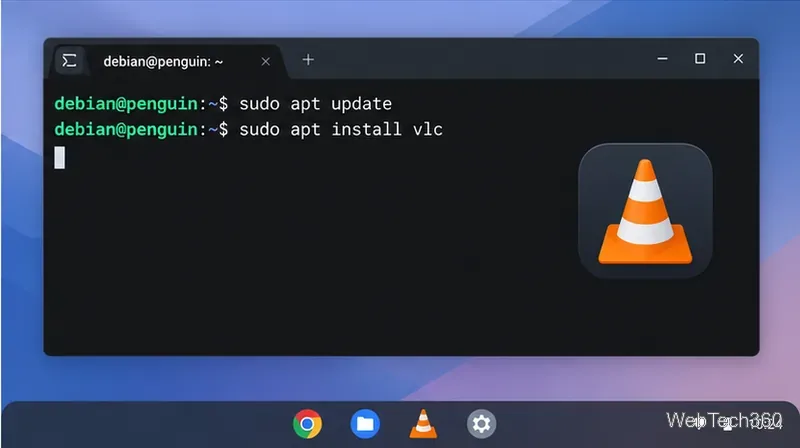
In Terminal, run these commands one at a time:
sudo apt update
sudo apt install vlc
Confirm the package installation if Terminal asks. Debian publishes VLC in its package repository, and APT installs the version available for the Debian environment on your Chromebook. When installation completes, open VLC from the Launcher’s Linux apps group.
To play a ChromeOS file with the Linux app, open the Files app and either drag a copy into Linux files or right-click its folder and choose Share with Linux. Then open VLC and choose Media > Open File. The file picker can reach Downloads after that folder is shared.
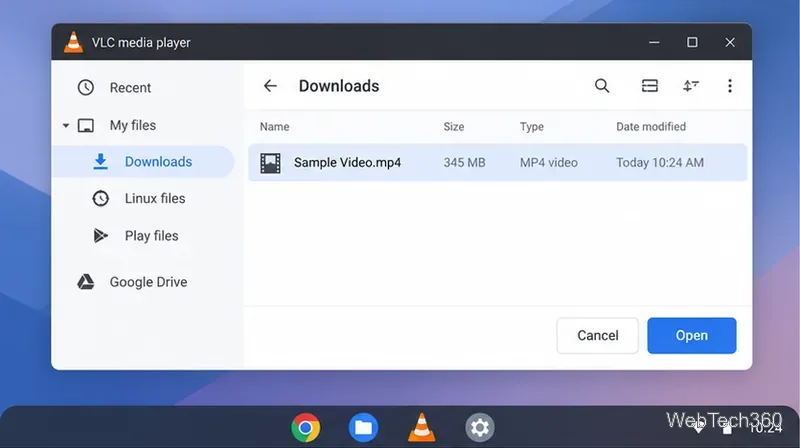
The Linux version also has a desktop menu for direct streams: choose Media > Open Network Stream, enter the full stream address, and select Play. One tradeoff is performance: Google currently lists GPU and video-decoding hardware acceleration as unsupported in Linux on ChromeOS. For smoother high-resolution playback, try the Play Store version first.
For additional setup details, see Google’s Linux setup instructions and the ChromeOS Linux file-sharing guide.
Open the Emby Web App on your Chromebook, sign in to your server, and play movies, shows, music, and photos without installing Linux.
Install Syncthing on a Chromebook, share a ChromeOS folder with Linux, connect another device, and keep the web interface private.
Enable Linux on your Chromebook, install Tor Browser with the Tor Project’s Flatpak launcher, connect to Tor, and understand what the setup protects.
Install Bitwarden on a Chromebook, save your first login, autofill websites, and learn when the optional Linux desktop app makes sense.
Install Firefox, Brave, Edge, or Opera on a Chromebook with Linux. Learn how to enable the Debian environment, choose a compatible package, and understand the limits.
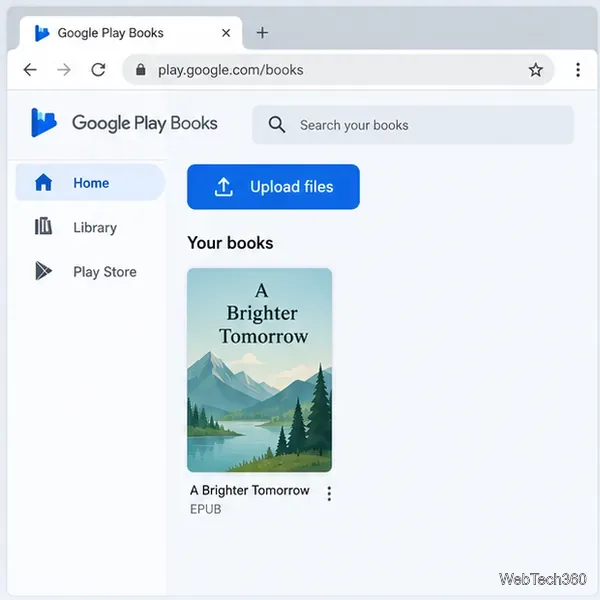
Read EPUBs and PDFs in Google Play Books on your Chromebook, or install Foliate through Linux for a local reader that supports more formats.
Install VLC on a Chromebook from Google Play, play local files and network media, or set up the Linux desktop version when you need it.
Install Krita on a Chromebook with ChromeOS Linux and Flatpak, then launch the app, open shared artwork, and troubleshoot common setup limits.
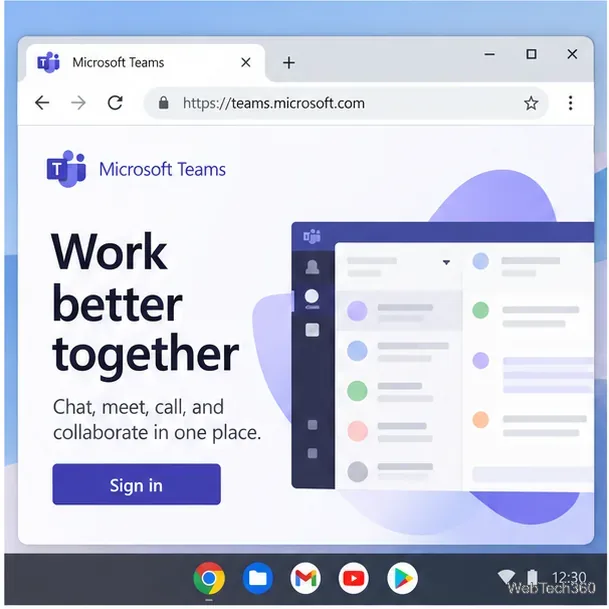
Use Teams on a Chromebook through Chrome, sign in with a work or school account, install the optional web app, and resolve camera or microphone issues.
Set up ChromeOS Linux, choose the right VS Code Debian package for your Chromebook, and install the desktop editor with APT.