How to Use Microsoft Teams on a Chromebook

Use Microsoft Teams on a Chromebook in Chrome at teams.microsoft.com. Sign in with your work or school account, then use Teams in the browser. If you want a separate app window, install Teams as a Chrome web app (PWA). You do not need to enable the Linux development environment.

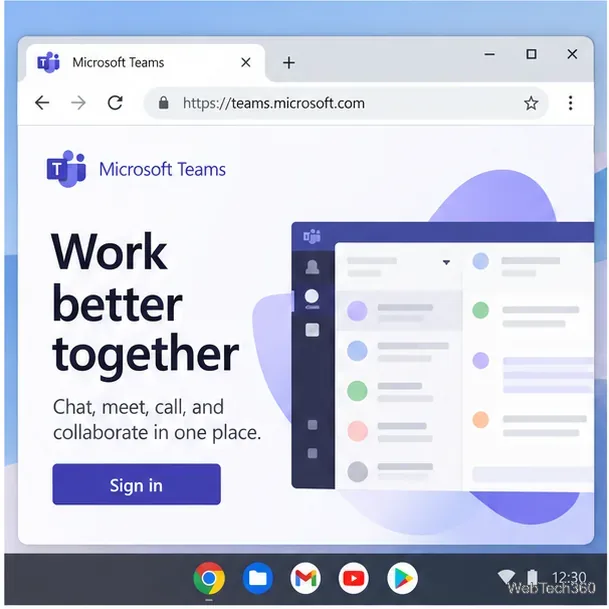
Chrome open to the Microsoft Teams sign-in page on a Chromebook
Open the Teams website in Chrome to start.

What works on a Chromebook

Microsoft supports Teams on the web and as a Chrome PWA, while its client availability guide says the Linux desktop client is no longer supported. Google’s Linux support notes also list cameras as unavailable in the Chromebook Linux environment, so an unofficial Linux package is a poor fit for video meetings. Use Chrome instead. Microsoft’s current web requirements list the latest three Chrome versions; some organization apps may also require third-party cookies.

For a school- or company-managed Chromebook, an administrator can restrict Teams, web app installation, camera or microphone access. If a setting is locked, ask your administrator to change the policy.

Set up and use Teams in Chrome

  1. Open Teams. Launch Chrome, enter teams.microsoft.com in the address bar, and press Enter. Bookmark the page if you will use it often.
  2. Sign in with the right account. Choose the account issued by your workplace or school. Complete any password, verification, or multifactor authentication prompts. If Teams says you do not have access, confirm with your organization that your account has a Teams license and permission to use the service.
  3. Find your workspace. After sign-in, use the navigation shown for your account to open chats, teams or channels, meetings, and files. The exact labels and available tools can vary with your organization’s setup and Teams updates. Select a chat or channel to read messages; use its message box to write a reply, and check the calendar or meeting invitation when you need to join a scheduled call.
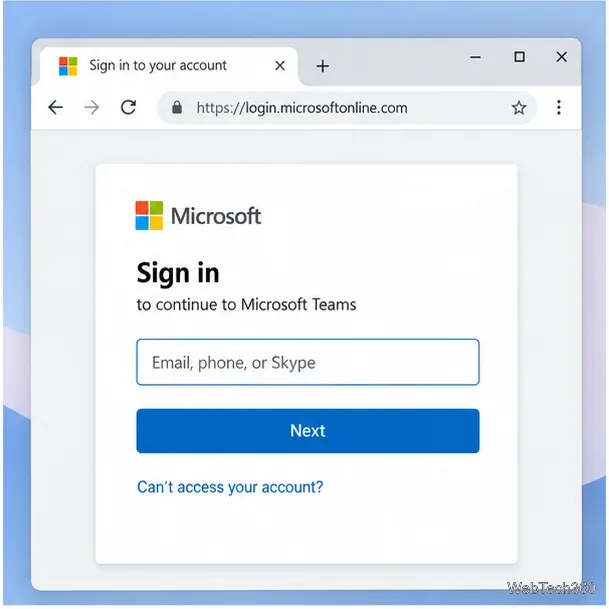
Microsoft sign-in form asking for an email address before opening Teams
Use the work or school email associated with your Teams access.
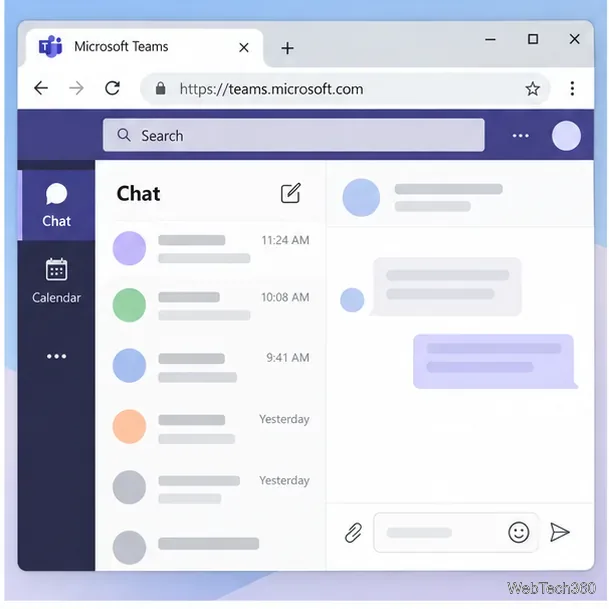
Teams workspace in Chrome with Chat and Calendar in the left navigation
The Teams navigation gives access to chat and other tools enabled for your account.

Install Teams as a web app (optional)

A PWA opens in its own window and can be launched from the Chromebook Launcher. It is still Teams on the web, so it uses Chrome’s browser permissions and account sign-in.

  1. Open Teams in Chrome and sign in.
  2. Select the install icon in the address bar if it appears. Otherwise, open Chrome’s More menu, then choose Cast, save, and share > Install page as app.
  3. Follow the prompt. Open the installed Teams app from the Launcher. If Chrome does not offer installation, continue using the Teams tab; installing the PWA is optional.

Microsoft explains Teams PWA support in Chrome; Google’s Chromebook web app guide shows the current install menu.

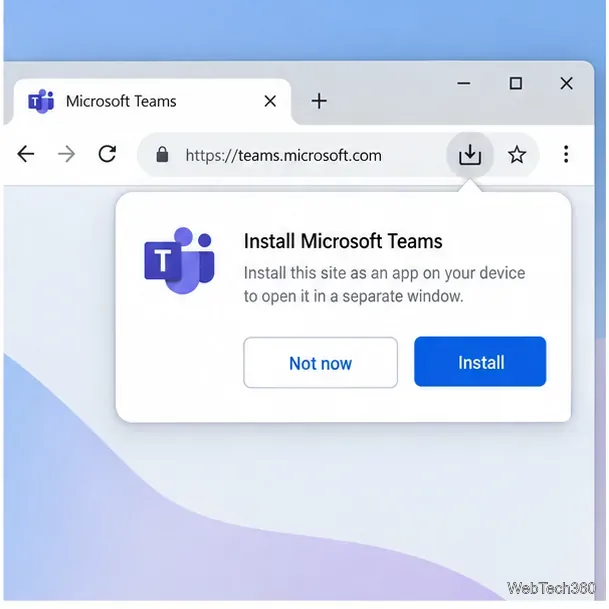
Chrome install prompt for adding the Microsoft Teams website as a web app
Chrome may offer an install prompt for Teams near the address bar.

Allow your camera and microphone

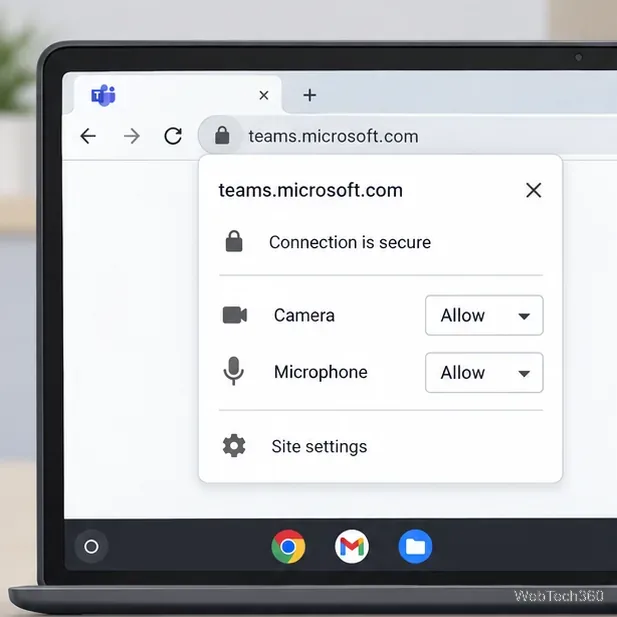
The first time you join a call, Chrome may ask for camera and microphone access. Choose Allow while visiting the site if you want to use those devices in Teams. You can keep either permission blocked if you only need chat.

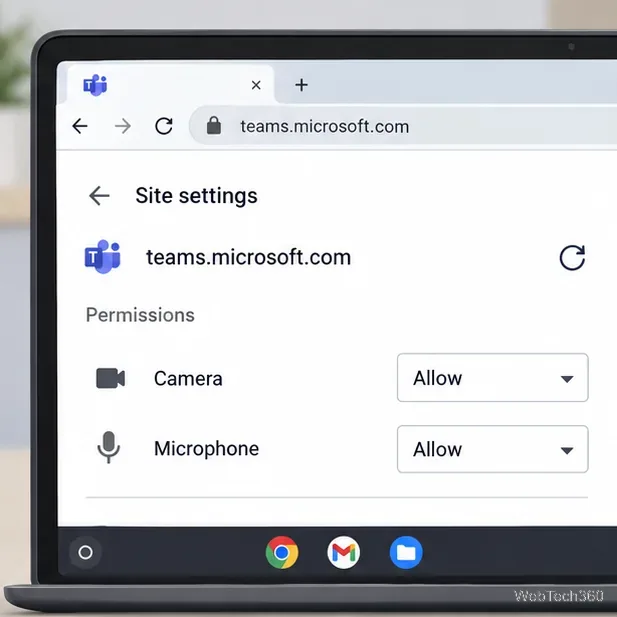
If you previously blocked access, open Teams, select the site information or controls icon to the left of the address, and open Site settings. Set Camera and Microphone to Allow, return to Teams, and refresh the page. On ChromeOS, also check Settings > Privacy and security > Privacy controls; device-level access can block the browser even when site permission is allowed.

Chrome site controls for teams.microsoft.com with Camera and Microphone set to Allow
Teams needs browser permission before it can use the Chromebook camera or microphone.

Join and manage a meeting

  1. Open the meeting link from your calendar or invitation in Chrome. If prompted, choose the browser or web option and sign in with the invited account. Whether guests can join without signing in depends on the organizer’s settings; see Microsoft’s meeting join instructions if you need another route.
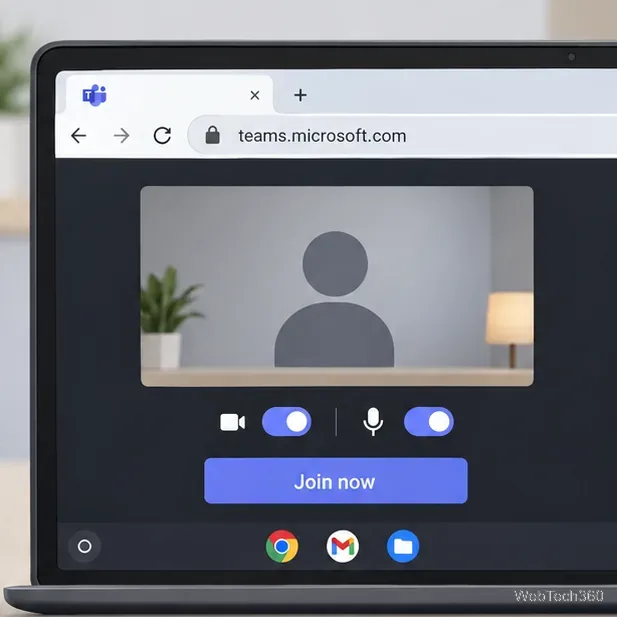
  2. Check the pre-join screen. Select the correct camera and microphone if you have more than one device. Turn video or audio off before joining if you prefer, then select Join now.
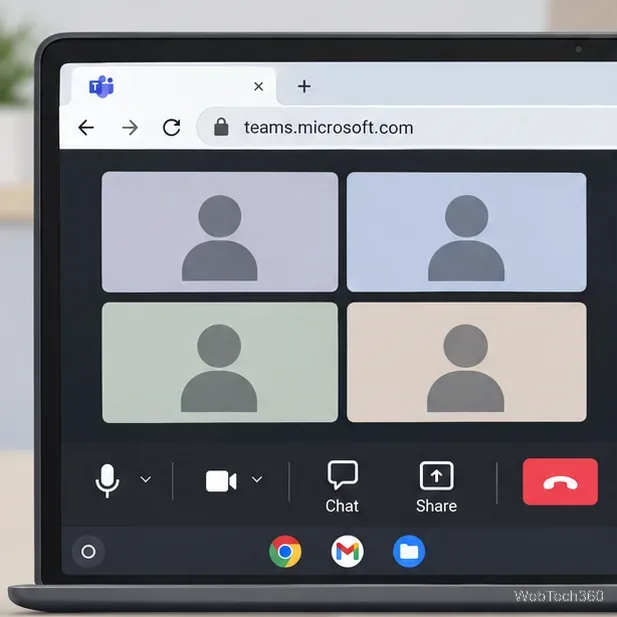
  3. Use the meeting controls. The toolbar lets you mute or unmute, turn the camera on or off, open chat, share your screen, and leave. When sharing, choose the screen, window, or tab requested by Chrome. Stop sharing when finished. Some features depend on your account, browser, and meeting policy.
Teams pre-join screen with camera and microphone controls and a Join now button
Check the camera and microphone before selecting Join now.
Teams meeting window showing participant tiles and microphone, camera, chat, share, and leave controls
Use the meeting toolbar to control audio, video, chat, screen sharing, and leaving.

Fix common Teams problems

Chrome Site settings for teams.microsoft.com with Camera and Microphone set to Allow
In Site settings, restore camera and microphone access, then refresh Teams.
  • No camera or microphone prompt: Review Teams in Chrome’s site settings and set the needed permission to Allow. Refresh the page and rejoin.
  • Permission is allowed but the device still fails: Check ChromeOS Privacy controls and any physical camera or microphone switch. Confirm the right microphone is selected and that a headset is not muted.
  • Sign-in loops or an organization app will not load: Update Chrome, try reopening Teams, and check whether your organization requires third-party cookies for its connected apps. Managed-browser policies may prevent changing this setting.
  • The install option is missing: Use Teams in the browser. An installed PWA is a shortcut and separate window, not a requirement for using Teams.

For camera or microphone trouble, Google’s Chromebook privacy controls guide and Chrome camera and microphone guide show where to review access.

Leave a Comment

How to Watch Emby on ChromeOS in Chrome
How to Watch Emby on ChromeOS in Chrome

Open the Emby Web App on your Chromebook, sign in to your server, and play movies, shows, music, and photos without installing Linux.

How to Set Up Syncthing on a Chromebook

How to Set Up Syncthing on a Chromebook

Install Syncthing on a Chromebook, share a ChromeOS folder with Linux, connect another device, and keep the web interface private.

How to Use Tor Browser on a Chromebook

How to Use Tor Browser on a Chromebook

Enable Linux on your Chromebook, install Tor Browser with the Tor Project’s Flatpak launcher, connect to Tor, and understand what the setup protects.

How to Use Bitwarden on ChromeOS: Install, Save, and Autofill

How to Use Bitwarden on ChromeOS: Install, Save, and Autofill

Install Bitwarden on a Chromebook, save your first login, autofill websites, and learn when the optional Linux desktop app makes sense.

How to Install and Use Alternate Browsers on a Chromebook

How to Install and Use Alternate Browsers on a Chromebook

Install Firefox, Brave, Edge, or Opera on a Chromebook with Linux. Learn how to enable the Debian environment, choose a compatible package, and understand the limits.

How to Read E-Books on a Chromebook: Play Books and Foliate

How to Read E-Books on a Chromebook: Play Books and Foliate

Read EPUBs and PDFs in Google Play Books on your Chromebook, or install Foliate through Linux for a local reader that supports more formats.

How to Install and Use VLC on a Chromebook

How to Install and Use VLC on a Chromebook

Install VLC on a Chromebook from Google Play, play local files and network media, or set up the Linux desktop version when you need it.

How to Set Up Krita on a Chromebook

How to Set Up Krita on a Chromebook

Install Krita on a Chromebook with ChromeOS Linux and Flatpak, then launch the app, open shared artwork, and troubleshoot common setup limits.

How to Use Microsoft Teams on a Chromebook

How to Use Microsoft Teams on a Chromebook

Use Teams on a Chromebook through Chrome, sign in with a work or school account, install the optional web app, and resolve camera or microphone issues.

How to Install Visual Studio Code on a Chromebook

How to Install Visual Studio Code on a Chromebook

Set up ChromeOS Linux, choose the right VS Code Debian package for your Chromebook, and install the desktop editor with APT.