How to Watch Emby on ChromeOS in Chrome
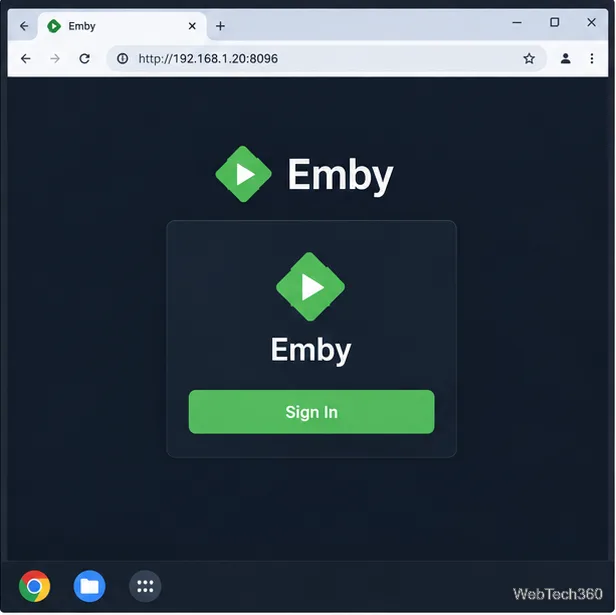
Open the Emby Web App on your Chromebook, sign in to your server, and play movies, shows, music, and photos without installing Linux.
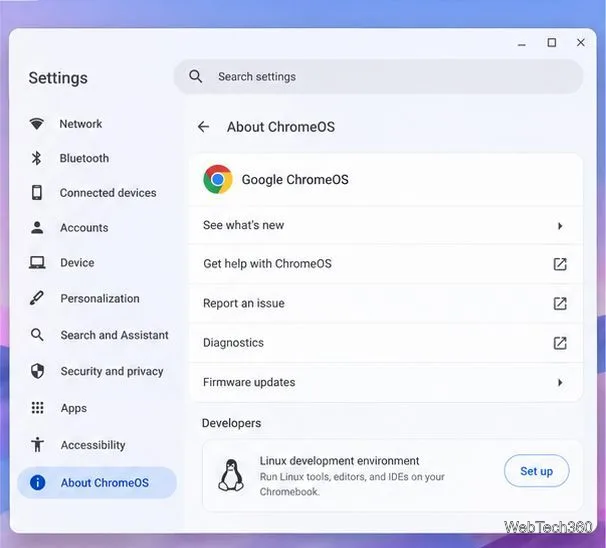
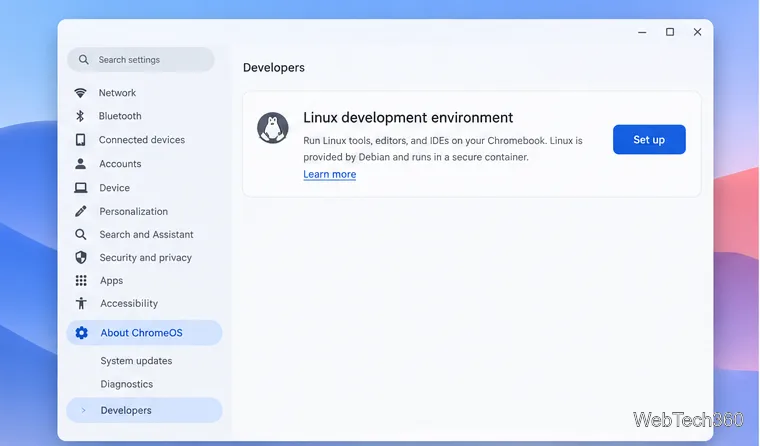
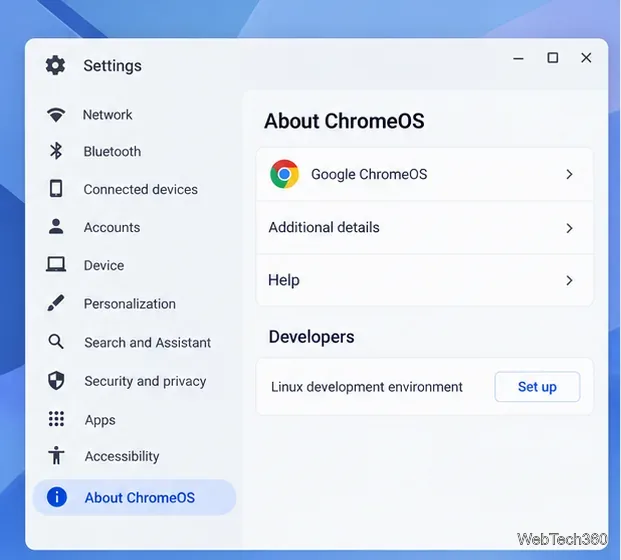
To set up Krita on a Chromebook, turn on ChromeOS’s Linux development environment, then install Krita from Flathub with Flatpak. This installs the Linux desktop version of Krita. First check that Linux is available on your device and that you have enough free storage for the Linux container, Krita, and your artwork.
Google says Linux setup is available on supported Chromebook models, but a work- or school-managed device may have Linux disabled by its administrator. If the option is missing, check Google’s ChromeOS Linux support list or ask your administrator.
Krita’s published Linux requirements call for at least 4 GB of RAM and recommend 16 GB. ChromeOS and Linux share your Chromebook’s resources, so a low-memory model may feel slow with large canvases. Google also lists hardware acceleration, including GPU acceleration, as unsupported in the Linux environment. Start with a modest canvas and test performance before beginning a large project. These limits vary by Chromebook.
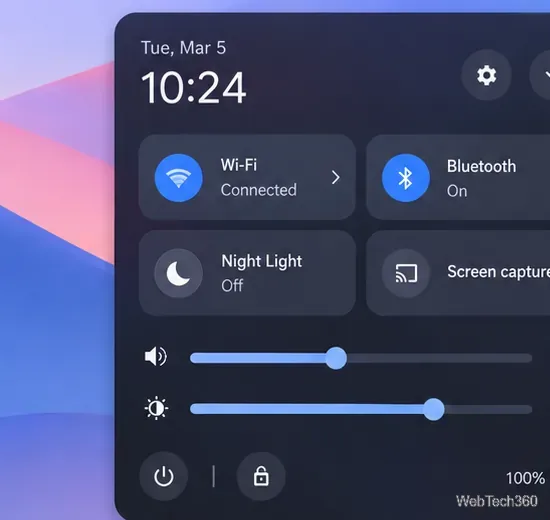
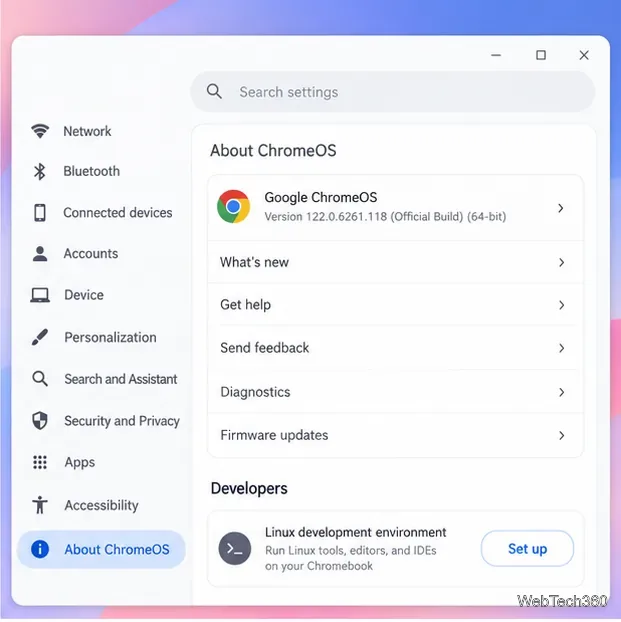
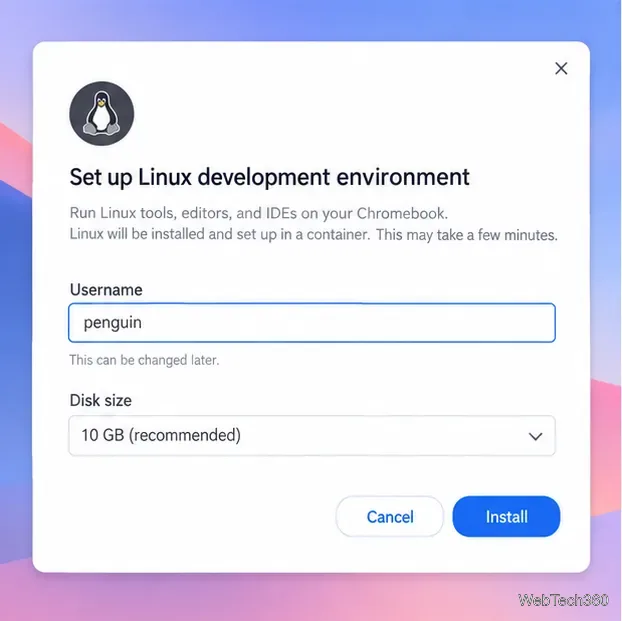
If setup does not start, keep the Chromebook connected to power and the internet. Managed-device restrictions or an unsupported model can prevent Linux from being enabled.
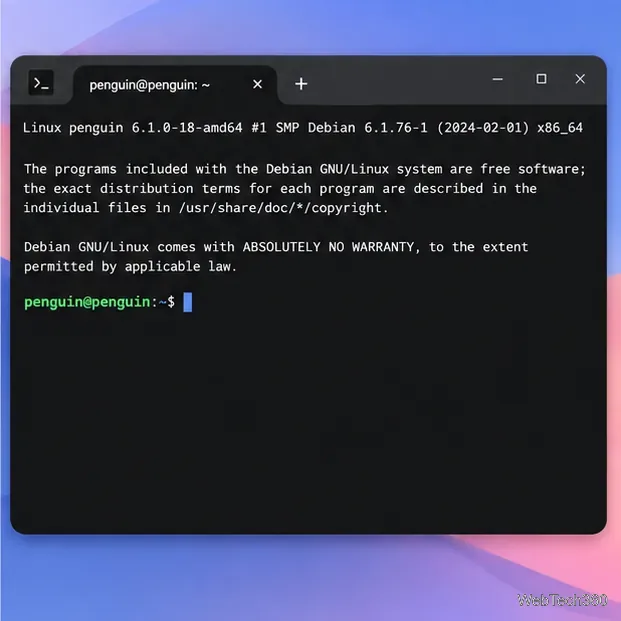
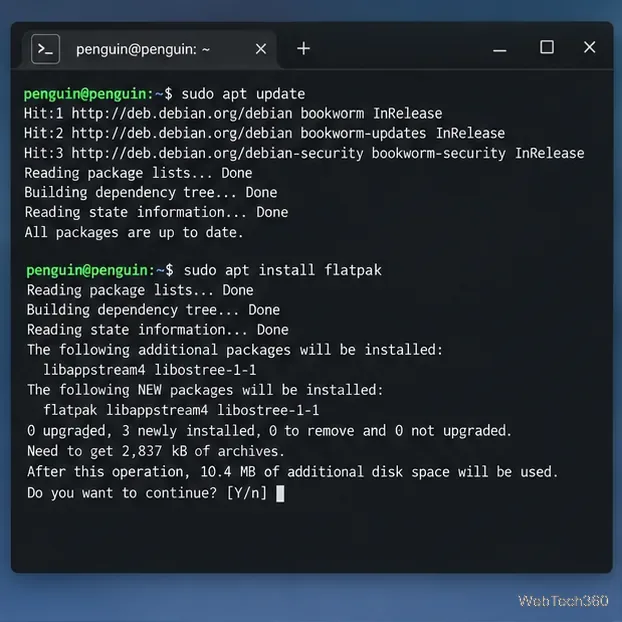
Open the ChromeOS Terminal app and select the penguin session if it is shown. Update Debian’s package list, then install Flatpak:
sudo apt update
sudo apt install flatpak
Press Enter after each line. Review the package confirmation prompt and type Y if you want to continue. The first command refreshes package information; it does not upgrade every package. You can update the container later with Google’s suggested command, sudo apt-get update && sudo apt-get dist-upgrade.
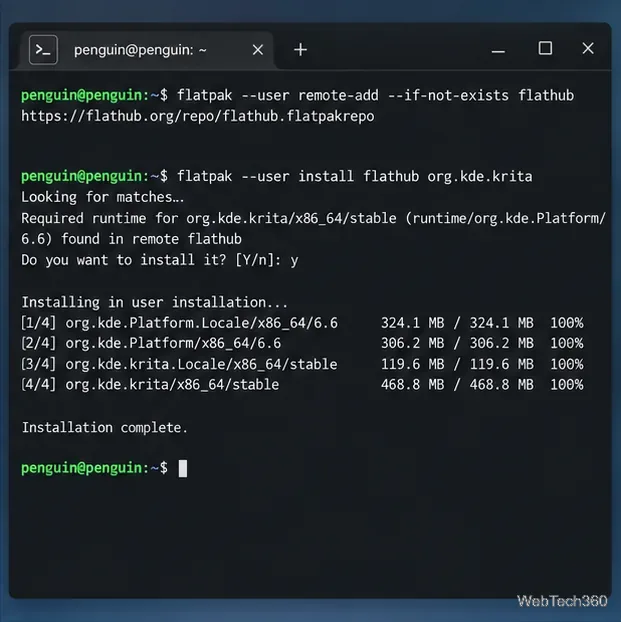
Krita’s installation guide documents a Flatpak build, and Krita’s download page links to the community-maintained Flathub package. In Terminal, add Flathub for your Linux user and install Krita:
flatpak --user remote-add --if-not-exists flathub https://flathub.org/repo/flathub.flatpakrepo
flatpak --user install flathub org.kde.krita
Run the commands one at a time. When Flatpak asks to install the app and its runtime, review the prompt and confirm. The download size can change as the app and its dependencies are updated. Avoid old version-specific AppImage links from older guides; the Krita download page lists the current Linux options.
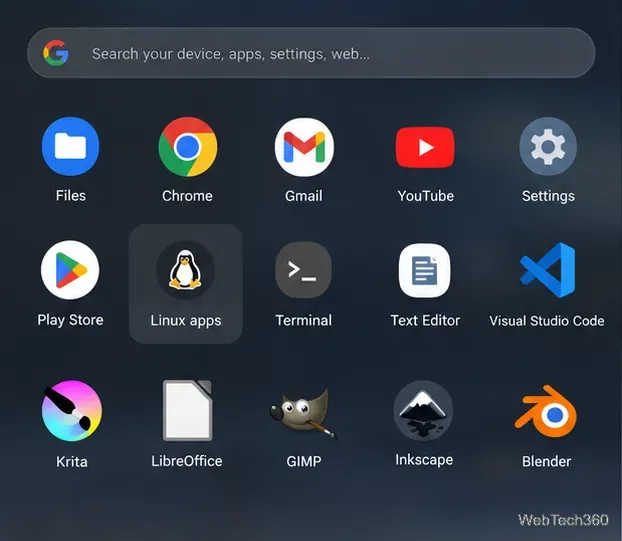
When Flatpak finishes, open the ChromeOS launcher and search for Krita. Depending on your ChromeOS launcher, Linux apps may appear in a Linux apps group. Select Krita to start it; the first launch can take a little longer while the app initializes.
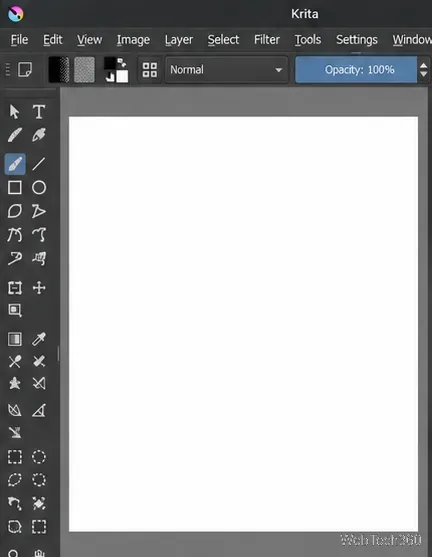
For an artwork file that should stay inside Linux, save it in Linux files. To let Krita open or save files in a ChromeOS folder such as Downloads, open the Files app, right-click the folder, and choose Share with Linux before selecting it in Krita’s file dialog. Share only the folders you need: Google notes that files and permissions shared with Linux are available to Linux apps. Save an editable project as .kra; export a copy as PNG or JPEG when you need a format that other apps can view.
flatpak: command not found: Confirm sudo apt install flatpak completed successfully. Reopen Terminal and try again.flatpak run org.kde.krita.To check for a newer Flathub build, open Terminal and run flatpak update org.kde.krita. For Linux container backups, use ChromeOS’s Linux backup and restore tools. Back up important .kra files separately as well, especially before removing the Linux development environment.
For current installation details, see the Krita installation guide, Krita’s download page, Krita on Flathub, and Google’s Chromebook Linux instructions. For backup and restore steps, see Google’s Linux backup guide. Read Krita’s tablet setup notes if pen pressure does not work.
Open the Emby Web App on your Chromebook, sign in to your server, and play movies, shows, music, and photos without installing Linux.
Install Syncthing on a Chromebook, share a ChromeOS folder with Linux, connect another device, and keep the web interface private.
Enable Linux on your Chromebook, install Tor Browser with the Tor Project’s Flatpak launcher, connect to Tor, and understand what the setup protects.
Install Bitwarden on a Chromebook, save your first login, autofill websites, and learn when the optional Linux desktop app makes sense.
Install Firefox, Brave, Edge, or Opera on a Chromebook with Linux. Learn how to enable the Debian environment, choose a compatible package, and understand the limits.
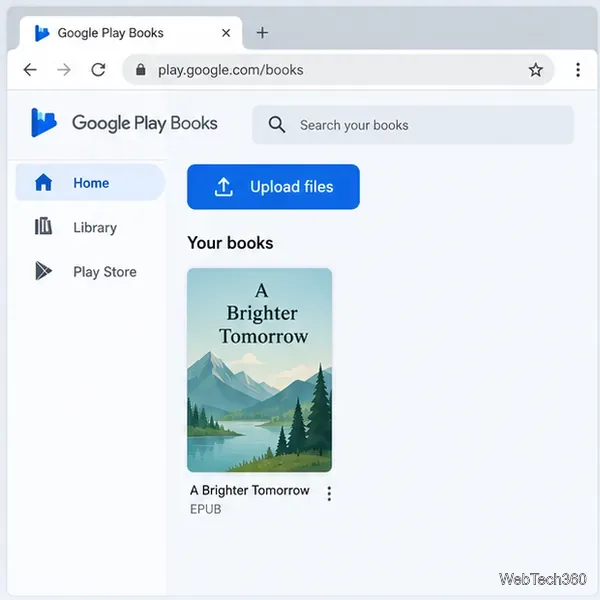
Read EPUBs and PDFs in Google Play Books on your Chromebook, or install Foliate through Linux for a local reader that supports more formats.
Install VLC on a Chromebook from Google Play, play local files and network media, or set up the Linux desktop version when you need it.
Install Krita on a Chromebook with ChromeOS Linux and Flatpak, then launch the app, open shared artwork, and troubleshoot common setup limits.
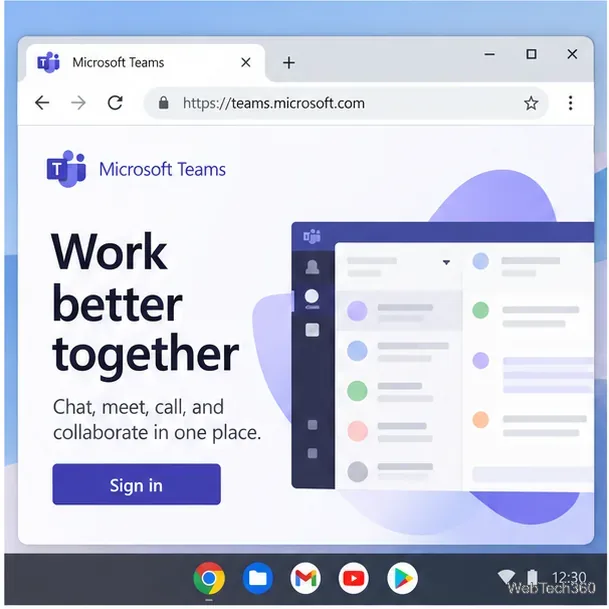
Use Teams on a Chromebook through Chrome, sign in with a work or school account, install the optional web app, and resolve camera or microphone issues.
Set up ChromeOS Linux, choose the right VS Code Debian package for your Chromebook, and install the desktop editor with APT.