How to Read E-Books on a Chromebook: Play Books and Foliate

You can read e-books on a Chromebook without installing a desktop reader. For an EPUB or PDF you want to keep in a synced library, upload it to Google Play Books and read it in Chrome. For a local collection or more file formats, install Foliate through ChromeOS’s Linux environment. A PDF already saved on the device can also open in the built-in Gallery app.

Choose the method that matches the book: Play Books is the simplest option for EPUB and PDF files and works across signed-in devices; Gallery is convenient for a single local PDF; Foliate is useful for local EPUBs and formats such as MOBI, Kindle, FB2, and CBZ. Store-bought books may have copy protection, so a supported file extension does not guarantee that every retailer’s book will open in another app.

Read EPUB and PDF files in Google Play Books

This browser-based option avoids Linux setup. Google Play Books accepts EPUB and PDF uploads and makes uploaded books available on devices where you use the same Google Account.

  1. In Chrome, open Google Play Books and sign in to the account where you want the book stored.
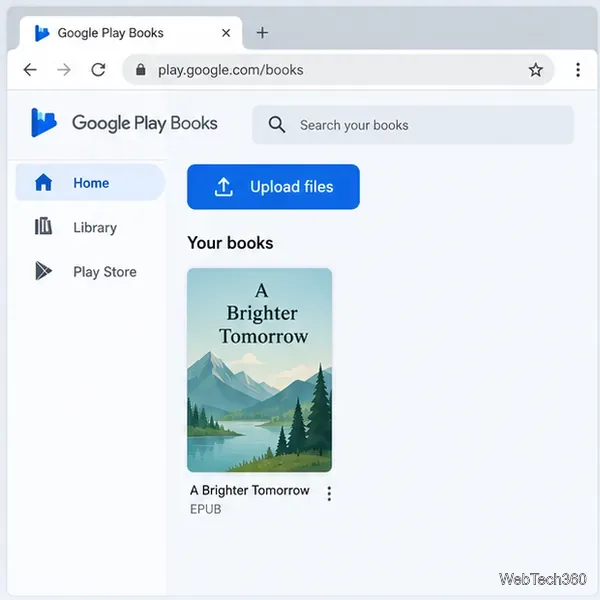
  2. Open your profile menu, choose Library & devices, then Books. Select Upload files.
Google Play Books in Chrome with the Upload files button above a sample EPUB in the library
The Books library has an Upload files control for adding a local EPUB or PDF.
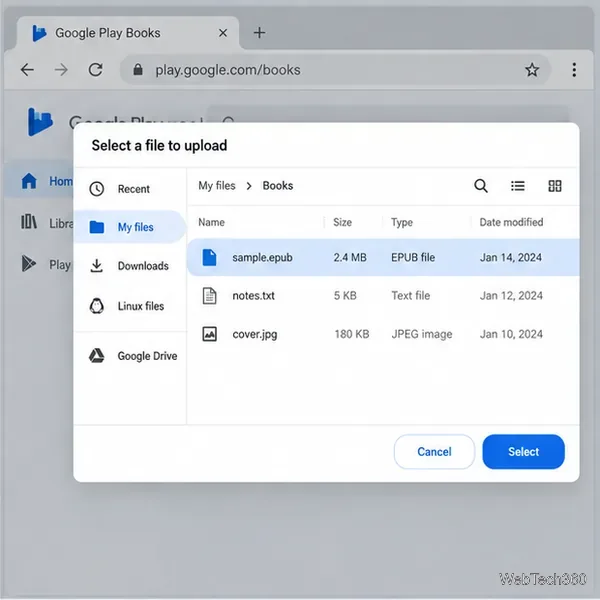
  1. Choose an .epub or .pdf file from the Chromebook’s file picker and select Select. Google’s computer instructions for uploading books list this same path.
Chromebook file picker with sample.epub highlighted and the Select button at lower right
Select the EPUB or PDF you want to add to your Play Books library.
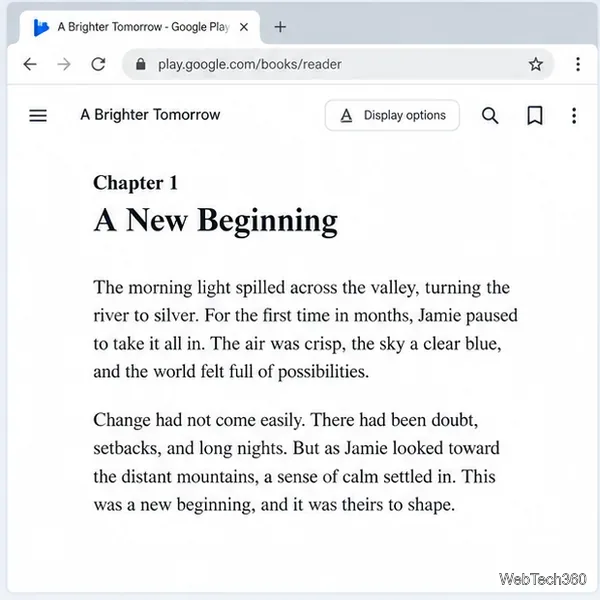
  1. After the upload finishes, open the title from your Uploads library. If the book offers flowing text, use Display options to adjust the font or text size; a fixed-layout book may only offer its original page view. Play Books also supports bookmarks, notes, and highlights for supported uploads.
Google Play Books web reader displaying an EPUB chapter with Display options and a bookmark control
In the web reader, open Display options to adjust the reading view when the book allows it.

Uploaded EPUBs and PDFs can be read on another device after you sign in to the same account. For a one-off PDF stored locally, open it from the Files app; ChromeOS normally opens PDFs in Gallery. Google explains how to change the default to Chrome’s PDF viewer in its Chromebook PDF guide.

Install Foliate for local e-book reading

Foliate runs as a Linux desktop app. Its Flathub listing includes support for EPUB, PDF, Mobipocket, Kindle, FB2, and CBZ files, plus page and scroll views, font controls, bookmarks, and annotations. Use this method if you want a separate reader for books stored on the Chromebook.

First check that Linux is available. A school- or work-managed Chromebook may have Linux disabled by its administrator, and older or unsupported devices may not show the setting. Google says Linux setup can take 10 minutes or more; it installs a Debian environment and opens Terminal when setup completes.

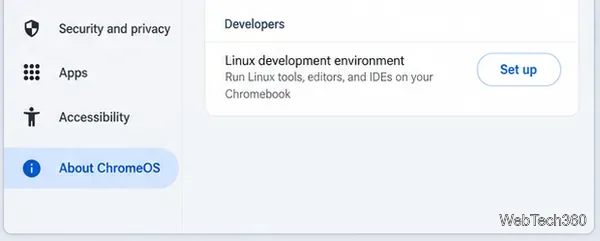
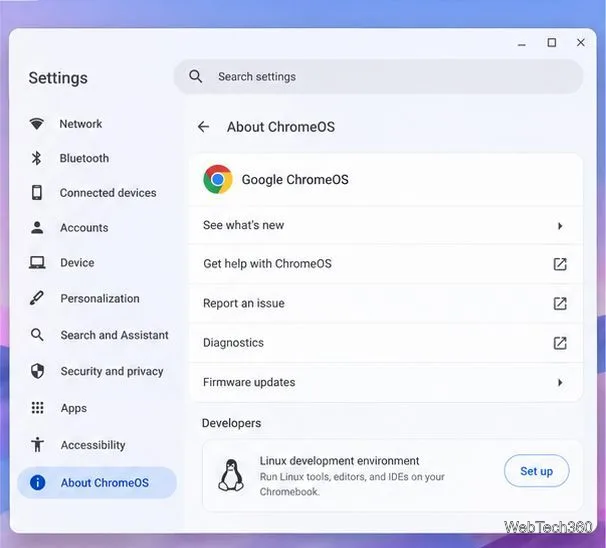
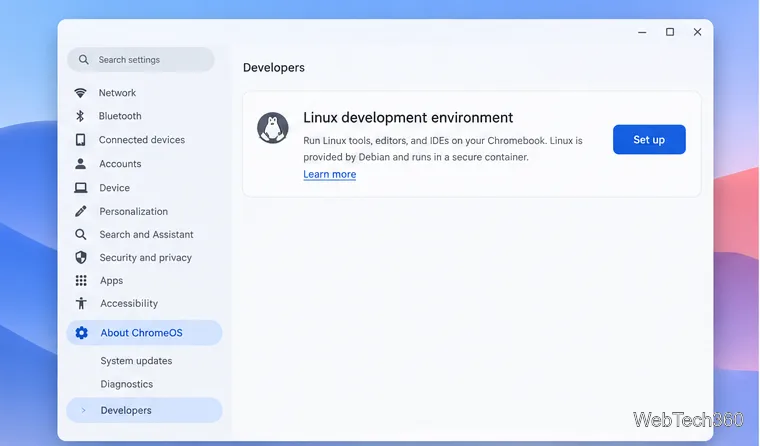
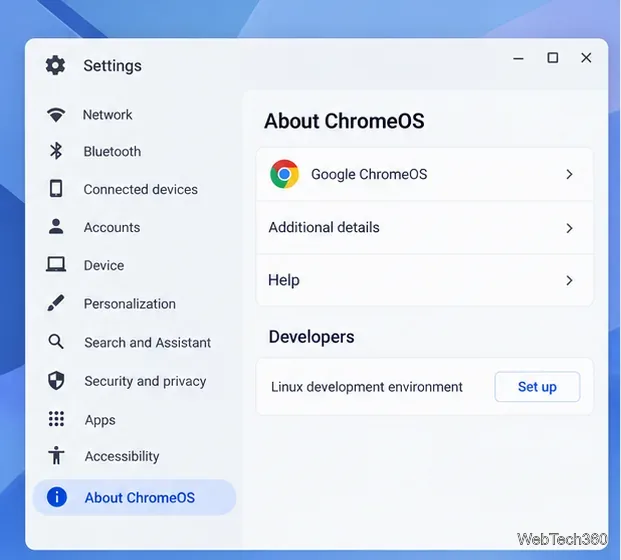
  1. At the bottom right of the screen, select the time, then open Settings. Go to About ChromeOS > Developers. Beside Linux development environment, select Set up and follow the prompts. See Google’s Linux setup instructions if the menu differs.
Chromebook Settings showing the Developers section and Linux development environment with a Set up button
Turn on Linux development environment from Settings before installing Foliate.
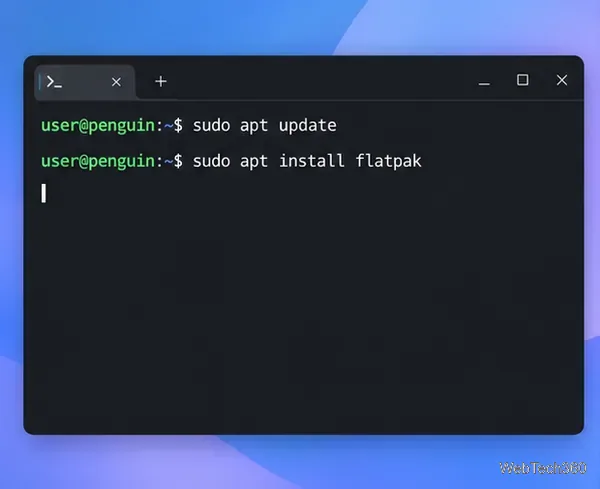
  1. Open the Terminal app and select the Penguin terminal if prompted. Refresh the package list and install Flatpak:
sudo apt update
sudo apt install flatpak
ChromeOS Linux Terminal with sudo apt update and sudo apt install flatpak entered
Install Flatpak in the Debian Linux environment with APT.
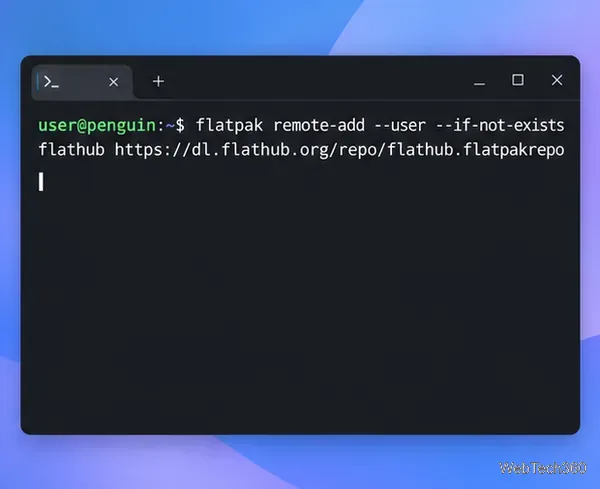
  1. Add Flathub as a user-level Flatpak source. The command follows the Flatpak documentation for adding a remote:
flatpak remote-add --user --if-not-exists flathub https://dl.flathub.org/repo/flathub.flatpakrepo
Linux Terminal displaying the flatpak remote-add command for the Flathub repository
Register Flathub so the Linux container can find the Foliate package.
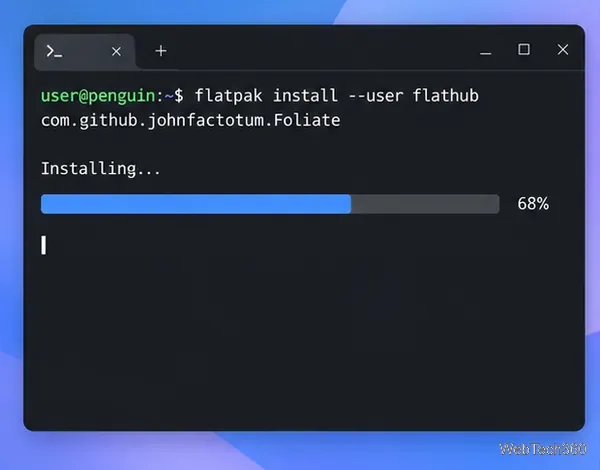
  1. Install Foliate using its Flathub application ID. Confirm any prompts in Terminal:
flatpak install --user flathub com.github.johnfactotum.Foliate
Linux Terminal showing the Flatpak install command for com.github.johnfactotum.Foliate and an installation progress bar
Install Foliate from Flathub; Flatpak will also fetch the app runtime it needs.
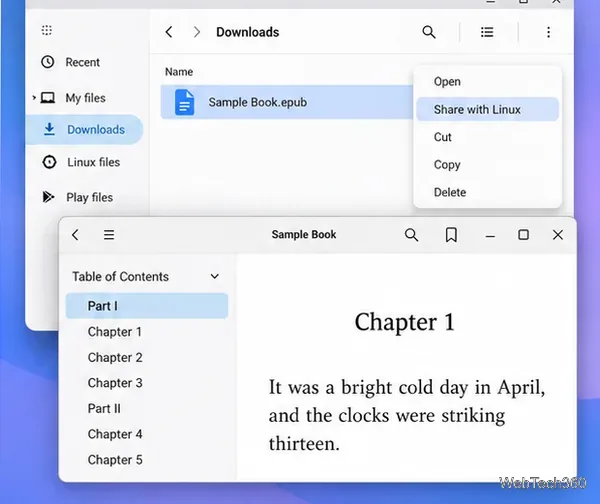
  1. In the Files app, either drag the book into Linux files or right-click the folder that contains it and choose Share with Linux. Launch Foliate from the Launcher’s Linux apps and open the book with its file chooser. If you shared a folder, browse to that folder when selecting the file.
Chromebook Files app with an EPUB and the Share with Linux menu open beside Foliate displaying a chapter
Share the folder with Linux, then open the EPUB in Foliate.

Foliate’s reader can change fonts and line spacing, switch between paginated and scrolling layouts, and keep bookmarks or annotations. The current Foliate listing on Flathub describes supported formats and features. Google notes that Linux apps share a security sandbox on ChromeOS, so install software only from sources you trust.

Fix common problems

  • Linux is missing from Settings: update ChromeOS, check whether your Chromebook supports Linux, or ask your school or work administrator whether the feature is managed.
  • Terminal says “flatpak: command not found”: rerun sudo apt install flatpak, wait for it to finish, then try the Flatpak command again.
  • Foliate cannot find the book: move it to Linux files or share its folder with Linux from the Files app, then reopen Foliate’s file chooser.
  • A purchased book will not open: it may be protected by the store’s DRM or supplied as an authorization file. Follow the retailer’s supported reader instructions; changing the filename or extension does not remove protection. Google’s Play Books export guidance explains why some books require additional software.

For most readers, Play Books is the quickest way to read EPUBs and PDFs on a Chromebook. Choose Foliate when you need a local reader with broader format support and your device allows Linux apps.

Leave a Comment

How to Watch Emby on ChromeOS in Chrome
How to Watch Emby on ChromeOS in Chrome

Open the Emby Web App on your Chromebook, sign in to your server, and play movies, shows, music, and photos without installing Linux.

How to Set Up Syncthing on a Chromebook

How to Set Up Syncthing on a Chromebook

Install Syncthing on a Chromebook, share a ChromeOS folder with Linux, connect another device, and keep the web interface private.

How to Use Tor Browser on a Chromebook

How to Use Tor Browser on a Chromebook

Enable Linux on your Chromebook, install Tor Browser with the Tor Project’s Flatpak launcher, connect to Tor, and understand what the setup protects.

How to Use Bitwarden on ChromeOS: Install, Save, and Autofill

How to Use Bitwarden on ChromeOS: Install, Save, and Autofill

Install Bitwarden on a Chromebook, save your first login, autofill websites, and learn when the optional Linux desktop app makes sense.

How to Install and Use Alternate Browsers on a Chromebook

How to Install and Use Alternate Browsers on a Chromebook

Install Firefox, Brave, Edge, or Opera on a Chromebook with Linux. Learn how to enable the Debian environment, choose a compatible package, and understand the limits.

How to Read E-Books on a Chromebook: Play Books and Foliate

How to Read E-Books on a Chromebook: Play Books and Foliate

Read EPUBs and PDFs in Google Play Books on your Chromebook, or install Foliate through Linux for a local reader that supports more formats.

How to Install and Use VLC on a Chromebook

How to Install and Use VLC on a Chromebook

Install VLC on a Chromebook from Google Play, play local files and network media, or set up the Linux desktop version when you need it.

How to Set Up Krita on a Chromebook

How to Set Up Krita on a Chromebook

Install Krita on a Chromebook with ChromeOS Linux and Flatpak, then launch the app, open shared artwork, and troubleshoot common setup limits.

How to Use Microsoft Teams on a Chromebook

How to Use Microsoft Teams on a Chromebook

Use Teams on a Chromebook through Chrome, sign in with a work or school account, install the optional web app, and resolve camera or microphone issues.

How to Install Visual Studio Code on a Chromebook

How to Install Visual Studio Code on a Chromebook

Set up ChromeOS Linux, choose the right VS Code Debian package for your Chromebook, and install the desktop editor with APT.