How to Watch Emby on ChromeOS in Chrome
To watch media from Emby on a Chromebook, open the Emby Web App in Chrome and sign in to your Emby Server. You do not need to enable Linux or install Emby Theater for ordinary playback: the web client is included with Emby Server. You do need an account on a server that is running and reachable from your Chromebook.

Emby organizes and plays a library that you or someone you know hosts; it is not a subscription catalog that supplies movies or shows. If you have not been given access to a server and user account, ask the server owner first. Emby’s Quick Start guide explains the server-and-client setup.

Before you start

Have these details ready:

  • The Emby Server must be online and contain media the account is allowed to view.
  • You need the server’s address and an Emby username and password. The server owner can provide them.
  • For a local connection, connect the Chromebook to the same home network as the server. Remote viewing requires the server owner to enable and configure external access.

Open and watch Emby in Chrome

  1. Connect to the right network. At home, use the Wi-Fi network that can reach your Emby Server.
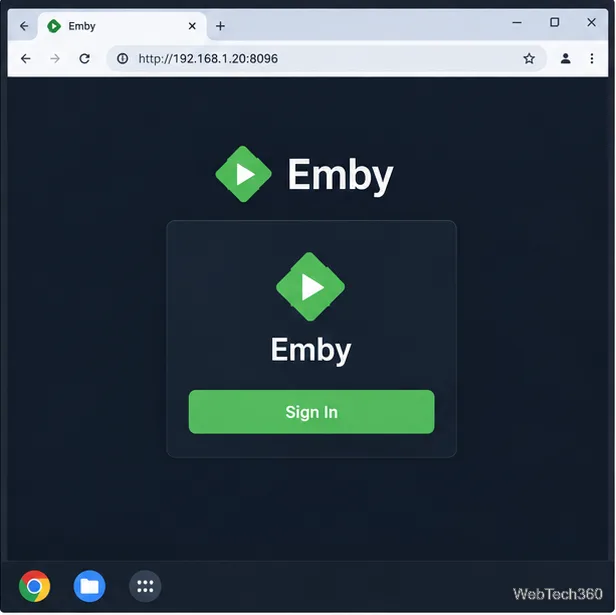
  2. Open the server’s web address. Launch Chrome and enter the address supplied by the server owner. On a home network, it may look like http://192.168.1.20:8096; this is only an example, so replace it with your server’s actual address and port. Emby documents port 8096 in its Web Client setup instructions. If the owner gave you a secure web address, use that exact address instead.
Chrome on a Chromebook displaying an example local Emby server address above a sign-in page
The address shown is an example. Use the server URL provided by its owner.
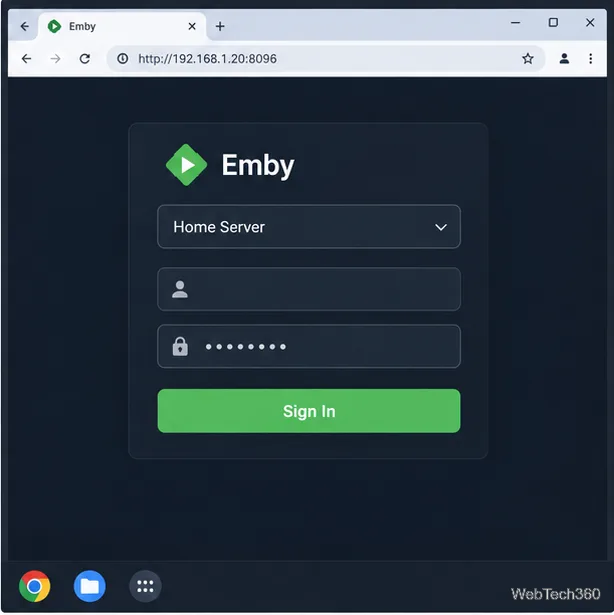
  1. Sign in to the server. Enter the Emby account credentials created for you. If you see a server selection, choose the server that was shared with you. Emby Connect is optional and works only if the server owner linked your Connect account. It helps locate the server; your media streams directly from that server to your Chromebook.
Emby sign-in screen in Chrome with a Home Server selector and account credential fields
Sign in with the account the server administrator gave you.
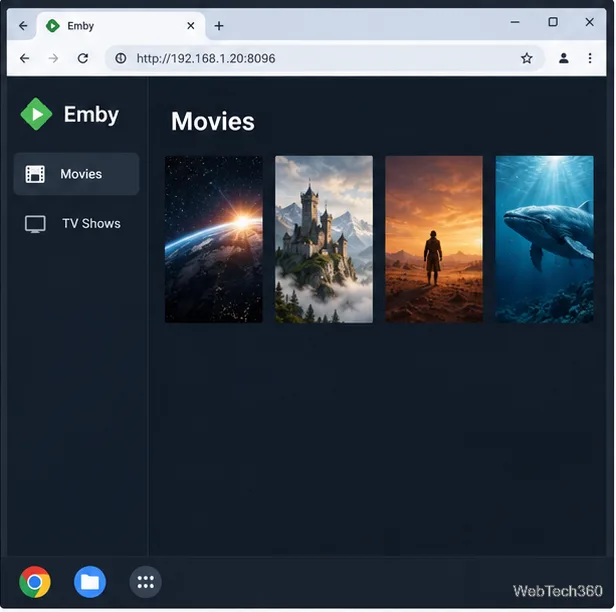
  1. Open a library. Select a section such as Movies, TV Shows, Music, or Photos, then browse or search the items available to your account. The server owner controls which libraries and titles each user can see. If a section is missing or empty, ask the owner to check the account’s library access.
Emby Movies library open in Chrome on a Chromebook with four media posters
The libraries and titles shown depend on what the server shares with your account.
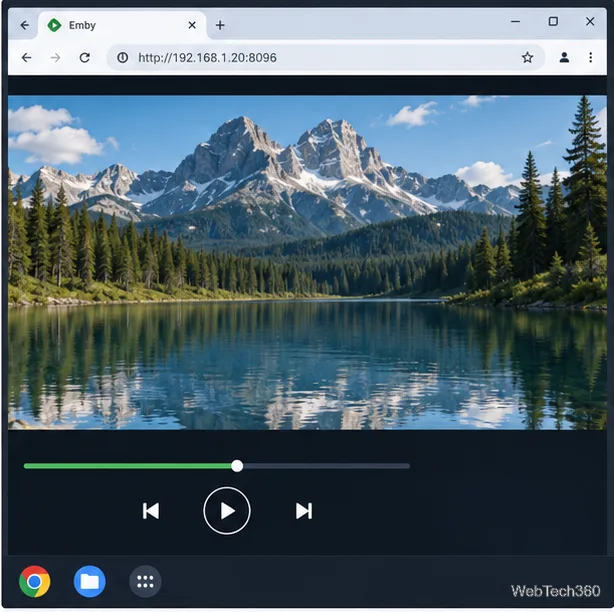
  1. Start playback. Select a movie or episode and choose Play. Use the player controls to pause, seek, adjust volume, or select an available subtitle or audio track. The exact options depend on the media and the browser.
A video playing in Emby in Chrome on a Chromebook, with a timeline and playback controls below the picture
Chrome’s available playback options can vary by file format and Chromebook model.

Watching when you are away from home

Local addresses such as 192.168.1.20 normally work only at home. Away from home, the owner must enable remote access, allow it for your account, and give you a reachable external address. Emby’s connectivity guide covers those server-side settings. Emby Connect can help locate a linked server, but it does not relay your video through Emby’s cloud; playback connects to the server itself. See Emby Connect for users.

Troubleshoot connection and playback problems

  • The page will not load: Confirm that the server is on, check the URL and port with its owner, and make sure both devices can communicate over the network. If you are away from home, a local IP address will not be enough; remote access must be configured.
  • You can sign in but see no media: The account may not have permission to the relevant library, or the server may not have finished scanning it. Ask the administrator to check the user and library settings.
  • A video buffers, has no sound, or will not start: Chrome can directly play a file only when the browser supports its format. Emby may need to convert the video, audio, subtitles, or bitrate on the server. Leave the app’s streaming bitrate on Auto if available, try another title, and ask the administrator to check whether the server can transcode the file. Emby explains these modes in its playback methods guide.
  • The hosted Emby page reports a connection issue: If you opened the hosted web app over HTTPS but the server only offers an insecure HTTP connection, the browser may block the mixed connection. Use the server’s own web address or ask the owner to configure HTTPS. Emby documents this browser restriction in its connectivity troubleshooting notes.

Do you need Linux or Emby Theater?

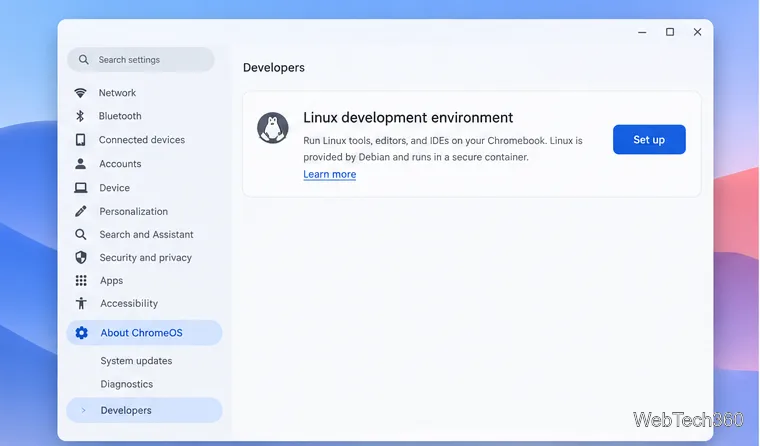
You do not need Linux to watch in Chrome. Google’s Chromebook Linux development environment is optional, may be disabled on managed devices, and does not support GPU or video-decoder hardware acceleration. Emby’s Linux-client support page labels the application pre-release and does not list ChromeOS as a tested target. Skip the old fixed-version DEB and Flatpak commands unless you specifically need a Linux client; check Emby’s current package and platform guidance first. See Google’s Linux setup information for Chromebooks and Emby’s Linux platform support notes.

Leave a Comment

How to Watch Emby on ChromeOS in Chrome

How to Watch Emby on ChromeOS in Chrome

Open the Emby Web App on your Chromebook, sign in to your server, and play movies, shows, music, and photos without installing Linux.

How to Set Up Syncthing on a Chromebook

How to Set Up Syncthing on a Chromebook

Install Syncthing on a Chromebook, share a ChromeOS folder with Linux, connect another device, and keep the web interface private.

How to Use Tor Browser on a Chromebook

How to Use Tor Browser on a Chromebook

Enable Linux on your Chromebook, install Tor Browser with the Tor Project’s Flatpak launcher, connect to Tor, and understand what the setup protects.

How to Use Bitwarden on ChromeOS: Install, Save, and Autofill

How to Use Bitwarden on ChromeOS: Install, Save, and Autofill

Install Bitwarden on a Chromebook, save your first login, autofill websites, and learn when the optional Linux desktop app makes sense.

How to Install and Use Alternate Browsers on a Chromebook

How to Install and Use Alternate Browsers on a Chromebook

Install Firefox, Brave, Edge, or Opera on a Chromebook with Linux. Learn how to enable the Debian environment, choose a compatible package, and understand the limits.

How to Read E-Books on a Chromebook: Play Books and Foliate

How to Read E-Books on a Chromebook: Play Books and Foliate

Read EPUBs and PDFs in Google Play Books on your Chromebook, or install Foliate through Linux for a local reader that supports more formats.

How to Install and Use VLC on a Chromebook

How to Install and Use VLC on a Chromebook

Install VLC on a Chromebook from Google Play, play local files and network media, or set up the Linux desktop version when you need it.

How to Set Up Krita on a Chromebook

How to Set Up Krita on a Chromebook

Install Krita on a Chromebook with ChromeOS Linux and Flatpak, then launch the app, open shared artwork, and troubleshoot common setup limits.

How to Use Microsoft Teams on a Chromebook

How to Use Microsoft Teams on a Chromebook

Use Teams on a Chromebook through Chrome, sign in with a work or school account, install the optional web app, and resolve camera or microphone issues.

How to Install Visual Studio Code on a Chromebook

How to Install Visual Studio Code on a Chromebook

Set up ChromeOS Linux, choose the right VS Code Debian package for your Chromebook, and install the desktop editor with APT.