Home
» HARDWARE
»
Best Monitor Resolution for Gaming: 720p, 1080p, 1440p, 2K, 4K, and 8K
Best Monitor Resolution for Gaming: 720p, 1080p, 1440p, 2K, 4K, and 8K
Quick answer: For many PC gamers, 1440p (QHD) balances sharpness and performance. Choose 1080p for value or high refresh rates, 4K for detail if your PC can sustain your target frame rate, and 8K only for a specific high-end use. 720p is mostly a legacy option. Check the pixel dimensions when a listing says “2K.”
Resolution is only one part of the experience. Screen size, viewing distance, refresh rate, and GPU capability all shape how a display feels in games.
Gaming monitor resolutions compared
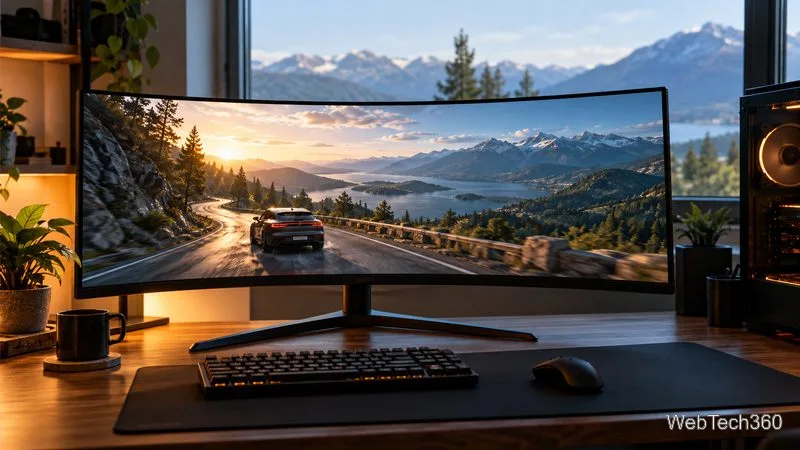
Pixel count is width multiplied by height. The common 16:9 examples are below; ultrawide screens have different dimensions, so check the complete native resolution.
Label
Common dimensions
Approx. pixels
Typical use
720p
1280 × 720
0.92 million
Older displays or modest systems.
1080p / Full HD
1920 × 1080
2.07 million
Accessible gaming and high refresh targets.
1440p / QHD
2560 × 1440
3.69 million
A common step up from Full HD, with about 78% more pixels.
2K (DCI)
2048 × 1080
2.21 million
A cinema standard; gaming listings may use “2K” for QHD.
4K UHD
3840 × 2160
8.29 million
Four times the pixels of 1080p. DCI cinema 4K is 4096 × 2160.
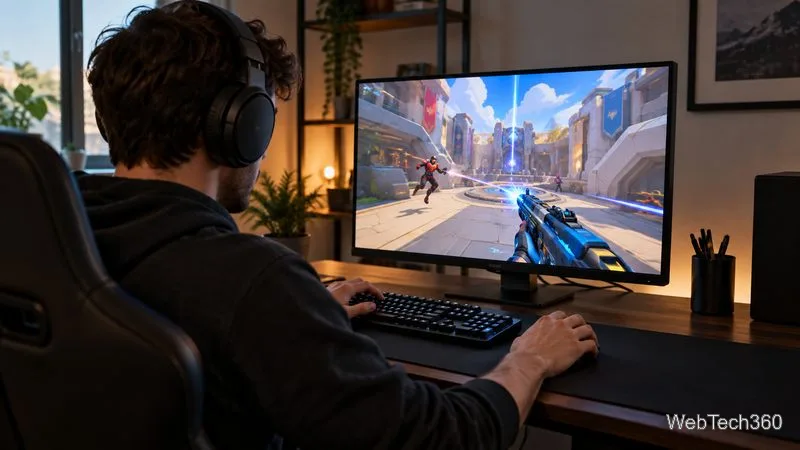
A compact setup suits players who prioritize high frame rates at 1080p.
Which resolution fits your games and PC?
1080p: frame rate and value
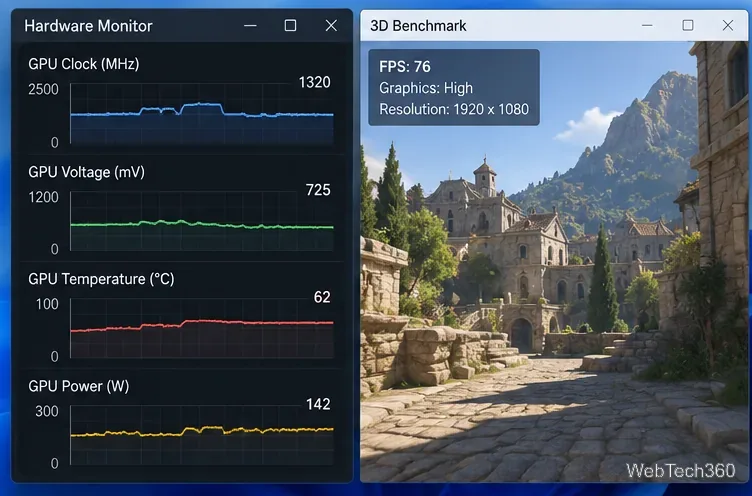
Full HD suits competitive games, entry-level systems, and players who prefer high refresh rates over extra detail. Its lower pixel count gives the GPU less image area to render than QHD or 4K, but it does not guarantee a particular frame rate: the game, settings, CPU, and GPU matter.
1440p: a balanced PC target
QHD looks more detailed than 1080p on the same-size screen while demanding fewer pixels than 4K. It can be a good middle ground for both competitive and single-player games when your graphics card can deliver frame rates near the display’s refresh rate. For ultrawide panels, compare the full dimensions, such as 3440 × 1440, rather than “1440p” alone.
Aspect ratio matters alongside resolution; check the panel’s full dimensions.
4K: fine detail on a larger screen
UHD 4K can make detailed games look crisp, especially on a large display. It has four times as many pixels as 1080p and about 2.25 times as many as 1440p, increasing rendering work. Frame-rate changes are not perfectly proportional, so check benchmarks for your GPU, games, and settings. A stable 1440p high-refresh experience may feel better than 4K at a frame rate you find too low.
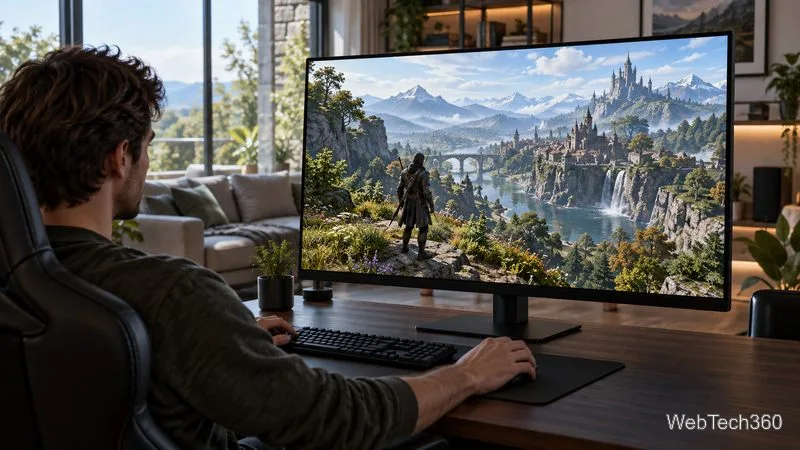
A larger display can reveal more scene detail if the PC can sustain the chosen settings.
720p and 8K: special cases
A new 720p desktop monitor is hard to justify unless price, compatibility, or an older PC is the main constraint. 8K’s fourfold pixel count over 4K makes high settings and high frame rates demanding. Confirm support across the game, graphics hardware, monitor, and cable. VESA describes DisplayPort support for 8K at 60 Hz, but a connection capable of a mode does not mean a PC can render a game at that mode.
What to check besides resolution
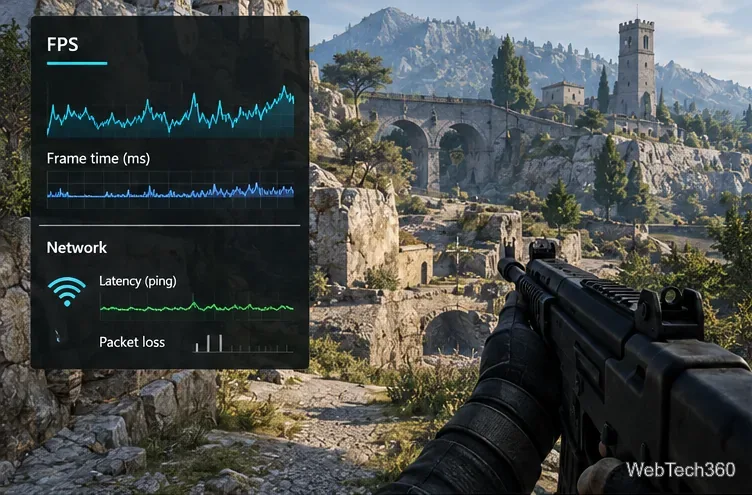
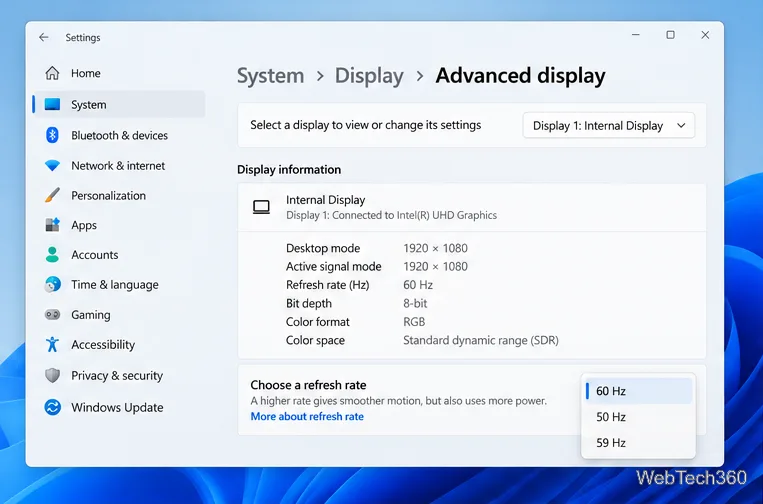
Refresh rate: Verify the monitor’s maximum rate at native resolution and whether your PC can approach it in your games.
Motion performance: Response-time claims use different measurement methods. Compare independent measurements where available instead of relying on a single “1 ms” label.
Variable refresh rate: Adaptive-Sync, FreeSync, or G-SYNC-compatible support can help a display follow changing game frame rates within its supported range. VESA’s Adaptive-Sync program sets a standardized performance test.
Size and distance: Pixel density depends on resolution and panel size. Consider how close you sit and how much desk space you have.
HDR and ports: HDR quality also depends on brightness, contrast, and color. Check the port and cable support for your resolution, refresh rate, and color settings; VESA DisplayHDR tiers provide tested performance criteria.
Make the final choice
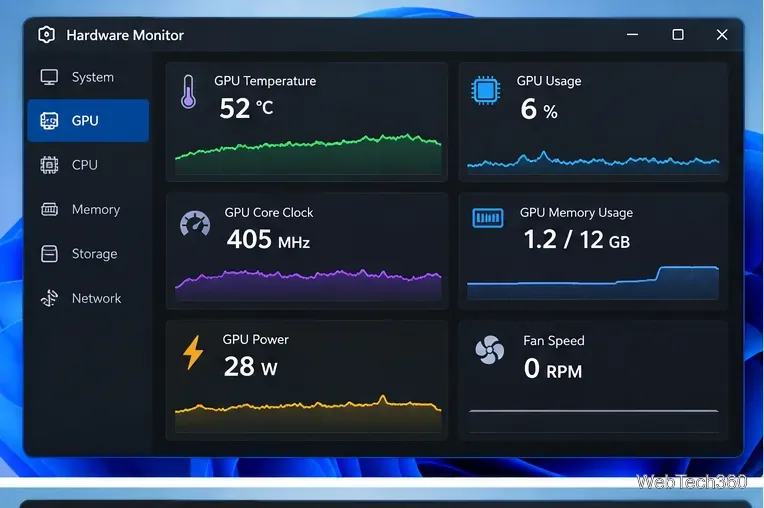
Start with your graphics card and the games you play. Compare benchmarks at the monitor’s native resolution and the settings you expect to use, then choose the highest resolution that still meets your preferred frame rate. Supported upscaling can improve performance in some games, but availability and image quality vary by game and mode; it is not the same as rendering every pixel natively. See the official documentation for AMD FSR and NVIDIA DLSS.
For a balanced PC upgrade, compare 1440p monitors first. Pick 1080p for value and competitive frame rates, 4K for detail with enough GPU headroom, and 8K only after confirming the complete setup supports your use. Do not choose by pixel count alone.