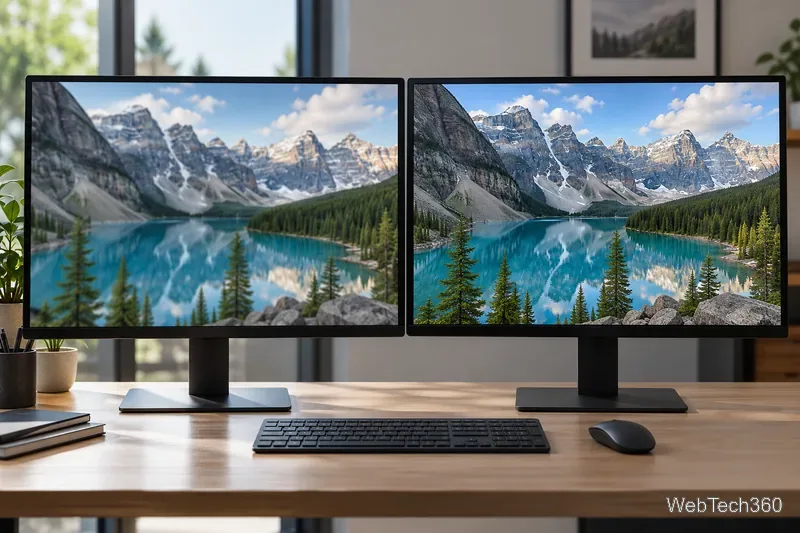
How to Overclock a Monitor: A Safe, Step-by-Step Tutorial
You can overclock a monitor by adding a custom refresh-rate mode through your graphics software and testing it. It works only if the monitor, graphics card, connection, and chosen resolution support the higher rate. First check Windows: your display’s rated maximum may already be available, so no overclock is needed.

What monitor overclocking changes

Refresh rate, measured in hertz (Hz), is how often a screen updates its image each second. A custom mode asks the monitor to run faster than a listed mode; it cannot add pixels or change the panel’s native resolution. An unsupported rate can cause flickering, artifacts, a lost signal, or a blank screen. No universal increase is guaranteed.

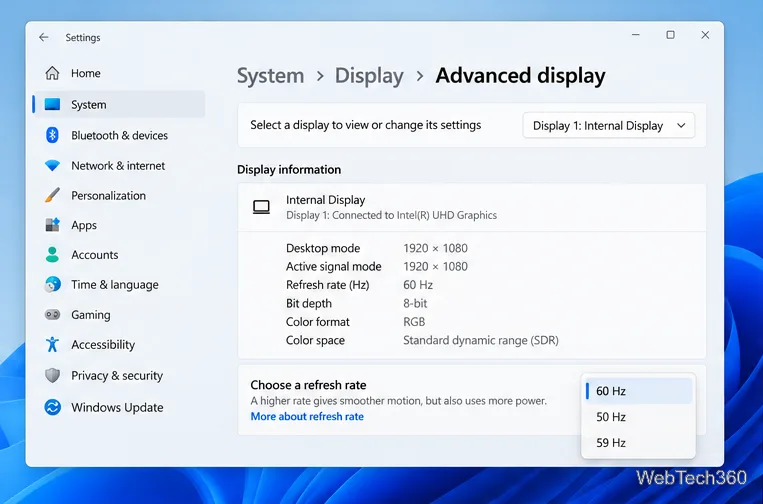
Open Settings > System > Display > Advanced display and select the monitor. Note its resolution and current rate. Microsoft’s refresh-rate guide explains that available rates depend on the display and its supported modes.
Windows Advanced display settings showing a 1920 by 1080 display and the refresh-rate selector
Illustrative Windows interface; the refresh rates shown on your PC depend on the selected display.

Before you start

  • Check the monitor manual or manufacturer specifications for native resolution and rated maximum refresh rate.
  • Keep native resolution, select the correct display, and record the original setting.
  • Raise the rate in small steps. If the driver rejects it or the picture is unstable, revert; know how to restore the default before testing.

Method 1: NVIDIA Control Panel

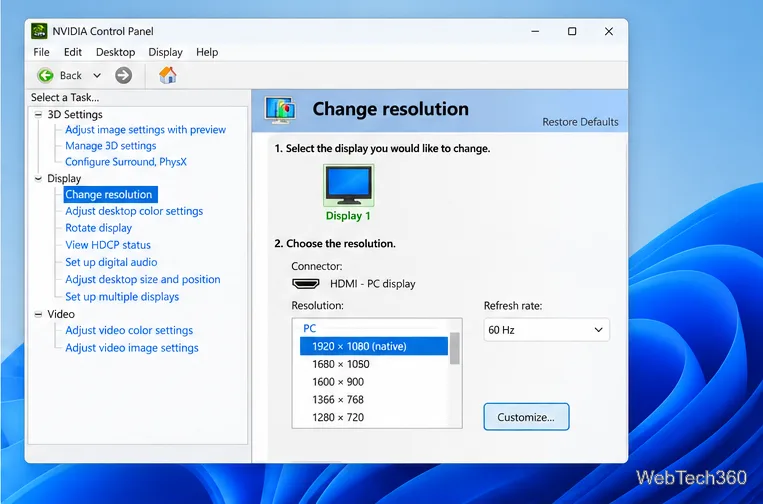
  1. Open NVIDIA Control Panel. Under Display, choose Change resolution and select the monitor.
Illustrative NVIDIA Control Panel Change resolution page with the Customize button
Choose the correct display before adding a custom mode.
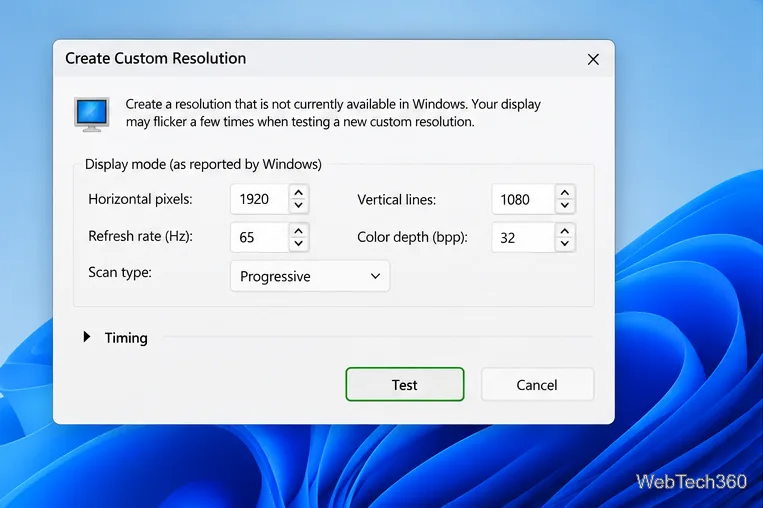
  1. Choose Customize, then Create Custom Resolution.
  2. Keep the native pixel values, enter a modestly higher refresh rate, and leave timing options at their defaults unless you understand display timings.
  3. Click Test. If the test passes and the screen stays stable, save the mode, select it from the list, and apply it. If it fails or the screen goes blank, revert and try a lower rate.
Illustrative NVIDIA custom-resolution dialog keeping 1920 by 1080 and entering a 65 Hz test rate
65 Hz is an example shown in an illustrative interface, not a recommendation for every monitor.
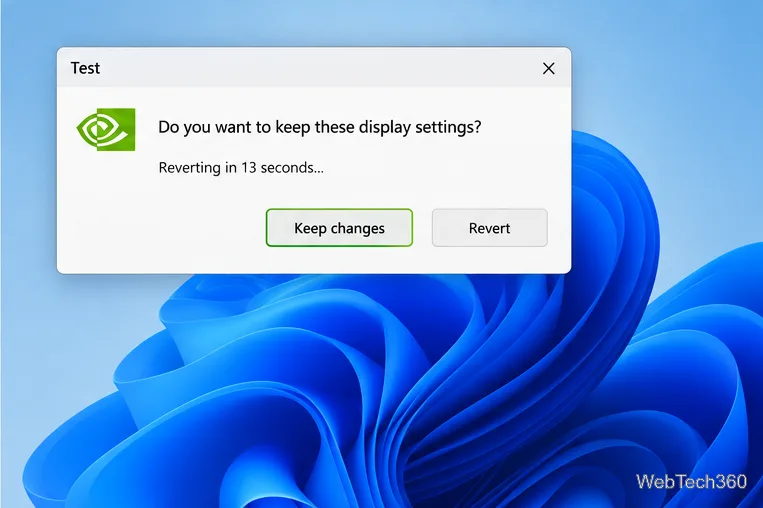
Illustrative NVIDIA test confirmation dialog with Keep changes and Revert choices
Keep the mode only if the picture is stable; otherwise let the test revert.

NVIDIA’s custom-resolution instructions also require testing a mode before saving it.
Method 2: AMD Software: Adrenalin Edition

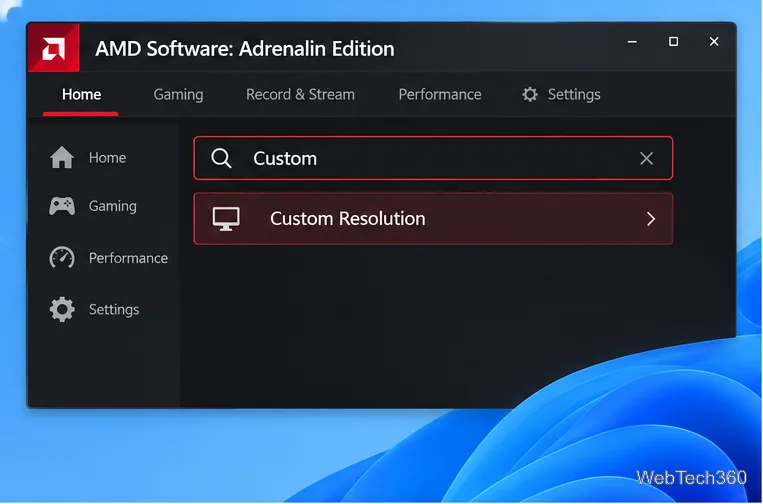
  1. Open AMD Software, search for Custom, and choose Custom Resolution. Select the right display and accept the license prompt if it appears and you want to continue.
Illustrative AMD Software search results showing Custom Resolution
AMD’s current support instructions use the in-app search to find Custom Resolution.
  1. Choose Create New. Keep the native resolution and enter a modest refresh-rate increase.
  2. Click Create. AMD checks compatibility, and the screen may go blank briefly during the check. If AMD reports a problem, revise or cancel the profile.
  3. Apply a saved profile through Windows Display settings or an application’s display menu, then confirm the rate in Advanced display.
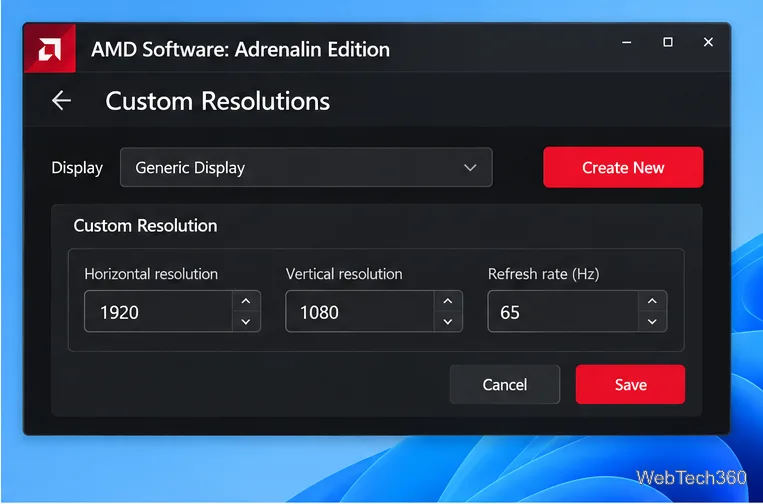
Illustrative AMD Custom Resolutions form showing native 1920 by 1080 resolution and a 65 Hz example
The displayed values are examples; use the native resolution and test only rates your setup can support.

Names can vary by software version. See AMD’s current Adrenalin custom-resolution guide for its workflow and compatibility check.

Method 3: Custom Resolution Utility (CRU)

CRU is a third-party tool for advanced users. It adds a Windows display override. Use it only if you know how to restore display settings and can start Windows in Safe Mode.
  1. Download CRU from the utility author’s Monitor Tests thread, then run CRU.exe.
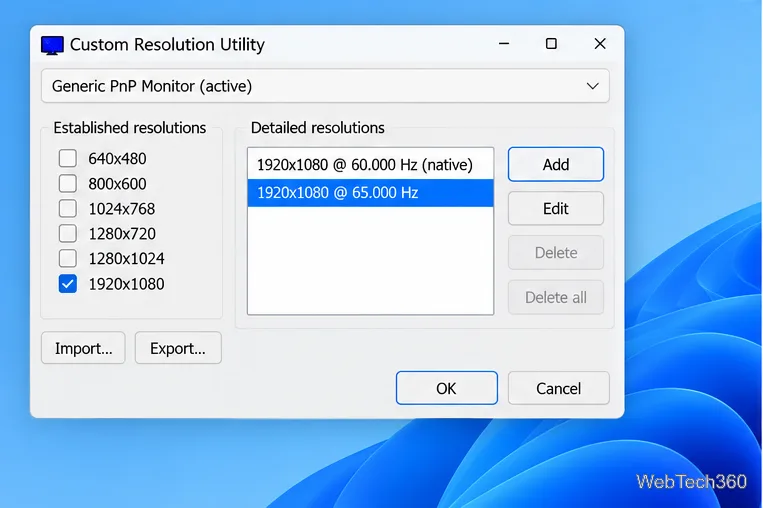
  2. Choose the correct monitor in the drop-down list; the active one is marked (active).
  3. Under Detailed resolutions, add a mode at the native resolution with the candidate rate. Keep the original native mode so it remains available.
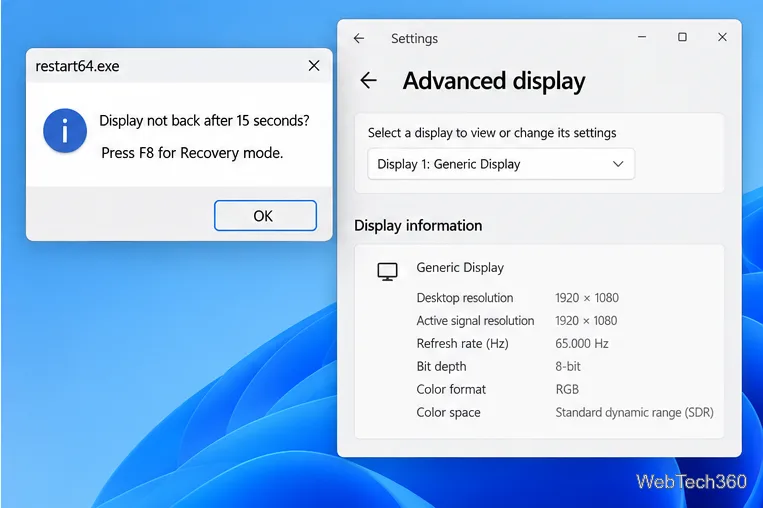
  4. Click OK. Run restart64.exe on 64-bit Windows or restart.exe on 32-bit Windows from the extracted folder.
  5. After the graphics driver restarts, select the new rate in Windows Advanced display.
Illustrative CRU window with Generic PnP Monitor active and native 60 Hz plus an added 65 Hz detailed resolution
Keep the native entry available; the custom 65 Hz line is only an example.
Illustrative CRU restart64 recovery prompt explaining F8 recovery if the display does not return after 15 seconds
CRU’s restart utility documents F8 recovery if the display does not return after 15 seconds.

If the display does not return within 15 seconds, press F8 for CRU’s Recovery Mode to temporarily unload the overrides. To remove an override, use CRU’s Delete control for that display, or run reset-all.exe and restart Windows. CRU documents these recovery steps in its thread.

Test the result and revert if needed

Confirm Windows shows the new rate at native resolution. Check the desktop and a game or video for flickering, artifacts, blackouts, or signal drops. If the picture is unstable, return to the last stable rate in Advanced display.

If a confirmation timer appears, keep the setting only while the screen is stable; otherwise let it revert. With CRU, use Recovery Mode or reset the overrides if the display settings are inaccessible. Stop at the manufacturer-rated maximum if custom rates fail. Some monitors accept a small increase; others accept none.

Leave a Comment

How to Overclock a Monitor: A Safe, Step-by-Step Tutorial

How to Overclock a Monitor: A Safe, Step-by-Step Tutorial

Learn how to test a higher monitor refresh rate with NVIDIA, AMD, or CRU, verify stability, and restore your original settings if the display goes blank.

How to GPU Stress Test: Best Graphics Card Tests and Tools

How to GPU Stress Test: Best Graphics Card Tests and Tools

Learn how to GPU stress test safely, what to monitor, how long to run a test, and which current tools are best for checking graphics card stability.

CPU & RAM Stress Tests: Best Tools to Stress Test Your Computer

CPU & RAM Stress Tests: Best Tools to Stress Test Your Computer

Compare the best CPU and RAM stress-test tools, including OCCT, Prime95, MemTest86, Intel PDT, and HWiNFO, plus practical safety tips.

How to Underclock and Undervolt a GPU Safely (Quick Guide)

How to Underclock and Undervolt a GPU Safely (Quick Guide)

Learn how to underclock or undervolt a GPU with MSI Afterburner, plus Radeon Adrenalin options, stability checks, and safe rollback steps.

Best VPN for Linksys Routers: Compatibility and Smooth Setup Tips

Best VPN for Linksys Routers: Compatibility and Smooth Setup Tips

Choose a VPN for a Linksys router by checking firmware support first. Compare NordVPN, Surfshark, Proton VPN, and CyberGhost for a smoother setup.

TV YouTube Com Start Code: How to Link a Device to Your TV

TV YouTube Com Start Code: How to Link a Device to Your TV

Use the tv.youtube.com/start code to activate YouTube TV on a smart TV or console, and learn how it differs from regular YouTube TV-code pairing.

ExpressVPN Router Setup Help: How to Install ExpressVPN on a Router

ExpressVPN Router Setup Help: How to Install ExpressVPN on a Router

Set up ExpressVPN on a router with current Fortify steps, legacy router guidance, and manual OpenVPN instructions, plus key security caveats.

2K vs. 4K Monitors: Which Resolution Is Best for You?

2K vs. 4K Monitors: Which Resolution Is Best for You?

Compare 1440p QHD and 4K UHD monitors by sharpness, scaling, gaming performance, and work use to choose the resolution that fits your setup.