How to Overclock a Monitor: A Safe, Step-by-Step Tutorial
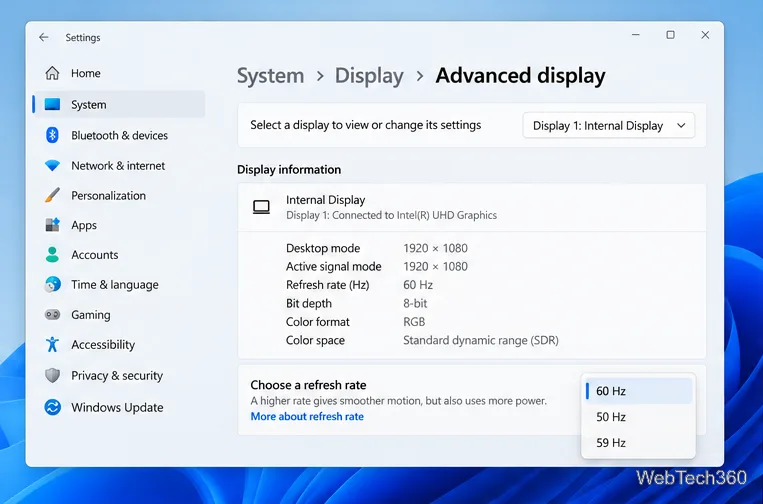
Learn how to test a higher monitor refresh rate with NVIDIA, AMD, or CRU, verify stability, and restore your original settings if the display goes blank.
If you want to check whether a PC stays stable under sustained load, use a dedicated CPU or RAM stress test rather than relying on a short benchmark. A CPU test pushes processor cores and caches hard enough to expose cooling, power, or stability problems, while a memory test repeatedly reads and writes RAM to look for errors. For most people, OCCT is the easiest all-in-one choice, Prime95 is excellent for heavy CPU stability testing, and MemTest86 is the strongest option when you need to test RAM outside the operating system.
Stress tests are useful after building or upgrading a PC, changing memory settings, overclocking, troubleshooting random crashes, or checking a cooling upgrade. They can reveal instability that ordinary browsing or light gaming may never trigger.
CPU and RAM tests answer different questions. A CPU-focused workload checks processor stability and cooling under sustained computation. A RAM test looks for data errors across memory. Some tools combine both so you can test the CPU-to-memory path as a system rather than isolating one component.
If you are validating an overclock or changed voltage settings, remember that operating outside stock specifications can affect stability, component life, and warranty coverage. Intel explicitly warns that changing clock frequency or voltage can have those consequences in its Intel XTU overclocking guidance.
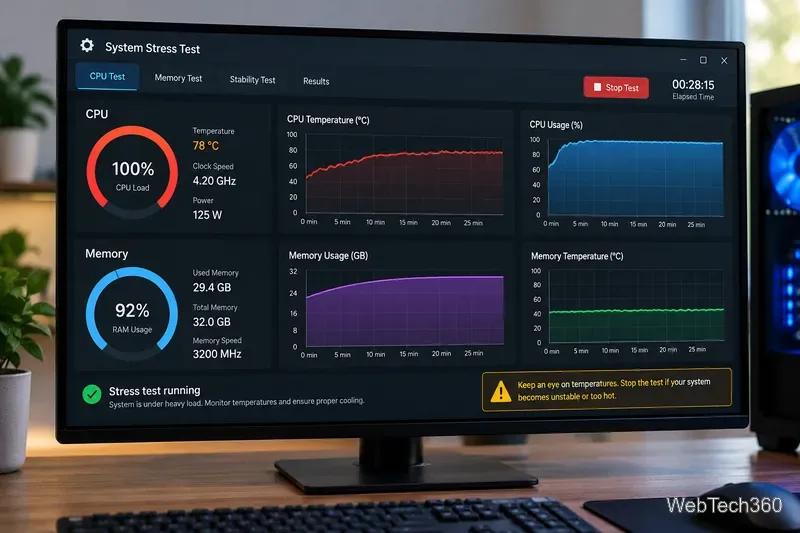
OCCT combines CPU, CPU + RAM, memory, GPU, and other stability tests with real-time monitoring. Its CPU + RAM test is a good first check because it stresses the processor and memory chain together. Current OCCT releases also provide a dedicated modular Memory Test and CPU tests that can target individual cores. The free personal edition is enough for most troubleshooting, though it limits test duration.
Prime95 remains a standard choice for heavy CPU stability testing. Its torture test uses intensive integer and floating-point workloads across CPU cores and caches. It is available for Windows, macOS, Linux, and FreeBSD. Prime95 is powerful, but its interface and test choices are less beginner-friendly than OCCT, so monitor temperatures carefully and avoid changing multiple tuning variables at once.
MemTest86 boots from a USB drive and tests memory without requiring Windows or Linux to be running. That makes it especially useful when the operating system will not boot reliably or when you want to test more of the installed RAM than an in-OS utility can access. The free edition is suitable for most home diagnostics and supports modern UEFI systems and current memory technologies.
If you have a supported Intel processor on Windows, the Intel Processor Diagnostic Tool provides a straightforward vendor test. It verifies processor identification and operating frequency, checks specific features, and includes a stress test. The final PASS or FAIL result is easier to interpret than a manual torture-test setup.
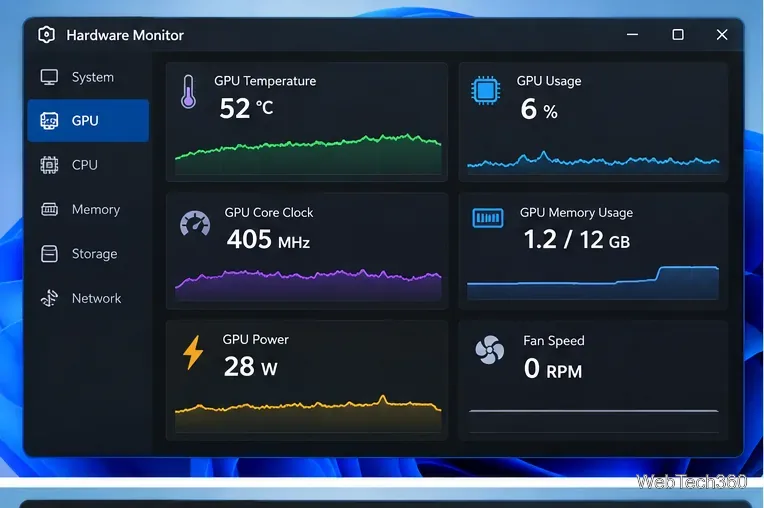
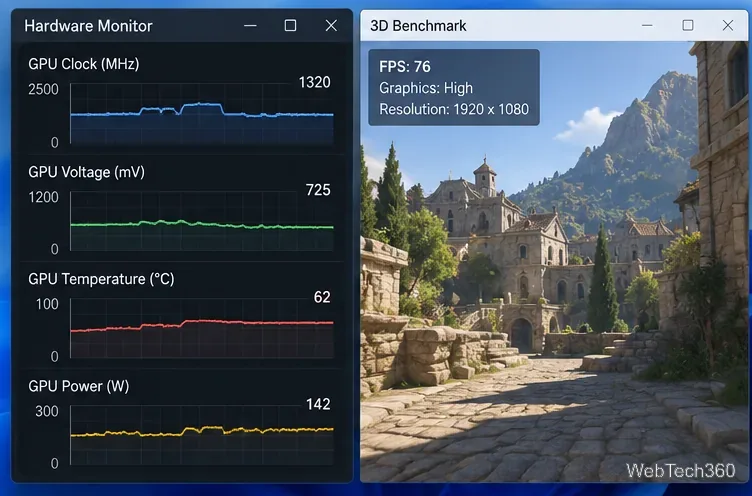
HWiNFO is not a stress generator, but it is one of the most useful companion tools. Its sensor view can track temperatures, clock speeds, power, fan speeds, and other hardware data in real time. Use it alongside Prime95 or another desktop stress test when you want a detailed view of how the system responds.
What about CPU-Z? CPU-Z is still useful for identifying hardware, checking memory timings, and running quick CPU benchmarks, but it should not be your main tool for validating long-term CPU or RAM stability.
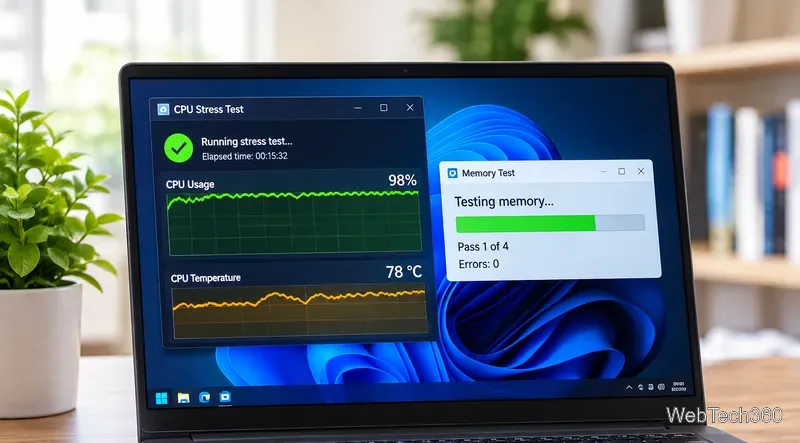
There is no single duration that proves every computer is stable. A short run is useful for quickly finding obvious cooling or configuration problems. If temperatures remain controlled and no errors appear, extend the test when you need greater confidence after a hardware change or tuning adjustment. For RAM, let MemTest86 complete the passes you configured rather than stopping as soon as the first few minutes look clean.
A successful stress test is evidence of stability, not a guarantee that every workload will be error-free. If a test fails, return overclocks or memory tuning to stock settings first, retest, and then isolate the likely cause. CPU errors can point to processor, cooling, voltage, motherboard, or power problems; memory errors can involve the DIMMs, memory controller, motherboard slots, or aggressive memory settings.
Learn how to test a higher monitor refresh rate with NVIDIA, AMD, or CRU, verify stability, and restore your original settings if the display goes blank.
Learn how to GPU stress test safely, what to monitor, how long to run a test, and which current tools are best for checking graphics card stability.
Compare the best CPU and RAM stress-test tools, including OCCT, Prime95, MemTest86, Intel PDT, and HWiNFO, plus practical safety tips.
Learn how to underclock or undervolt a GPU with MSI Afterburner, plus Radeon Adrenalin options, stability checks, and safe rollback steps.
Choose a VPN for a Linksys router by checking firmware support first. Compare NordVPN, Surfshark, Proton VPN, and CyberGhost for a smoother setup.
Use the tv.youtube.com/start code to activate YouTube TV on a smart TV or console, and learn how it differs from regular YouTube TV-code pairing.
Set up ExpressVPN on a router with current Fortify steps, legacy router guidance, and manual OpenVPN instructions, plus key security caveats.
Compare 1440p QHD and 4K UHD monitors by sharpness, scaling, gaming performance, and work use to choose the resolution that fits your setup.