Home
» HARDWARE
»
What Is an Ethernet Cable? How It Works, Categories, and When to Use One
What Is an Ethernet Cable? How It Works, Categories, and When to Use One
An Ethernet cable carries data between devices on a wired Ethernet network. At home, it commonly connects a router or network switch to a computer, game console, TV, printer, access point, or network storage drive. It provides a direct link to the local network; it does not create internet service or determine your plan’s speed.
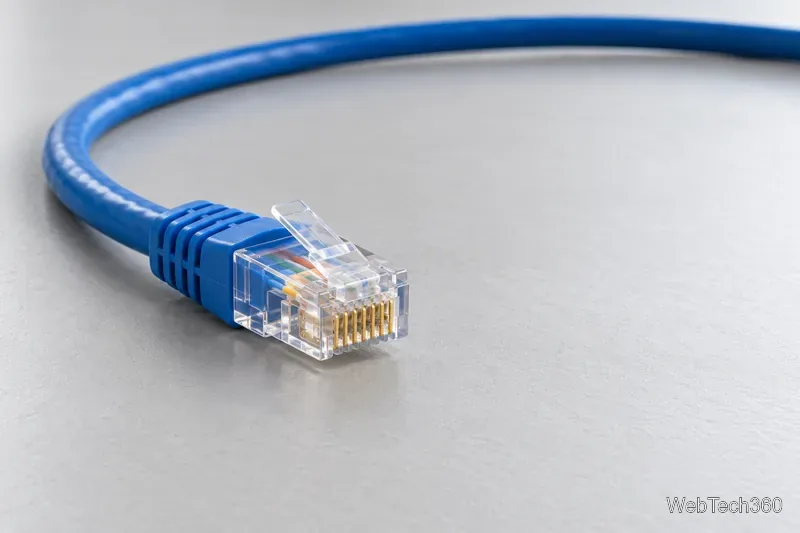
A copper Ethernet patch cable has a modular plug at each end.
What an Ethernet cable connects
Internet service typically enters through a provider’s coaxial, fiber-optic, or telephone line and reaches a modem or gateway. Ethernet links a separate modem to a router, or connects the router’s LAN port to a device or switch. A gateway combines modem and router functions, so devices can connect to its LAN ports. Ethernet also links devices on a local network that has no internet access.
Ethernet is a family of wired networking standards maintained in the IEEE 802.3 series. It can use copper or fiber, although “Ethernet cable” usually means copper twisted-pair cable in a home. See the IEEE 802.3 Ethernet standards overview.
How the cable works
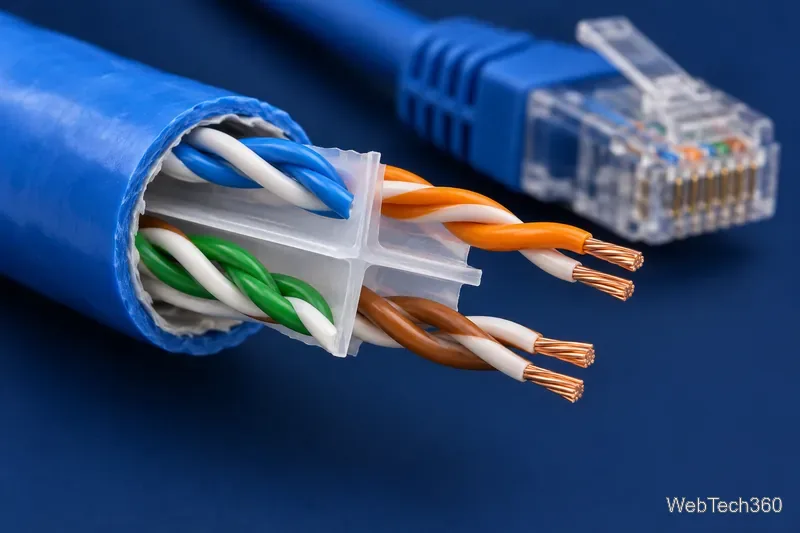
A common copper Ethernet cable contains eight insulated conductors arranged as four twisted pairs inside a protective jacket. The twists help reduce interference between pairs. At each end, an eight-position modular plug—often called an RJ45 plug—fits into an Ethernet port. Its small retaining tab clicks into place and releases when pressed.
Most homes use unshielded cable. Shielded models add foil or braid for certain high-interference environments, but must be installed and grounded correctly; shielding does not automatically make a cable faster. Jacket color is for organization, while category and construction determine performance.
Four colored twisted pairs carry signals inside a standard copper cable.
Ethernet cable categories and speed
The category printed on a cable describes its tested performance, not the speed of your internet plan. A link is limited by its ports, adapter, router or switch, cable, and—when measuring the internet—your provider’s service.
Category
Common capability
Good to know
Cat5e
Gigabit Ethernet up to 100 meters (328 feet)
A practical fit for many existing home networks.
Cat6
Gigabit up to 100 meters; 10 Gbps over shorter runs
Cisco documents 10 Gbps over Cat6 up to 55 meters.
Cat6A
10 Gbps up to 100 meters
Designed for longer 10-gigabit copper links.
For a short connection to a computer or console, a sound Cat5e cable is often enough for gigabit ports. Cat6 is a sensible new patch-cable choice; choose Cat6A when a longer 10 Gbps run is required. The 100-meter limit assumes a standards-compliant channel, not a damaged or poorly terminated cable. Check Cisco’s Cat5e, Cat6, and Cat6A rate and distance guidance before planning a faster link.
When to use Ethernet instead of Wi-Fi
Use a cable for stationary devices that benefit from a steady connection: desktop PCs, consoles, TVs, workstations, storage drives, and access points. A wired link avoids wireless congestion and walls that weaken radio signals, and can provide more consistent latency for gaming, calls, and large transfers. A laptop without an Ethernet port may work with a compatible USB-C or USB adapter.
Wi-Fi is convenient for phones and mobile computers, and may already be fast enough. Ethernet is not always faster: an older port, router, or internet plan can be the bottleneck. A cable also does not encrypt data by itself, so keep network equipment updated and protect access to your local network.
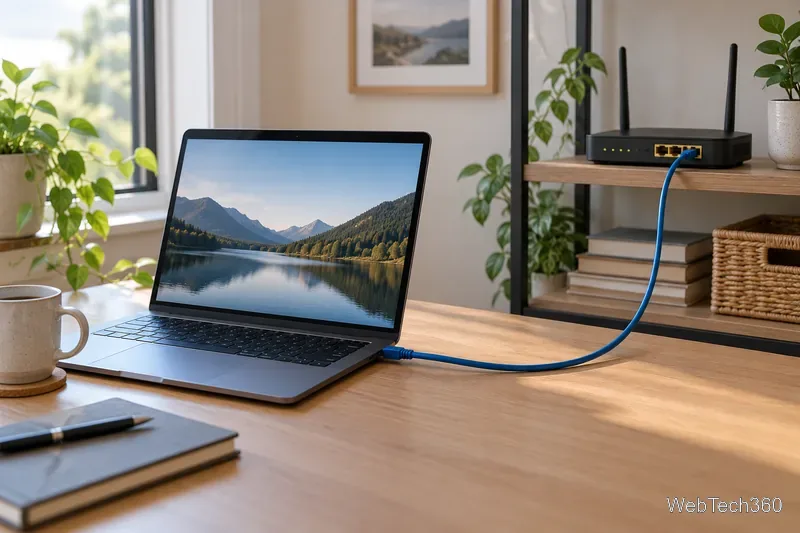
The laptop connects to a LAN port on the router using Ethernet.
Power over Ethernet
Power over Ethernet (PoE) lets compatible equipment send data and electrical power over one cable. It is commonly used for wireless access points, security cameras, and VoIP phones. Both the power source and the device must support PoE; a regular Ethernet port does not supply power just because the cable fits. The IEEE 802.3 standards include PoE specifications.
Quick connection checks
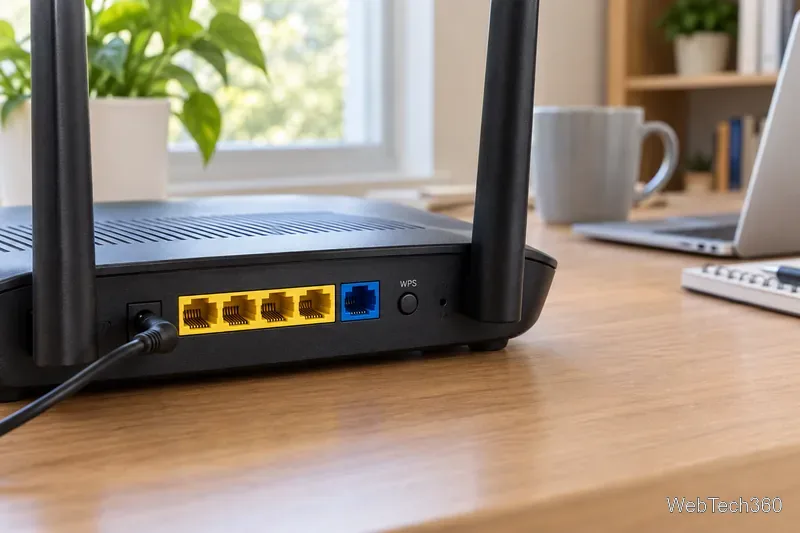
Connect a computer or console to a router or switch LAN port. With separate modem and router units, connect the modem to the router’s WAN or Internet port.
Push in each plug until its tab clicks. Avoid crushing the cable or bending it sharply.
If there is no link, reseat both ends, try another LAN port or cable, and check that the device’s Ethernet adapter is enabled. Link lights help when present, but not every device has them.
A standard copper Ethernet channel is generally limited to 100 meters (328 feet). For a longer run, use a suitable switch, extender, or fiber link. See Cisco’s Ethernet distance guidance.
Common questions
Can I connect a device directly to a modem?
Sometimes, depending on the modem and provider setup. A router is normally used to share a connection across devices; a gateway combines the two functions.
Will a more expensive cable make my internet faster?
Only if the old cable was limiting the connection. A new cable cannot raise the speed of a slower port or internet plan. Match its category to the equipment and run length, and replace damaged cables.