Home
» HARDWARE
»
How to Get Better FPS and Reduce Lag in PC Games
How to Get Better FPS and Reduce Lag in PC Games
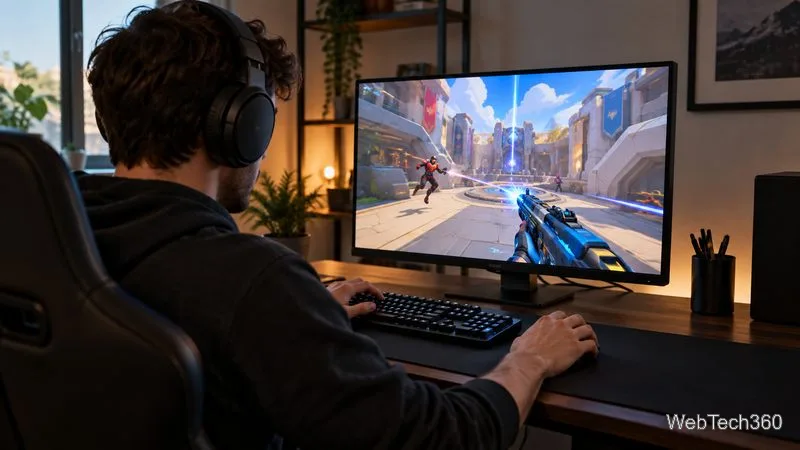
Low FPS and online lag can feel alike, but they have different causes. Check whether the picture stutters or other players and actions respond late. Then change one setting at a time and compare the same scene or match.
1. Identify the kind of lag
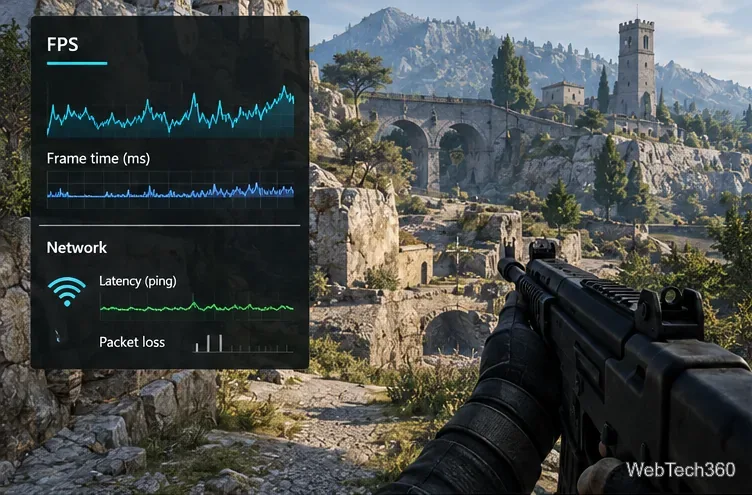
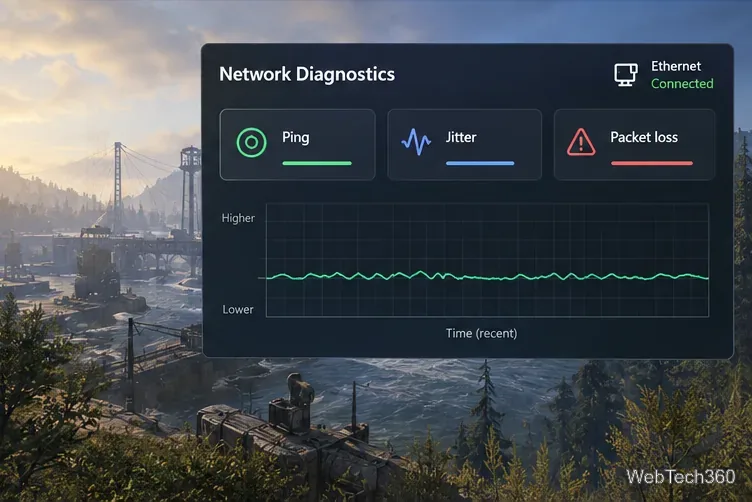
Low FPS or uneven frame times point to the PC or game settings: movement may freeze briefly or look jumpy, even offline. A high average FPS can still feel choppy if frames arrive irregularly. Network lag often means players teleport or actions arrive late while the image remains smooth. Check ping, jitter, and packet loss in the game; a stable connection matters as well as a low ping, and no single cutoff feels the same across every game or server.
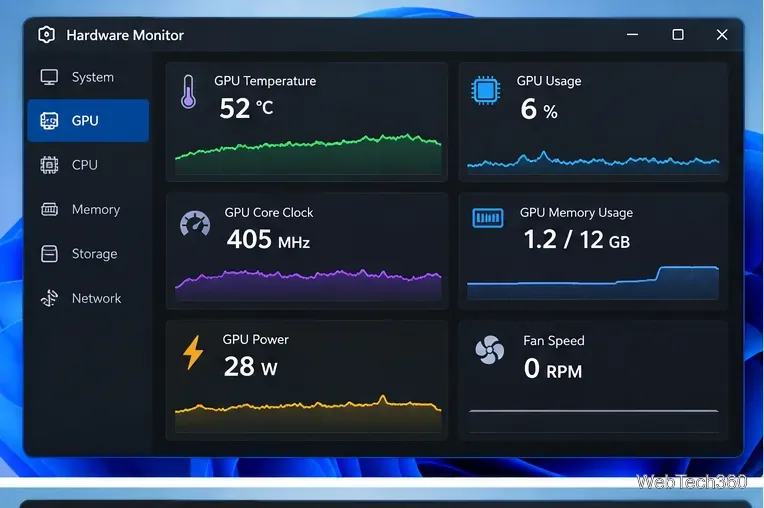
An example overlay separates frame delivery from network indicators, helping match a symptom to the right fix.
Use the game’s performance display or a trusted overlay to record a baseline, especially when a hitch occurs. Steam’s In-Game Overlay Performance Monitor shows performance information while you play.
2. Tune graphics settings gradually
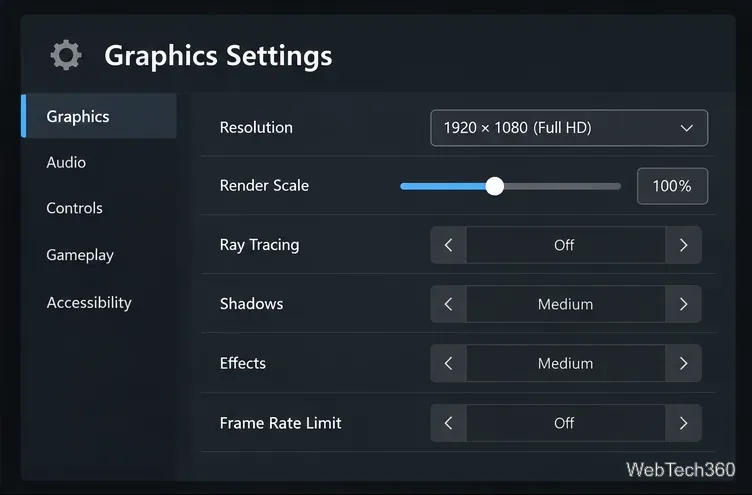
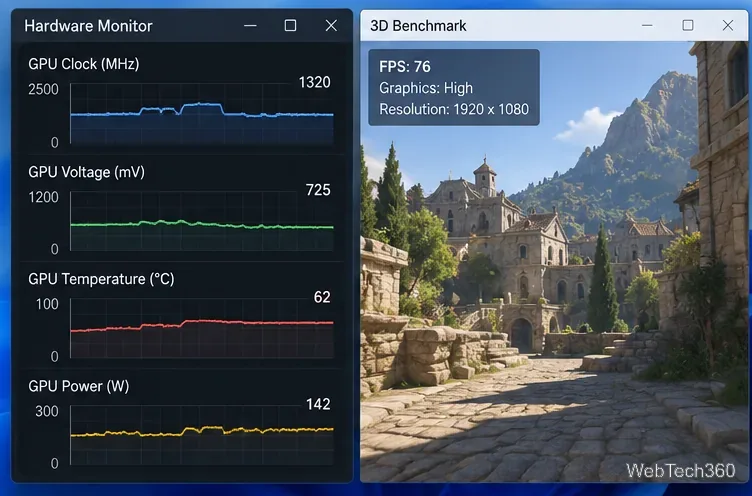
Compare the same level, replay, or built-in benchmark after each change. Start with options that commonly require more rendering work: ray tracing, shadows, reflections, volumetric effects, and render scale. Turn ray tracing off or lower it first if FPS is the priority, then try medium shadows or effects. Costs vary by game, so treat this as a test order rather than a universal preset.
Menus vary by game; adjust one demanding option at a time and compare the same scene.
Keep the display at its native resolution if it runs smoothly. If not, lower the game’s render scale before changing desktop resolution when possible. Reduce texture quality mainly when the graphics card is short on video memory. View distance can affect CPU load and what you see in competitive games, so consider that gameplay tradeoff before lowering it.
A frame-rate cap can smooth out large swings between peak and low FPS. V-Sync can reduce tearing but may add input delay; variable-refresh-rate displays change the tradeoffs. Test these options on your monitor instead of assuming one setting is best for everyone.
3. Check Windows, drivers, and background load
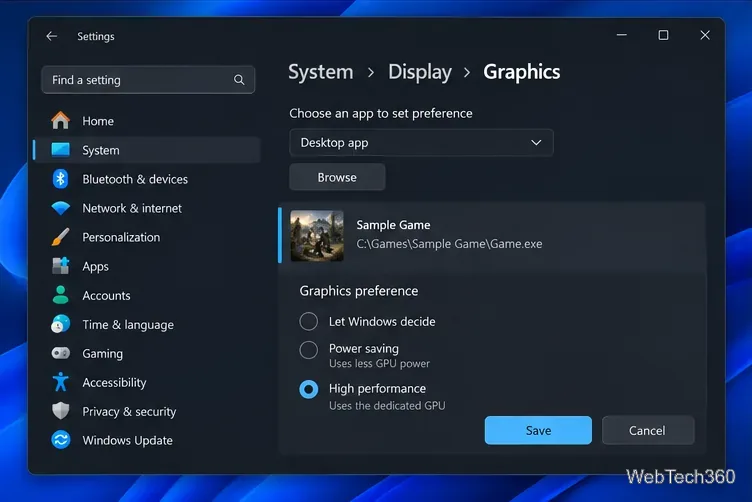
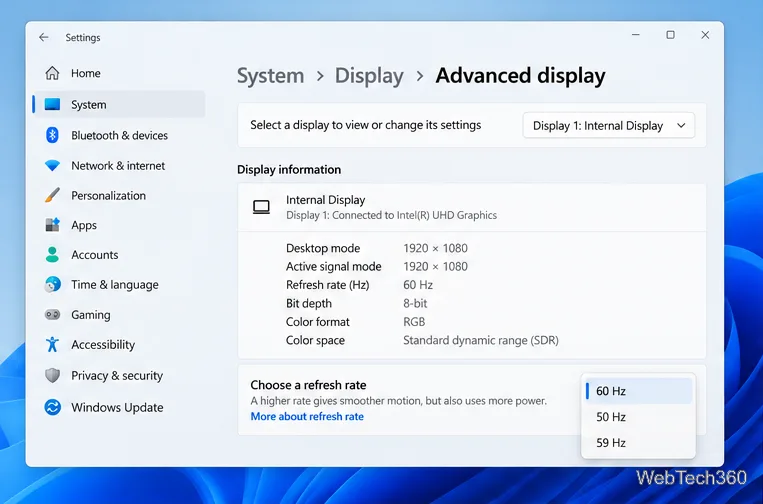
On a laptop, connect its power adapter. If the PC has integrated and dedicated graphics, open Settings > System > Display > Graphics, select the game, choose Options, then set High performance if you want it to use the performance GPU. Choices depend on hardware; restart the game after changing the preference. See Microsoft’s Windows Graphics settings guide.
On PCs with multiple GPUs, Windows can assign a game to the high-performance graphics processor.
Install graphics drivers from your PC maker or GPU manufacturer, and check the game’s update notes if the issue began after a patch. Use the official pages for NVIDIA, AMD, or Intel; avoid third-party driver-updater utilities.
Try enabling Windows Game Mode under Settings > Gaming, then compare results because its effect varies by PC. Close unneeded downloads, capture software, browser tabs, and other heavy apps. When plugged in, Windows Power mode can be set to Best performance, which trades battery life for performance. If FPS falls as the PC heats up, check airflow and temperatures.
4. Reduce network lag separately
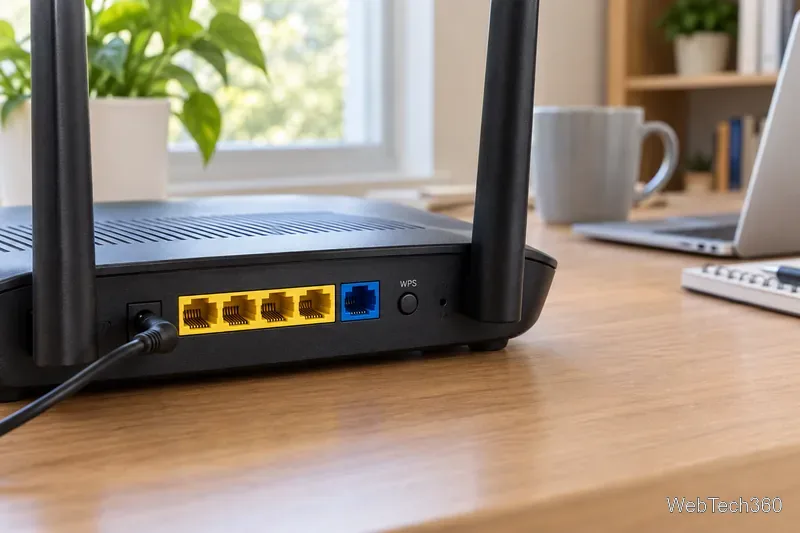
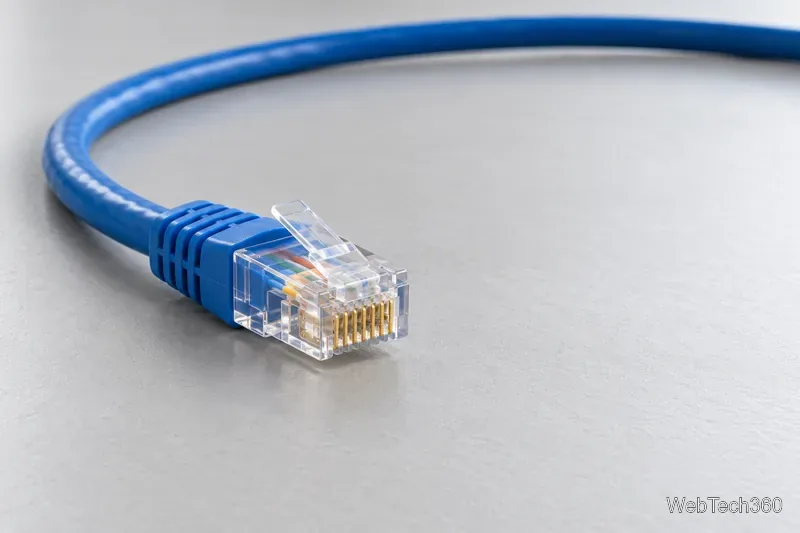
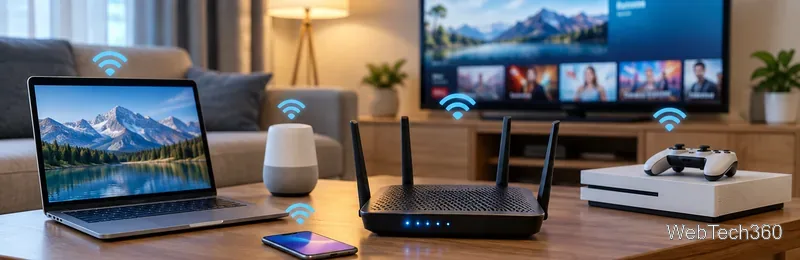
Use Ethernet when practical. It avoids many Wi-Fi signal and interference problems, though it cannot fix a distant or overloaded game server. If using Wi-Fi, move closer to the router, choose a less congested supported band, and pause large downloads or uploads on devices sharing the connection while testing.
Watch ping, jitter, and packet loss during the same match where the delay occurs.
Select a nearby server region when the game offers one. If ping spikes or packet loss appear, restart the modem and router, then compare another game or server. Router Quality of Service (QoS) may help when several people are saturating a connection, but options differ by model and QoS cannot add bandwidth. Change it only if supported, and keep it only if testing shows an improvement.
Quick symptom check
Offline play stutters: focus on FPS, frame-time spikes, graphics settings, heat, and background load.
Online play looks smooth but actions arrive late: check server region, ping variation, packet loss, Wi-Fi, and downloads.
Both happen together: test graphics and network separately; one problem can mask the other.
Keep changes that improve consistency, not just peak FPS. If nothing helps, compare the game’s recommended requirements with your CPU, GPU, memory, and available video memory; some limits need a game-specific fix or hardware upgrade.