Home
» HARDWARE
»
How to Recover Data From a Scratched CD or DVD
How to Recover Data From a Scratched CD or DVD
If a scratched CD or DVD will not open, clean it carefully, try another compatible drive, and copy readable data to a computer. Recovery software can save readable areas, but cannot recreate data the drive cannot read. Keep the original untouched whenever possible.
The steps below focus on data CDs and DVDs. Audio CDs use a different format and need audio-ripping software with error correction; the Linux imaging command later in this guide does not recover standard CD audio.
Before you begin: check the disc and drive
Confirm that the drive supports the disc type; older drives can struggle with some recordable or multi-layer discs. If a valuable disc is cracked, warped, separating, or losing its reflective coating, stop and consider a recovery specialist.
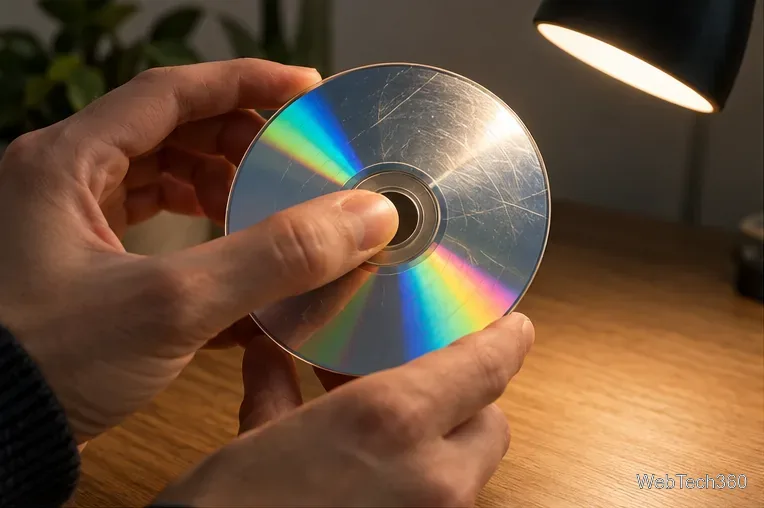
Hold it by the edge and center hole, then check for dust, fingerprints, and scratches. On some recordable CDs, the data layer is close to the label side, so damage there can be serious. A disc that fails in one reader may work in another because drives differ in compatibility and error correction.
Hold the disc by its center hole and outer edge while checking for scratches or layer damage.
How to recover data from a scratched CD or DVD
1. Clean the readable side gently
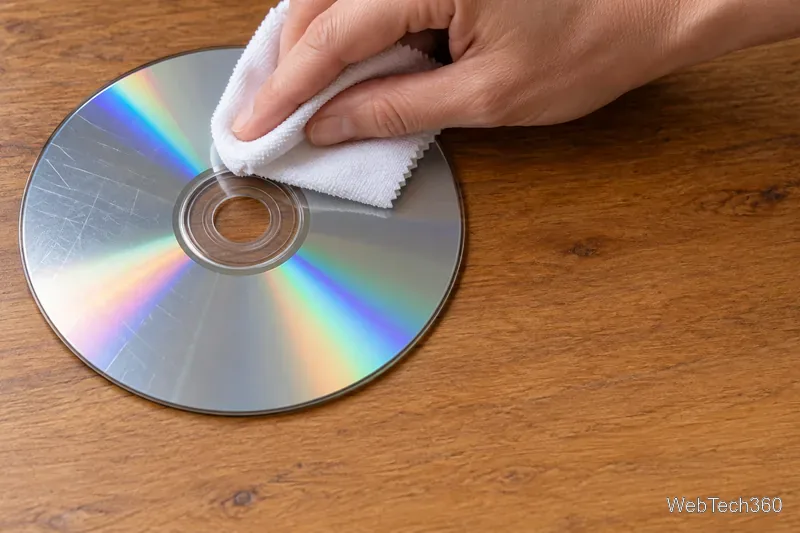
Remove dust with a soft, non-abrasive cloth or hand air blower. For fingerprints, use a damp cloth with a little mild dish soap, rinse, and blot dry. Wipe from the center straight toward the rim, never in circles: circular marks can cross data tracks. Avoid paper towels, scraping, toothpaste, polish, and household solvents; improper cleaning can add damage.
Use a soft cloth and gentle radial strokes from the center toward the rim.
2. Try a different compatible drive and copy easy files first
After it dries, try the original drive, then another compatible CD/DVD drive if errors continue. If the disc opens, copy important files to your computer first. Avoid repeated attempts on the same damaged file; they can take time without recovering more data.
For audio CDs, use a well-maintained ripper with error correction enabled and a slower read speed. The Library of Congress recommends ripping faulty optical discs to a computer, using the lowest practical speed, and increasing error tolerance when the software allows it.
3. For a data disc, make a recovery image with GNU ddrescue
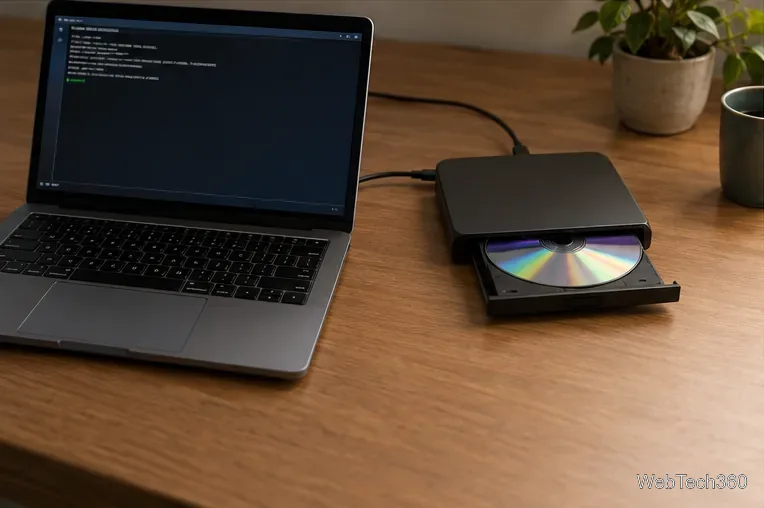
On Linux, GNU ddrescue can copy a data CD/DVD to an image and map unread areas. Install it from your distribution’s official repository. Confirm the optical device name before running commands; it may be /dev/sr0 or /dev/cdrom, but names vary.
Save the image and mapfile on a drive with enough free space, never on the optical disc. Verify the device name before using this example:
The first pass prioritizes readable areas; the second retries difficult spots once with direct access. If -d is unsupported, omit it. Reuse the same image and mapfile to resume. Never set a raw device as the output: ddrescue can overwrite it.
A Linux computer and external optical drive can create an image of a hard-to-read data disc.
4. Open the image, recover files, and verify them
When ddrescue finishes, open or mount the ISO read-only and copy available files to another folder. If it will not open, use a reputable recovery utility on the image, not the original disc. The GNU manual also explains how to combine readable areas from identical disc copies.
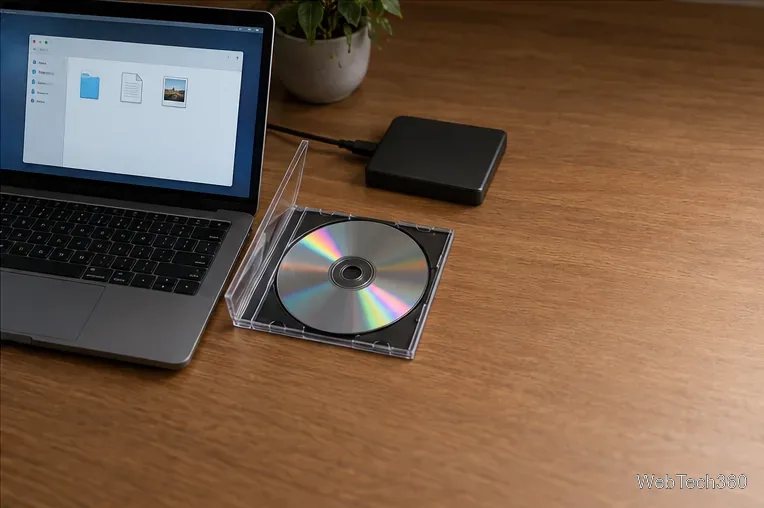
Open recovered documents, photos, archives, and videos to check them. A file can be incomplete even if it appears in the folder: a video may skip, an archive may fail its integrity check, or a document may be truncated. Keep partial files labeled as such, and make another copy on a different device.
After recovery, copy available files to another drive and check that important files open.
When home recovery is not enough
For cracked, delaminating, label-side-damaged, or irreplaceable discs, stop before polishing or repeated repair attempts. A specialist may have other drives or equipment. No software guarantees full recovery; success depends on readable data and the condition of the recording layer.
For protection, verify copies of important discs and store the discs in cases in a cool, dry place.