How to Overclock a Monitor: A Safe, Step-by-Step Tutorial
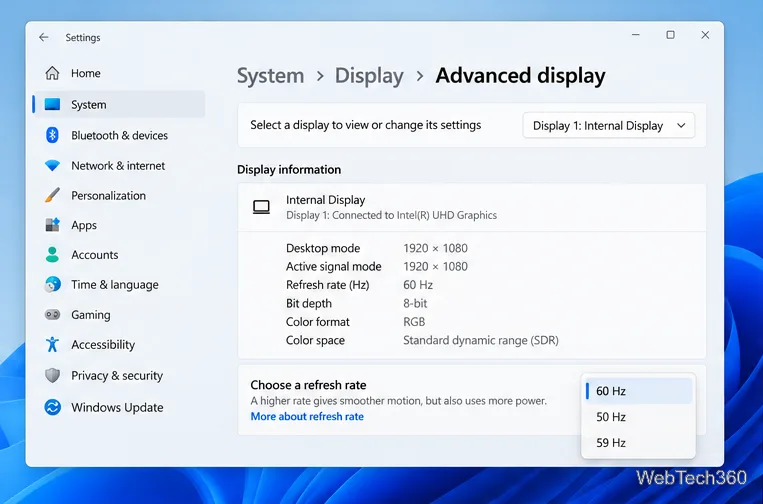
Learn how to test a higher monitor refresh rate with NVIDIA, AMD, or CRU, verify stability, and restore your original settings if the display goes blank.
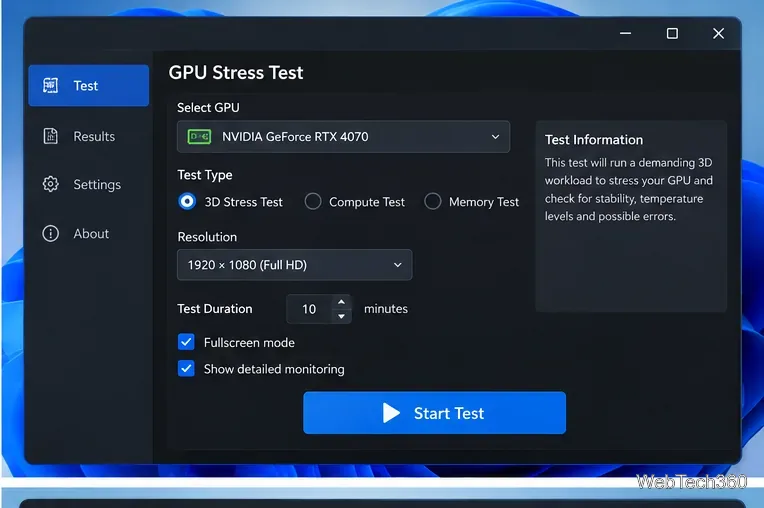
A GPU stress test deliberately keeps a graphics processor under a heavy, sustained workload so you can check cooling, power behavior, driver stability, and whether an overclock or undervolt is reliable. It is useful after changing GPU settings, installing a new card or cooler, or troubleshooting crashes under 3D load. A stress test is different from a benchmark: a benchmark mainly measures performance, while a stress test is meant to expose instability over time.
Save your work first. A deliberately heavy graphics workload can trigger a driver reset, application crash, black screen, or full system restart if the system is unstable. On a laptop, connect the AC adapter and use the manufacturer's normal performance mode rather than testing on battery.
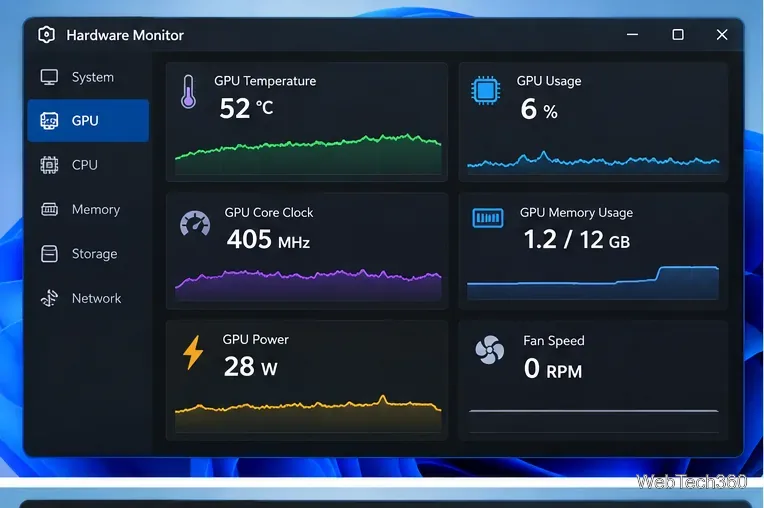
HWiNFO provides real-time hardware sensor monitoring on Windows, while MSI Afterburner can display GPU monitoring data and works with graphics cards from multiple brands.
| Tool | Best for | Why use it |
|---|---|---|
| OCCT | Error detection and tuning stability | Combines stability testing, monitoring, logging, and clear warnings or errors. |
| FurMark 2 | Heavy thermal and power load | An intentionally intensive OpenGL/Vulkan GPU workload that is useful for quickly exposing cooling or power problems. |
| UNIGINE Superposition | Game-like 3D load | Uses a detailed rendered scene and includes GPU temperature and clock monitoring for stability testing. |
| 3DMark stress tests | Repeatable graphics-workload validation | Loops a workload designed for a specific hardware class; choose a test that your GPU and VRAM meet the requirements for. |
OCCT Personal is a strong first choice because it combines GPU stress testing with sensor monitoring and error reporting. OCCT's current documentation shows status indicators for warnings, detected compute errors, crashes, and temperature limits, and it can save a report when a test ends. The Personal edition is free for personal, non-commercial use.
FurMark 2 is the current FurMark generation and supports intensive OpenGL and Vulkan graphics workloads. Because it is designed to load the GPU aggressively, keep it supervised, start with a short run, and stop if temperatures or behavior become abnormal.
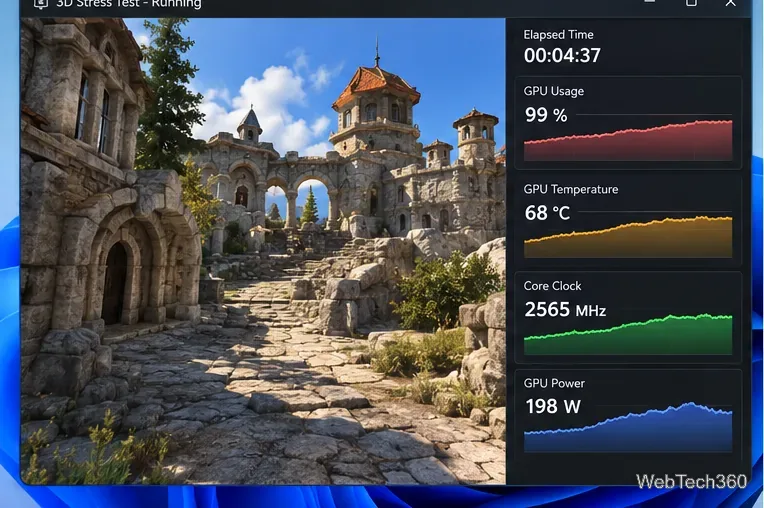
UNIGINE Superposition is useful when you want a visually complex 3D workload rather than a pure “power virus” style load. UNIGINE describes it as a hardware stability test and provides GPU temperature and clock monitoring. For another repeatable option, 3DMark stress tests loop workloads matched to different classes of hardware. UL notes that a stress test can fail simply because the system lacks enough video memory for that test, so check the test requirements before treating a failure as hardware instability.
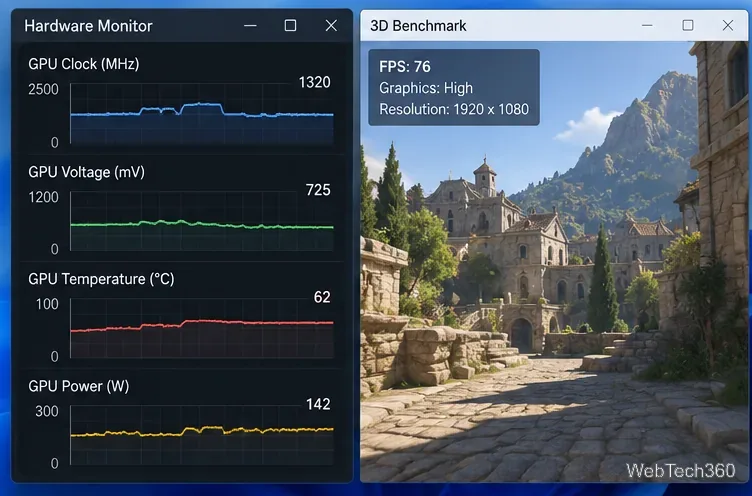
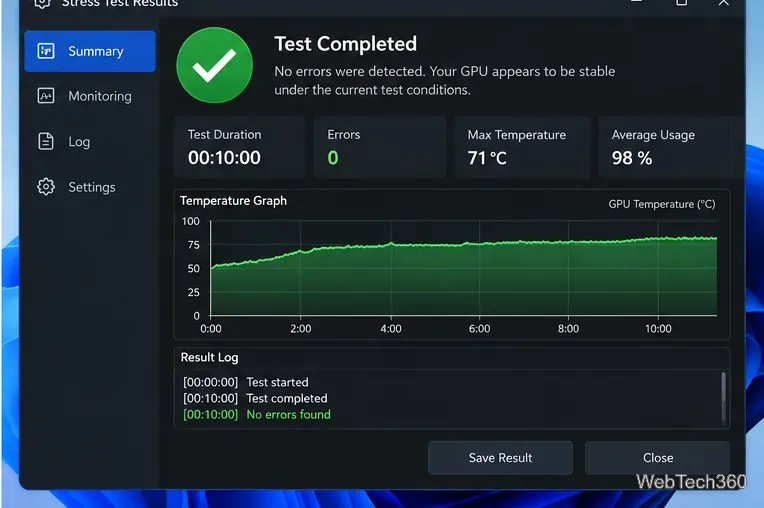
A clean result means more than “the PC did not crash.” Look for no test-reported errors, no visual artifacts, no driver resets, stable clocks once temperatures level off, and temperatures that remain within the specifications for your exact GPU. If the card is overclocked or undervolted, repeat the test after each meaningful adjustment instead of changing several settings at once.
Finally, confirm stability in the games, renderers, AI workloads, or other applications you actually use. Synthetic tests are excellent at finding obvious instability, but different workloads stress different parts of the GPU, memory, driver, and power system. Passing one stress test is useful evidence, not a guarantee that every workload will be stable.
Learn how to test a higher monitor refresh rate with NVIDIA, AMD, or CRU, verify stability, and restore your original settings if the display goes blank.
Learn how to GPU stress test safely, what to monitor, how long to run a test, and which current tools are best for checking graphics card stability.
Compare the best CPU and RAM stress-test tools, including OCCT, Prime95, MemTest86, Intel PDT, and HWiNFO, plus practical safety tips.
Learn how to underclock or undervolt a GPU with MSI Afterburner, plus Radeon Adrenalin options, stability checks, and safe rollback steps.
Choose a VPN for a Linksys router by checking firmware support first. Compare NordVPN, Surfshark, Proton VPN, and CyberGhost for a smoother setup.
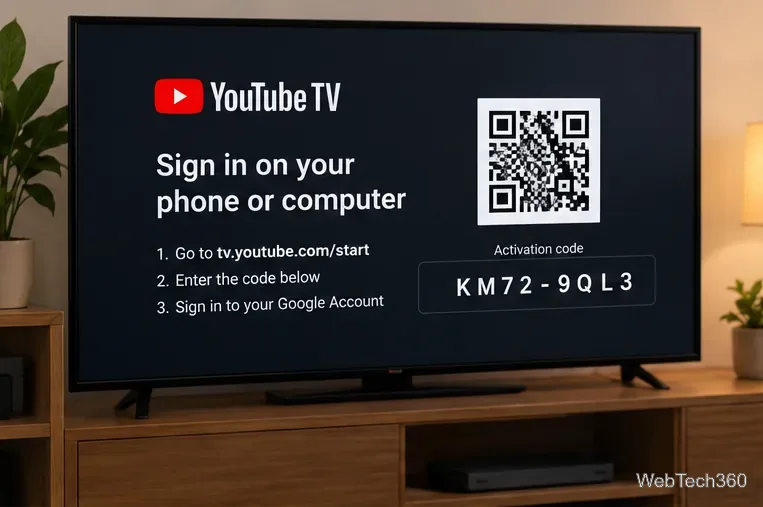
Use the tv.youtube.com/start code to activate YouTube TV on a smart TV or console, and learn how it differs from regular YouTube TV-code pairing.
Set up ExpressVPN on a router with current Fortify steps, legacy router guidance, and manual OpenVPN instructions, plus key security caveats.
Compare 1440p QHD and 4K UHD monitors by sharpness, scaling, gaming performance, and work use to choose the resolution that fits your setup.