How to Overclock a Monitor: A Safe, Step-by-Step Tutorial
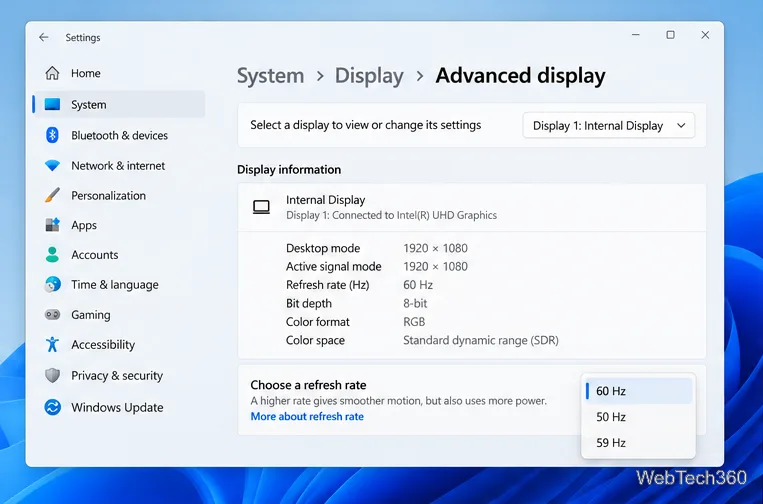
Learn how to test a higher monitor refresh rate with NVIDIA, AMD, or CRU, verify stability, and restore your original settings if the display goes blank.
Underclocking lowers a GPU's operating frequency, while undervolting reduces the voltage used at a given frequency. Both can cut heat, power use, and fan noise, but they are not the same adjustment. Underclocking usually trades some performance for lower power; a good undervolt can preserve most or all of the original performance while improving efficiency.
This guide assumes a Windows PC and uses MSI Afterburner for the main steps. MSI says Afterburner works with graphics cards from multiple brands, although available controls depend on the GPU, firmware, and driver. Download it only from the official MSI Afterburner page or the official Guru3D mirror listed by MSI.
| Adjustment | What it changes | Typical result |
|---|---|---|
| Underclock | Reduces GPU core frequency | Lower performance, heat, and power use |
| Undervolt | Uses less voltage for a chosen frequency | Lower power and heat with little or no performance loss when stable |
| Power limit | Caps how much board power the GPU may use | Can reduce clocks automatically under heavy load |
Do not treat a lower power limit as identical to undervolting. It is a separate control. Avoid copying exact voltage and clock values from another card; even identical models can have different stability limits.
See the official MSI Afterburner guide for the control layout.
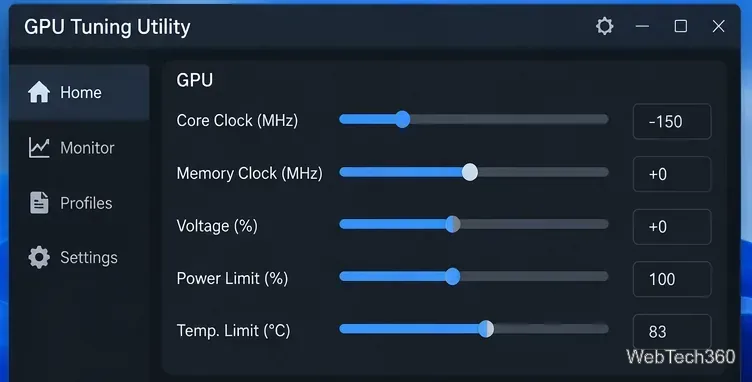
A lower core clock should not physically damage a healthy GPU. The main downside is lost performance, and an excessively aggressive setting can cause poor application behavior. The old idea that an underclocked GPU may be damaged because the power supply sends it "too much power" is not how modern GPU power regulation works.
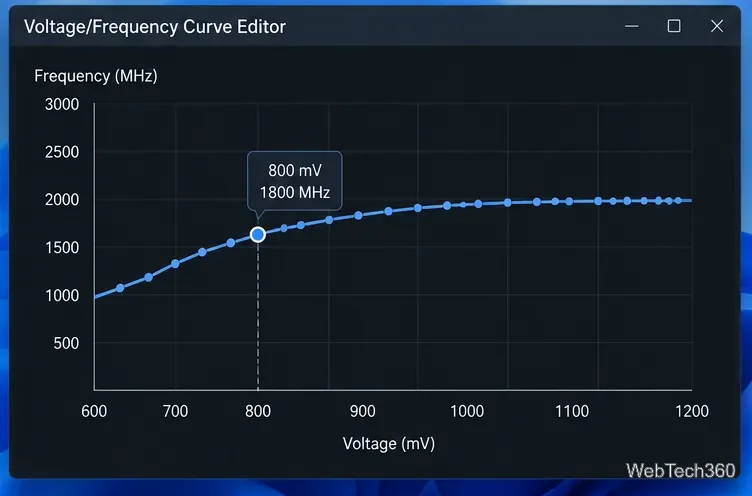
MSI documents undervolting through the voltage/frequency curve. On supported hardware, open Settings > General, enable voltage monitoring/control if those options are available, restart Afterburner if prompted, and press Ctrl+F to open the Curve Editor. Some GPUs expose limited or locked voltage controls; do not force unsupported settings.
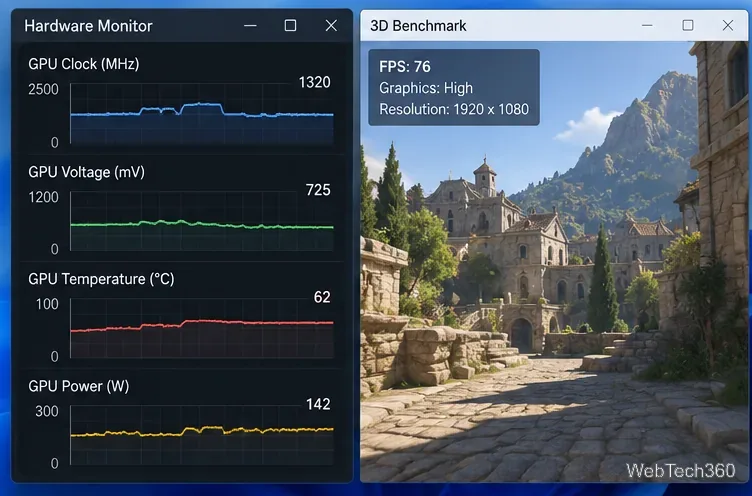
MSI's official undervolting walkthrough also recommends monitoring frequency, voltage, temperature, and performance while testing rather than relying on a single copied setting.
If you have a supported AMD Radeon GPU, you may not need a third-party utility. AMD Software: Adrenalin Edition includes Performance Tuning, and select GPUs offer an automatic Undervolt GPU option. Manual Tuning can expose frequency and voltage controls on supported Radeon models. Availability varies by GPU and requires the full Adrenalin installation. AMD documents the current options in its GPU Performance Tuning guide.
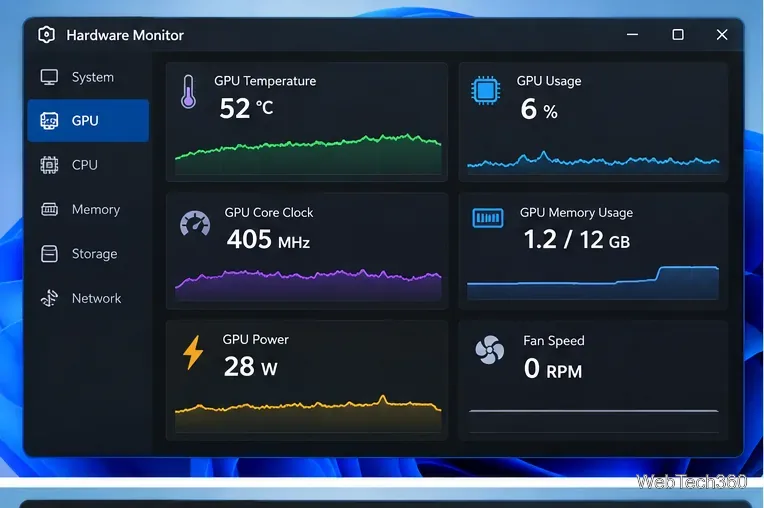
Do not judge a tune only by a short idle test. Run a repeatable benchmark, then play the games or use the GPU applications that matter to you. Watch for visual artifacts, sudden frame-time spikes, driver resets, black screens, freezes, or crashes. Compare temperature, power, and performance with your baseline.
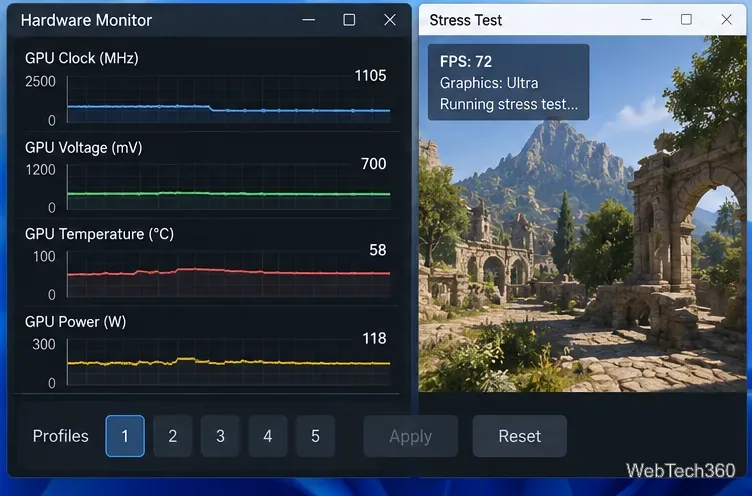
If the system becomes unstable, reset the tuning utility to default values and restart the workload. Once you have a stable profile, you can choose to load it at startup. For laptops and OEM desktops, firmware may restrict tuning, so manufacturer-provided performance modes can be the safer option.
Use an underclock when you deliberately want less performance in exchange for lower heat, power, or noise. Try an undervolt when you want better efficiency while keeping performance close to stock. In either case, make one change at a time, test under real load, and keep a known-good default profile ready.
Learn how to test a higher monitor refresh rate with NVIDIA, AMD, or CRU, verify stability, and restore your original settings if the display goes blank.
Learn how to GPU stress test safely, what to monitor, how long to run a test, and which current tools are best for checking graphics card stability.
Compare the best CPU and RAM stress-test tools, including OCCT, Prime95, MemTest86, Intel PDT, and HWiNFO, plus practical safety tips.
Learn how to underclock or undervolt a GPU with MSI Afterburner, plus Radeon Adrenalin options, stability checks, and safe rollback steps.
Choose a VPN for a Linksys router by checking firmware support first. Compare NordVPN, Surfshark, Proton VPN, and CyberGhost for a smoother setup.
Use the tv.youtube.com/start code to activate YouTube TV on a smart TV or console, and learn how it differs from regular YouTube TV-code pairing.
Set up ExpressVPN on a router with current Fortify steps, legacy router guidance, and manual OpenVPN instructions, plus key security caveats.
Compare 1440p QHD and 4K UHD monitors by sharpness, scaling, gaming performance, and work use to choose the resolution that fits your setup.