iMessage Is Signed Out on iPhone: How to Fix It

Fix the iMessage Is Signed Out error on iPhone by checking Apple Account sign-in, activation, connectivity, and settings—without erasing your messages.
To clear the cache on your iPhone, go to Settings > Apps > Safari > Clear History and Website Data for Safari, or use a browser’s own data-clearing menu. For other apps, look for a cache option inside the app, or review Settings > General > iPhone Storage. There is no single iPhone button that safely clears every app cache.
Cached files can help apps and websites load faster. Clearing them is useful when a page displays outdated content, an app misbehaves, or storage is tight—but it is not a guaranteed speed boost. Your first visit afterward may actually take longer because the data has to download again.
These steps follow Apple’s Safari data-clearing instructions. On recent iOS versions, Safari appears under Apps in Settings; on older versions, it may appear directly in Settings.

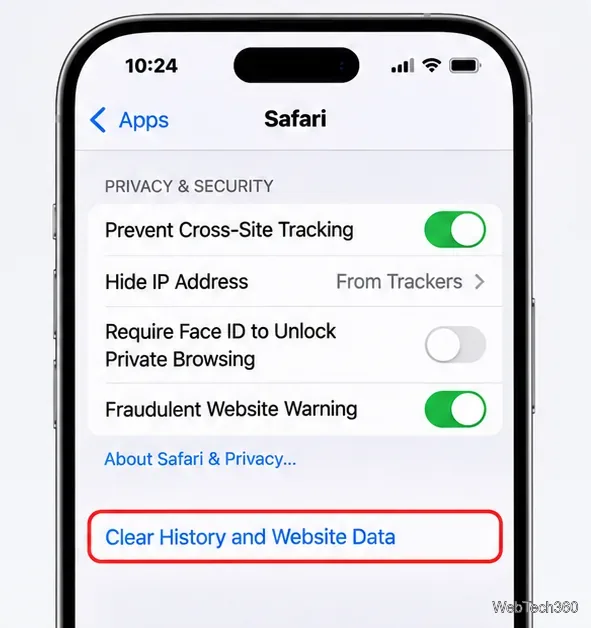
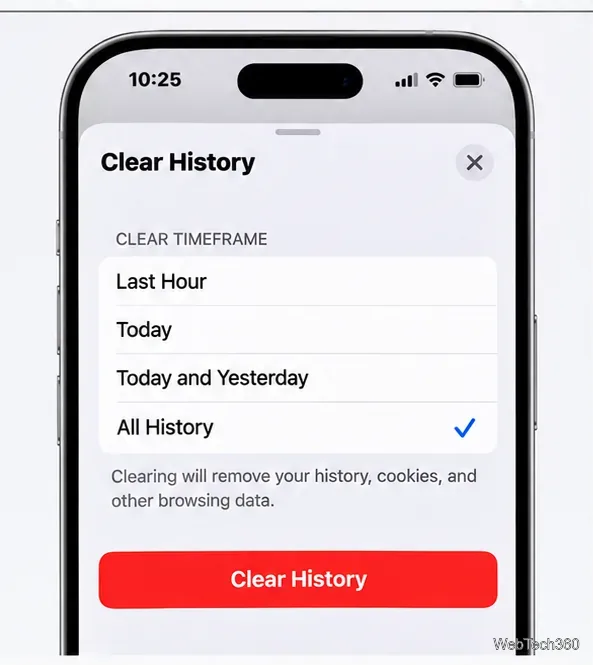
This removes the selected browsing history along with associated cookies and cache. It does not erase Safari AutoFill information. Because cookies can keep you signed in, you may need to log in to some websites again. If the clear button is gray, there may be nothing to remove, or Screen Time web-content restrictions may apply.
To keep your list of visited pages, open Settings > Apps > Safari > Advanced > Website Data. Tap Remove All Website Data, then Remove Now. Website cookies and other stored site data will be removed, so some sites may forget your preferences or sign-in state.
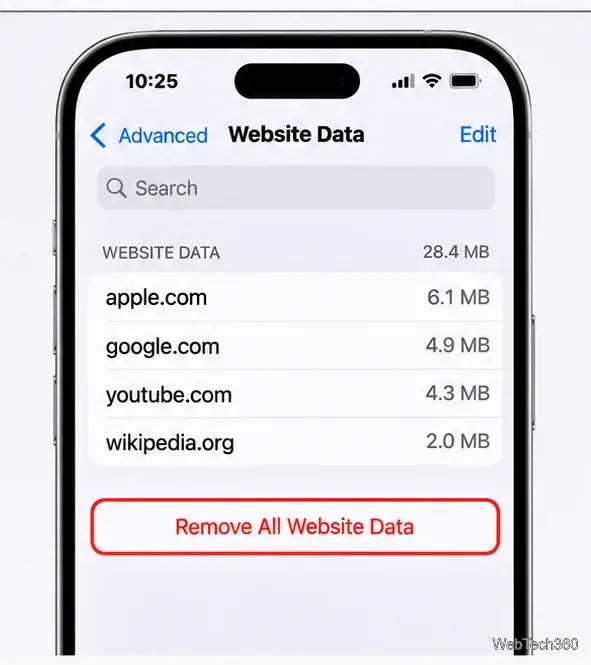
If one website is causing trouble, start with that site’s stored data where the available controls allow it, rather than clearing everything. Deleting Safari data will not erase separate browsing data stored inside Chrome or other browser apps.
Chrome has its own controls, described in Google’s iPhone and iPad Chrome guide.
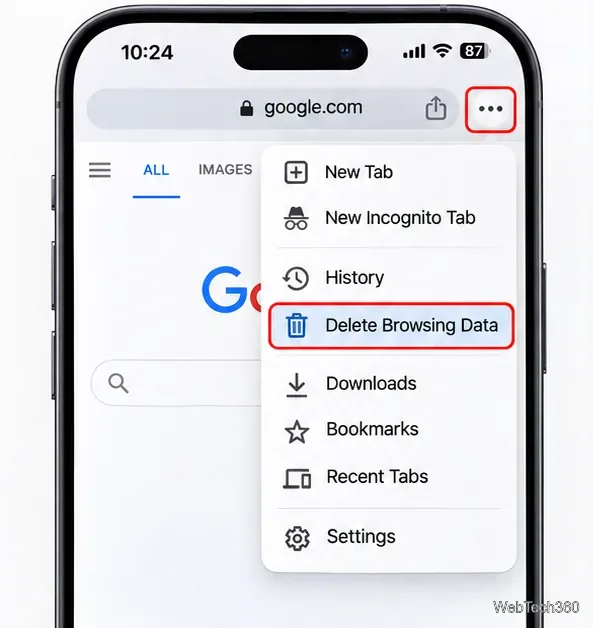
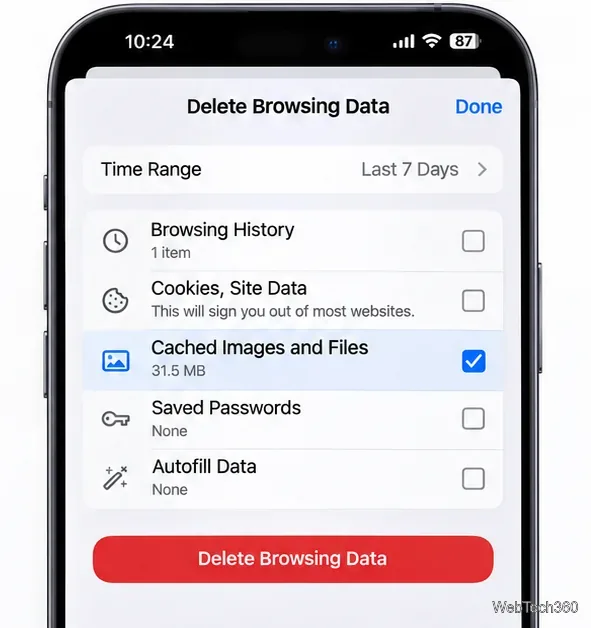
Deleting cached images and files is different from clearing passwords, bookmarks, or all account information. Review the selected categories carefully before confirming. Other browsers may use different menu labels; consult their own settings rather than assuming Safari settings control them.
iOS does not provide a universal cache-clearing control for third-party apps. First, open the problem app and look in its settings for an option such as Clear Cache, Storage, or Downloads. The precise option depends on the app, and many apps do not offer one.
If the app has no suitable control, use Settings > General > iPhone Storage. Wait for the storage list to load and select the app you want to review.
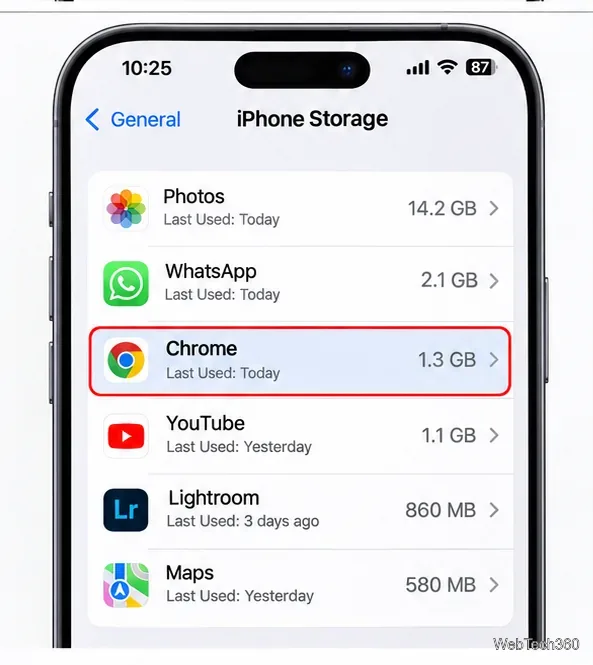
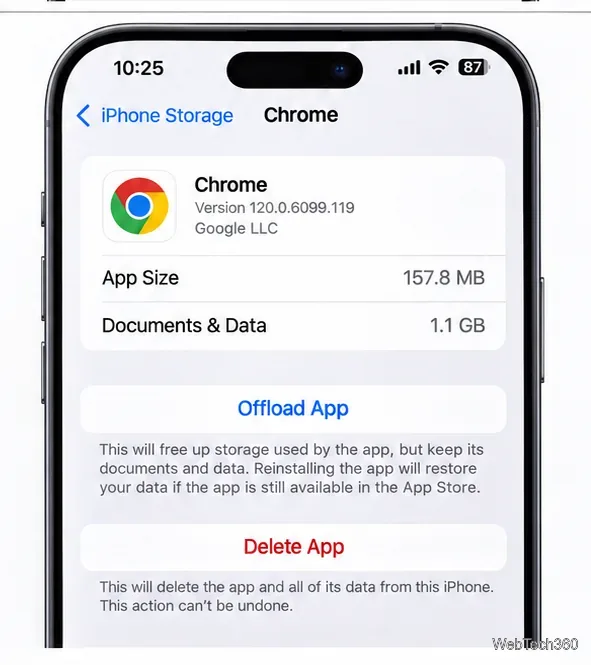
You can also enable Settings > Apps > App Store > Offload Unused Apps to let iOS remove rarely used app binaries while retaining their data when storage is low. See Apple’s iPhone storage guide for this option and its limitations.
Sometimes. Removing damaged or stale website data can fix loading problems, and recovering storage can help when the device is nearly full. But caches usually exist to improve speed. Apple recommends keeping at least 1 GB of free storage to help avoid slowdowns, and checking your connection, battery and Low Power Mode when performance is poor. See Apple’s slow-iPhone troubleshooting advice.
There is no need to clear everything every week or every month. Do it when you notice a specific problem or need to reclaim space. If an app freezes, update it, restart your phone, or contact the developer before deleting data you may not be able to recover.
A cache stores reusable resources such as images and page files. Cookies store small pieces of site-specific information, including preferences and session identifiers. Removing cookies may sign you out, while removing cached files mainly forces content to load again.
No. iOS manages many temporary files automatically, and the available controls vary by app. Be cautious with third-party “cleaner” apps promising to clear every app’s private cache or dramatically speed up the phone.
Fix the iMessage Is Signed Out error on iPhone by checking Apple Account sign-in, activation, connectivity, and settings—without erasing your messages.
Turn off your iPhone VPN in the app or Settings, confirm it disconnected, and stop automatic reconnections without deleting your account.
Learn how to encrypt your iPhone with a strong passcode, protect iCloud and computer backups, and secure your data if your phone is lost or stolen.
Learn how to clear Safari and Chrome cache on iPhone, manage app storage safely, and understand when clearing cached data actually helps.
Learn how to fight Gym Battles in Pokémon GO, pick effective attackers, use Charged Attacks and dodges, and claim a Gym after defeating its defenders.
Explore classic Cydia tweaks for jailbroken iPads, from SwipeSelection to Quasar, with compatibility warnings and modern alternatives.
Stop Apple Music signup prompts in the Music app. Learn where to find Show Apple Music on iOS and what turning it off does—and does not—change.
Set up a Shortcuts automation to text Mom when your iPhone battery gets low. Follow four steps, plus delivery checks and privacy tips.
Save posts on X in a few taps. Learn where to find the Bookmark button on iPhone, Android, and desktop, plus how to view, remove, and organize saved tweets.
Turn on AR mode in Pokémon GO during a wild encounter, find AR settings, and fix camera or device compatibility issues.







